
Frame Minion: AI Video Generator
Frame Minion brings AI image and video generation into VS Code. Generate reference frames, turn them into clips, or hand a song to the Music Video Orchestrator and build a multi-segment music video without leaving your workspace.
Use models from OpenRouter's image and video catalog - Veo, Sora, Kling, Wan, Seedance, Hailuo, Gemini, GPT Image, FLUX, and more - with optional fal.ai support for specialist video workflows and storage.
Your prompts, projects, outputs, and provider keys stay local. Frame Minion is a tool that runs inside VS Code, not a hosted Frame Minion service.
Visit frameminion.video | Setup guide | Privacy guide | Video Prompting Field Guide
What's New in 0.3.3
- New video models - MiniMax H3 brings 2K, audio-enabled generation with start/end-frame control; Runway Gen-4.5 adds a cinematic start-frame animation option.
- Budget audio planning - GPT Audio Mini is now available for song-aware project planning when you want an audio-native model at a lower cost.
- Clearer planner costs - planning estimates use the selected model's audio-input rate and include a modest output allowance.
Highlights from 0.3.2
- New video models - Grok Imagine Video 1.5 (xAI, up to 1080p) and HappyHorse 1.0 join the Video tab, and Seedance 2.0 now offers 4K output.
- New image models - Krea 2 (Large / Medium / Medium Turbo), Microsoft MAI-Image 2.5 and 2.5 Pro, and OpenAI GPT Image 1.
- Honest image pricing - cost hints now show each model's real billing unit (per image, per megapixel, or per token) with an approximate per-image translation, and corrected prices across the catalog - including FLUX.2 rates that were far too high.
- Fresher cost estimates - Music Video Orchestrator segment-video estimates match fal.ai's current prices.
Highlights from 0.3.1
- Enhancer catalog refresh - the prompt enhancer now includes GPT-5.6 and Fable 5 with current pricing and capability metadata.
See the Changelog tab for everything in this release.
What You Can Make
Generate images in an iterative, chat-style workspace. Upload references, control aspect ratio, switch OpenRouter image models, and save or reuse any generated frame.
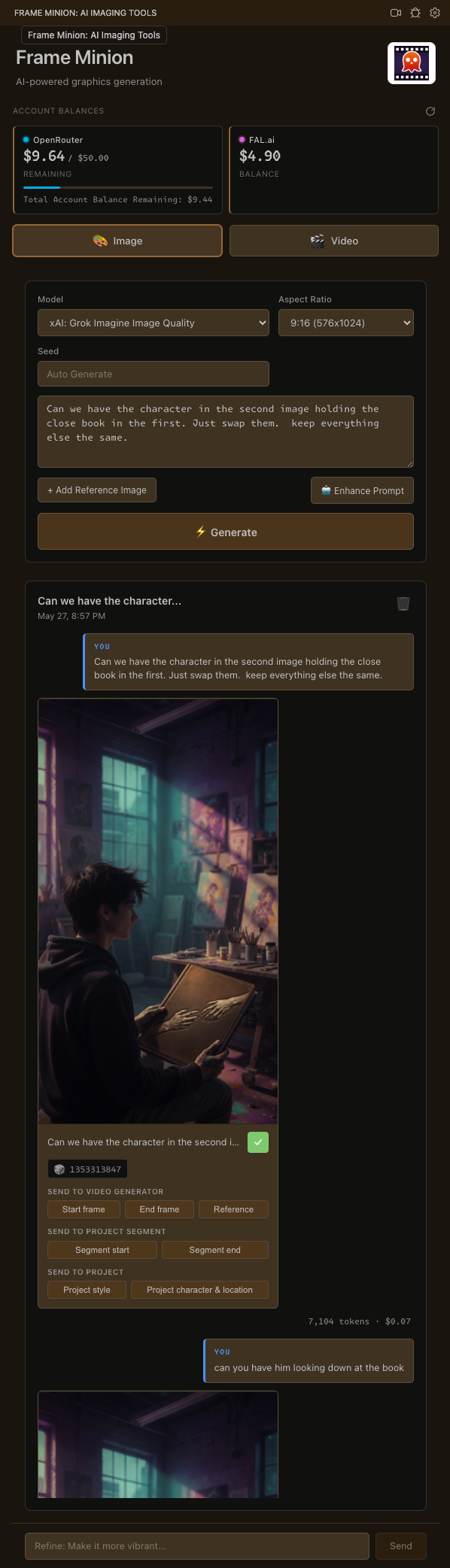
Use the image sidebar as a frame factory:
- Generate style, character, location, start-frame, and end-frame images.
- Push a generated image directly into the Video tab as a start frame, end frame, or reference.
- Send images to the Music Video Orchestrator as segment frames or project-level style / character / location references.
- Keep iterating while your past prompts and generated images remain visible.
Create single-shot AI video from a focused render form. Pick a model, write the action/camera prompt, attach optional reference media, and render.
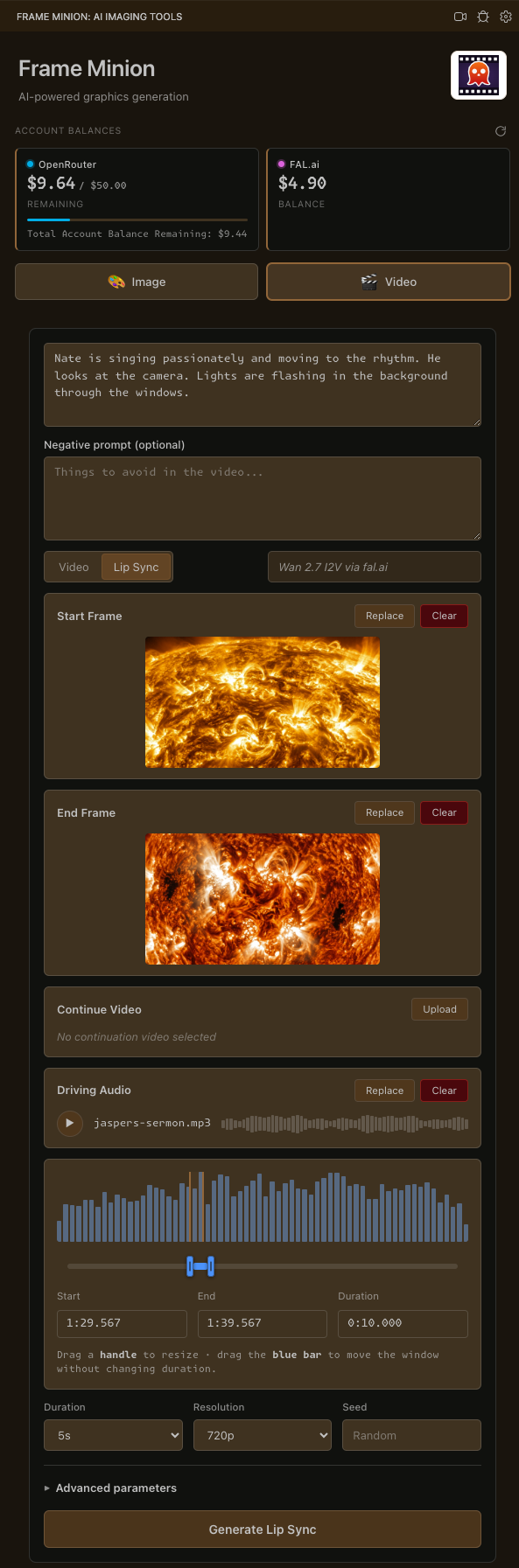
The video sidebar supports:
- Text-to-video and image-to-video workflows.
- Start frame, end frame, reference image, and audio inputs where supported by the selected model.
- Model-aware duration, resolution, and aspect-ratio controls.
- Saved original video files, webview previews, and quick reveal actions.
- Continuation workflows that reuse the saved original clip correctly.
Music Video Orchestrator
The Music Video Orchestrator turns a song and concept into a structured, multi-segment video project. It can plan the song, generate start/end frames for each segment, produce per-segment clips, preserve alternate takes, add transitions, and render the final cut with audio.
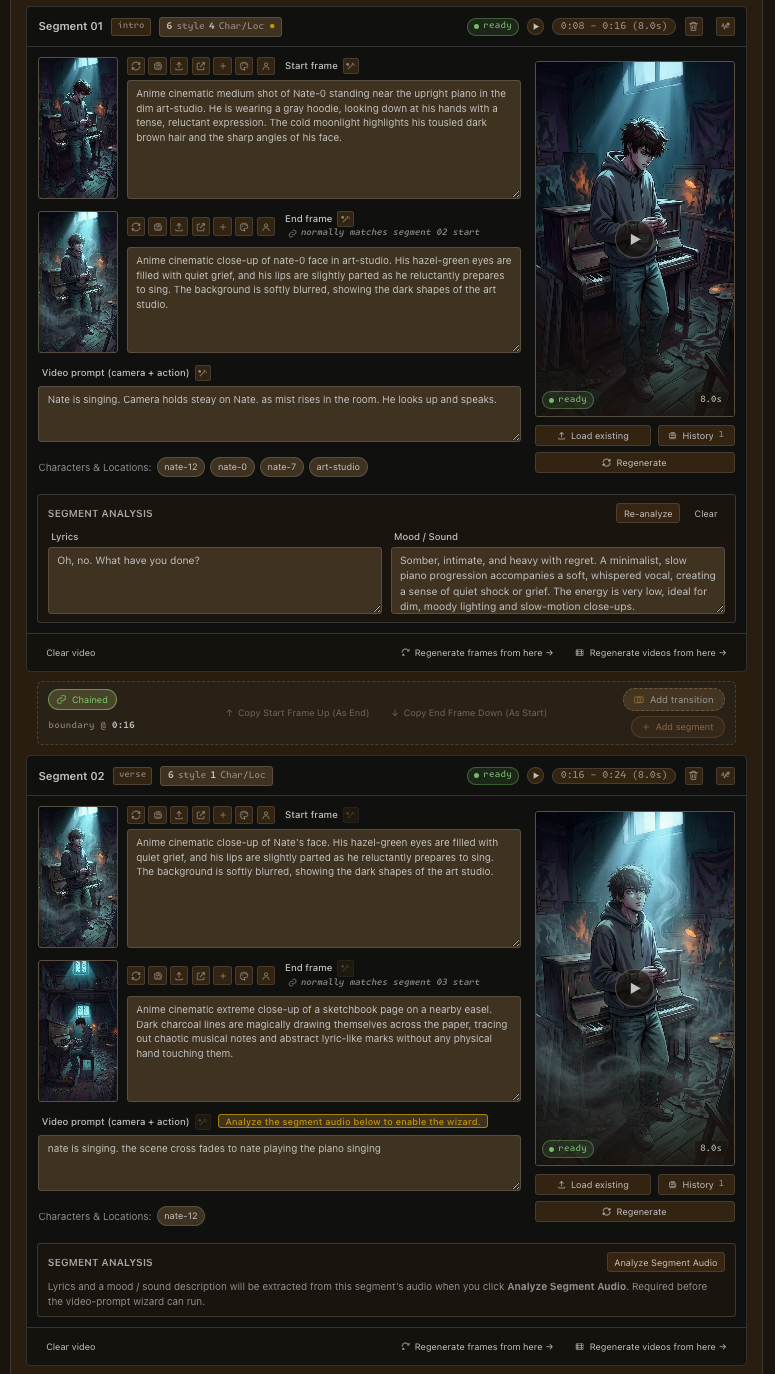
Use it for:
- Song-aware planning with sections, timecodes, mood, lyrics, and segment prompts.
- Project style references plus named character and location references.
- Per-segment start frames, end frames, video prompts, and generated clips.
- Version history for frames and videos, so alternate takes are not lost.
- Transition presets, timeline sync warnings, preview render, and final render.
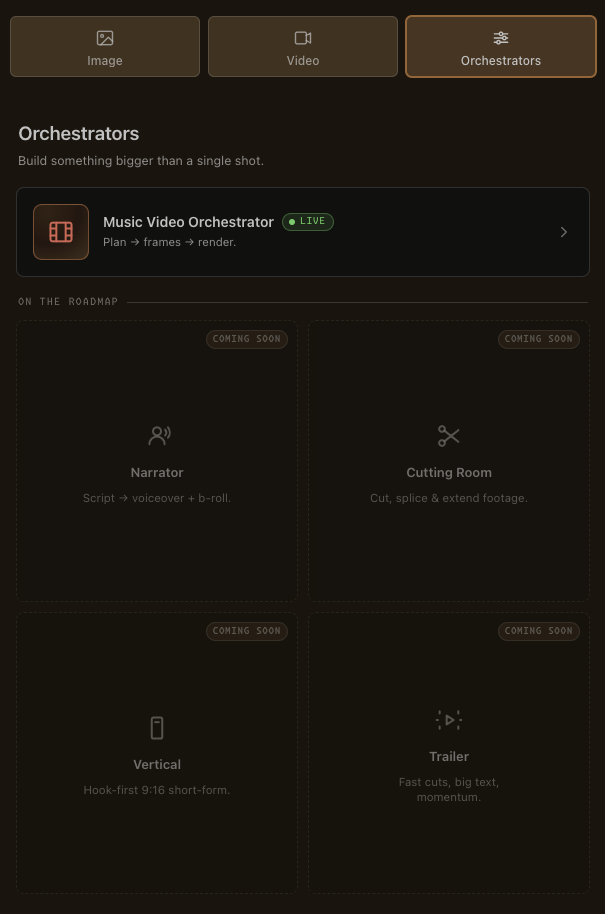
The Music Video Orchestrator is live today. More orchestrators are coming soon for other video workflows, including narrator, cutting-room, vertical, and trailer-style flows.
Guides
Frame Minion's public guides live at frameminion.video/guides.
Setup
- Install Frame Minion from the VS Code Marketplace.
- Open the Frame Minion view from the activity bar.
- Open Settings from the gear icon.
- Add your OpenRouter API key.
- Add a fal.ai key if you plan to generate video with start frames, end frames, reference images, or audio.
- Optional: install or let Frame Minion download ffmpeg when you render multi-clip projects.
Image generation and text/audio analysis only need an OpenRouter key. Video generation is different: video models need URLs for start frames, end frames, reference images, and audio instead of receiving those files inline with the prompt. Frame Minion uses fal.ai's free-with-account file hosting by default to create short-lived, obscured URLs the models can fetch during generation. Power users can use their own S3 bucket instead, but fal.ai is the intended zero-setup path.
Free To Build, Licensed To Final Render
Frame Minion is bring-your-own-key: you pay OpenRouter, fal.ai, or your storage provider directly for the model work they perform.
Most of Frame Minion is free to use:
- Image generation.
- Single-shot video generation.
- Music Video Orchestrator planning.
- Audio analysis and prompt helpers.
- Frame generation and per-segment video generation.
- Preview renders of a full orchestrated music video.
The paid Frame Minion license unlocks the Music Video Orchestrator's full-resolution Final render. You can buy or activate a license from Settings or from the locked Final button. Preview stays available without a license, so you can build and review the whole project before deciding to export the final file.
Provider And Model Support
Frame Minion is built around bring-your-own-provider accounts:
- OpenRouter powers planning, prompt enhancement, image generation, audio analysis, and most video generation requests.
- fal.ai provides the default short-lived hosting URLs that video models need to retrieve start/end frames, reference images, and audio. It also supports direct Wan-family workflows.
- S3 can replace fal storage if you want media uploaded to infrastructure you control and are comfortable creating credentials and a bucket yourself.
- ffmpeg handles local preview/final rendering for orchestrated projects.
Supported model families include:
- Video: Veo, Sora, Kling, Wan, Seedance, Hailuo, and other OpenRouter video models.
- Image: Gemini, GPT Image, FLUX, and other OpenRouter image models.
- Text / multimodal: the configured OpenRouter planning and enhancement model.
Privacy
Frame Minion runs inside VS Code. There is no Frame Minion account and no hosted Frame Minion generation service.
- API keys are stored in VS Code secret storage.
- Prompts and media are sent directly to the providers you configure.
- Project files and generated outputs are saved locally in your workspace or configured output directory.
- The extension does not need your repository to be public.
Read the full Privacy & Data guide for provider-specific details and tradeoffs.
Configuration
| Setting |
Default |
Description |
frameMinion.imageModel |
google/gemini-3.1-flash-image |
Image generation model ID |
frameMinion.videoModel |
google/veo-3.1-fast |
Video generation model ID |
frameMinion.openRouterModel |
openai/gpt-5.1 |
Text / multimodal model used for planning and prompt enhancement |
frameMinion.outputDirectory |
frame-minion |
Workspace-relative folder for saved generations and projects |
frameMinion.storageProvider |
fal |
Upload provider for reference media used by video models: fal or s3 |
frameMinion.maxConcurrentVideos |
1 |
Maximum per-segment video generations to run in parallel in the Music Video Orchestrator |
frameMinion.ffmpegPath |
empty |
Optional absolute path to a custom ffmpeg binary |
Learn More

Start with the Frame Minion website, then keep the guides close while setting up providers and shaping prompts.
Questions, bugs, or feature requests? Email support@frameminion.video.

