
Octoloom for Agent Fabric
Connect agents, MCP servers and LLMs into one Agent Fabric network.
Design it visually, start on A²D mocks, switch to real Agent Fabric services, then publish and deploy, all from VS Code.
Octoloom is a visual editor for Agent Fabric network projects (agent-network.yaml, brokers/*.agent, exchange.json). Each arm of the octopus stands for one asset: A2A agents from any framework, MCP servers and LLM providers. The loom is where you weave them into a network that a broker orchestrates.
You can still open the YAML; Octoloom keeps it valid while you work on a canvas.
Highlights
|
|
| Two network canvases |
Probabilistic (v1, LLM-routed brokers) and Deterministic (v2, AgentScript brokers). Octoloom detects the version from the file. |
| Broker flow editor |
Edit .agent broker flows as a graph: triggers, routers, orchestrators, subagents, generators, executors and replies. |
| Asset palette |
Browse Agent Fabric (Exchange) assets and A²D prototypes side by side. Drag them onto the canvas to add them. |
| Mocks → real services |
Start with A²D hosted mocks and replace them with published Agent Fabric assets later. Every card shows where it comes from. |
| Any agent framework |
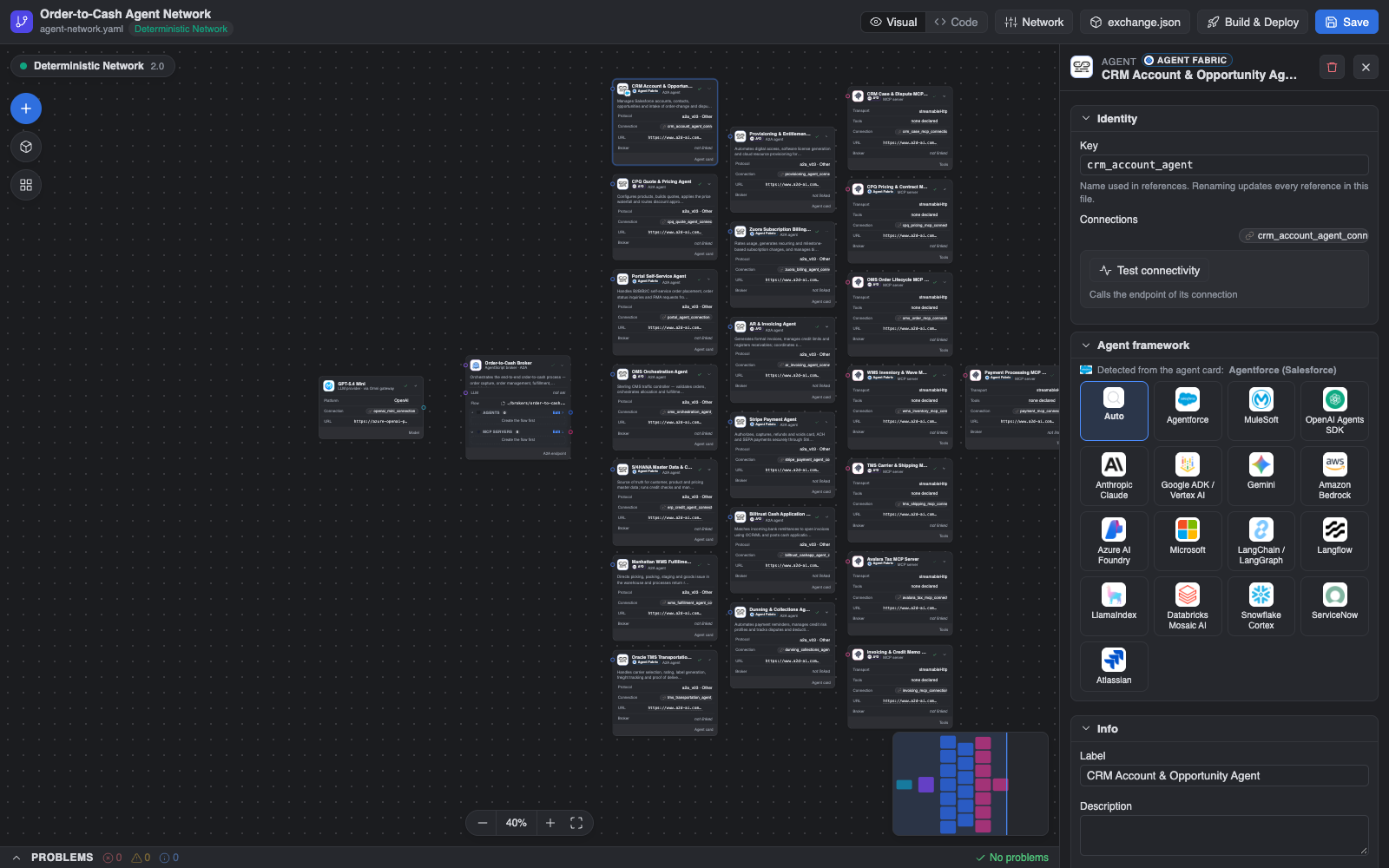
Shows the framework of each agent: Agentforce, MuleSoft, OpenAI, Anthropic, Google ADK / Vertex, Gemini, Bedrock, Azure AI Foundry, Microsoft, LangChain, Langflow, LlamaIndex, Databricks, Snowflake, ServiceNow, Atlassian. |
| Protocols |
A2A agents (v0.3 and current), MCP servers (streamable HTTP / SSE) and LLM providers. |
| LLM providers |
OpenAI, Gemini, Amazon Bedrock and Salesforce. The Omni gateway is recognised from the URL. You can change a broker's LLM provider and model on the canvas. |
| Policies |
Apply gateway policies to brokers and connections (v1 spec.policies, v2 inbound / outbound). Pick from the built-in Agent Fabric policies, your organization's policies in Exchange, or the P4A catalog. A P4A policy that is not yet in your org is deployed there first. Cards show the policies that are applied. |
| Connectivity test |
Test any broker, agent, MCP server, LLM or connection from the inspector: MCP initialize and tools/list, the A2A agent card, LLM /models. Uses the auth of the connection and the exchange.json defaults. |
| Inline editing |
Change values directly on a card, for example the allowed MCP tools, the URL, the LLM platform or the broker limits. Click a card to open the full inspector. |
| Build, publish, deploy |
Validate, publish to Exchange, deploy and undeploy through anypoint-cli-v4. Octoloom installs the CLI and its prerequisites if they are missing. |
| Light, dark or auto |
One switch sets the theme for every Octoloom view. |
Feature tour
Network canvas (agent-network.yaml)
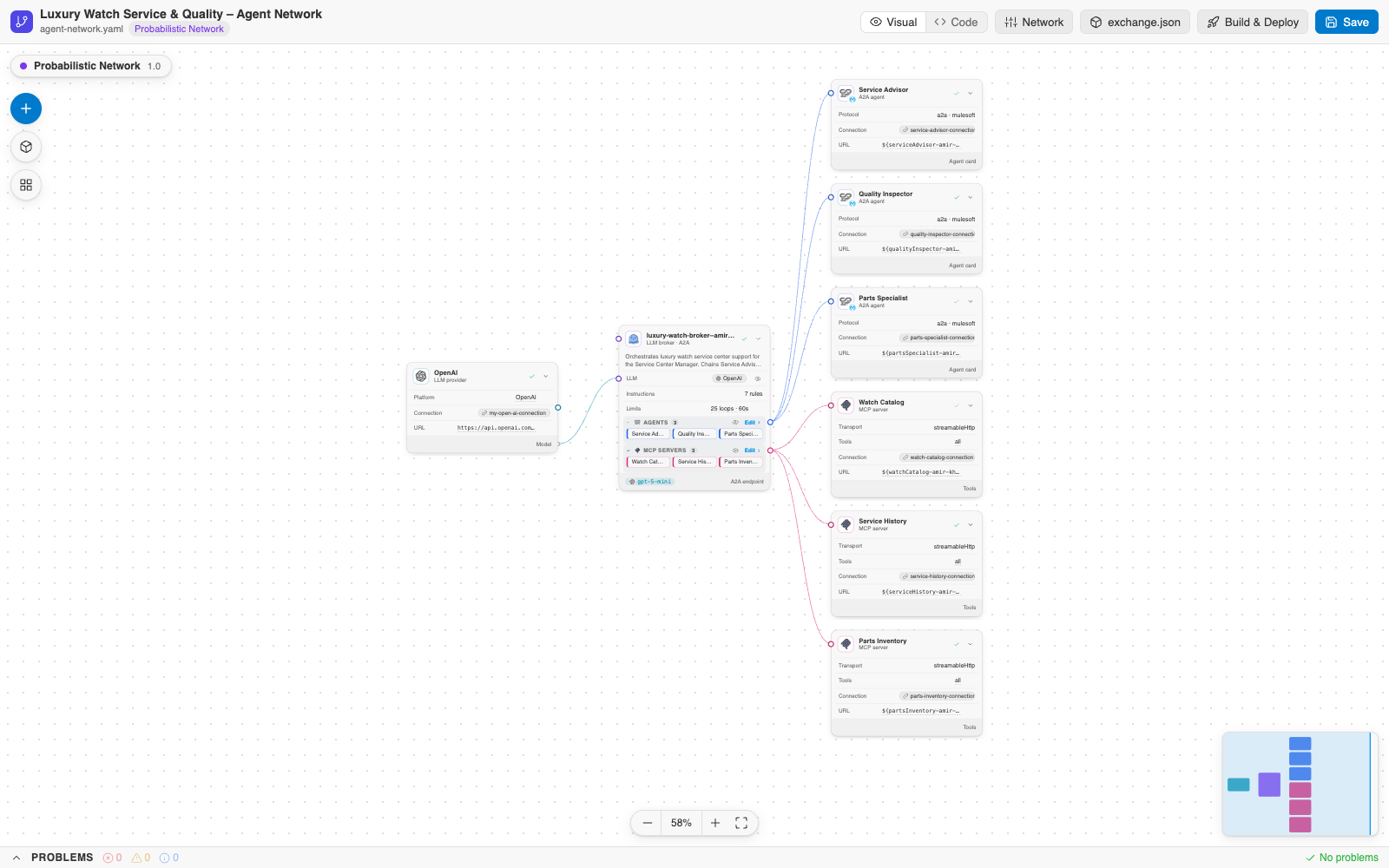
- Cards for brokers, agents, MCP servers and LLMs, with edges for the references between them. Ports sit on the exact row an edge refers to.
- Inspector panel: identity, connections, interfaces (A2A card, skills), MCP tools, framework, tags, description, policies and a connectivity test. Drag its left edge to resize it.
- Inline editing: click a value with a dashed underline, or the pencil on a row, to edit it on the card. Examples: allowed MCP tools (multi-select read from Exchange or the live server), connection URL, LLM platform, broker loops and timeout.
- Allowed tools (v1): choose any number of tools of an MCP server with checkboxes. No selection means all tools are allowed.
- Deterministic brokers (v2) show the agents and MCP servers they use, grouped by section. Link adds the matching actions to the broker's
.agent flow (a2a://… / mcp://…), and the trash icon removes them. An agent or MCP server that no broker uses shows a Link to … shortcut.
- Delete a component: select it and press Delete, or use the trash icon in the inspector. Its references, connection and
exchange.json dependency are removed with it. A flow's start and Done nodes cannot be deleted.
- Collapse any card, fold a section, or hide/show connected cards with the eye button (for example, hide every MCP server of a broker, or its LLM). Positions and visibility are saved for each workspace.
- Problems panel with schema validation. Click a problem to jump to the card.
- Auto layout, minimap, zoom and fit.
- Switch between Visual and Code at any time. Edits go to the YAML directly, and comments and formatting are kept.
Broker LLM provider
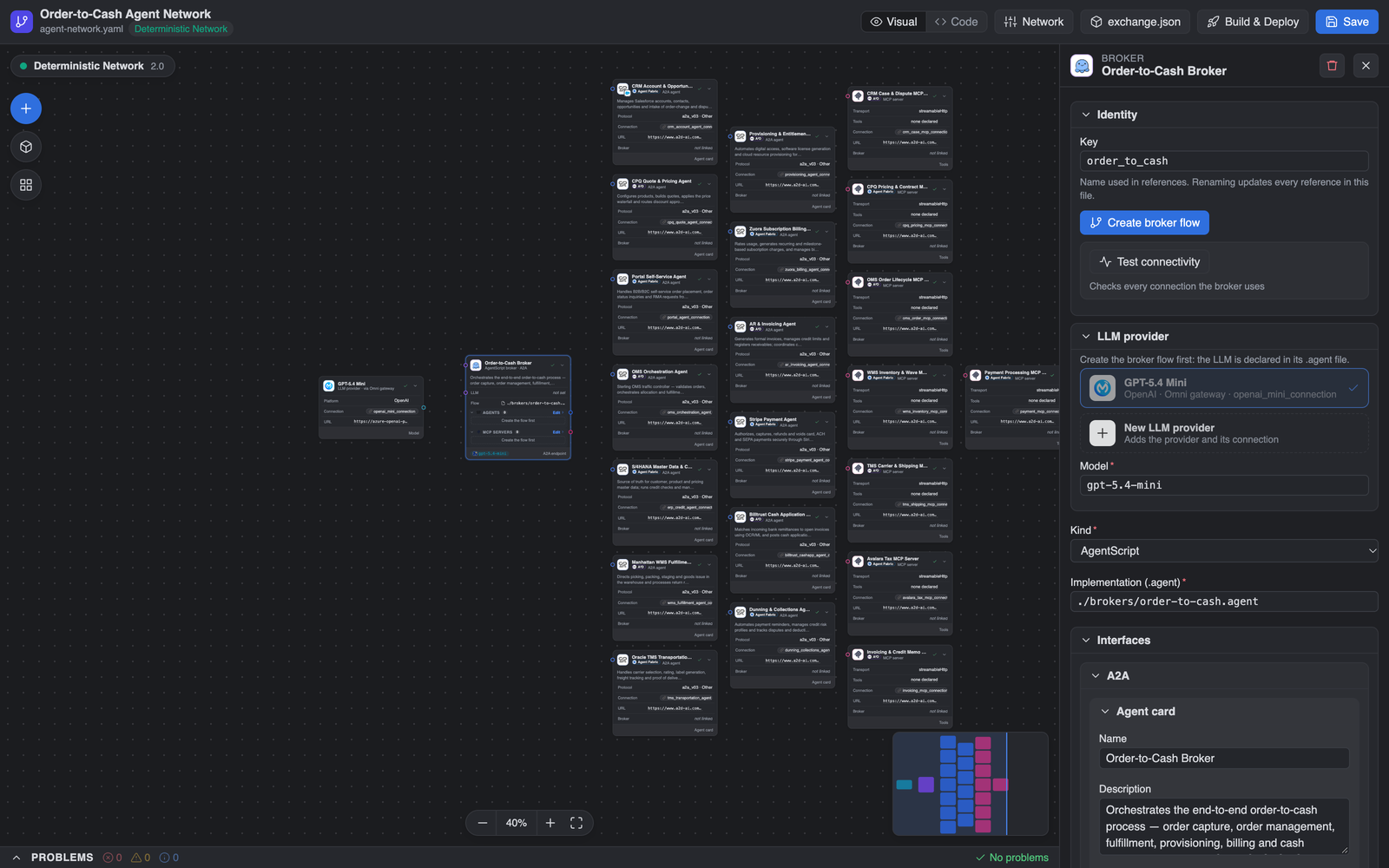
Select a broker and choose its LLM provider and model in the inspector:
- v1: writes
spec.llm (provider reference, connection, model).
- v2: writes the
llm block and config.default_llm of the broker's .agent file.
An LLM whose URL points to a MuleSoft / Flex gateway is labelled via Omni gateway. Variables are resolved from the exchange.json defaults; secrets are never shown.
Policies and P4A
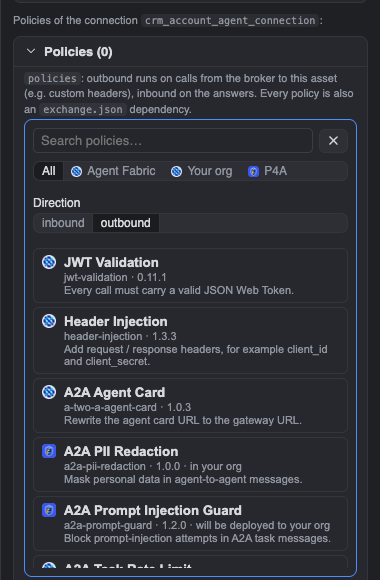
Select a broker or a connection (or an agent, MCP server or LLM, which uses its connection), then click Add policy under Policies:
- Agent Fabric: the built-in gateway policies, for example Header Injection, JWT Validation, User Context Propagation, Tracing, A2A Agent Card, MCP Support and OpenAI Transcoding.
- Your org: policies published to Exchange in your Agent Fabric organization.
- P4A: the P4A policy catalog. If the policy is not in your org yet, Octoloom asks before deploying it through the P4A MCP server, using your P4A connection and workspace, and then waits for the release.
Octoloom writes the policy into the YAML (v1 spec.policies; v2 policies.inbound|outbound on a connection or interfaces.a2a.policies on a broker) and adds its exchange.json dependency (classifier schema). For custom headers next to OAuth, such as a client_id header that client ID enforcement requires, add Header Injection to the connection and edit the headers in place.
Broker flow editor (brokers/*.agent)
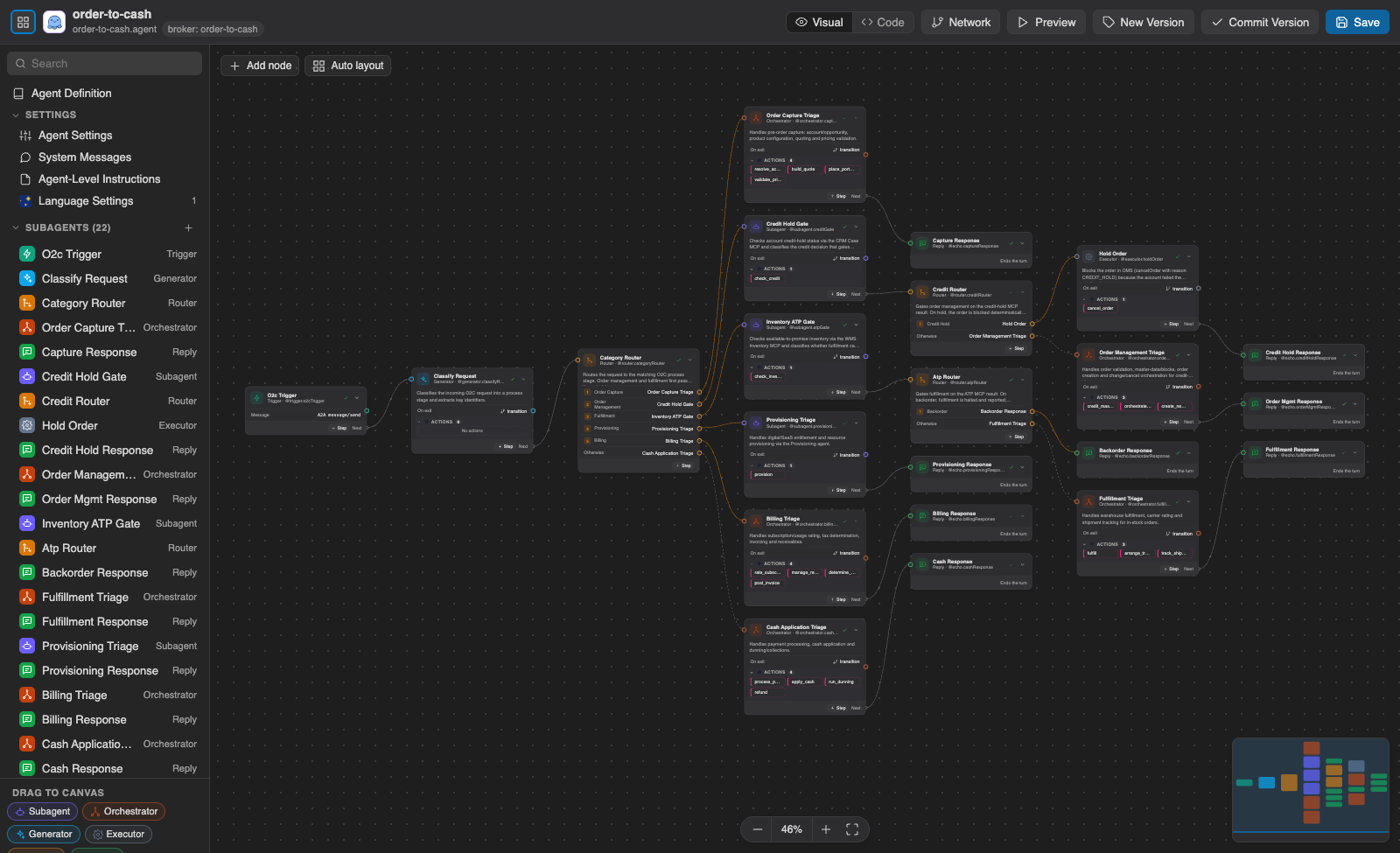
- Every subagent is a node, and transitions, routes and actions are edges.
- The outline lists agent settings, system messages, instructions, language settings and all subagents.
- Drag new nodes onto the canvas: Subagent, Orchestrator, Generator, Executor, Router, Reply.
- Preview, New Version and Commit Version actions for AgentScript brokers.
Asset editor (exchange.json)
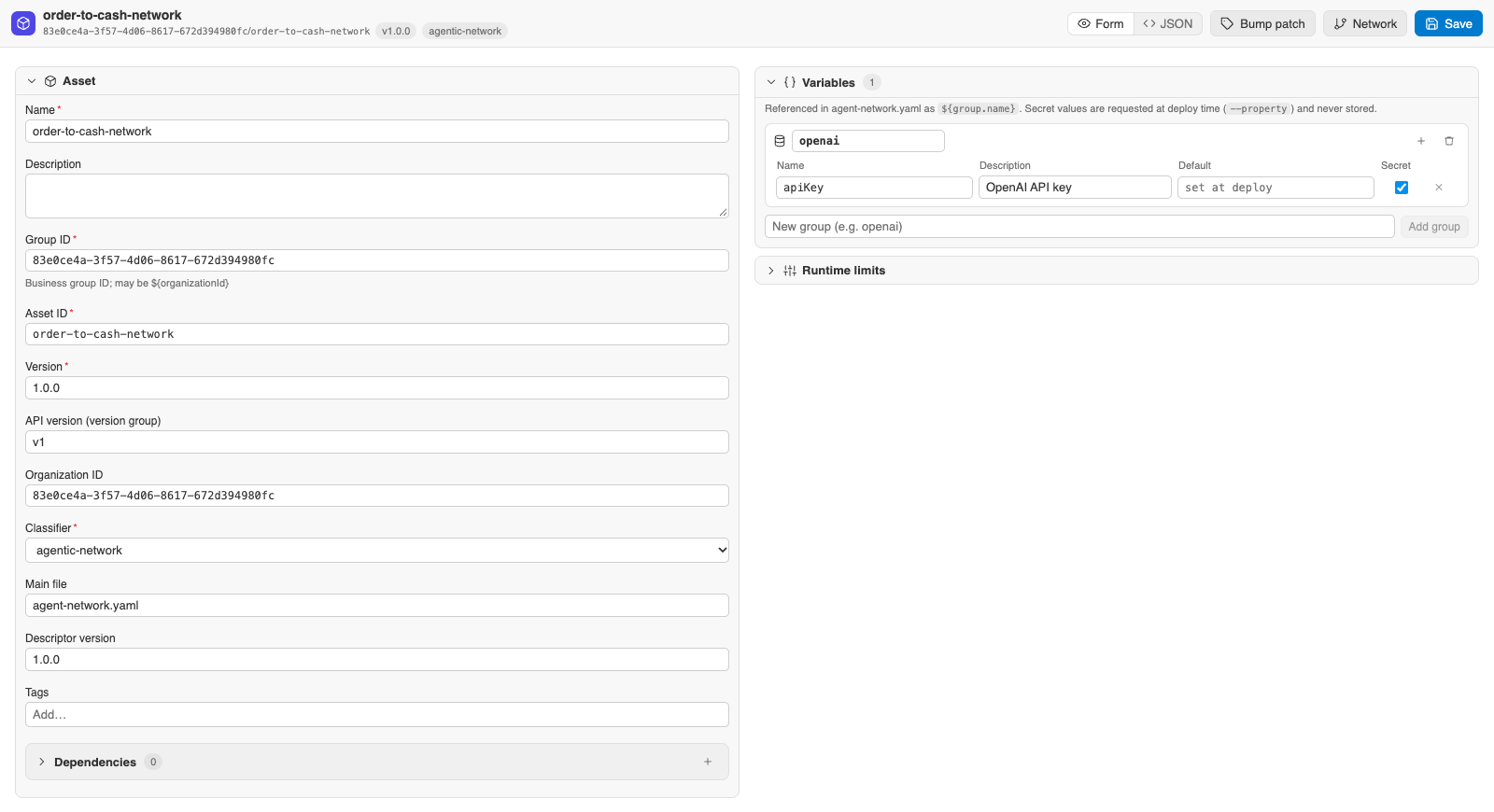
A form for the Exchange descriptor: asset identity, version, variables and their defaults (secrets are masked), and dependencies.
Asset palette: Agent Fabric and A²D
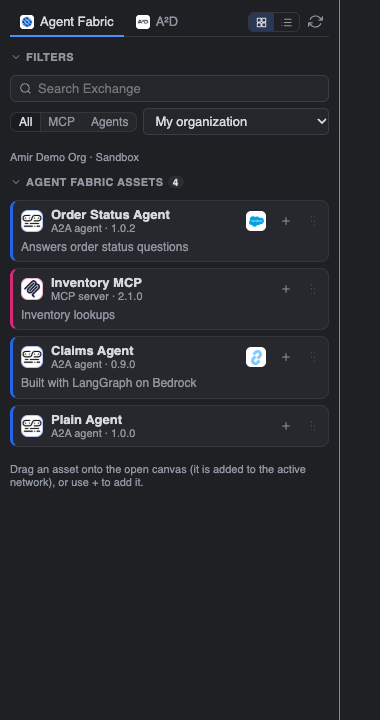
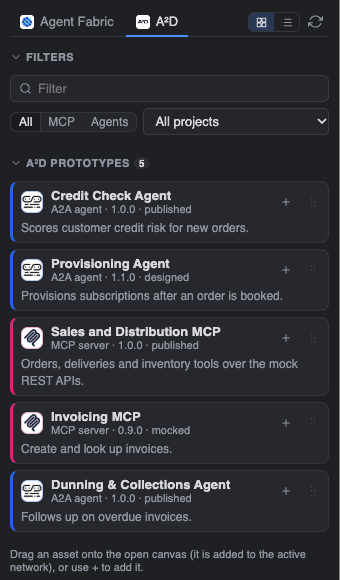
- Agent Fabric tab: MCP servers and A2A agents published in Exchange for your organization. You can include public assets.
- A²D tab: your A²D prototype MCP servers and agents with their hosted mocks, filtered by A²D project.
- Search, filter (All / MCP / Agents), and switch between card and row layouts.
- Expand a card to see its URL, Exchange coordinates, tools and skills.
- Drag an asset onto the canvas, or click +, to add it to the active network:
- Agent Fabric assets are referenced, not copied. Octoloom adds the broker link or tool, a connection, an
exchange.json variable for the URL, and an exchange.json dependency (agent-metadata / mcp-metadata, with group and version). The CLI resolves the card, skills and tools from that dependency at build time, so nothing is published twice. Assets from another business group get a namespace on the reference.
- A²D assets have no Exchange asset yet, so Octoloom declares them in the network (agent card or MCP tools) with their connection and URL variable.
- Each card shows an origin tag (A²D or Agent Fabric) and its framework logo.
Projects & Deploy
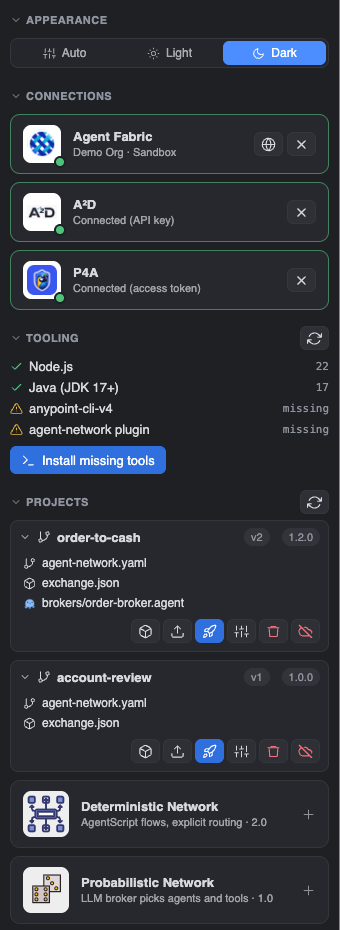
- Lists the agent network projects in the workspace.
- Shows the Agent Fabric, A²D and P4A connections (organization, environment).
- Build / Publish / Deploy / Set Up Gateways / Undeploy / Unpublish as compact icons on each project (hover for the name).
- CLI status and one-click install or repair.
- Appearance switch: auto, light or dark.
Getting started
1. Install
Install Octoloom for Agent Fabric from the Marketplace, or from a .vsix file (Extensions → … → Install from VSIX…).
Click the octopus in the activity bar to open Projects & Deploy and Asset Palette.
2. Open or create a project
- Open a folder that contains an
agent-network.yaml. The canvas opens automatically (setting agentNetwork.autoOpenCanvas).
- Or run Octoloom: New Agent Network Project and choose Probabilistic (v1) or Deterministic (v2).
- Right-click a file to switch views: Open Visual Editor or Open as Text.
3. Connect to Agent Fabric (real services)
Octoloom uses an Anypoint connected app that acts on its own behalf (client credentials):
- In Anypoint Platform, go to Access Management → Connected Apps → Create app. Choose App acts on its own behalf (client credentials).
- Add these scopes for your business group and environment(s):
- Exchange Viewer, to list assets.
- Exchange Contributor, to publish.
- Runtime Manager (read and deploy), to deploy.
- Run Octoloom: Connect to Agent Fabric (or click Connect Agent Fabric in the palette).
- Enter the client ID and secret, then pick the environment.
You can change the environment later with Octoloom: Select Agent Fabric Environment. For a different control plane, such as EU or Gov, set agentNetwork.anypointHost (for example eu1.anypoint.mulesoft.com).
4. Connect to A²D (mocks and prototypes)
A²D hosts prototype MCP servers and agents with mock back ends, so you can build and test a network before the real services exist.
- In A²D, open Settings → API keys and create a key.
- Run Octoloom: Connect to A²D (or click Connect A²D in the palette) and paste the key.
To use a self-hosted A²D, set agentNetwork.a2dBaseUrl.
5. Connect to P4A (policy catalog, optional)
- In P4A, open Settings → Personal Access Tokens and create a token (
p4a_…).
- Run Octoloom: Connect to P4A (or click Connect P4A in Projects & Deploy or in the policy picker) and paste the token.
- To deploy P4A policies to Agent Fabric, set up a P4A connection to your Anypoint organization and a workspace in P4A.
To use another P4A host, set agentNetwork.p4aBaseUrl.
6. Build the network
- Drag assets from the palette onto the canvas.
- Connect them to a broker and choose the broker's LLM.
- Check the Problems panel.
- Save. The YAML, the
.agent files and exchange.json are updated in place.
Typical workflow: start with A²D mocks, validate the conversation flow, then replace each mock with its published Agent Fabric asset. The origin tags show which parts are still mocked.
7. Build, publish and deploy
From Projects & Deploy or the command palette:
- Build (validate) Project
- Publish to Exchange
- Deploy / Undeploy
- Unpublish from Exchange
- Set Up Gateways
Output goes to the Octoloom CLI output channel.
Requirements
- VS Code 1.82 or newer.
- For build, publish and deploy (no need to install anything yourself; Octoloom does it on first use or with Install / Repair):
- Node.js ≥ 22.12. Octoloom uses yours if it is recent enough, otherwise it installs a portable copy from nodejs.org.
- Java 17+. Octoloom uses
JAVA_HOME / agentNetwork.javaHome, otherwise it installs a portable Temurin 17 from Adoptium.
- anypoint-cli-v4 with the Agent Fabric plugin, installed into the extension's private storage.
Portable installs stay inside the extension's storage folder and do not change your system PATH.
Commands
All commands are under the Octoloom category in the command palette.
| Command |
What it does |
| New Agent Network Project |
Create a v1 or v2 project skeleton |
| Open Visual Editor / Open as Text |
Switch between canvas and YAML |
| Connect / Disconnect Agent Fabric |
Connected-app sign-in |
| Select Agent Fabric Environment |
Choose the target environment |
| Connect / Disconnect A²D |
A²D API key |
| Connect / Disconnect P4A |
P4A personal access token (policy catalog and deployment) |
| Refresh Asset Palette |
Reload Exchange / A²D assets |
| Install / Repair Agent Fabric CLI and Prerequisites |
Node.js, Java, anypoint-cli-v4, plugin |
| Show CLI Status |
Versions and paths |
| Build (validate) Project |
agent-network build |
| Publish to Exchange / Unpublish from Exchange |
Exchange lifecycle |
| Deploy / Undeploy |
Runtime lifecycle |
| Set Up Gateways |
Gateway setup for the network |
Settings
| Setting |
Default |
Description |
agentNetwork.theme |
auto |
Color mode of all Octoloom views (auto, light, dark) |
agentNetwork.autoOpenCanvas |
true |
Open the canvas when a workspace with one project opens |
agentNetwork.useVariablesForUrls |
true |
Put asset URLs into exchange.json variables instead of hard-coding them |
agentNetwork.anypointHost |
anypoint.mulesoft.com |
Agent Fabric control plane host |
agentNetwork.a2dBaseUrl |
https://www.a2d-ai.com |
A²D base URL |
agentNetwork.p4aBaseUrl |
https://www.p4a.ai |
P4A base URL |
agentNetwork.cliPath |
(auto) |
Path to anypoint-cli-v4; empty means detect or install |
agentNetwork.javaHome |
(auto) |
Java 17+ home for builds; empty means detect or install |
Privacy and security
- The connected-app secret, the A²D API key and the P4A token are stored in VS Code SecretStorage (your OS keychain). They are never written to settings or project files.
- Octoloom only talks to the hosts you configure (the Anypoint control plane, A²D and P4A), plus nodejs.org / Adoptium / npm when it installs prerequisites.
- There is no telemetry.
- Secret variables in
exchange.json are masked in the UI and are never used to resolve URLs for display. The connectivity test uses them inside the extension host only, to call the endpoint you test (and its OAuth token URL). They are never sent to the webview.
Known limitations
- Local run (
run-local) and the test chat for deterministic networks are not available yet.
Feedback
Report issues and feature requests on GitHub.
Octoloom is an independent community project. It is not affiliated with, endorsed by or supported by MuleSoft, Salesforce, A²D or P4A. MuleSoft, Anypoint, Agentforce and other product names and logos belong to their respective owners and are used only to identify compatible services.
| |

