Skip to content
| Marketplace
Sign in
Visual Studio Code>Formatters>MdStyledNew to Visual Studio Code? Get it now.
MdStyled

MdStyled

Osama Abu-Sitta

|
4 installs
| (0) | Free
Style Markdown previews with external CSS/JS and comment selectors
Installation
Launch VS Code Quick Open (Ctrl+P), paste the following command, and press enter.
Copied to clipboard
More Info

MdStyled

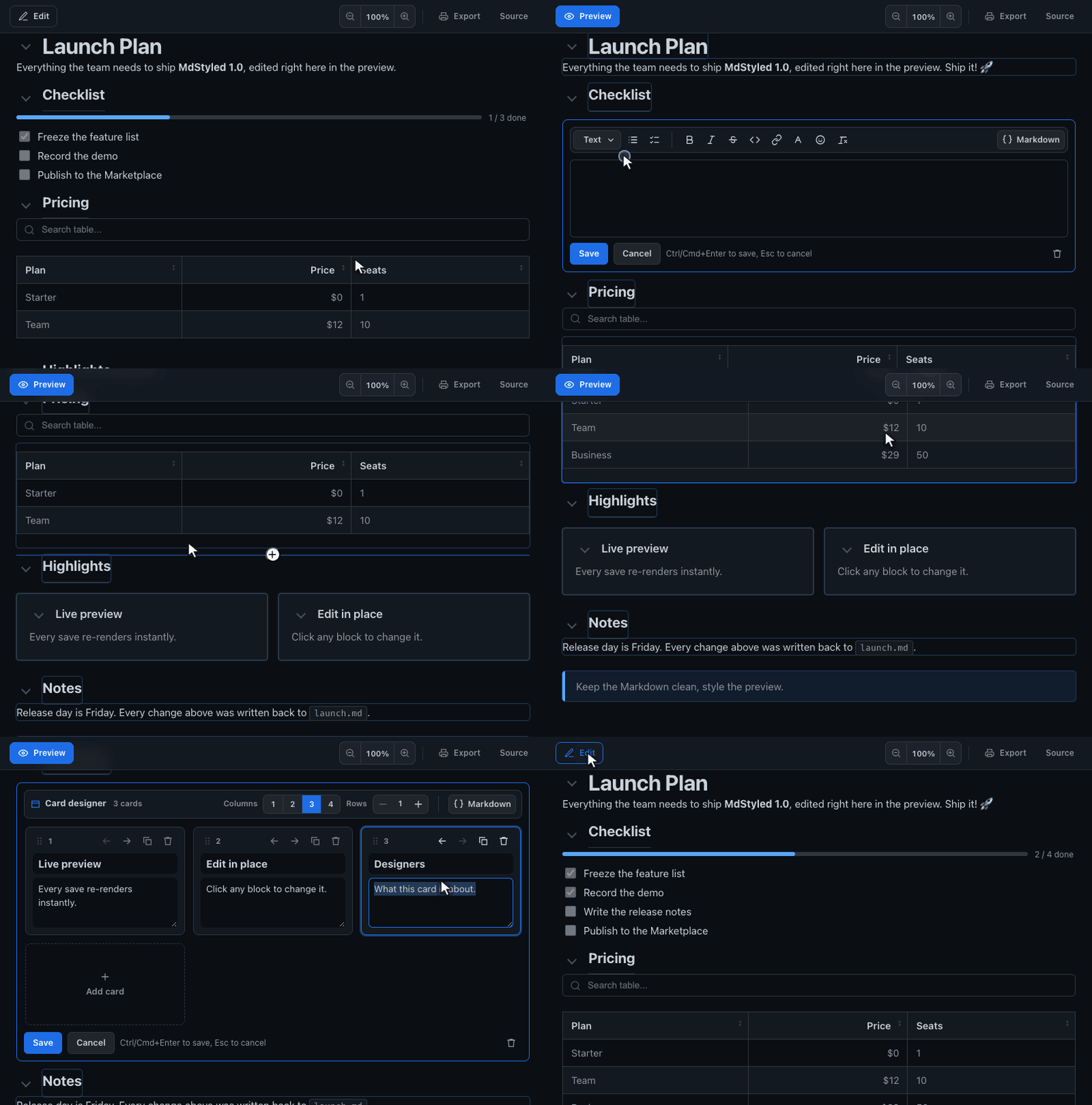
MdStyled Preview Screenshot

Style Markdown in VS Code with external CSS and JavaScript, without cluttering the Markdown itself.

MdStyled turns Markdown plus CSS and JS directives into a styled preview in VS Code

MdStyled is a VS Code extension for authors who want rich, branded, interactive Markdown previews while keeping source files portable and AI-friendly. Add CSS and JS with frontmatter or invisible HTML comments, then open a live preview inside VS Code.

How to use

  1. Install MdStyled in VS Code.
  2. Open any Markdown file.
  3. Run MdStyled: Apply Template to scaffold a starter theme.
  4. Run MdStyled: Open Preview to see the styled result.
  5. Edit your Markdown, CSS, or JS and watch the preview refresh live.

Minimal example

Put this at the top of a Markdown file:

<!-- @style: ./theme.css -->
<!-- @script: ./behavior.js -->

# Product Brief

<!-- .hero -->
Build polished Markdown documents with normal web tools.

Then create theme.css:

.hero {
  padding: 1rem 1.25rem;
  border-left: 4px solid #2563eb;
  background: #eff6ff;
  font-size: 1.1rem;
}

Open MdStyled: Open Preview and the paragraph under # Product Brief will render with the hero class applied.

Why MdStyled

  • Keep Markdown clean while styling the preview with real CSS and JavaScript
  • Apply classes, IDs, and attributes using invisible comment selectors
  • Build branded documentation, slide-like pages, reports, and interactive notes
  • Use local assets instead of forcing presentation markup into the document body
  • Preview everything directly inside VS Code

Core syntax

Attach styles and scripts

<!-- @style: ./theme.css -->
<!-- @script: ./behavior.js -->

You can also use frontmatter:

---
mdstyled:
  styles:
    - ./theme.css
  scripts:
    - ./behavior.js
---

Apply selectors to the next block

<!-- .callout -->
Important note

<!-- #hero -->
# Landing Page

<!-- [data-theme=dark] -->
## Themed section

These comments are removed from the final preview and only affect the next renderable block.

What you can do

Syntax Result
<!-- .class --> Add one or more classes to the next block
<!-- #id --> Set an id on the next block
<!-- [key=value] --> Add an attribute to the next block
<!-- @style: ./file.css --> Load a CSS file into the preview
<!-- @script: ./file.js --> Load a JS file into the preview
<!-- @section: name --> Wrap the following heading and content in a named <section>
<!-- @page: name --> Wrap the full document in <div class="mdstyled-root name">

Built-in extras

MdStyled ships with a few built-in preview extensions:

Extension What it does
mermaid Renders ```mermaid blocks as diagrams
copy-code Adds copy buttons to code blocks
highlight Applies basic code block styling

Enable or disable them in VS Code settings:

{
  "mdstyled.extensions.enabled": ["mermaid", "copy-code", "highlight"]
}

Templates

Apply any template with MdStyled: Apply Template and choose a theme from the list.

Default templates

The default-light and default-dark templates provide a clean documentation layout:

  • TOC sidebar — all heading levels (H1–H6) with hierarchical indentation and scroll-aware active highlighting
  • Copy buttons — fixed-position copy button on every code block that stays in place while scrolling horizontally
  • Syntax highlighting — code block styling with theme-appropriate colors
  • Mermaid diagrams — renders ```mermaid blocks inline

Interactive templates

The interactive-light and interactive-dark templates include everything in the default templates, plus client-side interactivity:

Interactive tables

Every Markdown table automatically gets:

Feature How it works
Full-width search Type to filter rows across all columns
Column search Type ColumnName: term to search a single column (autocomplete suggests column names as you type)
Sortable headers Click any column header to sort ascending or descending
Pagination Long tables show 10 rows per page with Prev / Next / page number controls

Collapsible sections

Every heading (h1–h6) becomes an accordion with a toggle button. Click ▼ to collapse or expand the section content. Nested headings work independently — collapse a parent to hide all its children, or collapse a child while keeping the parent open.

Table of contents

The right sidebar shows all heading levels (H1–H6) with hierarchical indentation and scroll-aware active highlighting. Clicking a TOC entry immediately highlights it and scrolls to the correct heading.

Commands

Command Description
MdStyled: Open Preview Open the styled preview in the current editor area
MdStyled: Open Preview to Side Open the styled preview beside the current editor
MdStyled: Apply Template Create a starter .mdstyled/ folder and insert directives

Auto-discovery

If a Markdown file has matching companion files, MdStyled can load them automatically:

  • example.md -> example.css
  • example.md -> example.js
  • example.md -> example.mdstyled
  • example.md -> example.mdjs

You can also define shared defaults with mdstyled.config.json.

Sample files

The repository includes examples in samples/:

  • basic.md
  • test-all.md
  • default.md
  • test-diagram.md

Development

npm run compile
npm run watch

Press F5 in VS Code to launch an Extension Host for local testing.

License

MIT

  • Contact us
  • Jobs
  • Privacy
  • Manage cookies
  • Terms of use
  • Trademarks
© 2026 Microsoft