RetroCRT
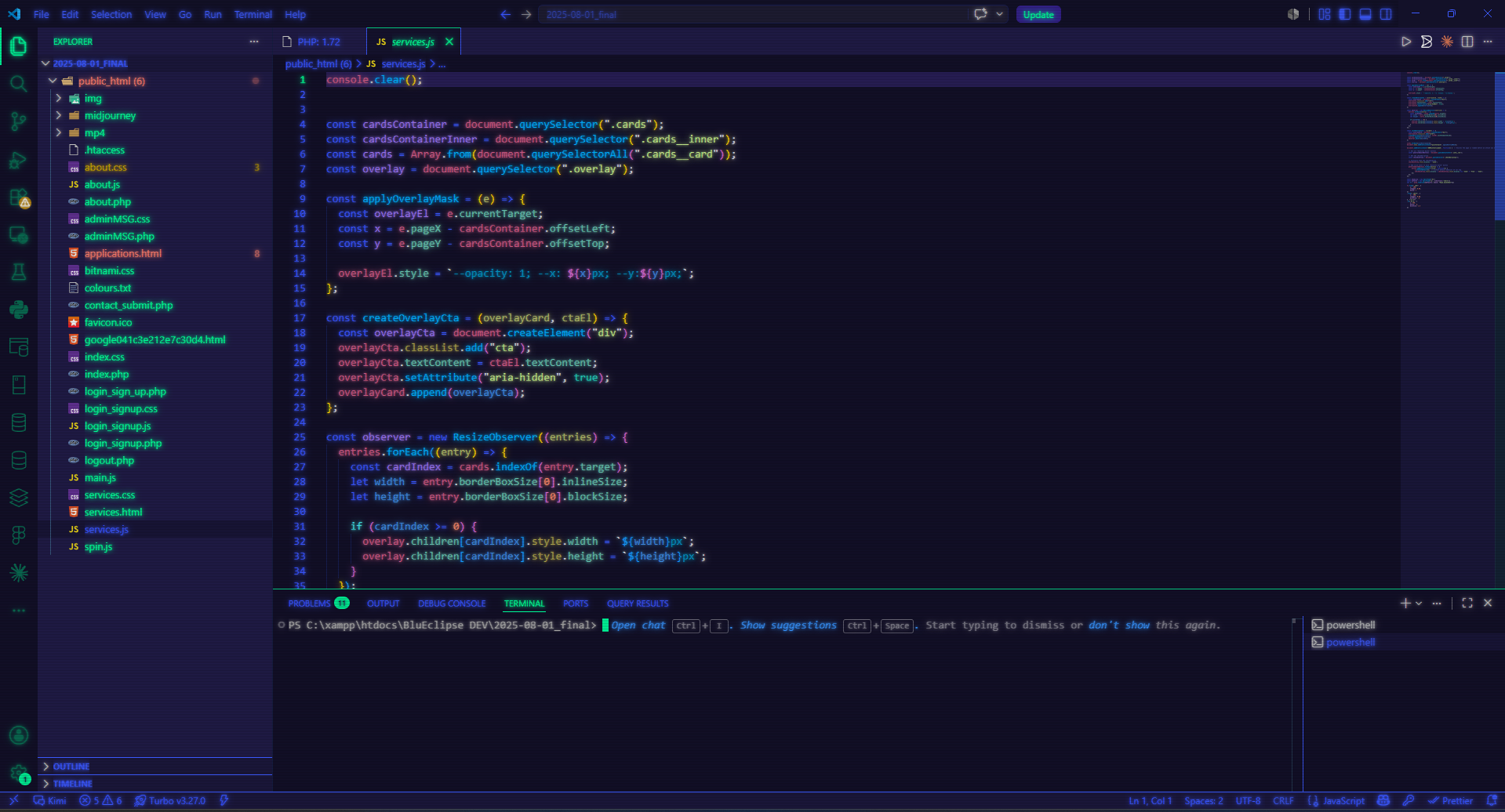
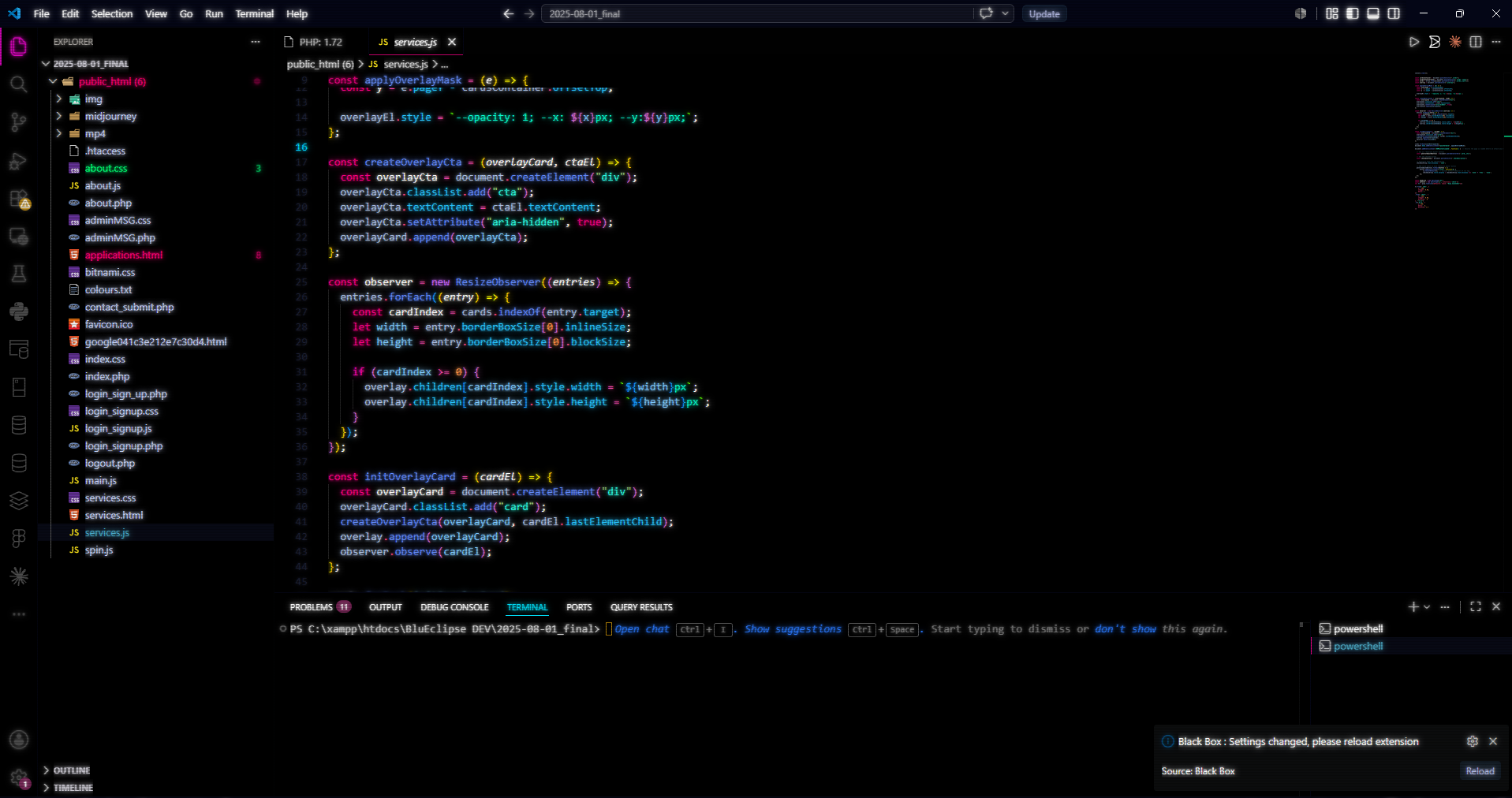
Brings the look of Windows Terminal's experimental.retroTerminalEffect to the
whole VS Code window — phosphor glow and scanlines, drawn over your
editor, sidebar, terminal and status bar.
It works with any color theme. RetroCRT is not a theme and does not replace
one. The glow is drawn in each character's own color, so whatever theme you
already use keeps its exact palette and just starts glowing.
Use
- Open the Command Palette (
Ctrl+Shift+P) and run RetroCRT: Enable Effect.
- Confirm the one-time prompt, then reload the window when asked.
To turn it off, run RetroCRT: Disable Effect and reload. That removes the
effect completely — nothing is left behind.
Any theme you like
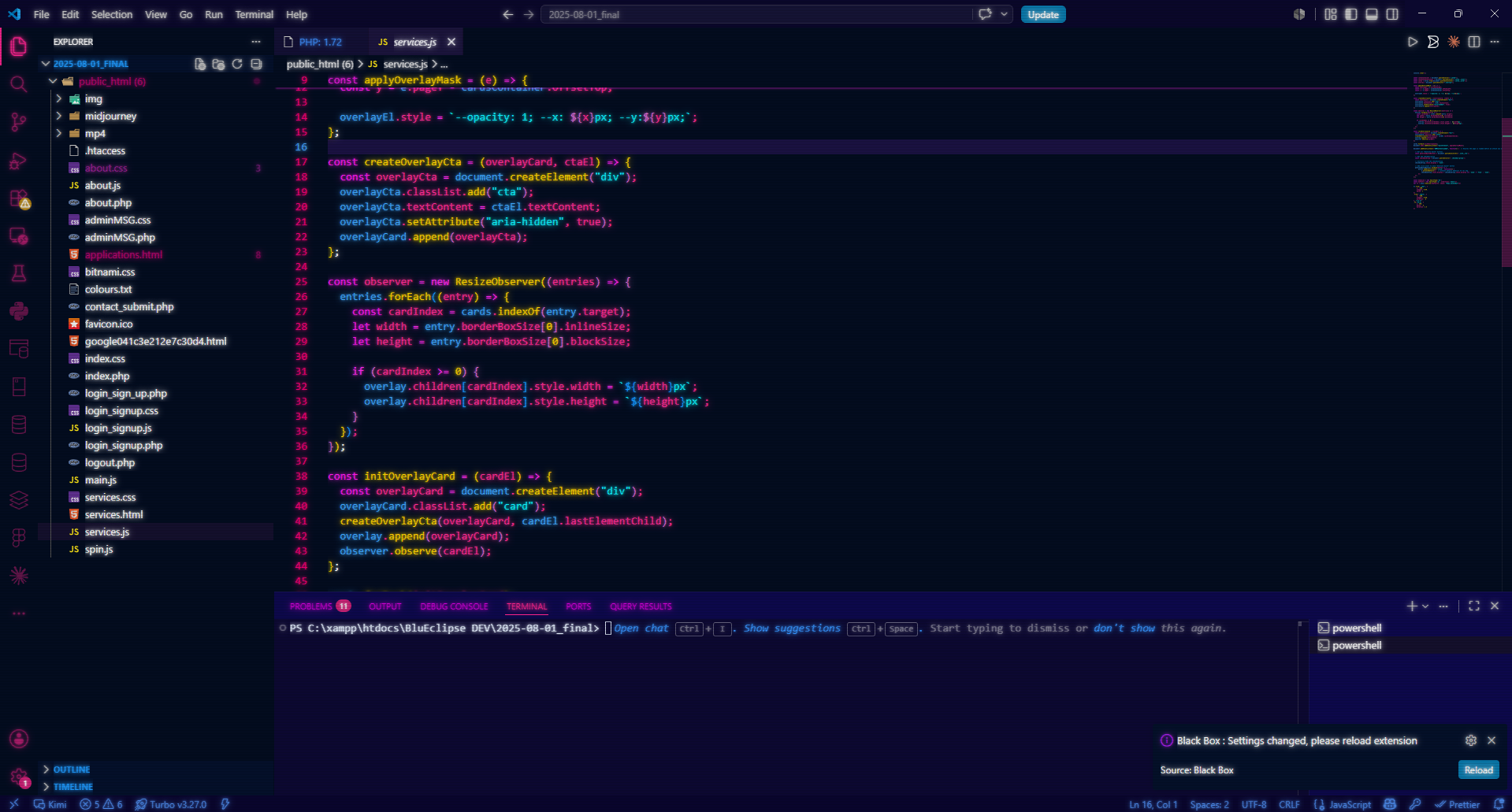
The glow uses CSS currentColor rather than a fixed color, which means it is
generated per character from whatever color your theme already assigned. Green
on black glows green, a pastel theme glows pastel, your syntax highlighting is
untouched.
So you can keep the theme you actually work in and still get the CRT look — or
lean in and pair it with a green/amber-on-black theme for the full vintage
terminal feel.
Settings
| Setting |
Default |
What it does |
crtRetro.scope |
workbench |
workbench = the whole window (editor, sidebar, terminal, status bar) · editorOnly = just the text editor |
crtRetro.glowRadius |
3 |
Phosphor glow radius in pixels — 0 turns the glow off |
crtRetro.scanlineIntensity |
0.25 |
How dark the scanline rows are — 0 turns scanlines off |
crtRetro.scanlinePeriod |
2 |
Height of one scanline cycle in pixels — raise for wider, more visible lines |
crtRetro.flicker |
false |
Subtle CRT brightness flicker (an extra — not part of the original shader) |
Change a setting while the effect is on and RetroCRT offers to re-apply it
immediately.
How it works
The original effect is a pixel shader —
Retro.hlsl
in the Windows Terminal repo. VS Code has no shader pipeline, so RetroCRT
reproduces the same two passes in CSS:
| Retro.hlsl |
RetroCRT |
Gaussian blur of the frame added back at 0.3 intensity (phosphor glow) |
Layered colorless text-shadow, so each character glows in currentColor — this is what makes it theme-agnostic |
SquareWave scanlines: alternate pixel rows multiplied by 0.5 |
A fixed repeating-linear-gradient overlay, ~0.25 black on alternate rows |
Scanline period from the DPI scale factor |
The crtRetro.scanlinePeriod setting, in pixels |
Why it patches VS Code
The extension API can style editor content, but it cannot style the workbench
chrome around it — the sidebar, tabs, panel and status bar. To reach those,
Enable appends a small, clearly marked block to VS Code's own workbench
bundle that injects the stylesheet. This is the same technique used by the
popular Synthwave '84 extension.
RetroCRT keeps a pristine backup of the bundle beside it, and Disable
strips the block out again by its markers.
Things to know
- "Your installation appears to be corrupt" — VS Code shows this notice once
after patching. It is harmless and expected; click the gear on the
notification and choose Don't Show Again.
This is due to a checksum change which is what VS should do and I refuse to touch any suppression settings.
- VS Code updates wipe the effect, because they replace the workbench
bundle. RetroCRT notices on startup and offers a one-click re-apply.
- System-scope installs (VS Code under
Program Files) need VS Code run as
administrator once to enable or disable. The default user-scope install needs
nothing special.
- The built-in terminal is drawn on a GPU canvas, so it picks up scanlines
but not the text glow. For glowing terminal text, set
"terminal.integrated.gpuAcceleration": "off" to render it as DOM.
- If a change doesn't seem to take, fully close every VS Code window and reopen
— a window reload isn't always enough after the bundle is re-patched.
Privacy
RetroCRT makes no network calls and collects no telemetry. It reads its own
settings and edits the local VS Code workbench file on your machine, nothing
else.
License
MIT — see LICENSE.

