
Courier File IconsCourier's own icons for courier.config.ts, courier.mocks.ts and the .courier folder in Material Icon Theme and vscode-icons, the folder drawn in each theme's own style. Agree once: they follow you into the other theme, onto your other machines, into remote windows and through updates. Installation Launch VS Code Quick Open ( Ctrl+P), paste the following command, and press enter.Copied to clipboard |


Courier File IconsCourier's own icons in your icon theme. Courier's icons for
Documentation · Courier for VS Code · Courier · Source 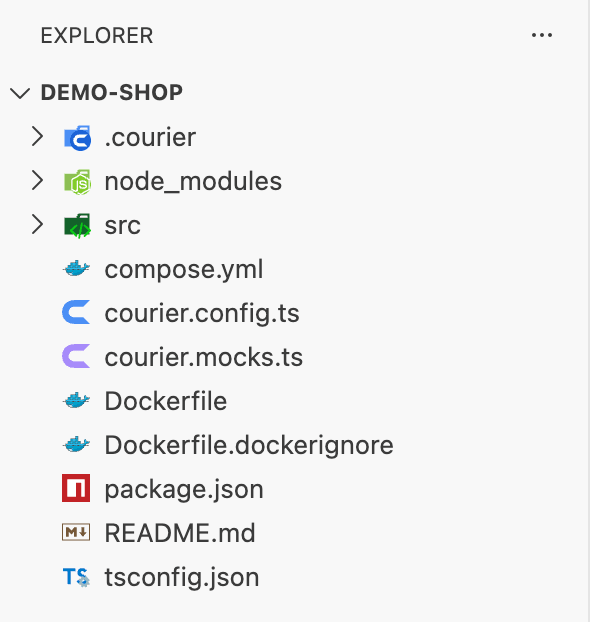
OverviewMaterial Icon Theme and vscode-icons take custom icons through their own settings, and Courier brings its own for Courier for VS Code installs this extension with it. It runs where the editor's window runs, beside the icon themes — on this computer in a remote window too, while Courier itself runs where your code is. Agree onceWith either theme in use in a Courier project — as the editor starts, when a Courier project turns up in the workspace, or when you pick the theme later — the extension offers to put the icons in, and one click shows them, no reload needed. Courier: Show Courier's Icons in the File Icon Theme does it any time, and Courier: Remove Courier's Icons from the File Icon Theme takes them out again. Then they follow you
Where the icons liveThe icons go in through your user settings — the associations those themes read — beside your own, which stay as they are. The icons themselves sit in a folder of their own beside Material Icon Theme, Each icon theme builds one theme file, in its own folder, for every profile — from the settings of whichever profile changed them last. A profile that asked for Courier's icons and finds them left out has it built again as it starts: vscode-icons by its own command, Material Icon Theme, which has none, by Courier's folder entry going out and coming back. vscode-icons is built again without them for a profile that never asked; Material Icon Theme may show them there until its settings change in that profile. A list of vscode-icons associations in a folder's own settings takes the place of yours there, so Courier's icons would not show in it: the extension says so once per folder and, when you agree, adds Courier's icons after the folder's own — in the folder's settings file, which your team may share. A folder you trust whose settings name Courier's icons gets their copies, whoever put them there. In a workspace you have not trusted, the folder vscode-icons reads custom icons from comes from your own settings alone: the workspace cannot choose where Courier's icons are written. A theme that does not run beside the extension takes no icons from it, and is said so — in a remote window, one installed on the remote machine only; install it on this computer too, and VS Code runs it here. Other icon themes take no custom icons; VS Code's own Seti among them. Commands
Settings
Its log is under Courier File Icons in the Output panel. Part of CourierCourier is type-safe HTTP for any framework: define your API once in plain TypeScript and call it from server code, the browser and AI agents, every call visible in Studio. Courier for VS Code brings Studio into your editor, and this extension marks Courier's files in it. See courier.noverax.cloud. License |

