
Auto Path Header is a Visual Studio Code extension that automatically inserts the relative file path as a comment on the first line.

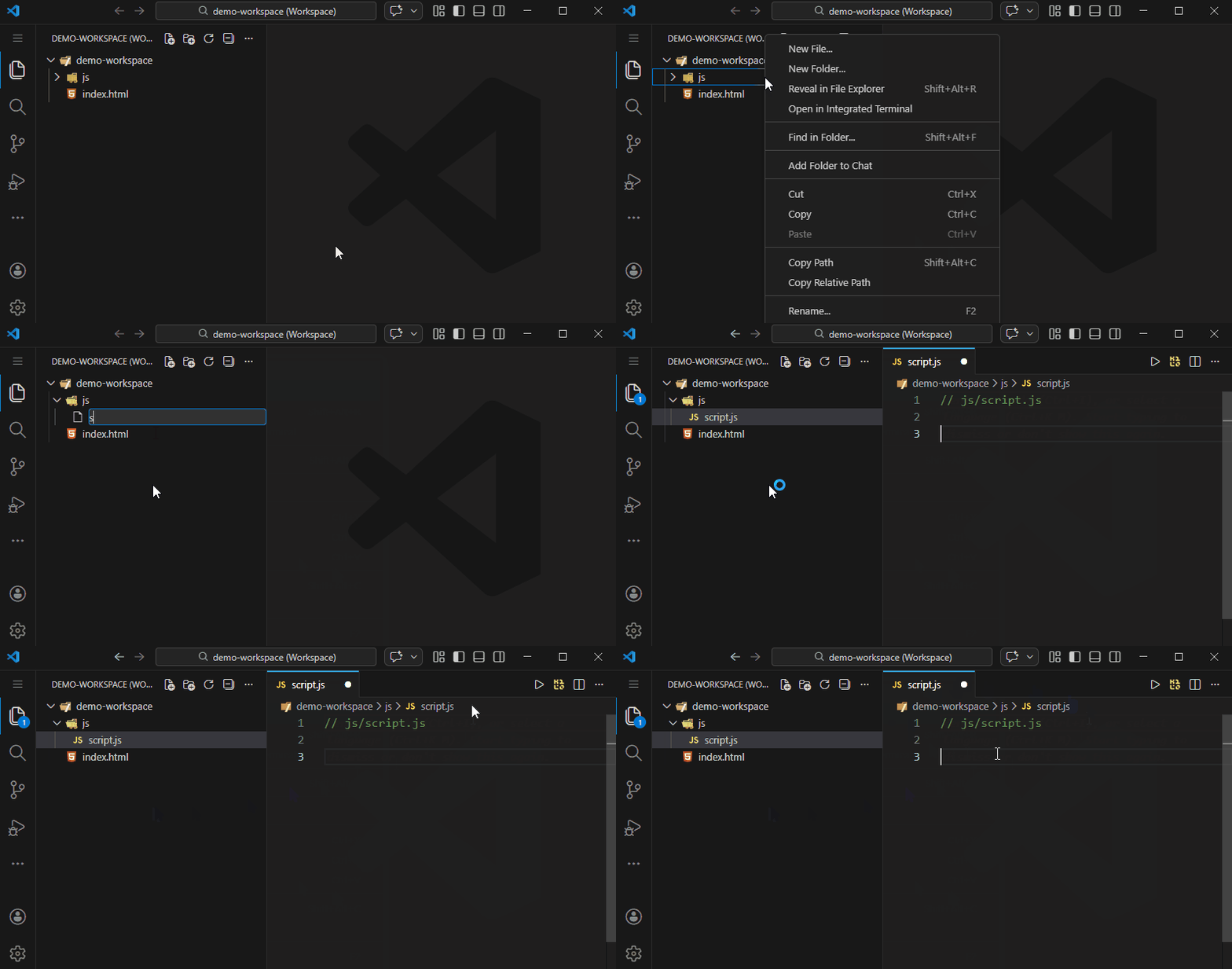
Features
- Automatic insertion of the file path on open for new/empty files; files with existing content require manual insertion via Command Palette
- Support for ANY file extension — built-in support for 40+ popular languages, plus custom templates for unlimited file types
- Duplicate comment prevention
- Configurable settings
- Error handling with localized messages
- Automatic path update on rename/move
- Manual comment insertion via Command Palette
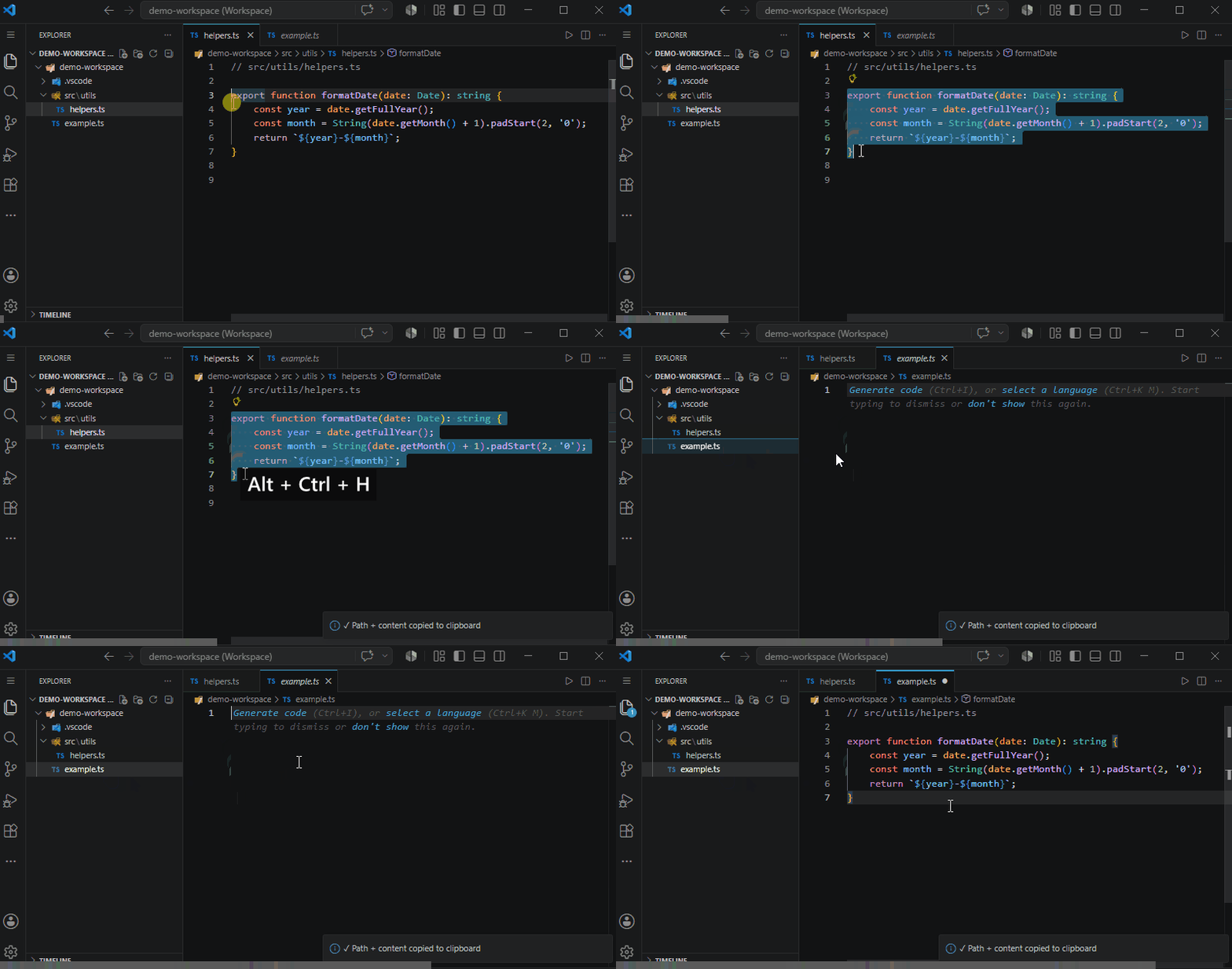
Quickly copy code snippets with an automatic file path header prepended to your clipboard. The command respects your current selection, preserves exact formatting/indentation, and falls back to the system clipboard if nothing is selected.
How it works:
- With selection: Select text →
Ctrl+Alt+H → Result: <!-- src/components/App.tsx --> + empty line + your code
- No selection: Copy text elsewhere →
Ctrl+Alt+H → Result: Path header + last copied content
- Empty clipboard: Press shortcut with nothing selected → Shows warning & aborts
Configuration:
- Enabled by default. Toggle via
"autoPathHeader.copyWithPathHeader": false
- Uses the same comment styles & custom templates as automatic insertion
- Remap in
keybindings.json using command autoPathHeader.copyWithPathHeader
Supported file extensions
Not limited to these! Using autoPathHeader.customTemplatesByExtension, you can add path comments to ANY file extension with any comment format you want. These are just the built-in presets.
- .js, .ts, .jsx, .tsx, .java, .c, .cpp, .h, .hpp, .cs, .go, .rs, .swift, .kt, .kts, .php, .jsonc
- .py, .sh, .bash, .zsh, .rb, .pl, .pm, .env, .txt, .yml, .yaml
- .css, .scss, .sass, .less
- .html, .htm, .xml, .md, .markdown, .svg
- .ini (semicolon comments
;)
- .bat, .cmd (REM comments
@REM)
Installation
- Download the
.vsix package from releases
- In VS Code:
Ctrl+Shift+P → "Extensions: Install from VSIX..."
- Pick the downloaded file
- (Optional) Once published, you can install it directly from the VS Code Marketplace by searching for "Auto Path Header".
Activation
The extension activates immediately after installation to handle files with any extension. It monitors file opening events and automatically inserts path comments based on the file extension according to your configuration.
Settings
autoPathHeader.enabled — enable/disable automatic insertionautoPathHeader.language — message language (auto/en/ru)autoPathHeader.updateOnRename — automatically update comment on rename/moveautoPathHeader.updateOnRenameFolder — when true (default) the extension will react to directory rename events and attempt to update comments inside the renamed folder according to the other rename settings. Set to false to ignore all folder renames; file rename behavior is unaffected.autoPathHeader.askBeforeUpdate — ask before updating comment (works when updateOnRename = true)autoPathHeader.updateOnRenameRecursive — when updateOnRename is enabled and a directory is renamed, controls how the extension treats files inside the renamed directory. If true, the extension will automatically update path comments for all files under the renamed directory recursively without prompting for each file and will show a single informational message with the total number of files updated. If false, the extension will prompt (Yes/No) for each file whether to update the comment. Default: false. Example:
{
  "autoPathHeader.updateOnRename": true,
  "autoPathHeader.updateOnRenameFolder": false    // disable directory-renamed reactions
}
autoPathHeader.allowedOnlyDirectories — array of directory names, relative paths or glob patterns (relative to the workspace root). Patterns follow minimatch syntax, so you can use *, **, ?, character classes, etc. When non‑empty, files will only be processed if their path matches one of the entries. The default value is ['.'] (which includes all paths); setting this configuration replaces the default list completely (it does not append). Examples:
['main', 'css'] restricts insertion to those folders['.'] allows every path (root and subdirectories)['src/**'] allows files under any subfolder of src['**/utils'] allows files inside any utils directory
autoPathHeader.ignoredDirectories — array of directory names, relative paths or glob patterns (minimatch). Files located inside any matching directory will be ignored for automatic insertion and updates. Setting this value replaces the default list completely; it does not append. If you only need to block a few paths, consider using the opposite whitelist setting autoPathHeader.allowedOnlyDirectories instead. The default ignored list is ['node_modules', 'vendor', 'vendors', 'dist', 'build', '.git', '.svn', '.hg', 'target', 'out', 'bin', '.next']. Examples:
['**/node_modules', '**/dist'] to ignore those folders anywhere['temp/*'] to ignore immediate children of temp
Example: replace all defaults with a custom ignore list (plain names or glob patterns)
{
  "autoPathHeader.ignoredDirectories": [
    "temp",              // simple directory
    "**/node_modules",   // glob: anywhere in workspace
    "dist/*"             // glob: immediate children of dist
  ]
}
Example using whitelist to allow only specific folders (supports globs)
{
  "autoPathHeader.allowedOnlyDirectories": [
    "src",              // only src folder
    "**/utils",         // any utils directory at any depth
    "src/**/*.ts"       // all TypeScript files under src
  ]
}
Note: the ignored-directory check runs before the allowed-only check. If the same path (e.g. "temp") appears in both lists, the file will be treated as ignored and no comment will be inserted, regardless of the whitelist entry.
autoPathHeader.disabledExtensions — array of file extensions where auto insertion/updates are disabled (e.g. ['.log', '.tmp']).
autoPathHeader.customTemplatesByExtension — custom templates by file extension. Supports {path}, {filename}, {dirname} placeholders. The extension is determined by path.extname(filePath) (including dot), case-insensitive. This supports compound extensions like .env.local as well as specific file names like Dockerfile.dev.
Disabling by file extension
If you need to disable automatic comments for specific file extensions (for example, log files or temporary files), add their extensions to disabledExtensions:
{
  "autoPathHeader.disabledExtensions": [
    ".log",
    ".tmp",
    ".temp",
    ".cache"
  ]
}
The manual command will respect this list and show a message instead of inserting a comment.
Custom templates by file extension
You can define custom templates for ANY file extension. This allows different formatting for different file types. The extension determines the file extension including the dot, and is case-insensitive. This supports compound extensions like .env.local as well as specific file names like Dockerfile.dev.
Priority order for template selection:
customTemplatesByExtension[specific file name] (e.g., "Dockerfile.dev")customTemplatesByExtension[compound extension] (e.g., ".env.local")customTemplatesByExtension[regular extension] (e.g., ".ts")- Default language comment format
{
  "autoPathHeader.customTemplatesByExtension": {
    ".env.local": "# LOCAL OVERRIDE — {path}",
    ".test.ts": "// 🧪 TEST: {path}",
    "Dockerfile.dev": "# DEV BUILD: {absolutePath|unix|toUpperCase}",
    ".txt": "# TEXT FILE: {path}",
    ".log": "// LOG FILE: {path|toLowerCase}"
  }
}
Supported placeholders for custom templates include {path}, {absolutePath}, {filename}, and {dirname} which will be replaced with the actual values when inserting the comment.
This configuration allows you to define templates for ANY file extension. Simply add an entry with the desired file extension (starting with a dot) as the key and your custom template as the value. The extension will automatically apply the appropriate template based on the file extension when inserting path comments.
Additionally, you can define a default template for ALL file extensions using the special * key:
{
  "autoPathHeader.customTemplatesByExtension": {
    "*": "// FILE: {path}",  // This applies to ALL files by default
    ".env.local": "# LOCAL OVERRIDE — {path}",  // Specific overrides still work
    ".test.ts": "// 🧪 TEST: {path}"
  }
}
Note that specific file names and extensions will take precedence over the wildcard template.
Filters
The extension supports a simple filter system for transforming placeholders directly in the template.
Syntax:
{variable|filter}
{variable|filter1|filter2}
Filters are applied left to right (pipeline).
Available Filters
unix – Converts a path to Unix format (replaces \ with /).
{path|unix}
Example: `src\components\Button.tsx` → `src/components/Button.tsx`
toUpperCase – Converts a string to uppercase.
{filename|toUpperCase}
Example: `button.tsx` → `BUTTON.TSX`
toLowerCase – Converts a string to lowercase.
{filename|toLowerCase}
Example: `Button.TSX` → `button.tsx`
Chaining Filters
Filters can be combined:
{path|unix|toUpperCase}
Example: `src\components\Button.tsx` → `SRC/COMPONENTS/BUTTON.TSX`
Notes
- All values are cast to strings before applying filters
- Unknown filters are ignored
- Filters are applied sequentially, passing each result to the next
Configuration Priority
When the extension processes a file, it applies checks in the following order:
- Enable Check: Is
autoPathHeader.enabled set to true?
- Extension Filter: Is the file extension in
allowedOnlyExtensions? (if list is non-empty, file must match)
- Extension Blacklist: Is the file extension in
disabledExtensions? (blocks processing)
- Ignored Directories: Is the file path in an ignored directory (per
ignoredDirectories)? (blocks processing)
- Allowed Directories: Is the file path in an allowed directory (per
allowedOnlyDirectories)? (if list is non-empty, file must match)
- Template Selection: Choose comment template based on priority: custom by filename → custom by compound extension → custom by extension → default
Important note: If a path appears in both ignoredDirectories and allowedOnlyDirectories, the file will be treated as ignored and no comment will be inserted.
Configuration Priority Examples
{
  "autoPathHeader.enabled": true,
  "autoPathHeader.allowedOnlyExtensions": [".ts", ".js"],  // Only TypeScript and JavaScript
  "autoPathHeader.disabledExtensions": [".test.ts"],       // But exclude test files
  "autoPathHeader.ignoredDirectories": ["node_modules", "**/dist"],  // Always ignore
  "autoPathHeader.allowedOnlyDirectories": ["src"]          // Only in src folder
}
With this config:
- ✅
src/index.ts — processed (matches all checks)
- ❌
src/index.test.ts — ignored (matches disabledExtensions)
- ❌
src/node_modules/lib.ts — ignored (matches ignoredDirectories)
- ❌
components/button.ts — ignored (not in allowedOnlyDirectories)
Recursive Directory Rename
When you rename a directory, the extension can update path comments for all files inside it recursively.
Behavior with updateOnRenameRecursive
When updateOnRenameRecursive: true (automatic batch update):
- All eligible files inside the renamed directory have their comments updated automatically
- No confirmation dialog appears for individual files
- One informational message shows the total number of files updated
Example: Rename old-src/ to new-src/
Before:
  new-src/
    ├── index.ts  // old-src/index.ts
    ├── utils.ts  // old-src/utils.ts
    └── lib/data.ts  // old-src/lib/data.ts

After (instant, no prompts):
  new-src/
    ├── index.ts  // new-src/index.ts ✅ auto-updated
    ├── utils.ts  // new-src/utils.ts ✅ auto-updated
    └── lib/data.ts  // new-src/lib/data.ts ✅ auto-updated

Message: "Path comments updated: 3 files"
When updateOnRenameRecursive: false (per-file confirmation):
- Each file triggers a "Yes/No" dialog asking whether to update
- You can skip specific files or update selectively
- Useful if you want to review changes
Example: Same rename, but with prompts
1. "File renamed from old-src/index.ts to new-src/index.ts. Update path comment?" → [Yes] [No]
2. "File renamed from old-src/utils.ts to new-src/utils.ts. Update path comment?" → [Yes] [No]
3. "File renamed from old-src/lib/data.ts to new-src/lib/data.ts. Update path comment?" → [Yes] [No]
Configuration Example
{
  "autoPathHeader.updateOnRename": true,
  "autoPathHeader.updateOnRenameRecursive": true,
  "autoPathHeader.askBeforeUpdate": false  // Not used when updateOnRenameRecursive=true
}
Usage
- Automatic: Works on file open for new/empty files (matching your configuration)
- Manual: For files with existing content, use
Ctrl+Shift+P → "Auto Path Header: Insert Path Comment"
Rename/Move
- When you rename or move a file, the extension automatically updates the path comment if
updateOnRename is enabled
- For directory renames with multiple files, see the
updateOnRenameRecursive setting above
License
MIT License
FAQ / Troubleshooting
Check the following in order (matches Configuration Priority):
- Is the extension enabled? Set
autoPathHeader.enabled: true in settings
- Is the file extension supported? Check
allowedOnlyExtensions — if set, your file's extension must be in the list
- Is the file extension disabled? Files in
disabledExtensions are skipped
- Is the directory ignored? Check
ignoredDirectories — if the file's path matches, it will be skipped
- Is the directory allowed? If
allowedOnlyDirectories is configured, the file must be in one of those directories
- Does the file have content? Automatic insertion only works for new/empty files. Use the manual command (Ctrl+Shift+P → 'Insert Path Comment') for files with existing content
"How do I disable the extension for specific file types?"
Add the extensions to disabledExtensions:
{
  "autoPathHeader.disabledExtensions": [".test.ts", ".spec.ts"]
}
Or use a whitelist with allowedOnlyExtensions to only allow specific types.
"How do I restrict the extension to a specific folder?"
Use allowedOnlyDirectories to create a whitelist:
{
  "autoPathHeader.allowedOnlyDirectories": ["src", "lib"]
}
"Can I exclude a single directory without ignoring a whole folder type?"
Yes, use glob patterns in ignoredDirectories:
{
  "autoPathHeader.ignoredDirectories": ["src/generated"]  // Only ignore this specific folder
}
Make sure:
autoPathHeader.updateOnRename: true is set- The file has a path comment on the first line (matches the old path)
- The file is not in an ignored directory
- If
autoPathHeader.askBeforeUpdate is true, you must click "Yes" in the prompt
Use customTemplatesByExtension:
{
  "autoPathHeader.customTemplatesByExtension": {
    ".ts": "// TypeScript: {path}",
    ".py": "# Python: {path}",
    ".html": "<!-- HTML: {path} -->"
  }
}
"Why is my filter not working?"
Check syntax ({variable|filter}), variable name, and filter spelling. Filters only work with {path}, {filename}, and {dirname}.
"Can I create custom filters?"
No, only built-in filters (unix, toUpperCase, toLowerCase) are available.
"What happens with an unknown filter?"
It is ignored — the value passes through unchanged with no error.
"What is the difference between allowedOnlyDirectories and ignoredDirectories?"
allowedOnlyDirectories — whitelist: only process files in these directoriesignoredDirectories — blacklist: skip files in these directories
If a path is in both, it is treated as ignored.
"Can I undo the recursive rename update?"
The extension doesn't provide undo. Use VS Code's built-in undo (Ctrl+Z) or your version control system to revert changes.
Support
You can start by giving a ⭐ rating — it boosts visibility and helps others discover the project.
If you find this extension useful and want to support further development:


