Skip to content
| Marketplace
Sign in
Visual Studio Code>Other>markdown-browser-previewNew to Visual Studio Code? Get it now.
markdown-browser-preview

markdown-browser-preview

NickWong

|
4 installs
| (0) | Free
Preview Markdown files in a configurable browser; auto-refresh on save.
Installation
Launch VS Code Quick Open (Ctrl+P), paste the following command, and press enter.
Copied to clipboard
More Info

Markdown Browser Preview

Preview Markdown files in a configurable browser; auto-refresh on save.

Also for JetBrains IDEs (IDEA / PyCharm / WebStorm / GoLand …): see Markdown Browser Preview for JetBrains — a port with the same features.

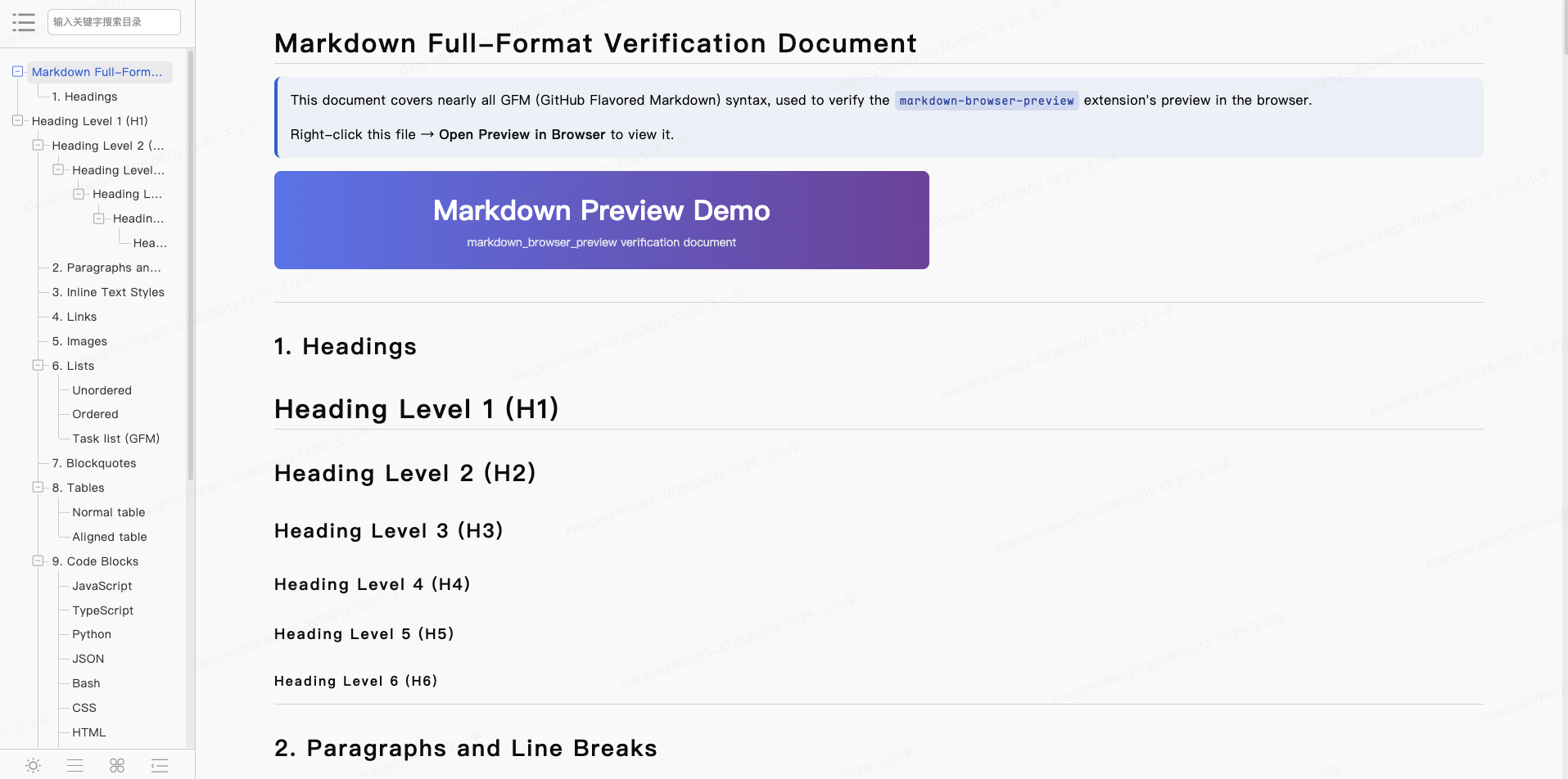
Preview with sidebar TOC

Documentation

To check out the documentation, visit English · 简体中文 · 繁體中文 · 日本語 · 한국어 · Français · Español · Português · Nederlands · Türkçe

Contact me if you are willing to help translate the documentation :)

Features

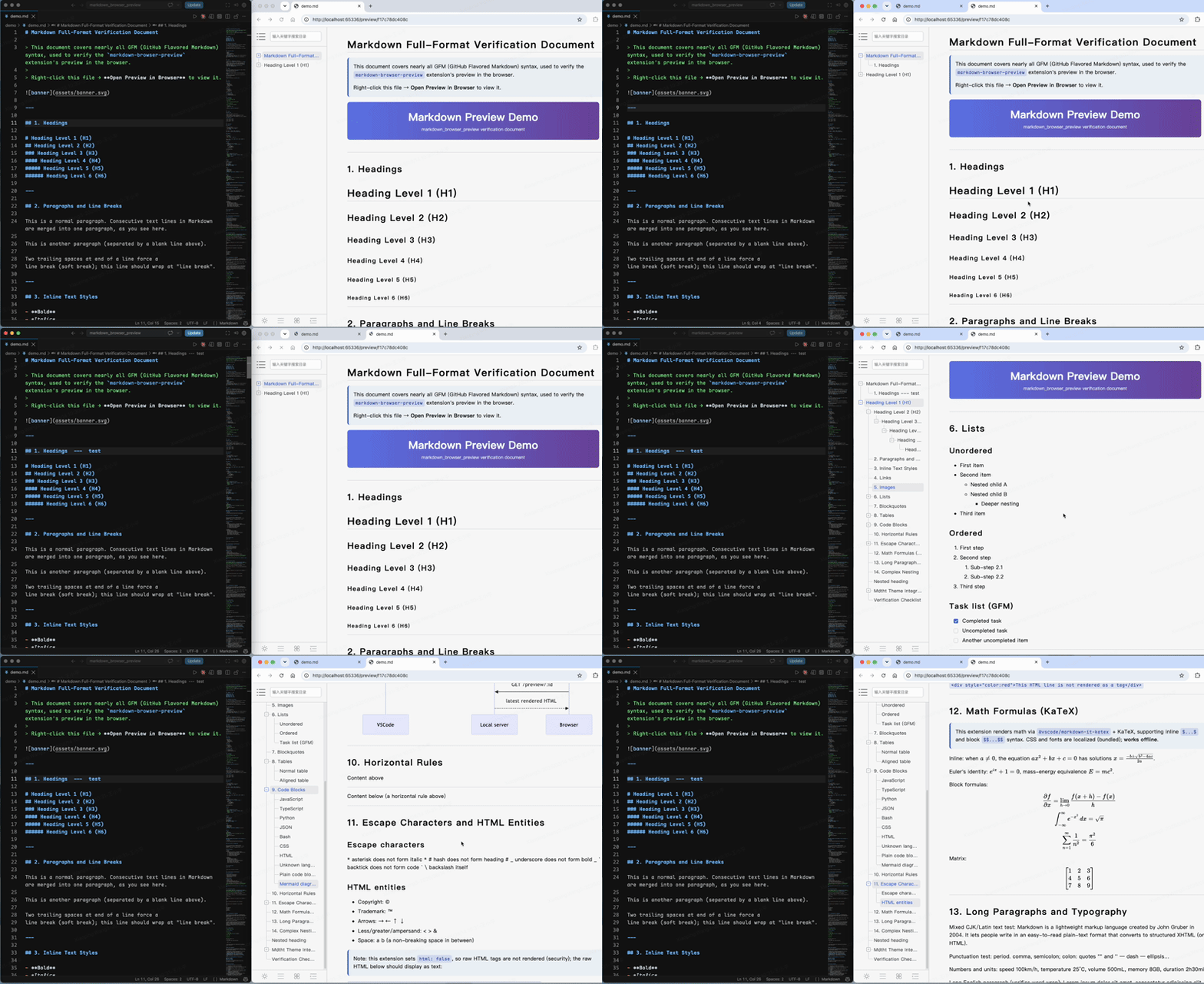
Auto-refresh on save

  • Right-click a .md file → open preview in browser (works in editor / explorer)
  • Self-rendered: GFM tables / strikethrough / task lists / code highlighting / Mermaid diagrams / KaTeX math
  • Save to refresh: save in VSCode (Ctrl/Cmd+S), the browser preview auto-syncs via SSE
  • Relative image proxy (e.g. img.png loads directly)
  • Configurable browser (system default, or app name / executable path)
  • Configurable port (default 0 = auto-pick a free port)
  • Mdtht theme: sidebar TOC, light/dark theme, optional heading numbering

Configuration

key default description
markdownBrowserPreview.browser "default" Browser for preview. "default" = system default; otherwise an app name or executable path (see examples below). Falls back to the default on failure.
markdownBrowserPreview.port 0 Local preview server port. 0 = auto-select a free port.
markdownBrowserPreview.theme "auto" Preview theme. auto = follow system; light = force light; dark = force dark.
markdownBrowserPreview.toc true Show the sidebar table of contents.
markdownBrowserPreview.headingNumbering false Auto-number body headings (e.g. 1, 1.1, 1.1.1).

Browser examples

A value without a path separator is treated as an app name (on macOS passed to open -a, on Windows/Linux used as a command); a value with / or \ is launched as an executable path.

value platform what happens
default all System default browser
Google Chrome macOS open -a "Google Chrome"
Safari macOS open -a "Safari"
Firefox macOS open -a "Firefox"
/Applications/Google Chrome.app/Contents/MacOS/Google Chrome macOS direct executable
chrome Windows cmd /c start "" chrome
C:\Program Files\Google\Chrome\Application\chrome.exe Windows direct executable
google-chrome Linux direct command (must be on $PATH)
/usr/bin/firefox Linux direct executable

Tip: on macOS the app name must match what open -a accepts — usually the display name shown in /Applications (e.g. Google Chrome, not google-chrome).

Usage

  1. Open any .md file
  2. Right-click → "Open Preview in Browser"
  3. Edit and save in VSCode; the browser refreshes automatically

Demo

See demo/demo.md (available when the repo is cloned) to test all features.

Build

npm install
npm run typecheck   # tsc type check
npm run compile     # esbuild bundle -> out/extension.js
npm test            # unit tests
npx @vscode/vsce package   # generate .vsix (auto-runs compile)
  • Contact us
  • Jobs
  • Privacy
  • Manage cookies
  • Terms of use
  • Trademarks
  • Your Privacy Choices
  • Consumer Health Privacy
© 2026 Microsoft