Flow Viewer & Diff
Renders flow XML compatible with OpenText™ Operations Orchestration software as a Studio-style diagram and shows what actually changed between two Git revisions, instead of hundreds of lines of UUIDs and coordinates.
Independent product, not affiliated with OpenText. Not sponsored, certified, approved or endorsed by OpenText. The extension only reads flow files in the format used by OpenText's software and contains no OpenText software, icons or logos. See Trademarks.
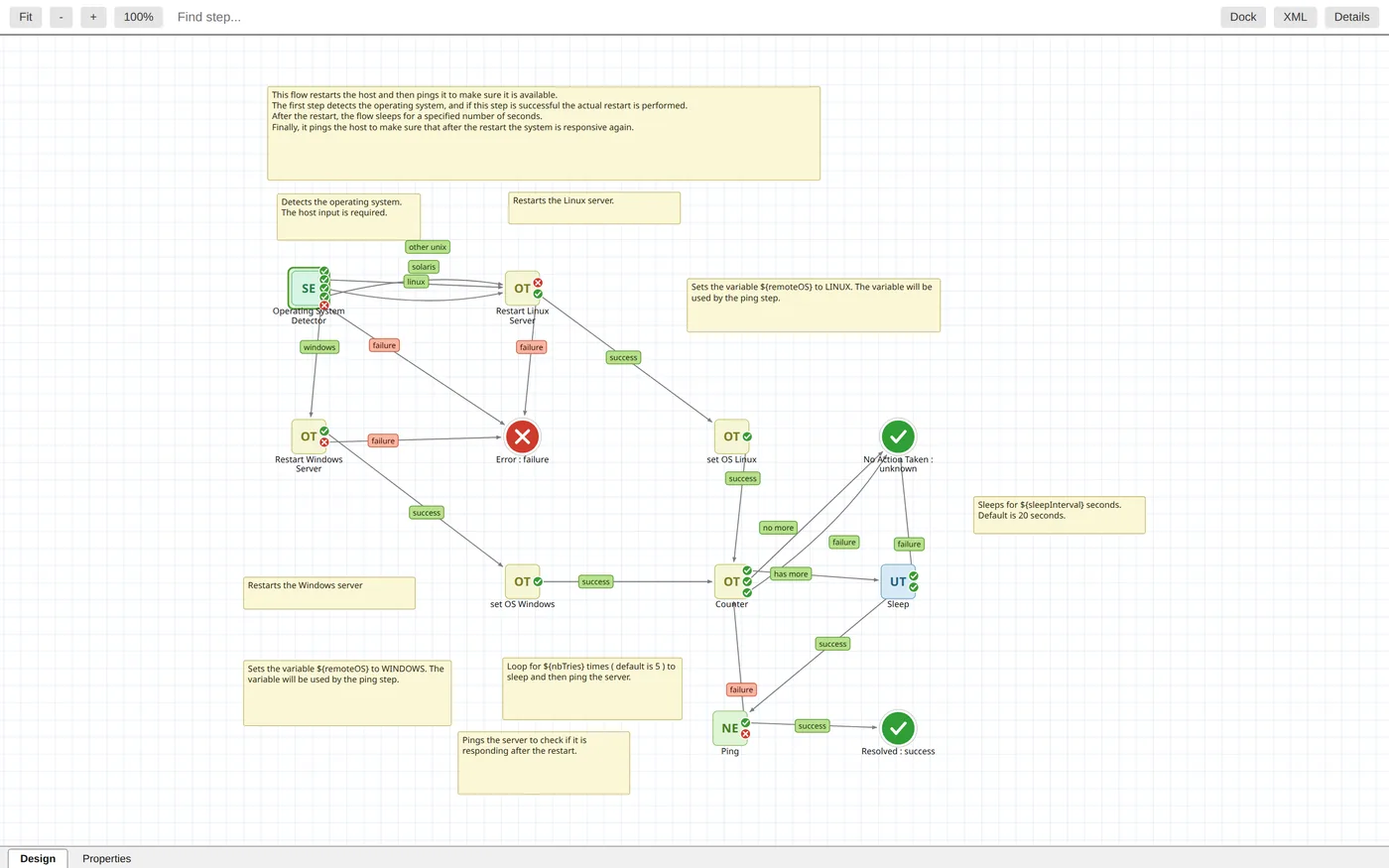
Features
- Studio layout. Steps sit at their exact Studio positions (
bounds), with response badges, return discs, callouts and colored response pills on transitions. Search, pan/zoom, fit.
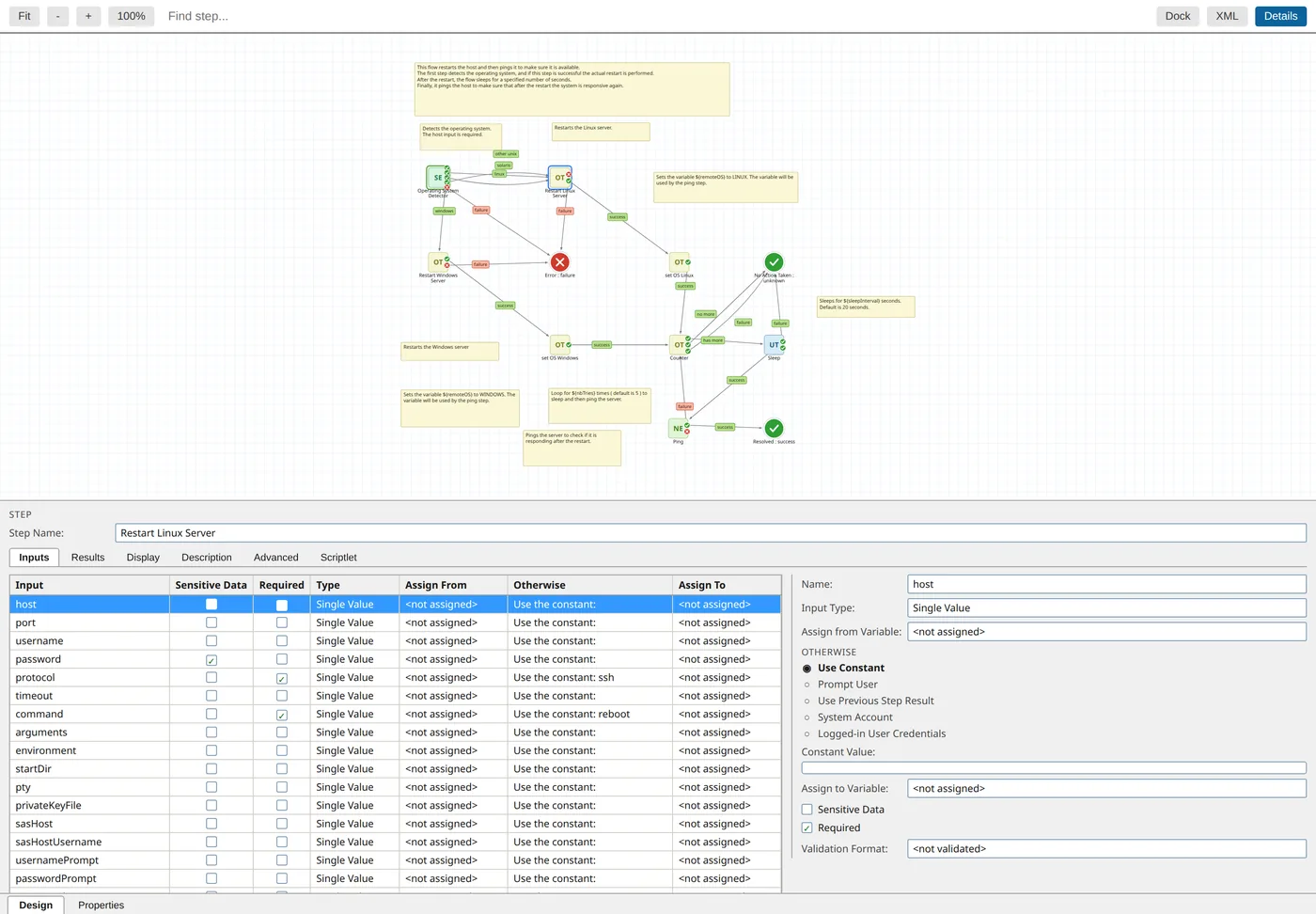
- Inspector. Click a step, transition or callout to see Studio's tabs: Inputs, Results, Display, Description, Advanced, Scriptlet. Dock it below or to the right.
- Subflow navigation.
<opRef> is resolved against the workspace and your local content packs; one click opens the called flow or operation.
- Real outcomes. Each response badge shows the type the called operation declares (resolved, error, diagnosed, no action), with Studio's own pictures when available.
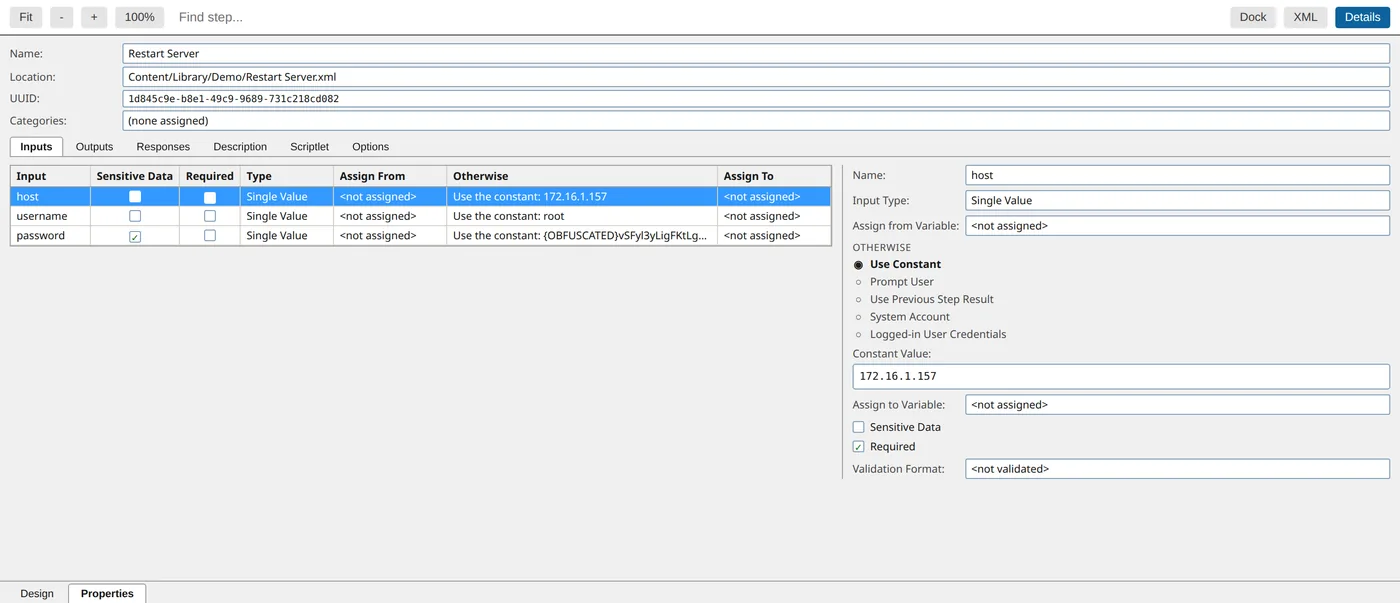
- Flow properties. Name, location, UUID, categories, inputs, outputs, responses, scriptlets.
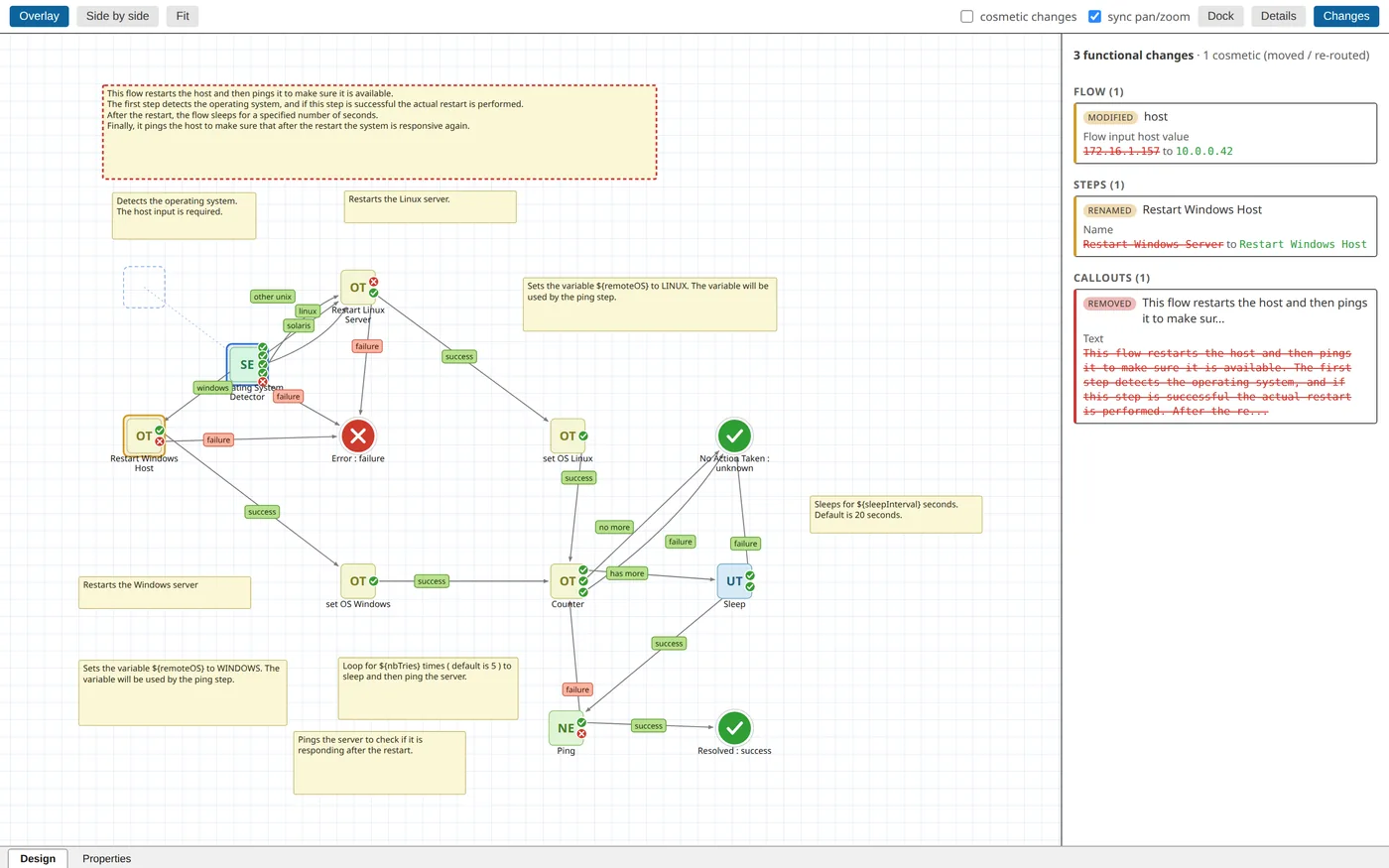
- Flow diff. Every change is classified as functional or cosmetic. Moved steps and re-routed transitions are hidden by default, so only what changes behavior remains.
Flow diff
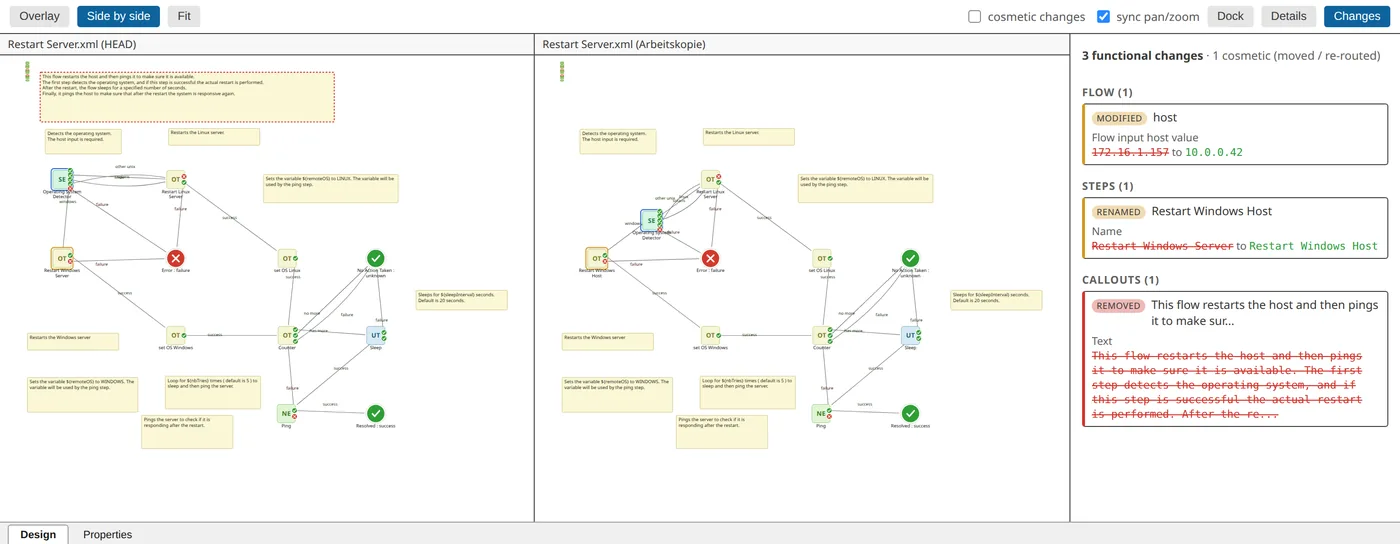
Overlay merges both revisions into one graph: added green, removed red dashed, modified orange, moved blue with a ghost at the old position. The change list is grouped by flow / steps / return steps / transitions / callouts, field by field (Input url value: …v1… → …v2…); click an entry to zoom to it.
Side by side shows old and new with synchronized pan/zoom. The inspector and properties work in both modes.
Usage
| Action |
How |
| Open a flow as diagram |
Editor title button, or Flow Viewer: Open Flow Preview |
| Compare with HEAD |
Flow Viewer: Compare Flow with HEAD, or right-click in Source Control |
| Compare with branch / tag / commit |
Flow Viewer: Compare Flow with Revision… |
| From an open text diff |
Open as Flow Diff in the diff editor title bar |
| Compare two files |
Flow Viewer: Compare Two Flow Files… |
| Diagram as default editor |
Flow Viewer: Diagram / XML toggle in the status bar |
| Back to XML |
XML button in the diagram toolbar, Text diff in the diff toolbar |
| License |
Flow Viewer: Enter License Key / Show License, or click the status bar item |
| Log |
Flow Viewer: Show Log |
The diagram is registered as an additional editor; the XML stays editable. With the default-editor toggle on, flow files open as diagrams everywhere, and clicking a changed flow in Source Control opens the flow diff (flowViewer.diff.useFlowDiffForGitChanges). A file counts as a flow or operation by its root element (<flow> / <operation>), not by the folder it is in, so pom.xml and other XML files stay text.
Free version and license
- Free: each flow is shown as a fitted image (PNG), icons and all — the icon of a step without one of its own is taken from the operation it calls, in the workspace as in a content pack. No inspector, properties, zoom, search, subflow navigation or diff; a changed flow in Source Control shows its new version only.
- Trial: the full version runs for 7 days on first start without a key.
- Licensed: everything, until the key's expiry date (inclusive); afterwards the extension falls back to the free version. Keys are checked offline. For license contact sales@nekir.tech
Enter the key with Flow Viewer: Enter License Key. Administrators can roll it out via flowViewer.licenseKey in the user settings (never the workspace). Licenses are for businesses only (B2B). Licensed companies may distribute the .vsix internally to their authorized users. See LICENSE, Sections 1 and 2.
Icons
Flow XML only contains icon names (/Networking/earth.png). Point flowViewer.iconRoots at your Studio installation's icon folder or .jar files; the default is C:\Program Files\Micro Focus\Operations Orchestration\studio\icons. Missing icons are drawn as colored placeholder tiles, which is what the screenshots on this page show.
The pictures for response badges and return steps (return_resolved.png, return_error.png, …) are taken from images/img/24x next to that folder, i.e. studio/images/img/24x. Without them, the badges are drawn as colored glyphs.
Content packs and the index
Flows call operations by UUID only. To show what a step calls, its icon, its outcomes and a link to it, the extension indexes the flows and operations in the workspace and in the content packs listed in flowViewer.contentPackRoots (default ~/.oo/data/content-packs, where Studio keeps the packs of its workspace). Content packs are only read, never written to. Both versions index them, because a step that carries no icon of its own is drawn with the icon of the operation it calls — what the free version uses the index for ends there; links and exact outcomes are part of the full version.
- Nothing to wait for. A diagram opens with what is already known and redraws when the index learns more — the icon and the response types of a called operation are read on first use, and the drawing on screen picks them up without being reopened.
- Cache. The index is kept between sessions in the extension's own storage folder (VS Code's
globalStorage/nekirtech.flow-viewer), so later starts only read files whose size or date changed. Workspaces without flows are not cached. Caches unused for 30 days, of removed content packs or of older extension versions are deleted automatically.
- Clean up. Flow Viewer: Clear Index Cache deletes the cache at any time; Rebuild Flow Index scans everything from scratch. Uninstalling the extension deletes the storage folder once VS Code restarts.
Light and dark
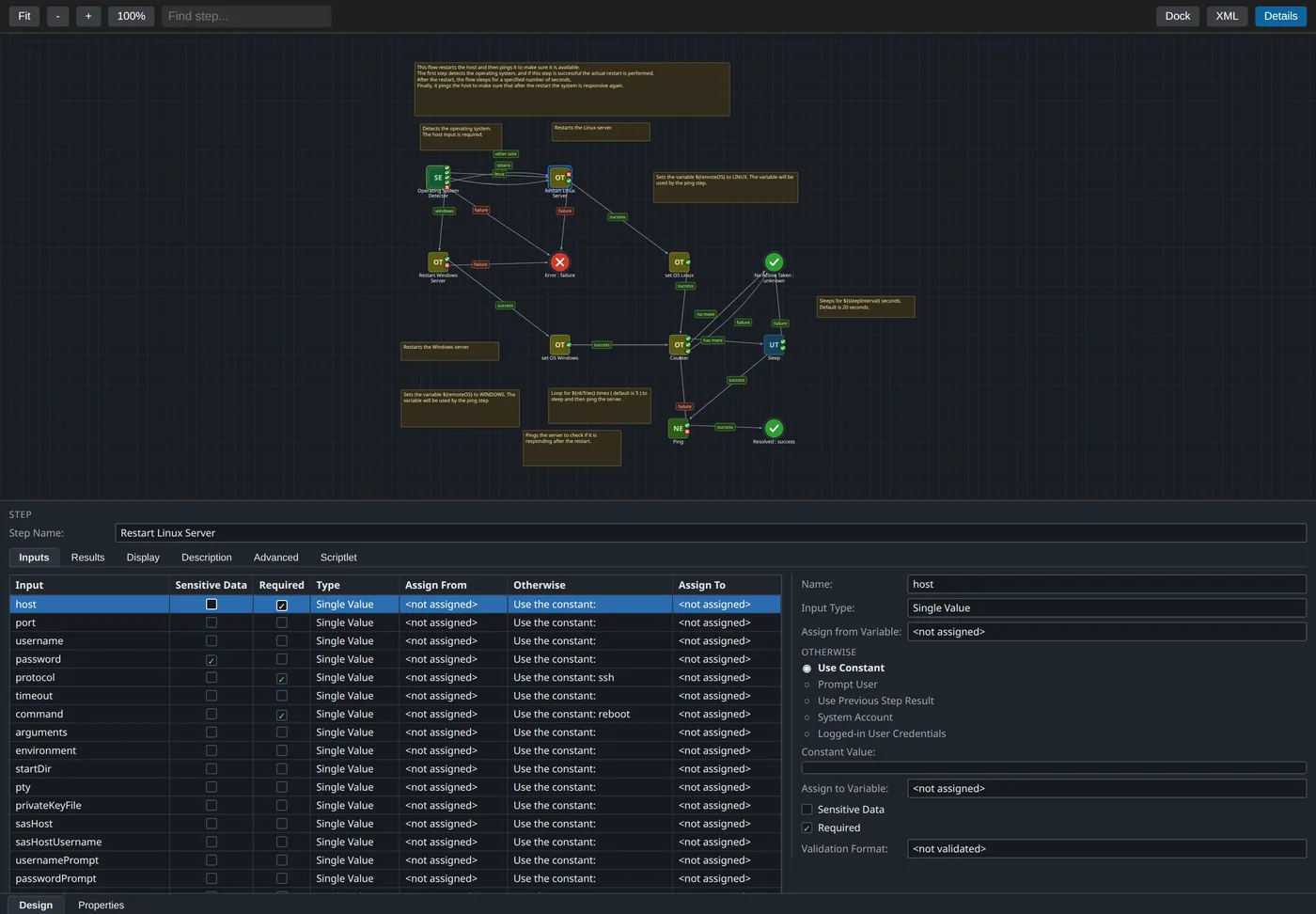
flowViewer.canvasTheme: auto (follows the editor theme), studio, studio-dark or editor (VS Code palette).
Settings
| Key |
Default |
Purpose |
flowViewer.licenseKey |
empty |
License key (user settings only) |
flowViewer.iconRoots |
Studio icon folder |
Folders / JARs to load icons from |
flowViewer.canvasTheme |
auto |
auto, studio, studio-dark, editor |
flowViewer.inspectorTheme |
auto |
Same for dock and inspector; auto follows the canvas |
flowViewer.diagramAsDefault |
false |
Open flow and operation files as a diagram (the status bar toggle) |
flowViewer.defaultEditorScope |
workspace |
Where the toggle writes: workspace or user |
flowViewer.contentPackRoots |
~/.oo/data/content-packs |
Folders with content packs to index (user settings only in Restricted Mode) |
flowViewer.include |
**/*.xml |
Files searched for flows and operations (<opRef> resolution) |
flowViewer.exclude |
**/{node_modules,target,out,dist,.git}/** |
Excluded from the index |
flowViewer.diff.useFlowDiffForGitChanges |
true |
Open Git changes as flow diff while the toggle is on |
flowViewer.diff.defaultMode |
overlay |
overlay or sideBySide |
flowViewer.diff.showChangeList |
true |
Show the change list initially |
flowViewer.diff.showCosmeticChanges |
false |
Include moves and re-routes |
flowViewer.diff.syncPanZoom |
true |
Sync pan/zoom side by side |
Known limitations
- Supports the 10.x / 2018+ flow and operation XML format.
- Transition routing: Studio only keeps
<positions> current for hand-routed transitions, so other lines are routed by the extension. Step positions are always Studio's.
- Response types come from the called operation, not the flow. Where it is not in the workspace or a content pack folder, and in the free version, the extension infers them. Response badges sit on the edge facing the target instead of always on the right.
<opRef> to operations in content packs that exist only as .jar shows the UUID only. In the diff, operation references and response types are not resolved yet.- Multi-instance and parallel-split lanes are readable in the inspector but not drawn as frames.
- Remote SSH, WSL, Dev Containers and virtual workspaces are not supported. In Restricted Mode,
flowViewer.iconRoots and flowViewer.contentPackRoots are read from user settings only.
Support
Mail to flowviewer@nekir.tech with the contents of the Flow Viewer output channel (Flow Viewer: Show Log, set the level to Debug for more detail), what you did and expected, and, if possible, the flow XML (strip confidential inputs and scriptlets).
Proprietary software of NekirTech UG (haftungsbeschränkt), for businesses only. See LICENSE. Third-party components: THIRD_PARTY_NOTICES.txt.
Trademarks
OpenText, Micro Focus and Operations Orchestration are either registered or unregistered trademarks of OpenText. Operations Orchestration is a product of OpenText. NekirTech UG (haftungsbeschränkt) and this extension are not affiliated with OpenText and are not sponsored, certified, approved, endorsed or distributed by OpenText. These marks are used only to describe which flow files the extension is compatible with. All other trademarks belong to their respective owners.

