Pivotal for VS Code

Syntax highlighting, autocomplete, interactive execution, and a live data viewer for the Pivotal data analysis language — a concise, readable DSL that compiles to Pandas, Polars, or DuckDB.
Full documentation: nealbob.github.io/pivotal-py
Features
- Syntax highlighting for
.pivotal files and %%pivotal magic blocks in .py files
- Autocomplete for commands, table names, and column names
- Interactive execution via VS Code Interactive Window (Jupyter kernel)
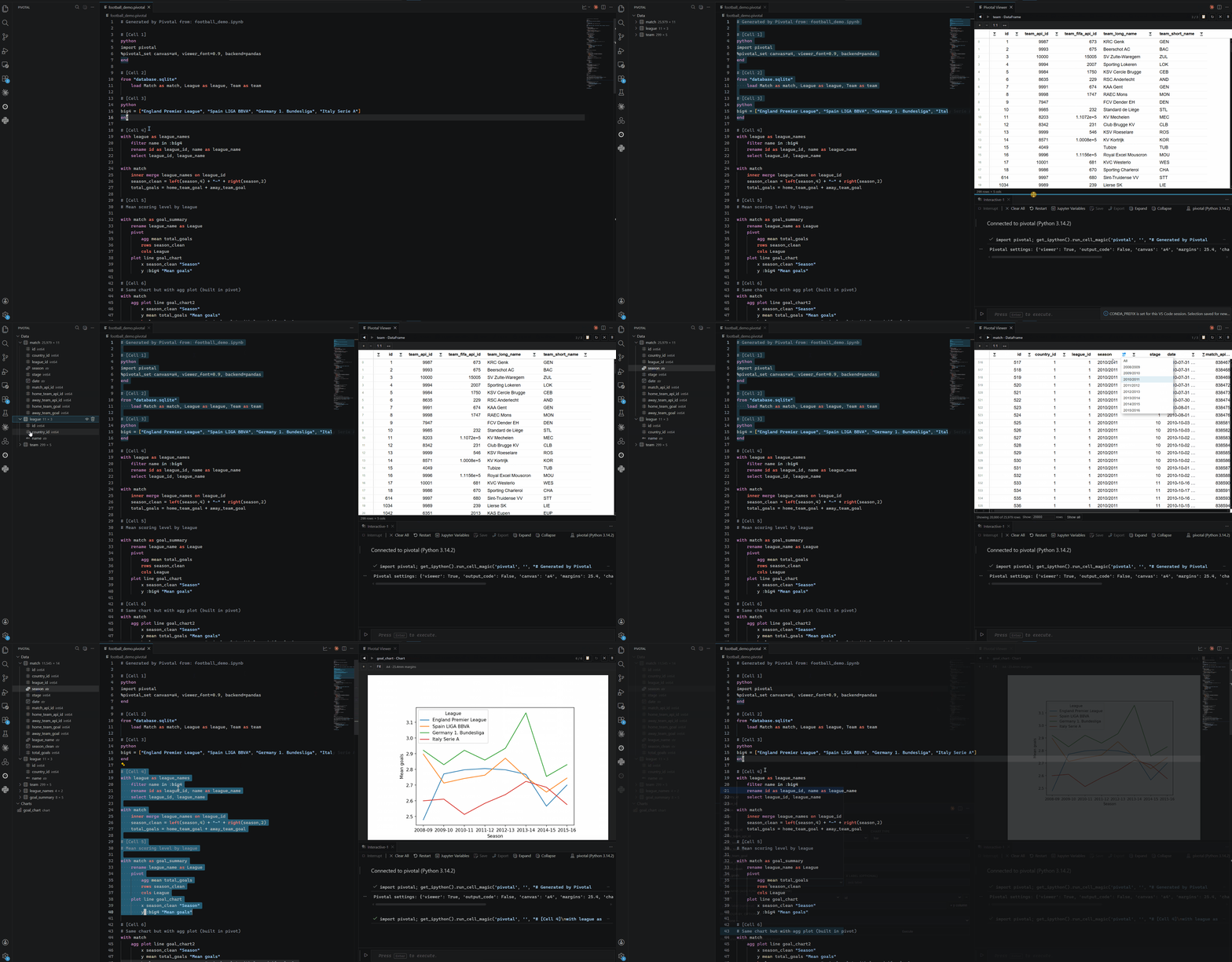
- Live viewer panel — browse DataFrames, charts, and tables after each run
- Pivotal Explorer — left-sidebar panel listing all current outputs with one-click view/delete
- Pivotal menu — toolbar buttons and right-click menu for all common actions
- Plot GUI — point-and-click chart builder that inserts a
plot statement
- Pivot GUI — point-and-click pivot/aggregation builder that inserts a
pivot block
- Load dataset — GUI file picker that inserts a
load statement
- Save package — export all outputs (DataFrames, charts, tables) as a Frictionless data package
- Compile to Python or SQL — export the current file to pandas / Polars / DuckDB / SQL code
Requirements
Getting Started
- Install the extension and
pivotal-lang.
- Open (or create) a
.pivotal file.
- Set your Python environment — open Settings (
Ctrl+,) and search for pivotal.pythonPath, or run the command Pivotal: Select Python Environment from the Pivotal Explorer toolbar. Point it at the Python executable that has pivotal-lang installed.
- Press
Ctrl+Enter to run the file in an Interactive Window. Results appear in the Pivotal Viewer panel.
Click the Pivotal icon in the Activity Bar to open the Pivotal Explorer. It shows all objects produced by the last run, grouped into three sections:
- Data — DataFrames (expand to see column names and types)
- Charts — matplotlib figures
- Tables — Great Tables outputs
Click the eye icon next to any item to open it in the Viewer. Click the trash icon to remove it from the session. The Explorer toolbar also gives quick access to Load, Save, Show Viewer, Plot GUI, Pivot GUI, Execute, and Export commands.
Viewer Panel
The Pivotal Viewer opens as a panel in the editor area and displays:
- DataFrames — paginated AG Grid table with type-aware header filters
- Charts — rendered PNG figures
- Tables — HTML Great Tables output
Toggle the viewer on/off with the pivotal.viewer setting, or suppress it for a single session with %pivotal_set viewer=false at the top of your file.
Commands and Keyboard Shortcuts
All commands are available via the Command Palette (Ctrl+Shift+P, search "Pivotal"), the editor toolbar (title bar run buttons), the right-click context menu, and the Pivotal Explorer toolbar.
| Command |
Keybinding (Win/Linux) |
Keybinding (Mac) |
Description |
| Execute in Interactive Notebook |
Ctrl+Enter |
Cmd+Enter |
Run the whole file in an Interactive Window |
| Execute Selection |
Shift+Enter |
Shift+Enter |
Send selected text to the Interactive Window |
| Execute File |
Ctrl+F5 |
Cmd+F5 |
Run the file via python -m pivotal in the terminal |
| Load Dataset |
Ctrl+Shift+L |
Cmd+Shift+L |
Open the Load GUI and insert a load statement |
| Save Package |
Ctrl+Shift+S |
Cmd+Shift+S |
Export outputs as a Frictionless data package |
| Compile to Python or SQL |
Ctrl+Shift+E |
Cmd+Shift+E |
Export the file to Python / SQL code |
| Insert Plot (GUI) |
— |
— |
Open the plot builder and insert a plot block |
| Insert Pivot Table (GUI) |
— |
— |
Open the pivot builder and insert a group by block |
| Show Viewer |
— |
— |
Open or focus the Pivotal Viewer panel |
| Select Python Environment |
— |
— |
Choose the Python executable for this workspace |
Plot and Pivot GUIs
Plot GUI (pivotal.plotGui)
Opens a form where you choose a chart type (line, bar, scatter, histogram, …), x/y columns, colour, labels and other options. Clicking Insert writes the corresponding plot block into your file at the cursor.
Pivot GUI (pivotal.pivotGui)
Opens a form where you pick columns and aggregation functions. Clicking Insert writes the corresponding block into your file.
Both GUIs are also accessible from the editor toolbar and the Pivotal Explorer toolbar.
Load, Save, and Export
| Action |
How |
| Load a dataset |
Ctrl+Shift+L or Load Dataset button — inserts load "<path>" as <table> |
| Save a data package |
Ctrl+Shift+S or Save Package button — writes a Frictionless package to a chosen folder |
| Export to Python / SQL |
Ctrl+Shift+E or Compile button — generates code for the selected backend |
Cell Markers
Use #%% to split a .pivotal file into sections. Each section runs as a separate cell in the Interactive Window:
load "data/sales.csv" as sales

with sales
    filter revenue > 1000

#%%

with sales
    group by region
        agg sum revenue as total_revenue
    sort total_revenue desc
Embedding Pivotal in Python Files
Syntax highlighting is injected into %%pivotal magic blocks in .py files:
import pivotal

# %%
%%pivotal
load "data.csv" as df

with df
    filter value > 0
Extension Settings
Open Settings (Ctrl+,) and search for Pivotal to configure the extension.
| Setting |
Default |
Description |
pivotal.pythonPath |
(auto) |
Path to the Python executable. Leave empty to auto-detect from the active Jupyter kernel or Python extension. Recommended: set this to your conda/venv Python so Pivotal always uses the right environment. |
pivotal.viewer |
true |
Send results to the Viewer panel after each run. Set to false to disable the viewer and use inline show output instead. |
pivotal.backend |
"pandas" |
Default code-generation backend: pandas, polars, duckdb, or sql. Can be overridden per-session with %pivotal_set backend=polars. |
pivotal.viewerFont |
1.0 |
Font size scale for the DataFrame viewer (0.5–2.0). |
pivotal.viewerNumFormat |
5 |
Significant digits for float columns in the viewer (0 = disabled). |
Tip: If you have multiple Python environments, set pivotal.pythonPath to avoid accidentally running Pivotal under the wrong interpreter.
Documentation
Full syntax reference, backend guide, and API docs:
nealbob.github.io/pivotal-py
Source code and issue tracker:
github.com/nealbob/pivotal-py
License
MIT

