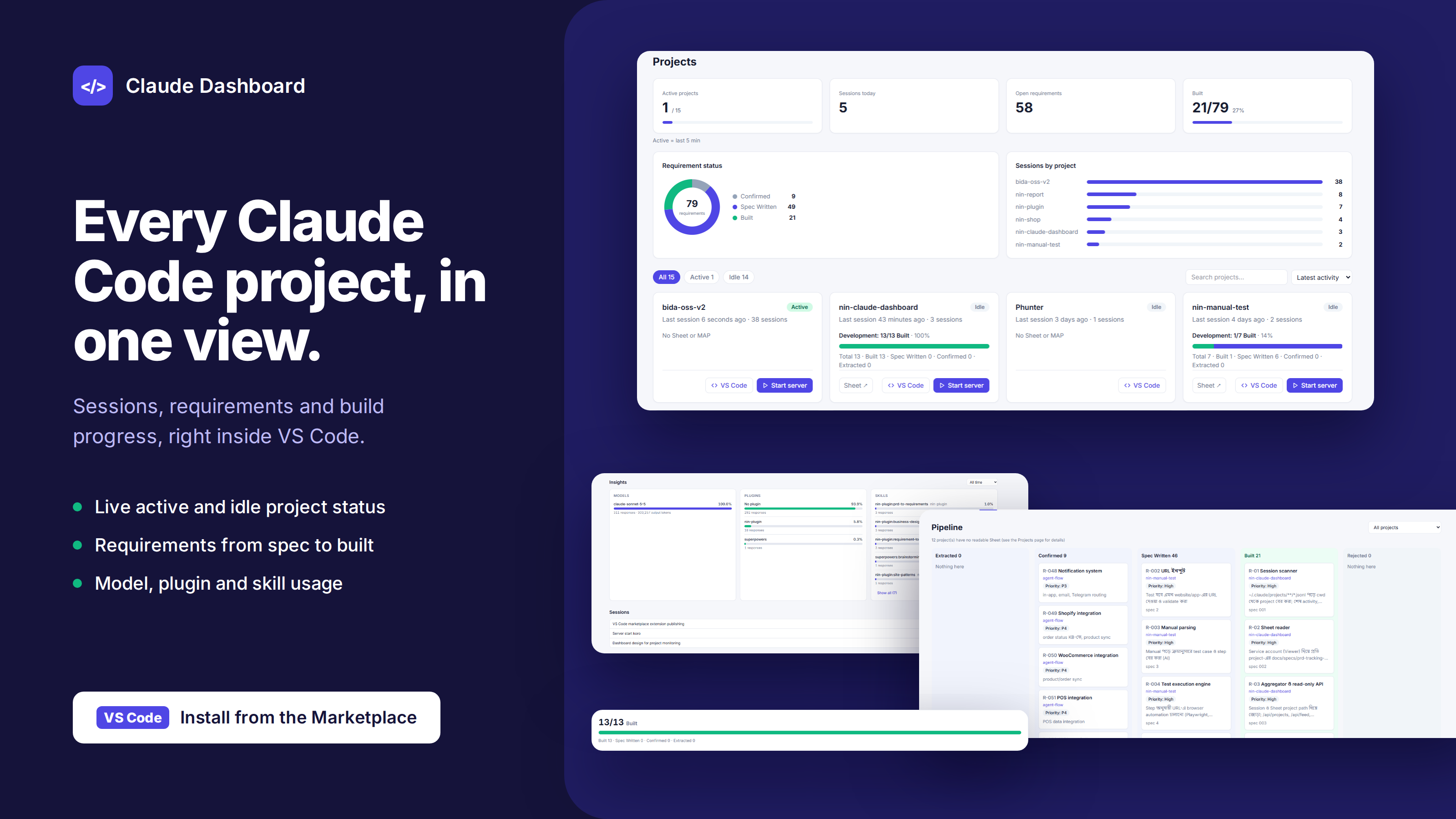
See which projects you are working on with Claude Code, right inside VS Code: sessions per project (read from ~/.claude/projects), a live feed, and each project's requirement status.
Quick start
Install the extension.
Run Claude Dashboard: Open (or click Claude Dashboard in the status bar).
That's it. You see your projects and sessions. Requirement status comes from docs/specs/MAP.md in each project.
Optional: read requirements from Google Sheets
Run Claude Dashboard: Get Started for the full walkthrough, or:
Create a Google service account with the Sheets API enabled and download its JSON key.
Share each Sheet with the service account's email (Viewer is enough).
Put the Sheet link in each project's docs/specs/prd-tracking-sheet.txt.
Run Claude Dashboard: Select Google Key File and pick the JSON. The dashboard reloads by itself.
If something is wrong, the dashboard says what to do next (key not set, key not found, Sheet not shared).
Commands
Command
What it does
Claude Dashboard: Open
Dashboard in a VS Code tab
Claude Dashboard: Open in Browser
Same dashboard in your browser
Claude Dashboard: Select Google Key File
Pick the service account key
Claude Dashboard: Get Started
Step-by-step walkthrough
Settings
Setting
Purpose
claudeDashboard.keyPath
Google service account key (set by the command above).
claudeDashboard.port
Local port. 0 (default) picks a free one.
claudeDashboard.editorCommand
Command for the "Open in VS Code" button. Empty uses code.
The dashboard runs a small server on 127.0.0.1 only. Nothing leaves your machine except the Google Sheets requests you configure.