
Serial Terminal
A VS Code extension for communicating with USB/UART serial devices directly from the editor.
Features
Serial Port Explorer
A dedicated activity bar panel lists all available serial ports on your machine. Ports update on refresh and show their connection status and baud rate at a glance.
Connect & Disconnect
Connect to any port with a single click. The port tree reflects the connection state in real time, toggling between Connect and Disconnect actions.
Integrated Terminal
Open a full VS Code terminal session for any connected port. The terminal:
- Displays incoming data with color support
- Strips DEC private mode escape sequences (e.g. bracketed paste) that can corrupt output from embedded devices
- Normalizes line endings from the device for clean display
Per-Port Configuration
Each port has independently saved settings, persisted across VS Code sessions:
| Setting |
Options |
Default |
| Baud rate |
Any standard rate |
115200 |
| Data bits |
7, 8 |
8 |
| Stop bits |
1, 2 |
1 |
| Parity |
None, Even, Odd |
None |
| Flow control |
None, Hardware |
None |
| Line ending |
CR, LF, CRLF |
CR |
| Terminal mode |
UART, MicroPython |
UART |
| Alias |
Custom label |
— |
Port Aliases
Assign a friendly name to any port. The alias appears as the terminal tab title and in the port tree, making it easy to identify devices when multiple ports are connected.
MicroPython Mode
Switch a port to MicroPython mode to get an enhanced REPL experience:
- Built-in command shortcuts that expand to Python expressions before sending
- Type
alias to list all defined aliases
- Customize aliases via the
usb-local.micropythonShortcuts setting in VS Code settings
Default aliases:
| Command |
Expands to |
ls |
import os; os.listdir($1) |
ll |
import os; print('\n'.join(os.listdir($1))) |
pwd |
import os; print(os.getcwd()) |
df |
import os; print(os.statvfs('/')) |
free |
import gc; gc.collect(); print(gc.mem_free()) |
reset |
import machine; machine.reset() |
ifconfig |
Show IP config for both STA and AP interfaces |
$1 is replaced by the argument you type after the alias (e.g. ls /lib).
File Upload to MicroPython Devices
Upload any file to a connected MicroPython device using the raw REPL protocol:
- Accessible from the Explorer context menu, Editor context menu, Editor title bar, and the port context menu
- Shows upload progress (bytes transferred)
- Supports cancellation mid-upload
- Files are written in binary chunks to avoid overflowing the device's input buffer
Usage
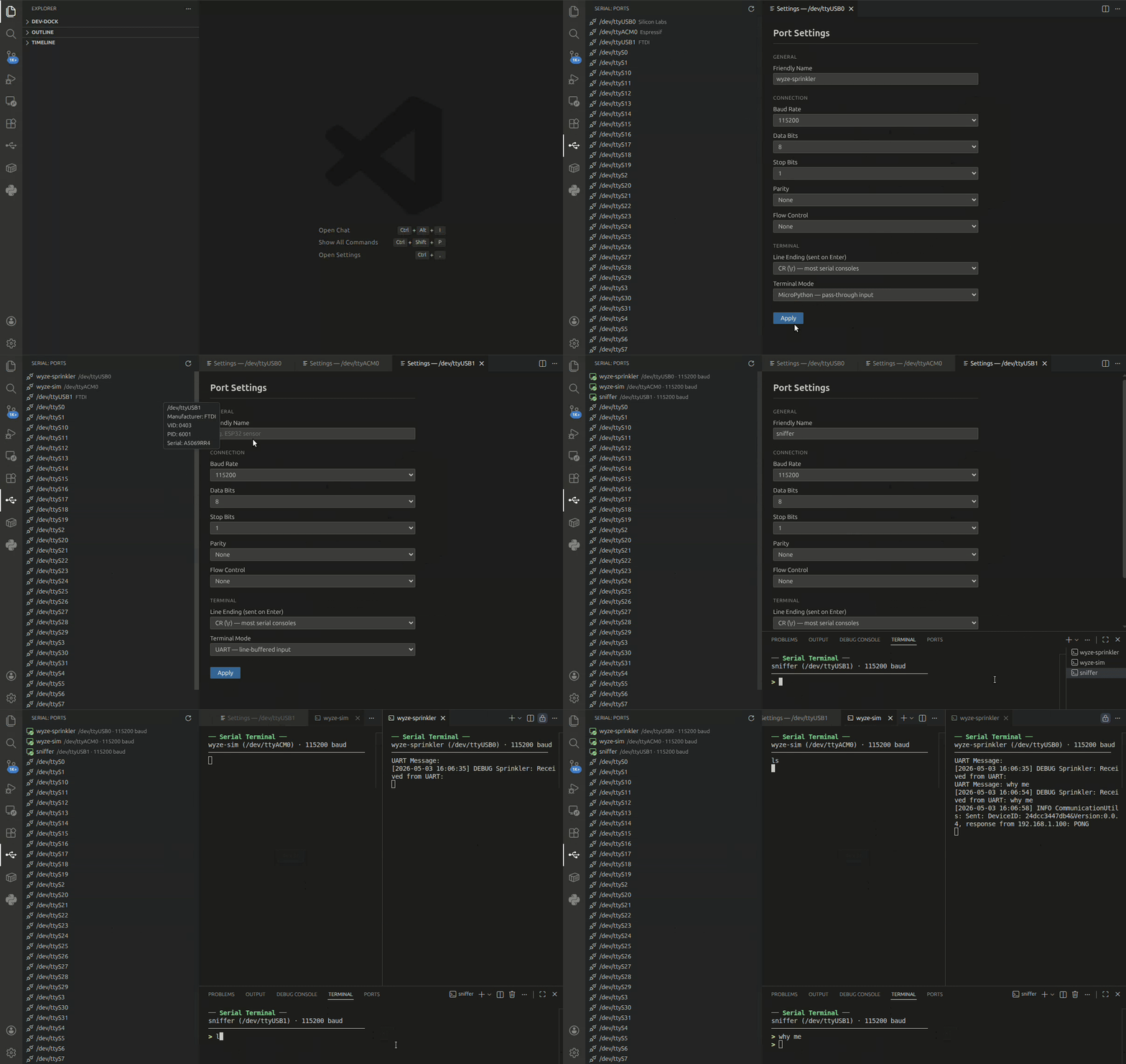
- Open the Serial view in the activity bar (plug icon).
- Click Refresh to scan for ports.
- Click the Connect button next to a port.
- Click Open Terminal to start communicating.
- Optionally click Configure Port to adjust baud rate, line endings, mode, and alias.
Settings
| Setting |
Description |
usb-local.micropythonShortcuts |
Key/value map of shorthand commands to Python expressions sent in MicroPython mode |
Requirements
- VS Code 1.85.0 or later
- A USB-to-serial adapter or device with a native serial port
License
Free for personal, non-commercial use. Commercial use is prohibited. See LICENSE for full terms.

