Mermaid NG — Visual Editor for VSCode
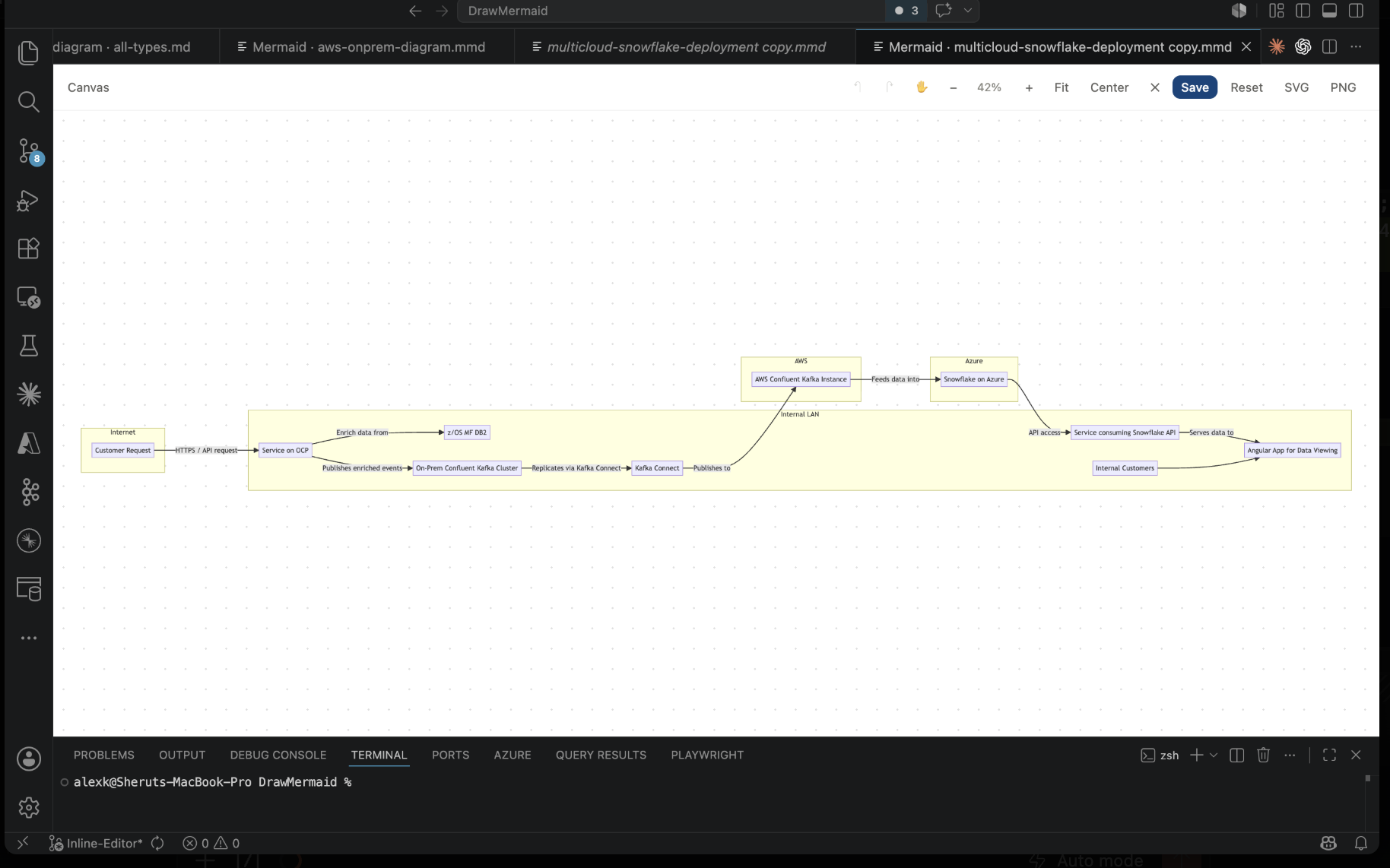
WYSIWYG, drag-and-drop visual editor for AI-friendly Mermaid diagrams — what you see is what you get. For software architects and developers who design systems faster when they can see what they're building. Multi-sheet, round-trips .md and .mmd files in place, exports SVG/PNG, and runs fully offline — Mermaid 11.15.0 is bundled, no network calls, no telemetry.
A NGPowerToys extension.
What's new in 2.5.0 — One-click flow building, multi-line labels, and a real colour palette. Hover any flowchart node to get a small green "+" button that opens a 4-shape picker (Process box / Rounded / Circle / Decision); pick a shape and a new connected node is appended in one click. Multi-line labels everywhere — the edit modal's name / label field is now a textarea (Enter inserts a line break, Cmd/Ctrl+Enter submits), and real newlines round-trip through the Mermaid source as the standard \n escape across node labels, edge labels, and subgraph titles. The fill and border color fields now show a curated default palette plus a Recently used grid that's seeded from the chart's existing style / linkStyle / classDef colours every time the modal opens. See CHANGELOG.md.


See it in action
Why Mermaid NG?
Mermaid is the lingua franca for diagrams in modern engineering and AI workflows: it's text, so LLMs love it, Git diffs cleanly, and it renders everywhere — GitHub, GitLab, Notion, Obsidian, MkDocs, your own static site. But writing the text by hand is slow and reading someone else's complex diagram is painful.
Mermaid NG closes the loop:
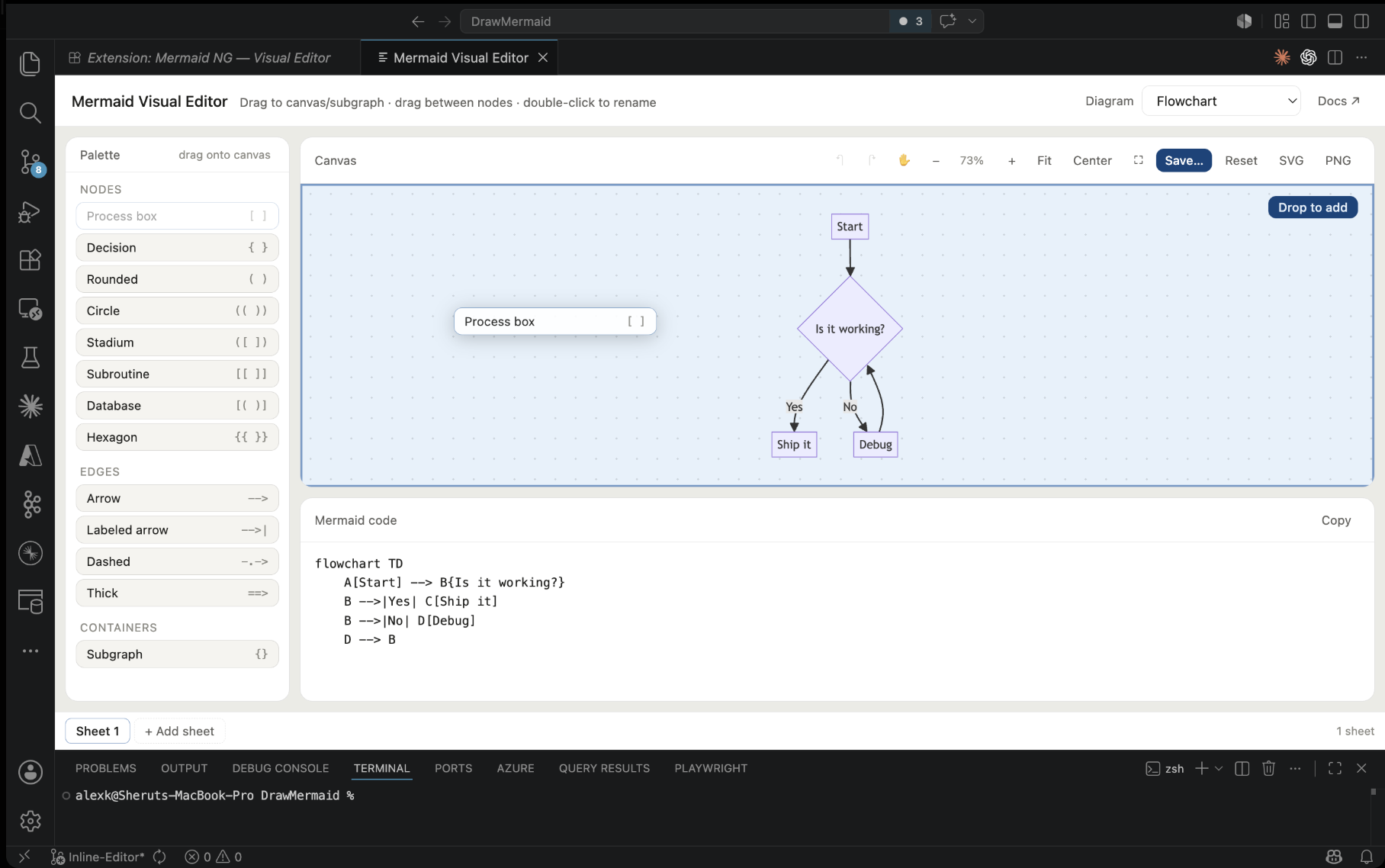
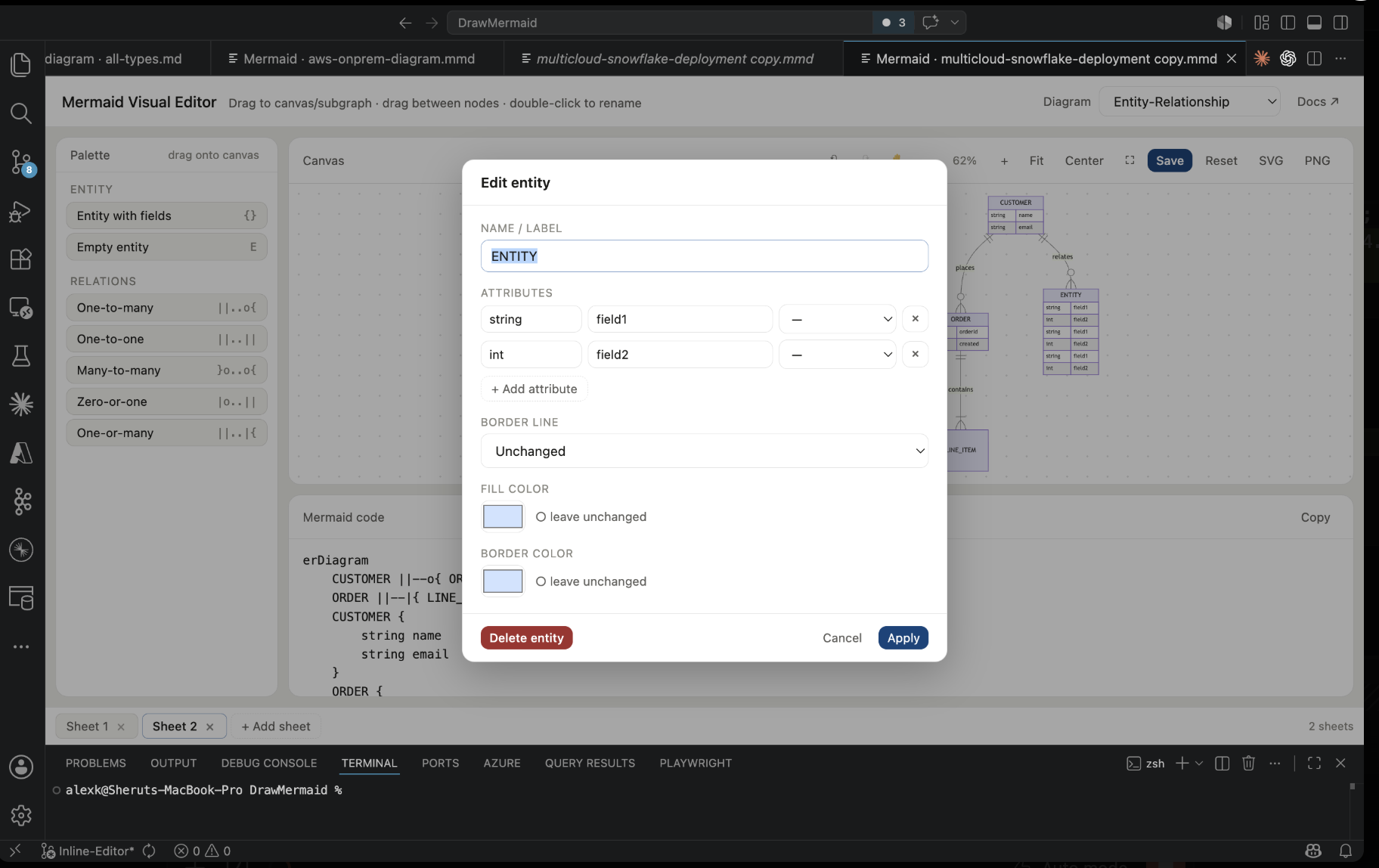
- For architects: drag shapes from a palette, draw connections by dragging between nodes, double-click anything to edit. The Mermaid source updates in real time, so the diagram you draw is the diagram you commit.
- For developers: edit existing diagrams inside your
.md files visually without leaving VSCode. Save back rewrites just the diagram blocks, leaving the rest of the doc alone.
- For AI workflows: Mermaid is text — paste an LLM's output, edit it visually, paste back. No format conversion, no PNG round trips, no losing fidelity.
All in a webview, fully offline, with no telemetry.
Features
- 👁️ WYSIWYG — every canvas action updates the Mermaid source in real time, and every keystroke in the code pane re-renders the canvas. The canvas is the source.
- 🌐 Fully offline · no telemetry — Mermaid 11.15.0 inlined. The extension makes zero network requests at runtime. Works on air-gapped machines.
- 🖱️ Drag-and-drop palette — process boxes, decisions, subroutines, databases, hexagons, edges, subgraphs, swimlanes, sequence actors, ER entities, class members, state transitions…
- 🪝 Drag between nodes to connect — the editor figures out the right edge syntax for the current diagram family (flowchart
-->, class <|--, ER ||--o{, state -->).
- ✏️ Double-click to edit — labels, styles, colors, members, edge types, arrowheads, cardinalities.
- 🗑️ Click
Delete (in the modal) or hover + press Delete/Backspace to remove nodes and edges.
- ↶ Full undo / redo for every visual mutation (
Cmd/Ctrl+Z, Cmd+Shift+Z / Ctrl+Y) — per-sheet history, debounced typing.
- 📑 Multi-sheet tabs (draw.io style) — open a markdown file with several
```mermaid blocks and edit them all in one panel with tabs.
- 💾 Save back in place —
Cmd/Ctrl+S writes the diagram(s) back into the source file's exact block, preserving surrounding prose and code fences. For scratch panels, Save… opens a Save As dialog and creates a new .md (or .mmd).
- 🖼️ SVG / PNG export — native Save dialog, default filenames derived from the diagram
title: or active sheet name.
- 🧱 Two markdown syntaxes — picks up both the standard GitHub-flavored
```mermaid fenced blocks and the Azure DevOps Wiki / Pandoc ::: mermaid ... ::: container form. Mixed-style files are supported, and save-back preserves each block's fence style.
- 🤝 AI-friendly — the canvas IS Mermaid text. Drop in any LLM's diagram code, refine it visually, paste it back.
Quick start
- Install the extension from the marketplace, or
code --install-extension mermaid-visual-editor-2.5.0.vsix.
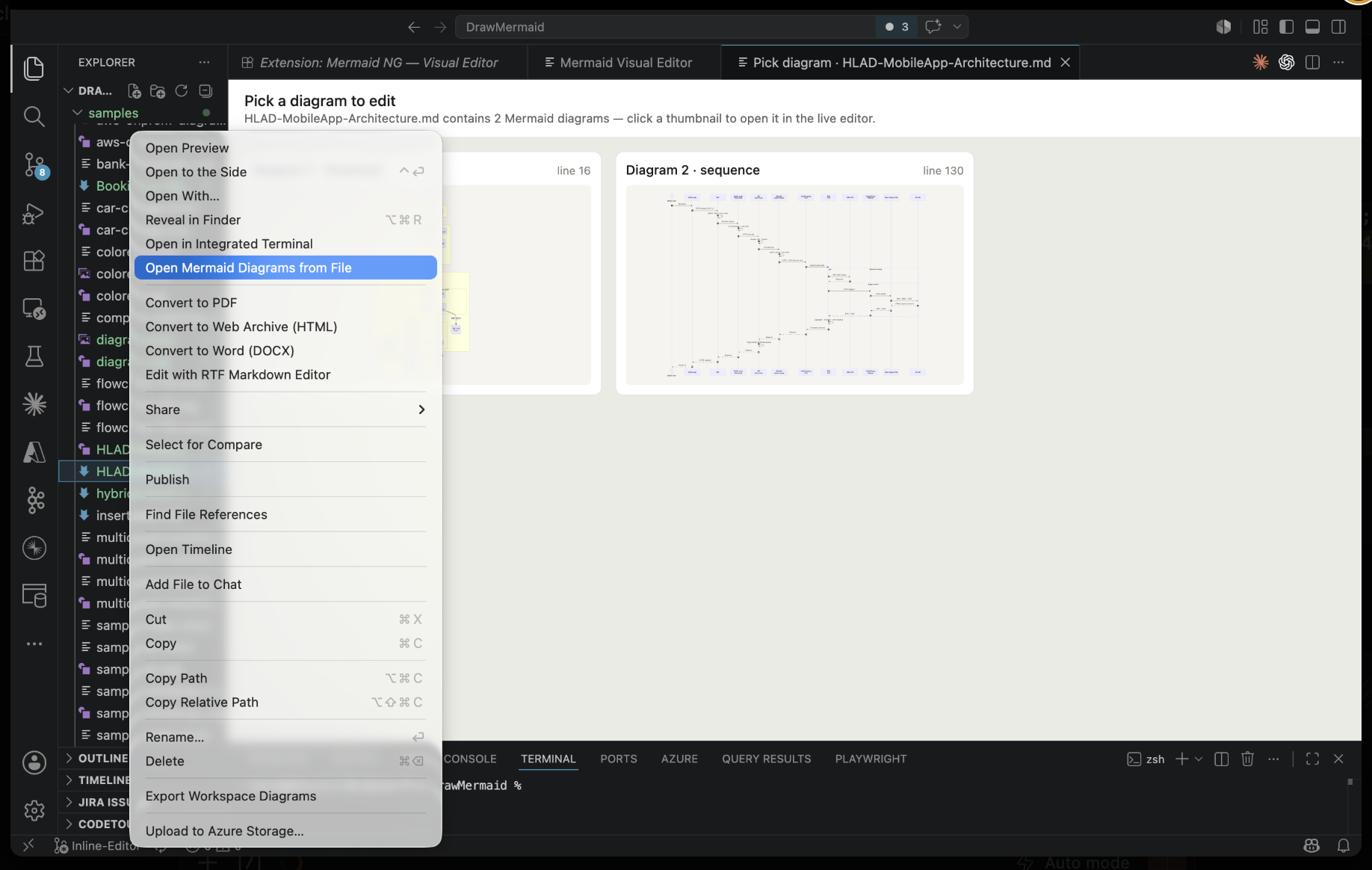
- Right-click any
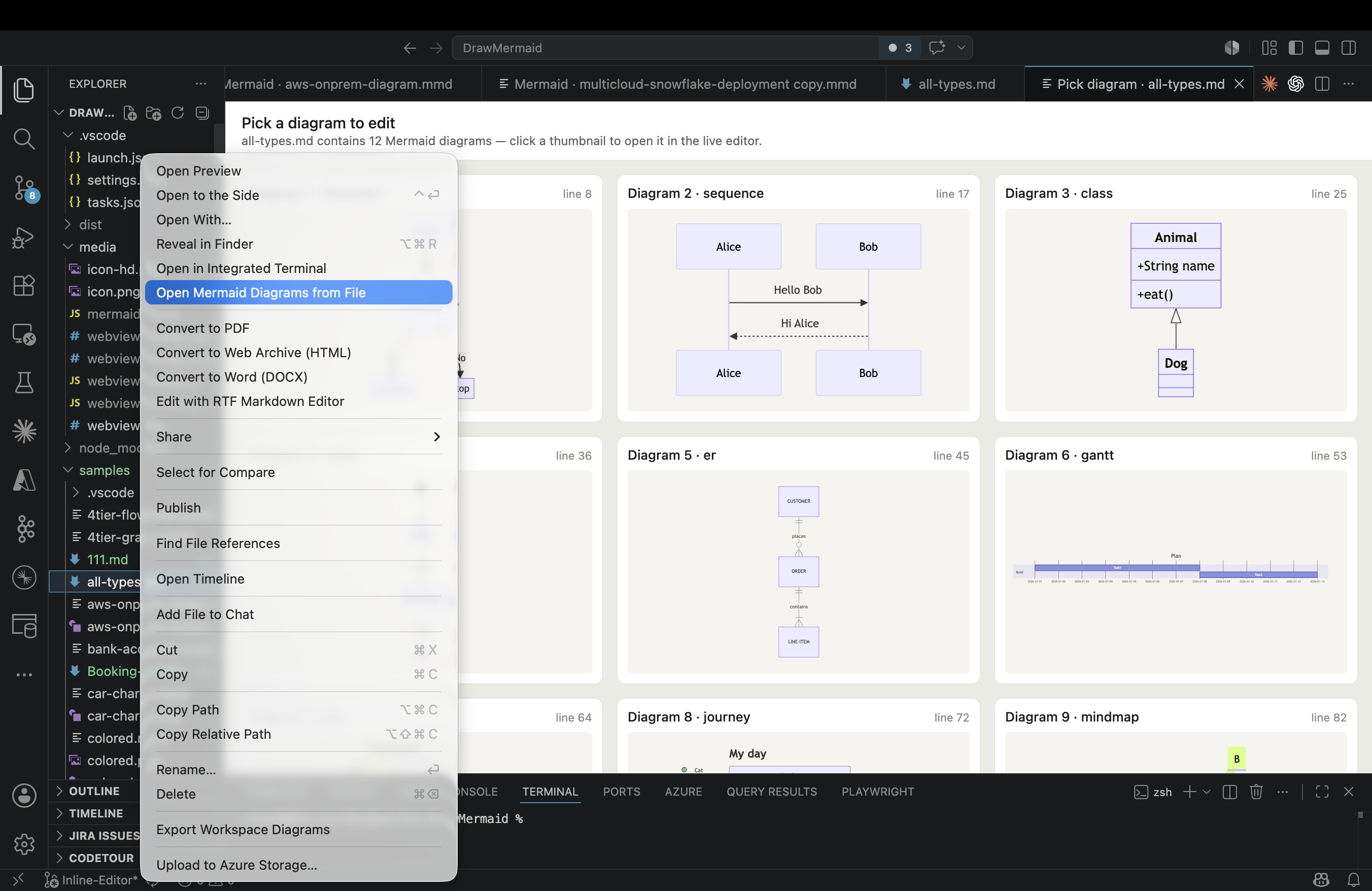
.md, .mdx, .markdown, .mmd, or .mermaid file in the explorer → Mermaid NG: Open Mermaid Diagrams from File, or run the same from the command palette.
- Or, command palette → Mermaid NG: Open Visual Editor for a scratch panel.
- Draw your diagram. Hit
Cmd/Ctrl+S to save.
Commands
All commands appear in the palette under the Mermaid NG category:
| Command |
Description |
Mermaid NG: Open Visual Editor |
Opens an empty visual editor in a new panel. |
Mermaid NG: Open Visual Editor with Selection |
Opens the editor seeded with the current text editor selection. |
Mermaid NG: Open Mermaid Diagrams from File |
Scans the file for diagrams. With one diagram opens it directly; with multiple shows a thumbnail picker. |
Mermaid NG: Insert Current Diagram into Active Editor |
Inserts the most recently focused panel's code at the cursor (or replaces the selection) in the active text editor. |
Mermaid NG: Save Diagram Back to Source File |
Bound to Cmd/Ctrl+S while the editor panel is focused. If the panel was opened from a file, rewrites every sheet back into the source. If not, opens a Save As dialog and creates a new file. |
Open from a file (right-click flow)
Available from three places:
- Explorer right-click → Mermaid NG: Open Mermaid Diagrams from File
- Editor right-click → Mermaid NG: Open Mermaid Diagrams from File
- Editor tab right-click → Mermaid NG: Open Mermaid Diagrams from File
What happens next:
| File contents |
Result |
.mmd / .mermaid (single diagram) |
Visual editor opens directly. |
One ```mermaid block in a markdown file |
Visual editor opens directly. |
Multiple fenced ```mermaid blocks |
A picker panel opens with rendered SVG thumbnails. Click one to open all diagrams as sheets in the editor, with that one active. |
Azure DevOps Wiki ::: mermaid ... ::: containers |
Same as fenced blocks — single container opens directly, multiple containers show the picker. Mixed \``mermaidand:::` syntax in one file is also supported. |
| No mermaid blocks |
A warning notification. |
Multi-sheet (draw.io style)
When the source file has multiple ```mermaid blocks, the editor shows a tab bar at the bottom — one tab per diagram. Each tab keeps its own code and undo history.
- Click a tab to switch.
- Double-click a tab to rename it (in-memory; the persisted name comes from the diagram's
title:).
- × on a tab removes that sheet.
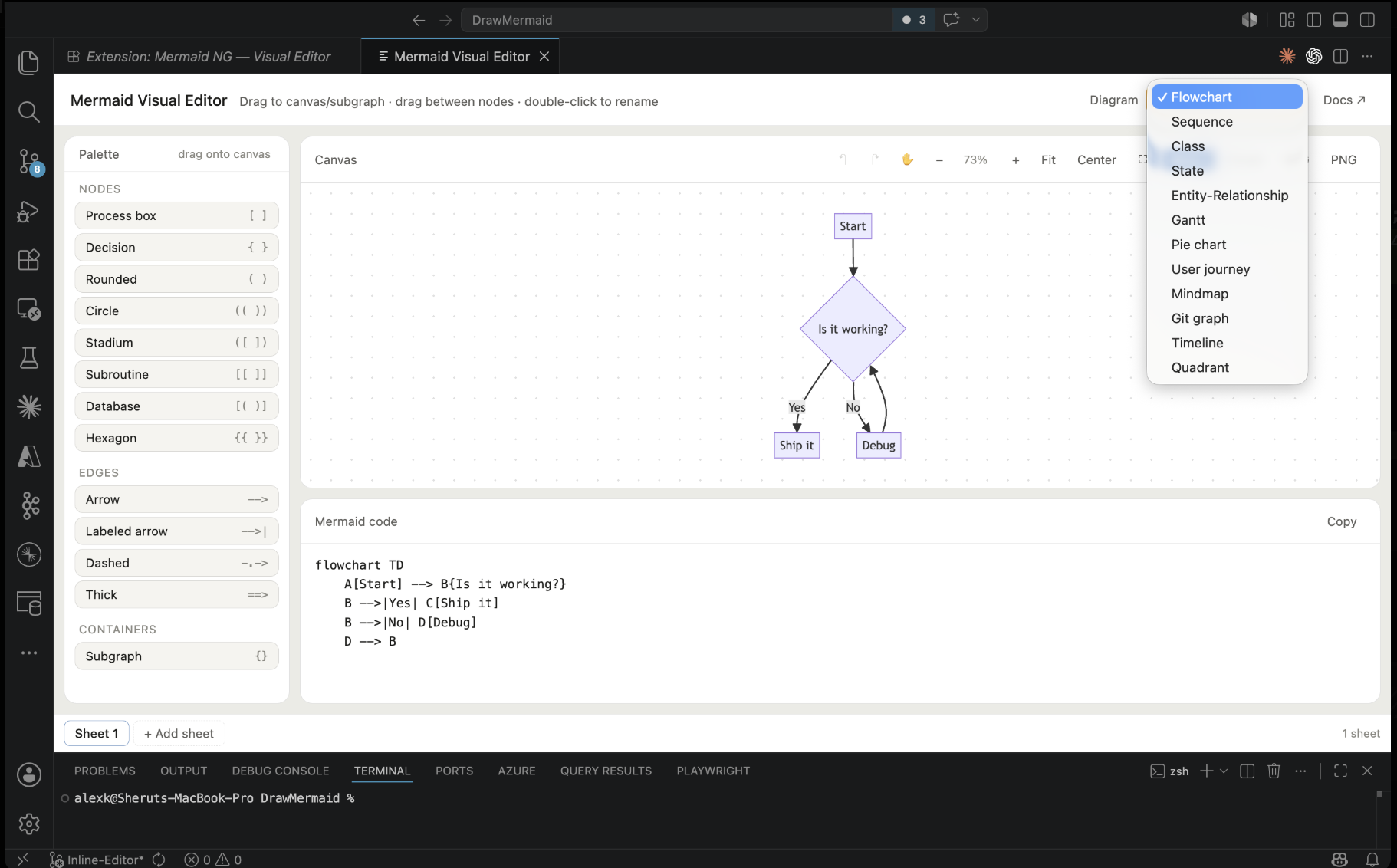
- + Add sheet appends a new diagram. The diagram-type dropdown re-arms so picking any type inserts that family's starter template.
Sheet names are taken from each diagram's title: (frontmatter or inline), falling back to Sheet N.
On Save:
- Markdown sources — every sheet is written back, replacing each existing block in place. Added sheets append at the end; removed sheets are stripped. Surrounding prose and non-mermaid code fences are preserved.
.mmd / .mermaid sources — only one diagram per file by format; the active sheet wins. A warning fires if other sheets would be lost (Save As → .md to keep them all).
Editing — gestures and shortcuts
| Action |
How |
| Add a shape |
Drag from the left palette onto the canvas or onto a subgraph. |
| Connect two nodes |
Drag from one node onto another. |
| Edit label / style / members |
Double-click the node, edge, or subgraph. |
| Delete a node or edge |
Hover + press Delete / Backspace, or double-click → red Delete button in the modal. |
| Undo / Redo |
Cmd/Ctrl+Z / Cmd+Shift+Z / Ctrl+Y, or the toolbar ↶ ↷ buttons. |
| Pan / Zoom |
Mouse wheel zoom (trackpad pinch supported), pan tool button or Space+drag, Fit / Center toolbar buttons. |
| Save back to source |
Cmd/Ctrl+S or the toolbar Save button. |
| Export SVG / PNG |
Toolbar SVG / PNG buttons. |
| Type the code directly |
The bottom panel is a live textarea — type Mermaid syntax and the canvas updates. |
Save and Save As
The canvas toolbar shows a primary Save button, also bound to Cmd/Ctrl+S:
- Panel opened from a file → overwrites that file with the current sheets.
- Scratch panel → opens a Save As dialog (defaults to
.md, also offering .mmd) and creates the file. The panel is then linked to it, so further saves overwrite.
Default filenames for Save As come from the diagram's title: (or the active sheet's name), falling back to diagram.
SVG / PNG export
The SVG and PNG buttons in the canvas toolbar export the current sheet via VSCode's native save dialog. Default filenames combine the source file's basename with the diagram title or active sheet name (e.g. README-Auth-Flow.svg), so multi-sheet exports stay distinguishable.
Supported diagram families
Flowcharts (flowchart / graph), sequence, class, state, entity-relationship, gantt, pie, user journey, mindmap, gitgraph, timeline, quadrant.
Install from source
cd vscode-extension
npm i -g @vscode/vsce
vsce package --allow-missing-repository
code --install-extension mermaid-visual-editor-2.3.0.vsix
Or, to run a development host: open this vscode-extension/ folder in VSCode and press F5.
License
This extension's source code is licensed under the MIT License — see LICENSE.
Third-party
This extension bundles Mermaid (v11.15.0), © 2014–2022 Knut Sveidqvist, also under the MIT License. Full text in THIRD-PARTY-LICENSES; a copy is also embedded as an HTML comment inside media/mermaid-editor.html so the editor file remains compliant when distributed standalone.
| |

