
Mysqlly
A modern, elegant MySQL database explorer for Visual Studio Code



✨ Features
🔌 Connection Management
- Multiple Connections: Manage and switch between multiple MySQL database connections seamlessly
- Secure Storage: Credentials stored securely in VSCode's secret storage
- Quick Access: Add, delete, and refresh connections with intuitive UI controls
🗄️ Database Explorer
- Interactive Webview: Beautiful, minimalist interface to explore your databases
- Hierarchical Navigation: Browse connections → databases → tables → columns with smooth expand/collapse animations
- Professional Icons: Clean SVG icons throughout the interface for a modern look
📊 Schema Inspection
- Table Details: View all tables within each database with an organized grid layout
- Column Information: Inspect detailed column metadata including:
- Data type
- Nullable constraints
- Primary/Foreign keys
- Default values
- Extra attributes (auto_increment, etc.)
🔍 Smart Filtering
- Table Search: Quickly filter tables by name with instant results
- Column Search: Find specific columns across complex table schemas
- Visual Feedback: Real-time filtering with smooth UI updates
🎨 Modern Design
- Minimalist Interface: Clean, professional aesthetic with careful attention to visual hierarchy
- VSCode Theme Integration: Seamlessly adapts to your VSCode theme (light/dark)
- Responsive Layout: Optimized spacing and typography for excellent readability
- Smooth Animations: Subtle micro-interactions for a polished user experience
🚀 Getting Started
Installation
- Open Visual Studio Code
- Go to Extensions (
Ctrl+Shift+X / Cmd+Shift+X)
- Search for "Mysqlly"
- Click Install
Adding Your First Connection
- Click the Mysqlly icon in the Activity Bar
- Click the + button in the Connections view
- Enter your MySQL connection details:
- Connection Name (e.g., "Local Development")
- Host (e.g.,
localhost)
- Port (default:
3306)
- Username
- Password
- Click Save
Exploring Your Databases
- Click the database icon next to your connection
- A webview will open showing all your databases
- Click any database to expand and view its tables
- Click any table to view its column schema
- Use the search boxes to filter tables and columns
📸 Screenshots
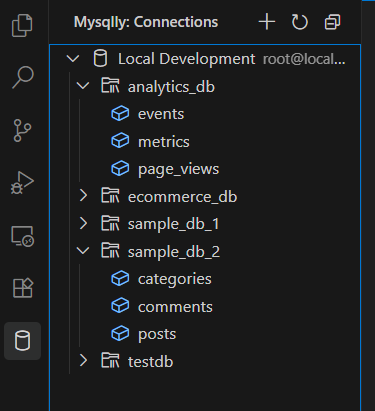
Connection Management
The sidebar provides quick access to all your MySQL connections with intuitive controls.
Database Explorer
Explore your database schema with a beautiful, modern interface that adapts to your VSCode theme.
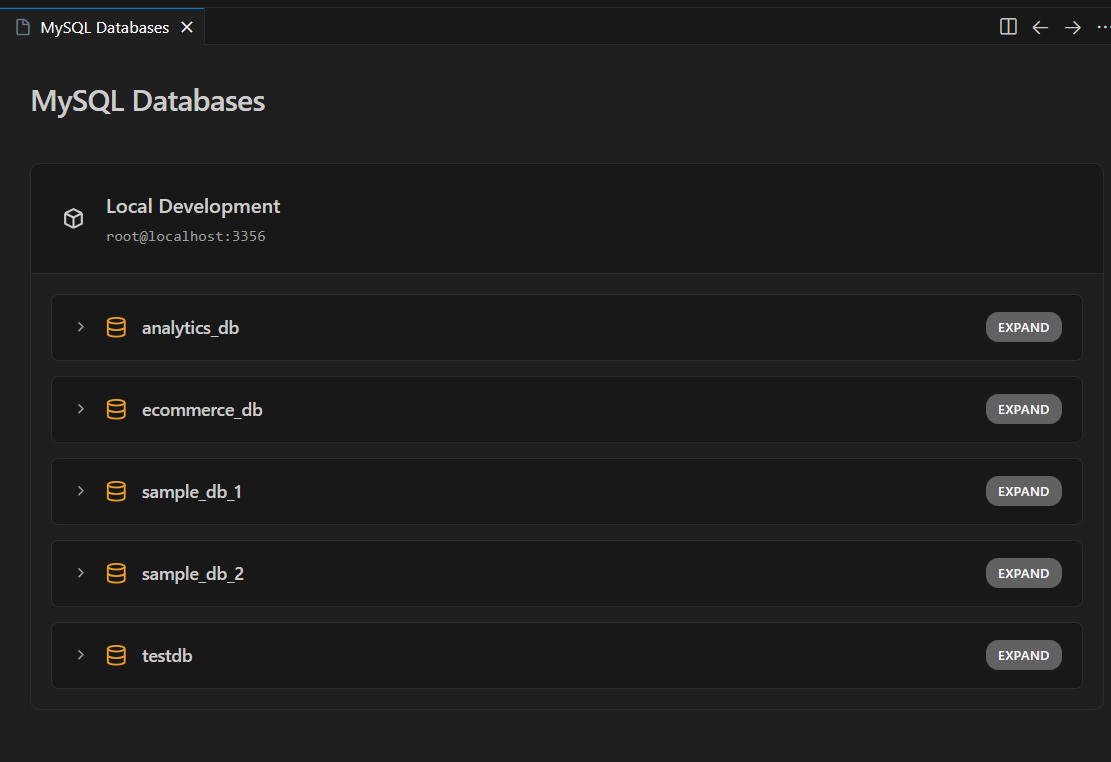
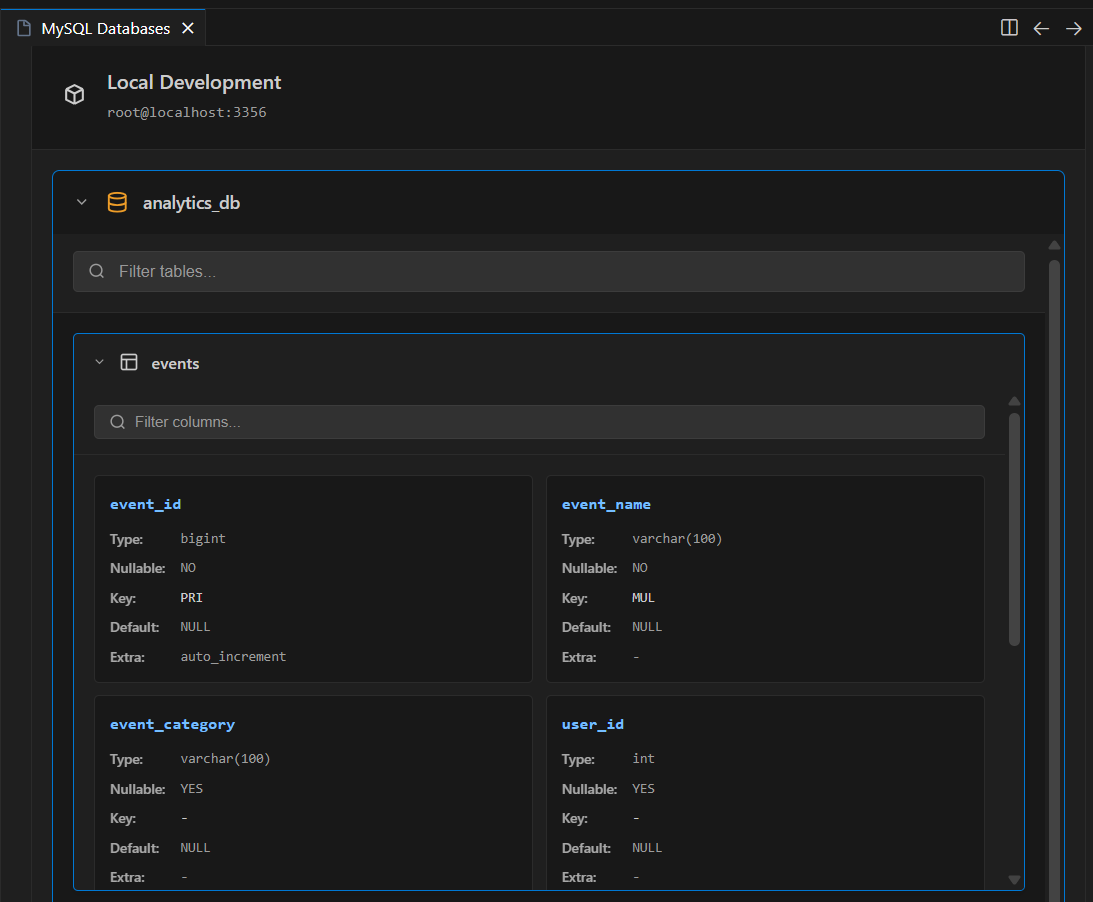
Table Schema View
View detailed column information with clear typography and organized layout.
⚙️ Commands
| Command |
Description |
Mysqlly: Add Connection |
Add a new MySQL database connection |
Mysqlly: Delete Connection |
Remove an existing connection |
Mysqlly: Refresh Connections |
Reload the connections list |
Mysqlly: Show Databases in Webview |
Open the database explorer webview |
🛠️ Technical Details
Built With
- TypeScript - Type-safe development
- mysql2 - Fast MySQL client for Node.js
- VSCode API - Native integration with Visual Studio Code
Architecture
- Secure Credentials: Uses VSCode's SecretStorage API
- Efficient Queries: Lazy loading of tables and columns
- Modern UI: Custom webview with professional CSS design
- Event-Driven: Responsive UI with optimized event handling
🔒 Security
- Passwords are stored securely using VSCode's built-in SecretStorage
- Connections are validated before use
- No credentials are logged or exposed
- All database queries use parameterized statements
🐛 Known Issues
None at this time! If you discover any bugs, please open an issue.
🗺️ Roadmap
- [ ] Query execution interface
- [ ] Table data preview
- [ ] Export schema to SQL/JSON
- [ ] Multi-selection for bulk operations
- [ ] SSH tunnel support
- [ ] Database comparison tools
🤝 Contributing
Contributions are not accepted at this time. is a personal project.
📝 License
This project is licensed under the MIT License - see the LICENSE file for details.
👨💻 Author
Andres Diaz
@Mub1522
💖 Support
If you find this extension helpful, please consider:
- ⭐ Starring the repository
- 🐛 Reporting bugs
- 💡 Suggesting new features
- 📣 Sharing with other developers
Made with ❤️ for the developer community

