MunaTrust Code Trust
Your AI writes code. MunaTrust decides if it should ship.
MunaTrust is a local-first trust gate for AI-generated code. It finds release-blocking risk before deploy time: hallucinated imports, fake helpers, missing auth guards, exposed secrets, risky browser-reachable routes, and other trust failures that look harmless until production.
Use it when the real question is not "did AI write this?" but "can we trust this enough to ship on Friday night?"
The wedge
MunaTrust is easiest to understand as:
- AI-generated code trust
- deploy confidence for AI-assisted teams
- a release gate before risky code ships
If the code is generated, rushed, or only partially reviewed, MunaTrust gives you a fast answer on whether it looks safe enough to release.
Verified editors
MunaTrust has been verified in these VS Code-family editors:
- VS Code
- VS Code Insiders
- Cursor
- VSCodium
- Windsurf
- TheiaIDE
It is also designed for Theia and other Open VSX-based desktop IDEs that load VS Code extensions through Open VSX-compatible plugin support.
Verified companion integrations
MunaTrust also has verified companion integrations beyond the VS Code-family extension:
- JetBrains plugin load verified in IntelliJ IDEA Community
- Neovim plugin runtime verified with
:MunaTrustQuickfix
- Zed MCP integration verified with summary and findings flows
- Visual Studio solution wrapper verified for local report generation
Which scan should I run?
| Scan |
Best for |
What it adds |
Why buyers care |
| Basic Scan |
Fast local trust review before commit or deploy |
Deterministic trust engine, release blockers, no cloud requirement |
Strong first-pass signal with low noise |
| Advanced AI Scan |
Hard-to-judge risky changes |
Deeper prioritization, trust-chain synthesis, unknown-unknown reasoning |
Stronger "why this should not ship" narrative |
| Full Private Local Deep Scan |
Sensitive repos and local-only workflows |
Full local reasoning, no code leaves your machine |
Privacy-safe deep review for serious teams |
Scan options
Basic Scan
- Fast, local
- Runs the full deterministic trust engine
- Prioritizes believable release blockers without cloud reasoning
- Built to catch concrete breakage, not vague "security theater"
- No Ollama requirement
- No cloud usage
Advanced AI Scan
- Runs the same local extraction first
- Sends only sanitized risk context for deeper reasoning
- Adds deeper prioritization, explanation, and unknown-unknown reasoning
- Strongest fit for "should we actually ship this?" reviews
- Optional: you can keep using MunaTrust without it
Full Private Local Deep Scan
- Fully local deep reasoning
- Reuses the same trust surface and adds deeper local interpretation
- No code leaves your machine
- Best for users who want deeper local reasoning without cloud usage
What MunaTrust is especially good at
MunaTrust is at its best when the risk is subtle but release-relevant:
- hallucinated imports or fake helper usage
- generated code that references non-existent APIs
- sensitive routes without an explicit auth guard
- preview-style bypasses that accidentally survive into real environments
- public env files or browser-visible secret-like values
- wildcard CORS combined with sensitive browser-reachable routes
- risky raw HTML rendering near client-visible tokens or config
These are the kinds of issues that create "wow, we would have missed that" moments in a demo or buyer review.
MunaTrust scan levels
- Preview Basic Scan - 5 total local scans before upgrade
- Preview Advanced AI Scan - 3 total deeper AI scans before upgrade
- Preview Full Private Scan - 2 total private deep scans before upgrade
- Paid Solo / Pro / Team - ongoing monthly and deep-scan limits after activation
Key features
- Full Project Scan with trust scoring
- Standalone local scan mode that works without a local backend companion
- Scan type selector for Basic, Advanced AI, and Full Private Deep Scan
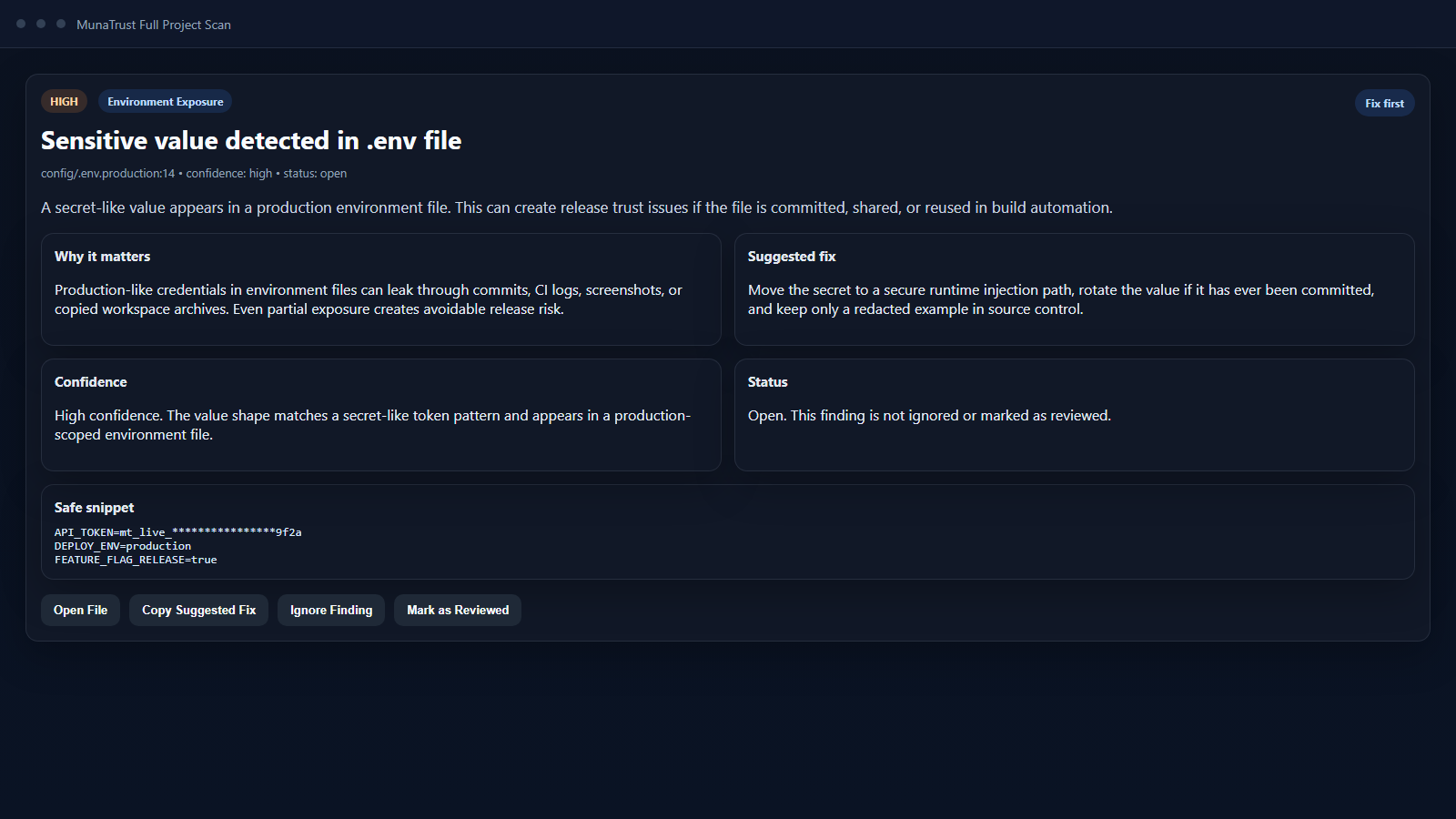
- Actionable findings with severity, category, file path, why-it-matters notes, and suggested fixes
.env and environment exposure detection- Secret-like string detection with safe snippet redaction
- Package manifest and release-sensitive file discovery
- Suspicious generated-code marker detection
- Diagnostics, system health, and workspace trust guidance
- License activation and upgrade-ready extension flow
v1 architecture
MunaTrust v1 uses a strict split:
- Analysis stays local
- Commerce is hosted
That means:
- Basic Scan runs locally
- Full Private Scan runs locally
- checkout, billing portal, and license verification can use a hosted MunaTrust API
- optional anonymous telemetry uses hosted metadata endpoints only
- local trust analysis does not depend on billing infrastructure
Why the findings are believable
MunaTrust is designed to favor high-conviction trust findings over noisy volume:
- release-sensitive files and routes are prioritized over generic code smells
- trust chains combine multiple weak signals before escalating severity
- tests, fixtures, and obvious non-production paths are treated more carefully
- findings explain why this matters before deploy, not just what matched
The goal is simple: fewer false positives, more believable "do not ship this yet" moments.
Commands
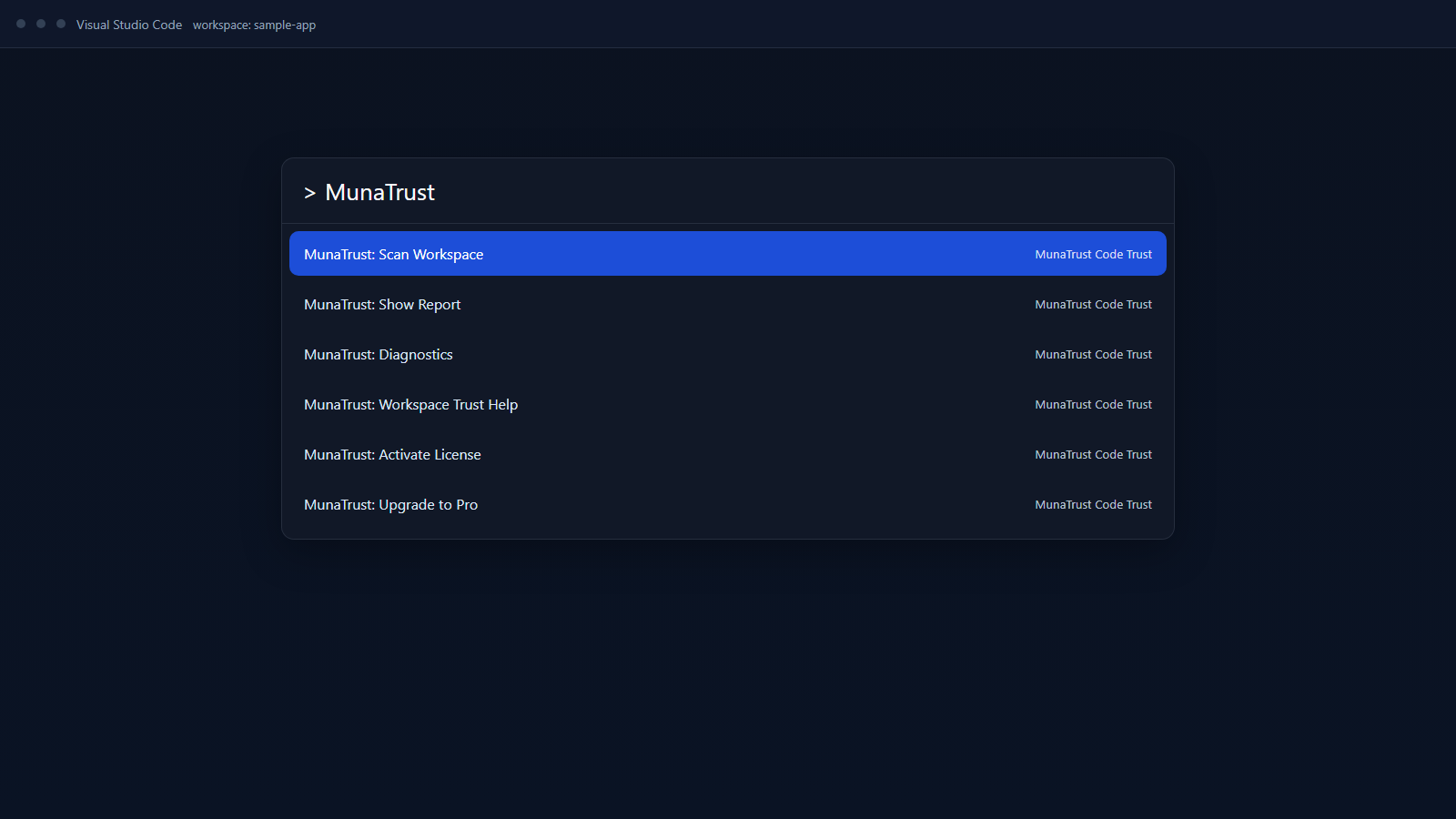
Open Ctrl+Shift+P and run:
MunaTrust: Basic ScanMunaTrust: Advanced AI ScanMunaTrust: Full Private ScanMunaTrust: Show ReportMunaTrust: Choose Scan ModeMunaTrust: DiagnosticsMunaTrust: Workspace Trust HelpMunaTrust: Activate LicenseMunaTrust: Check License StatusMunaTrust: Upgrade to SOLOMunaTrust: Upgrade to ProMunaTrust: Upgrade to TEAM
Additional preview commands are available for diagnostics, workspace trust help, backend guidance, and advanced release workflows.
How to run a workspace scan
- Open a project folder in VS Code
- Open the Command Palette
- Run one of:
MunaTrust: Basic ScanMunaTrust: Advanced AI ScanMunaTrust: Full Private Scan
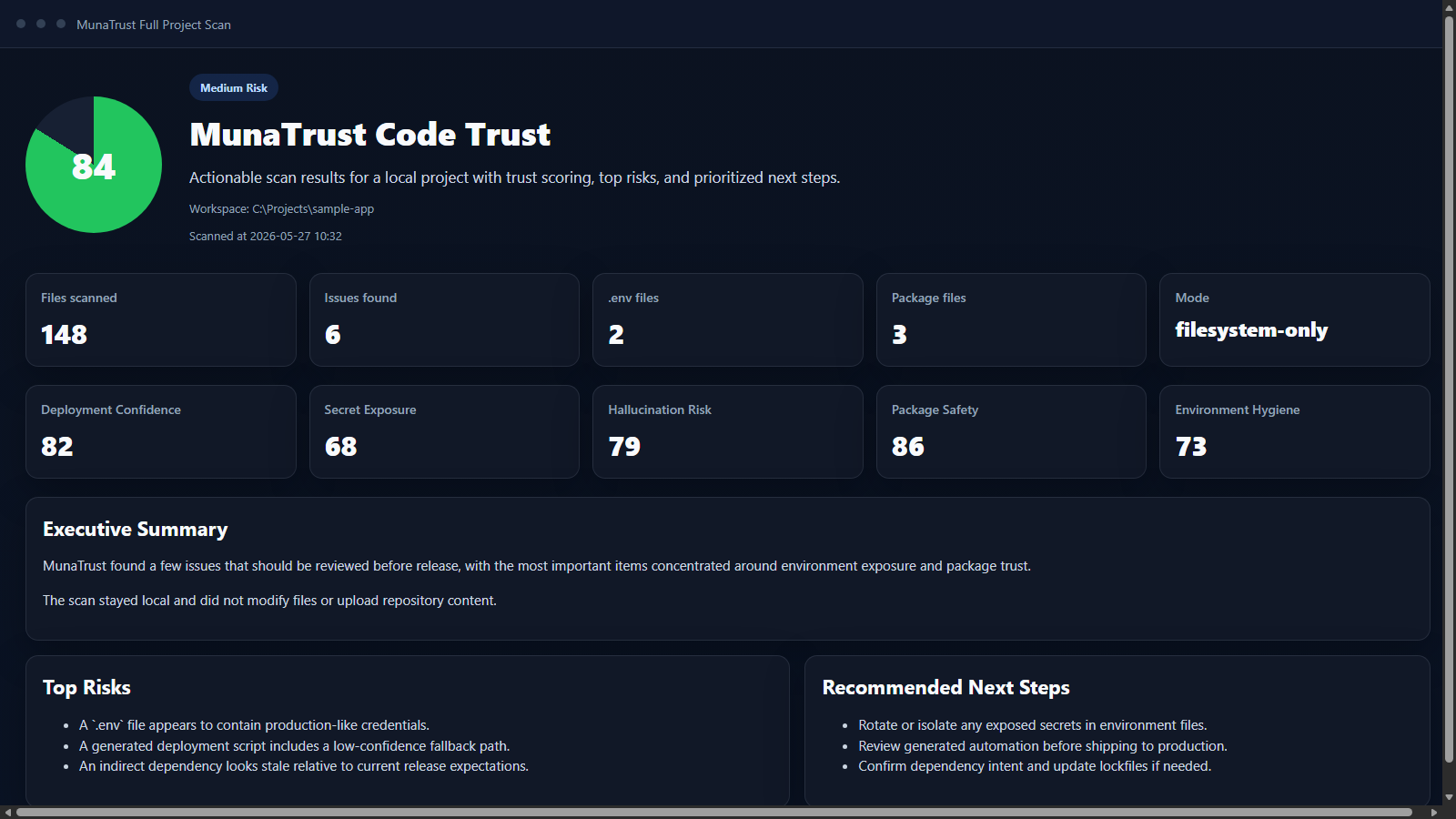
- Review the trust report with executive summary, top risks, reasoning highlights, unknown unknowns, and detailed findings
- Run
MunaTrust: Show Report to reopen the latest report panel
If you prefer a chooser flow, run MunaTrust: Choose Scan Mode.
MunaTrust does not edit files, apply automatic fixes, or upload your source code during this flow.
Local and cloud AI requirements
MunaTrust has three operating layers:
- Basic Scan works without Ollama or a local model
- Advanced AI Scan uses sanitized risk context for deeper reasoning
- Full Private Deep Scan uses local deep reasoning
Current default local fast model:
Recommended Full Private presets:
qwen2.5-coder:3b - default fastqwen2.5-coder:7b - deep analysisllama3.1:8b - better explanationphi3:mini - fallback
If a local model is missing, MunaTrust stays usable in deterministic-only mode and shows the exact install command:
ollama pull <model>
What the report shows
MunaTrust Code Trust reports are designed to be actionable instead of just informational.
Each finding can include:
- severity
- category
- file path
- line number when available
- safe code snippet
- why it matters
- suggested fix
- review status
The report also includes:
- Executive Summary
- Top Risks
- Why This Blocks Release
- Trust Chains
- Unknown Unknowns
- Fix First
- Detailed Findings
- Environment Files
- Package Manifests
- Recommended Next Steps
Friday Night Deploy
MunaTrust: Friday Night Deploy is the brand hero workflow.
It exists for the exact moment teams feel least certain:
- AI wrote part of the diff
- the code review was fast
- deploy pressure is high
- and nobody wants to discover the bad assumption in production
That command should feel like the last trust check before you ship.
Local-first privacy
MunaTrust scans locally and does not upload your code by default.
By default, MunaTrust does not upload:
- source code
- repository contents
- file contents
- project names
- prompts
- secrets
- tokens
Telemetry is disabled by default unless the user explicitly enables privacy-safe metadata collection.
If enabled, MunaTrust only measures workflow events such as:
- extension install and activation
- scan starts and completions
- report opens
- preview limit prompts
- upgrade clicks
- license activation success or failure
MunaTrust still does not upload source code, file contents, repository contents, project names, prompts, or secrets.
Advanced AI Scan note:
- Basic Scan and Full Private Deep Scan keep code local
- Advanced AI Scan sends only sanitized risk context, not a blind raw repository upload
Pricing and plans
Every fresh install starts in a local preview:
- Preview
- 5 Basic Scans total
- 3 Advanced AI Scans total
- 2 Full Private Deep Scans total
- Upgrade when you are ready to keep going
- Solo - $9/month
- Basic Scan: unlimited
- Advanced AI Scan: 50 scans/month
- Full Private Scan: full private deep scan
- Pro - $19/month
- Basic Scan: unlimited
- Advanced AI Scan: 200 scans/month
- Full Private Scan: full private deep scan plus advanced workflows
- Team - $99/month
- Basic Scan: unlimited
- Advanced AI Scan: 1000 scans/month
- Full Private Scan: full private deep scan plus team and governance features
Positioning:
- Local-first AI trust scanning
- Advanced cloud reasoning when you need it
- Full private local AI scanning for sensitive projects
- MunaTrust remains local-first
Checkout and licensing
Typical flow:
- User installs MunaTrust and begins the local preview automatically
- Preview includes 5 Basic Scans, 3 Advanced AI Scans, and 2 Full Private Deep Scans
- When the preview limits are reached, the user chooses Solo, Pro, or Team
- MunaTrust opens the configured checkout flow in the external browser
- The hosted commerce system completes payment and license delivery
- User runs
MunaTrust: Activate License
- MunaTrust validates the key through the hosted licensing endpoint when configured
- License status is stored locally in the extension
The public extension package does not need a local backend companion for normal scans.
Current billing note:
- Upgrade commands open the configured checkout flow.
- License activation uses the configured hosted validation endpoint when available.
- If commerce is temporarily unavailable, local scans still continue to work.
Hosted settings
These optional settings control the hosted commerce layer:
munatrust.apiBaseUrlmunatrust.checkoutUrlmunatrust.billingPortalUrlmunatrust.licenseApiUrlmunatrust.telemetryApiUrl
Recommended production setup:
- set
munatrust.apiBaseUrl
- let MunaTrust derive checkout, licensing, and telemetry routes from that hosted base
- keep telemetry disabled by default unless the user opts in
Workspace Trust
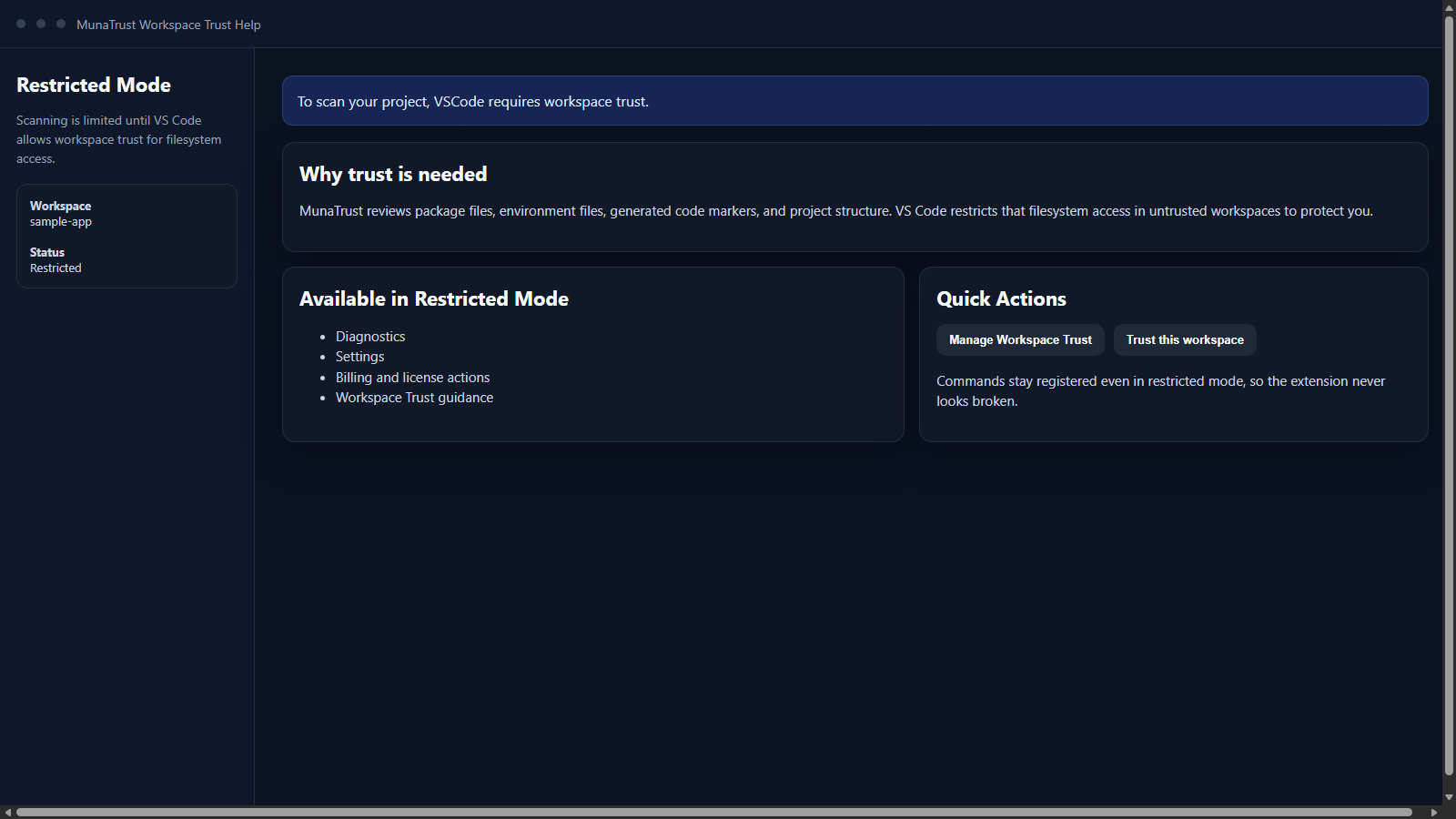
If VS Code opens your folder in Restricted Mode, MunaTrust stays available in limited mode and explains why trust is required for filesystem scanning.
Use:
MunaTrust: Workspace Trust HelpManage Workspace TrustTrust this workspace
Screenshots
Command Palette
Scan Report Overview
Actionable Finding Detail
Workspace Trust Guidance
Support
Support / contact placeholder:
Replace this with the final public support channel before Marketplace publication.

