multiplayer-vscode-extension
Visual Studio Code and Cursor extension for Multiplayer app.
Compatibility
This extension is compatible with:
- Visual Studio Code (v1.102.0+)
- Cursor IDE (v0.42.0+)
Since Cursor is a fork of VS Code, this extension works seamlessly in both environments with full feature support.
Installation
In Visual Studio Code
- Open VS Code
- Go to Extensions view (
Ctrl+Shift+X or Cmd+Shift+X)
- Search for "Multiplayer"
- Click Install
In Cursor IDE
- Open Cursor
- Go to Extensions view (
Ctrl+Shift+X or Cmd+Shift+X)
- Search for "Multiplayer"
- Click Install
Alternatively, you can use Cursor's VS Code profile migration tool to automatically import your VS Code extensions and settings.
Features
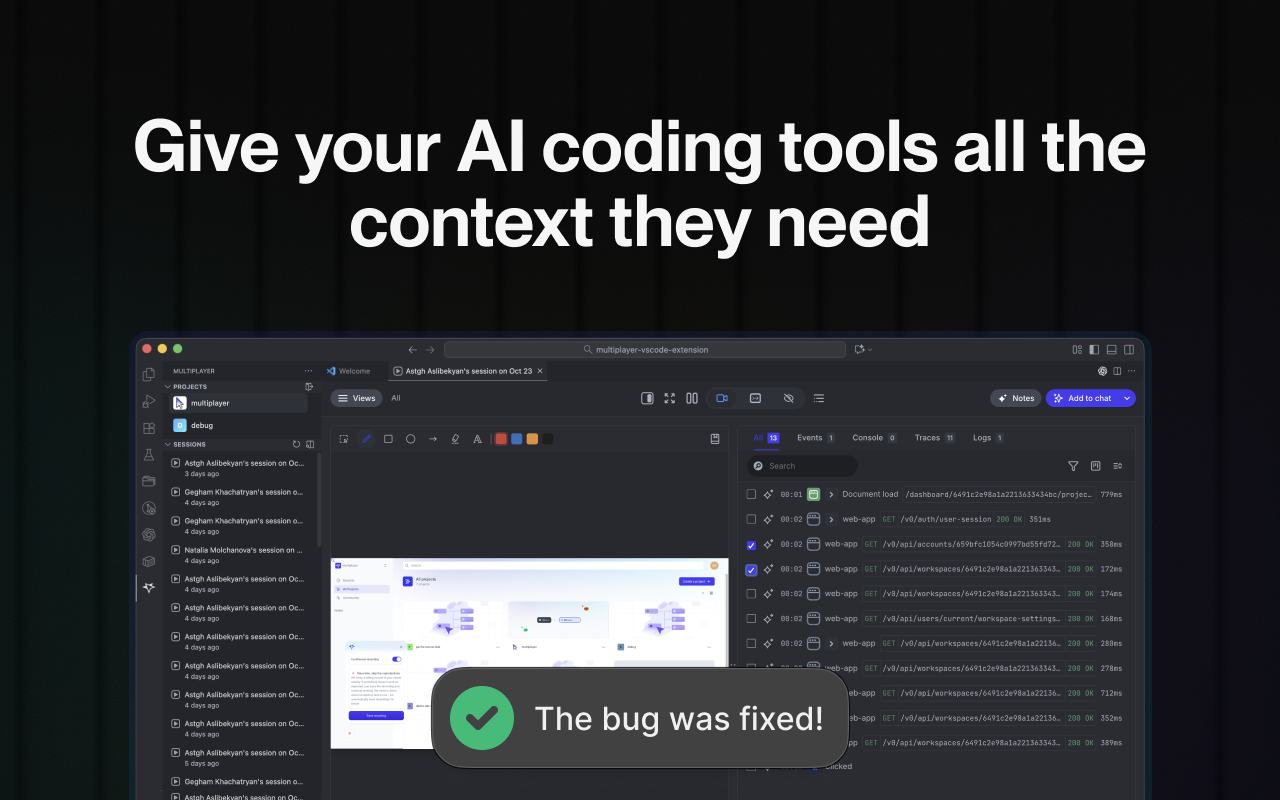
The Multiplayer extension provides AI-powered debugging assistance by analyzing session recordings and providing rich context to existing AI assistants. Here are the key features:
🤖 AI-Powered Debugging Assistant
- Context-Aware Chat: Provides rich session context to existing AI assistants (VS Code Copilot, Cursor Chat, ChatGPT Codex and Claude Code extensions)
- Session Data Integration: Automatically passes session recording data to your preferred AI chat assistant
- Smart Code Understanding: Leverages your entire codebase to provide relevant debugging context to AI assistants
📊 Session Management
- Session Recording Integration: Connect with Multiplayer's session recording platform
- Session Browser: View and manage all your recorded sessions directly in VS Code/Cursor
- Project Workspace Integration: Seamlessly switch between different projects and workspaces
🔐 Secure Authentication
- OAuth Integration: Secure login with Multiplayer platform
- Token Management: Automatic token refresh and secure storage
- Multi-Account Support: Switch between different Multiplayer accounts
💬 Enhanced Chat Experience
- Sticky Chat Participant: Context provider remains available across all chat sessions
- Rich Context Injection: Automatically includes relevant code and session data in conversations with AI assistants
- Seamless Integration: Works with Copilot, Cursor Chat, ChatGPT Codex and Claude Code extensions
🎯 Developer Experience
- Status Bar Integration: Quick access to authentication status and extension controls
- Command Palette Integration: Easy access to all extension features via commands
- Webview Panels: Dedicated views for sessions and workspace management
- Cache Management: Clear cached data when needed for troubleshooting
- Environment Detection: Automatically detects your development environment
- Codebase Snapshot: Intelligent codebase analysis for better context
- File Content Analysis: Analyzes relevant files to provide targeted suggestions
Requirements
System Requirements
- Visual Studio Code: Version 1.99.3 or higher
- Cursor IDE: Version 0.42.0 or higher
- Node.js: Version 18.x or higher (for development)
- Internet Connection: Required for authentication and session data synchronization
- Multiplayer Account: You need an active Multiplayer platform account to use this extension
- Session Recordings: Access to recorded sessions on the Multiplayer platform
- OAuth Authentication: The extension uses OAuth 2.0 for secure authentication
Workspace Setup
- Open Workspace: The extension works best with an open workspace/project folder
- Supported File Types: Optimized for TypeScript, JavaScript, React, React Native and web development projects
Authentication Setup
- First Time Setup: Click the Multiplayer icon in the activity bar
- Login: Use the "Multiplayer: Login" command or click the login button in the Projects view
- Browser Authentication: Complete OAuth flow in your default browser
- Workspace Selection: Choose your project after authentication
Permissions
The extension requires the following permissions:
- Read Workspace Files: To analyze your codebase for context
- Access VS Code/Cursor Chat: To integrate with the built-in chat system
- Network Access: To communicate with Multiplayer platform APIs
- Secure Storage: To store authentication tokens securely
Extension Settings
This extension does not currently contribute any VS Code/Cursor settings through the contributes.configuration extension point. All functionality is controlled through:
Commands
Access these commands via the Command Palette (Ctrl+Shift+P / Cmd+Shift+P):
Multiplayer: Login - Authenticate with Multiplayer platformMultiplayer: Login Status - Check current authentication statusMultiplayer: Open AI Assistant Chat - Open chat with AI assistantMultiplayer: Logout - Sign out from Multiplayer platformMultiplayer: Show Sessions - Display session recordingsMultiplayer: Refresh Sessions - Refresh the sessions listMultiplayer: Check Environment - Debug environment detectionMultiplayer: Clear All Cache - Clear all cached data
Views
The extension provides two main views in the activity bar:
- Projects View - Manage workspaces and authentication
- Sessions View - Browse and interact with session recordings (requires authentication)
Status Bar
- Multiplayer Status Indicator - Shows authentication status with clickable status check
Current Limitations
- Network Dependency: Requires internet connection for all features; offline mode not supported
- Session Data: Session recordings must be available on the Multiplayer platform to be accessible
Authentication Issues
- Browser Requirements: OAuth flow requires a modern browser with JavaScript enabled
- Token Expiration: Authentication tokens expire and require re-authentication
- Multiple Accounts: Switching between accounts requires clearing cache and re-authenticating
Chat Integration
- AI Model Dependency: Chat functionality depends on the AI model availability in VS Code/Cursor
- Context Limits: Very large session contexts may be truncated to fit AI model limits
- Response Streaming: Network interruptions may cause incomplete responses
- Cursor Specific: Some features may behave differently in Cursor vs VS Code due to platform differences
- Version Requirements: Minimum version requirements must be met for full functionality
Technical Details
- Built with TypeScript and React
- Uses VS Code Extension API v1.99.3+
- Supports Cursor IDE v0.42.0+
- Secure OAuth 2.0 authentication flow
- Real-time AI response streaming
- Comprehensive error handling and logging
Dependencies
@multiplayer-app/session-recorder-common: ^1.2.6axios: 1.8.4 with retry logicreact: ^19.1.1 for webview componentstypescript: 5.9.2 for development
Upcoming Features
- Enhanced session filtering and search
- Custom AI model configuration
- Advanced codebase analysis options
- Integration with additional development tools
- Performance optimizations for large codebases
Authentication
This extension uses OAuth 2.0 to connect to the Multiplayer platform.
- Click the Multiplayer icon in the Activity Bar.
- Run "Multiplayer: Login" or use the login button in the Projects view.
- Complete the browser-based OAuth flow, then return to VS Code/Cursor.
Notes:
- A status item in the status bar shows your current auth state and is clickable.
- Tokens are stored securely; you can refresh or clear them via commands listed below.
Views
Projects (Activity Bar)
- Browse sessions, workspaces, and projects from your Multiplayer account.
- Selecting a project updates context used by Sessions and chat.
Sessions (Activity Bar)
- Infinite-scroll list of recent debug sessions for the selected project.
- Click any item to open the full session in a dedicated webview tab.
Session Webview (Tab)
- Rich React UI with session details and actions. Accessible via "Multiplayer: Show Sessions" or by clicking a session in the Sessions view.
Installation (alternative via .vsix)
If you have the .vsix file:
code --install-extension multiplayer-{version}.vsix
Restart VS Code/Cursor after installation if prompted.

