Claude StudioThe same Claude Code you already use — with a better place to use it. In two linesClaude Code is superb, and its VS Code panel is bare. Claude Studio replaces that
panel: same CLI, same account, same It keeps itself current. Claude Studio checks the Claude Code CLI and updates it on its own, so the newest models and features are there the day they ship — you never end up stuck on an old version.
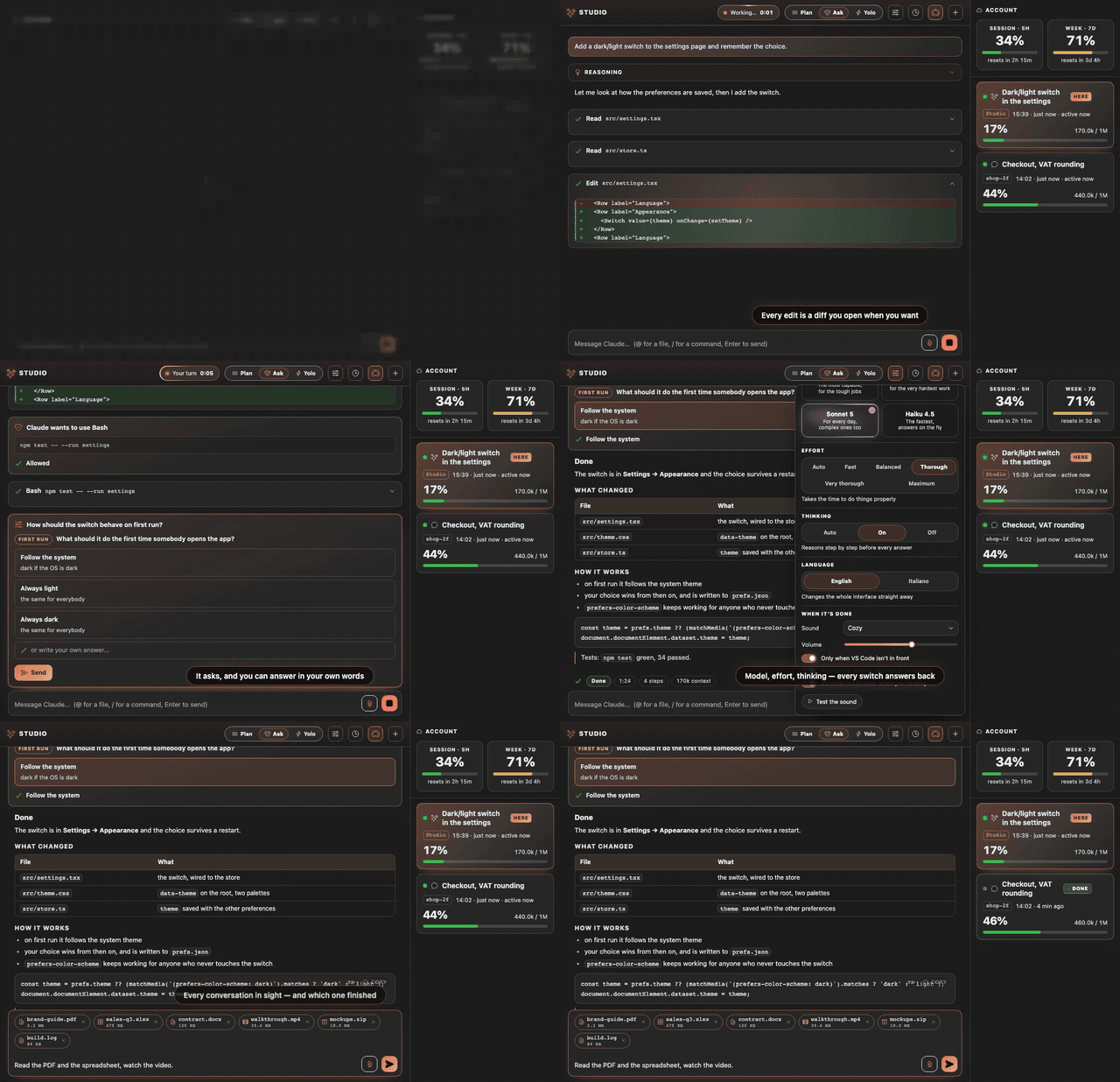
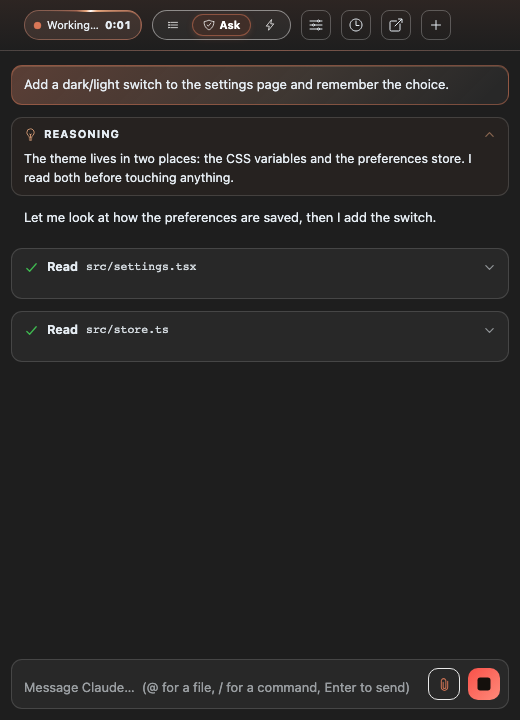
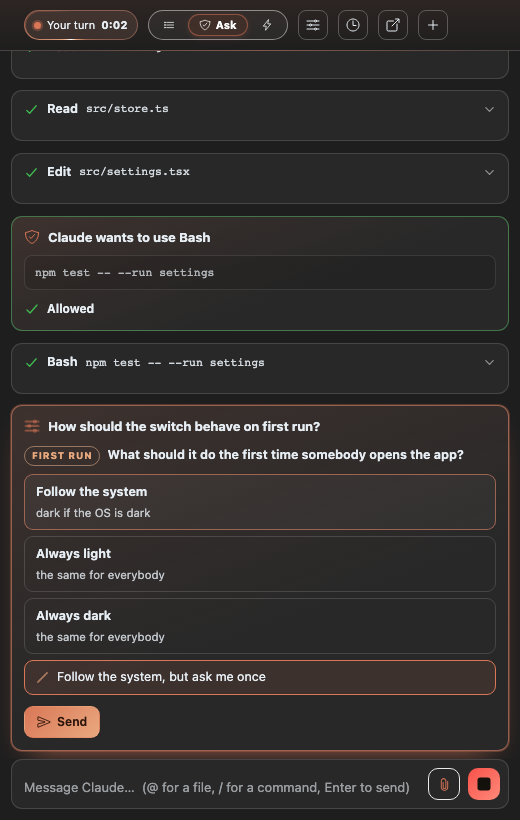
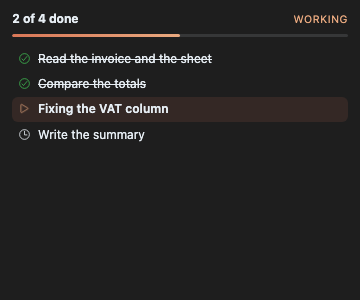
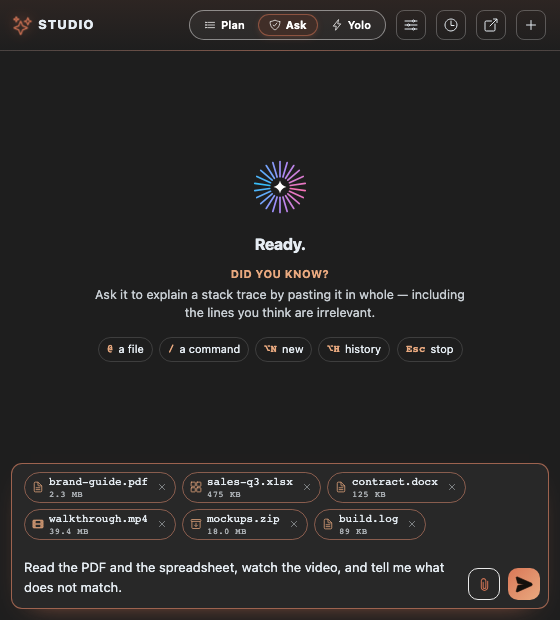
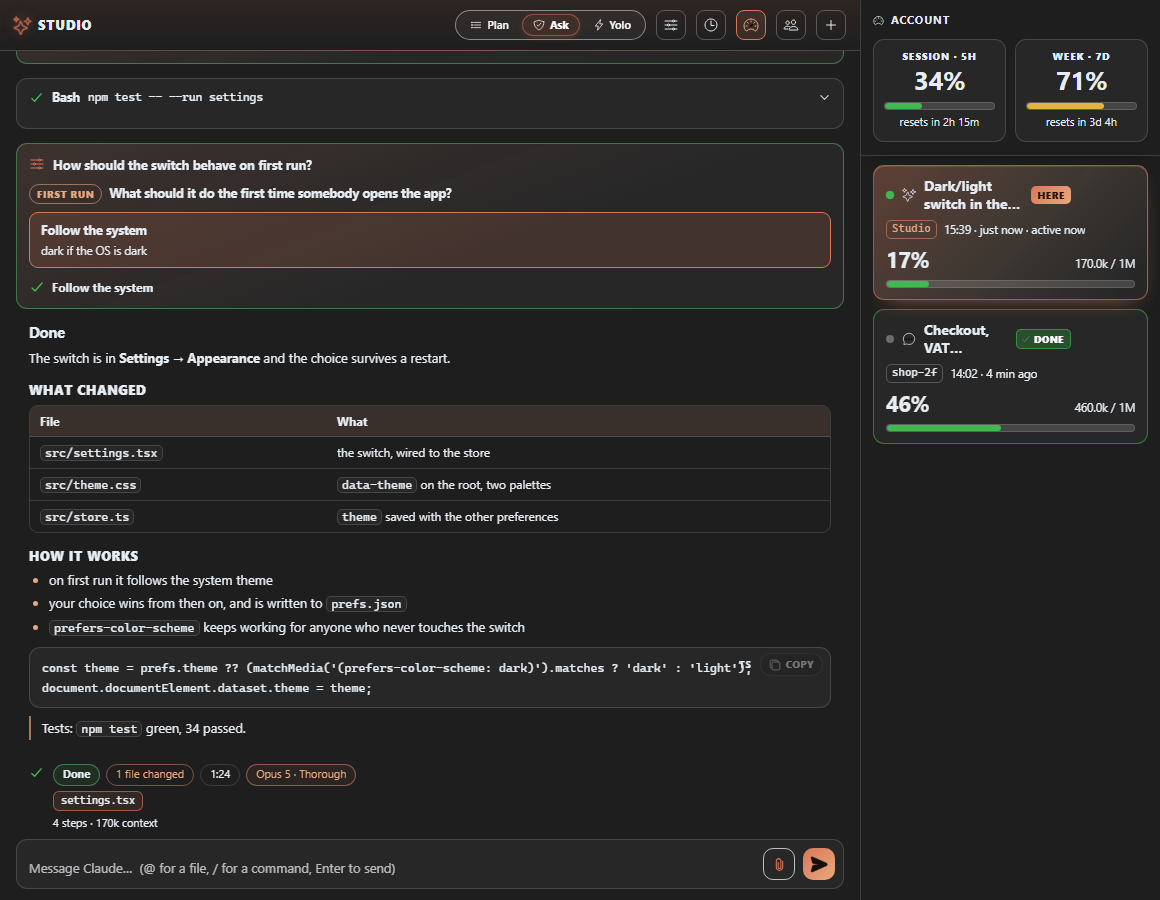
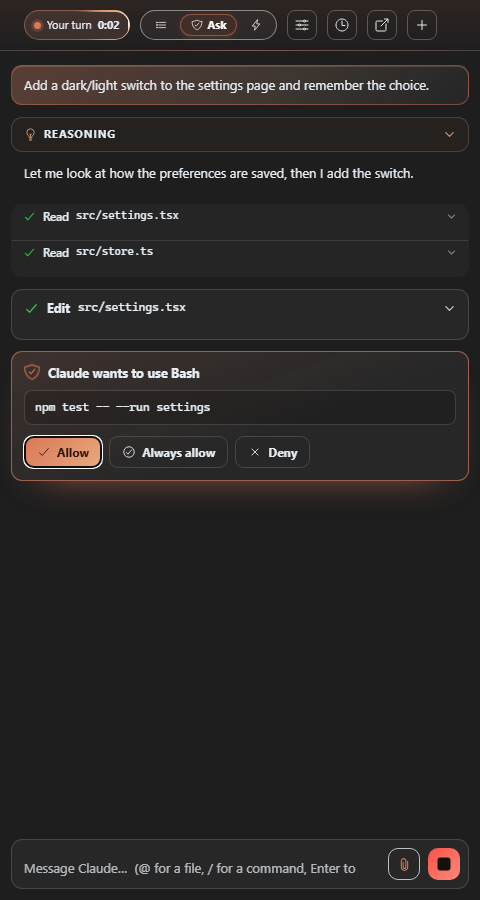
What you get that you didn't haveYou see it working, second by second. A strip above the box you type in says what it's on right now — Reading src/store.ts, Reasoning… — with a clock that ticks. No more staring at a still screen wondering if it's crashed. Every change is a card, and cards stay shut. A file edit arrives as a coloured diff you open when you want to. Nothing unfolds by itself and pushes your reading off the screen. A task list in the sidebar, ticking itself off. When Claude plans a job it writes down the steps — the Tasks panel shows them live: which one it's on right now, how many are done, how many are left. It starts fresh at every prompt, so what you're looking at is always this question's work and never the last one's. It asks before it touches anything. Allow · Always allow · Deny. When it asks you to choose between options, there's always a line to write your own answer on — because the answer often isn't one of the three. Attach any file. Not "any image" — any file. This is the big one, and it is the thing the official panel will not do: there, the paperclip only opens pictures. Here it opens VS Code's own picker with no filter on it at all, so whatever is on your disk can go into the message:
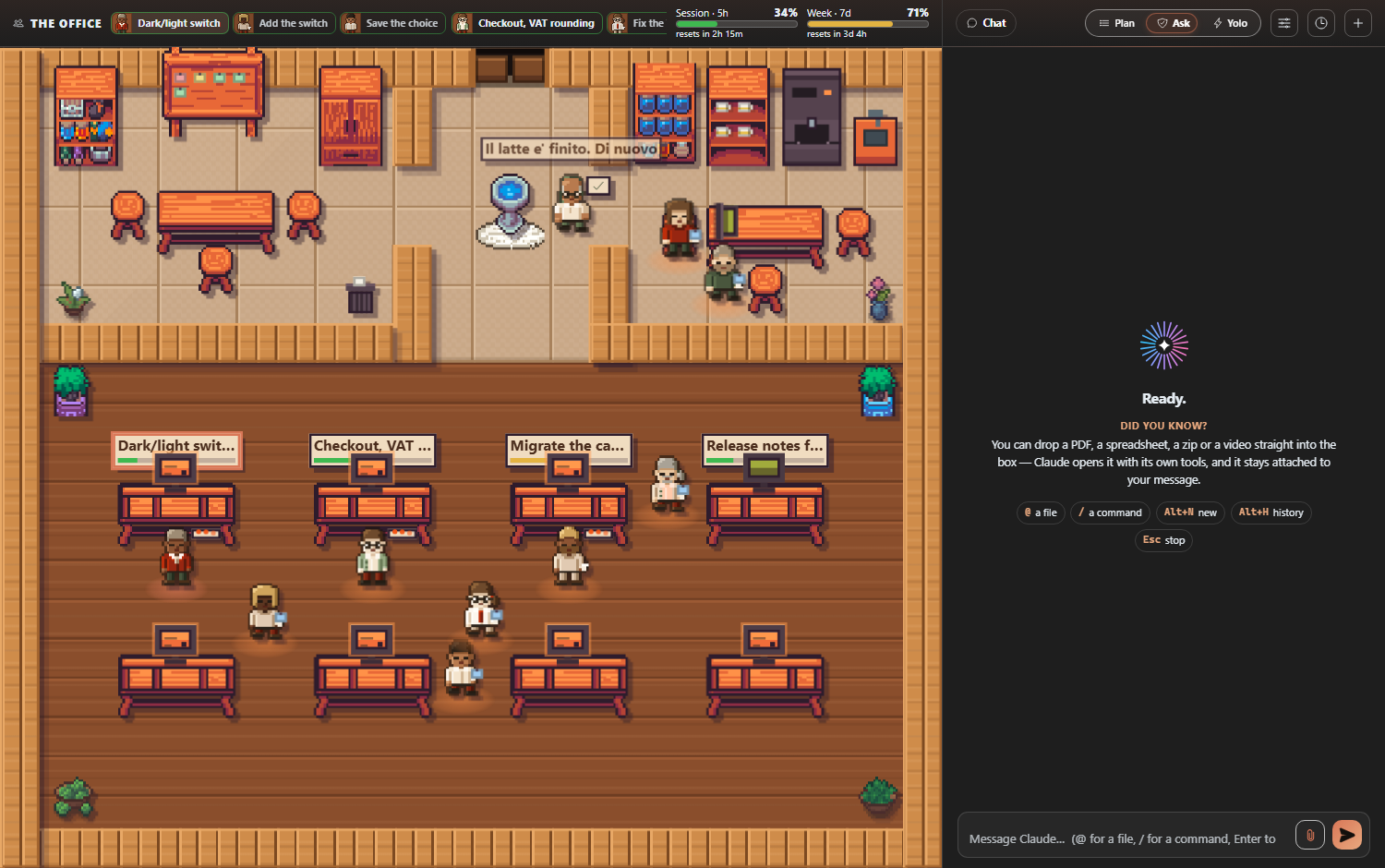
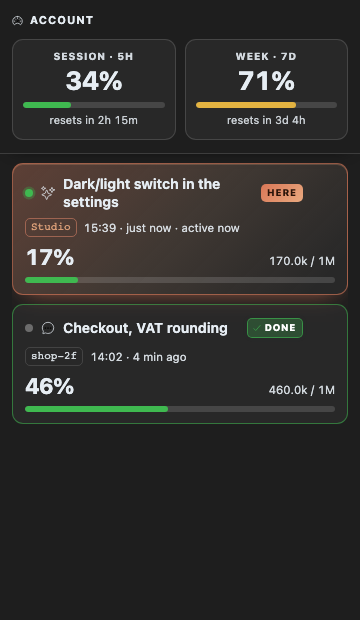
Three ways in: the paperclip, drag and drop straight onto the message, or paste. Sizes are not a problem either — images travel as images, and everything else travels as a path that Claude opens with its own tools, so a forty-megabyte video never gets pushed through the chat. That is also the only approach that works for every format at once, which is exactly why it is the one used here. Attach several at a time and ask one question about all of them: "read the PDF and the spreadsheet, watch the video, and tell me what doesn't match." You know which conversation finished. With three of them open, a chime tells you something is ready, not which — and you go through the tabs one by one to find out. Now the one that finished says so: a dot on its tab, a green mark on its card. It goes out the moment you look at it. The last message reads like an answer. Headings, lists, tables, code: the recap at the end of a turn is laid out, not dumped as raw text. You know how much room is left. Context used, account limits, time to the next reset — for this conversation and for every other Claude you have open. Try it in one minute
Install Claude Studio, click the icon in the left bar, and type:
You'll watch it read the file, propose the diff, ask before running the tests, and close with a recap of what changed.
Three modes, one click
Switch any time, even halfway through a conversation. The handy bits
ShortcutsEvery shortcut works the same everywhere. Only the name of the modifier changes,
and the interface already writes it the way your machine does —
And from anywhere in VS Code, with the chat not even focused:
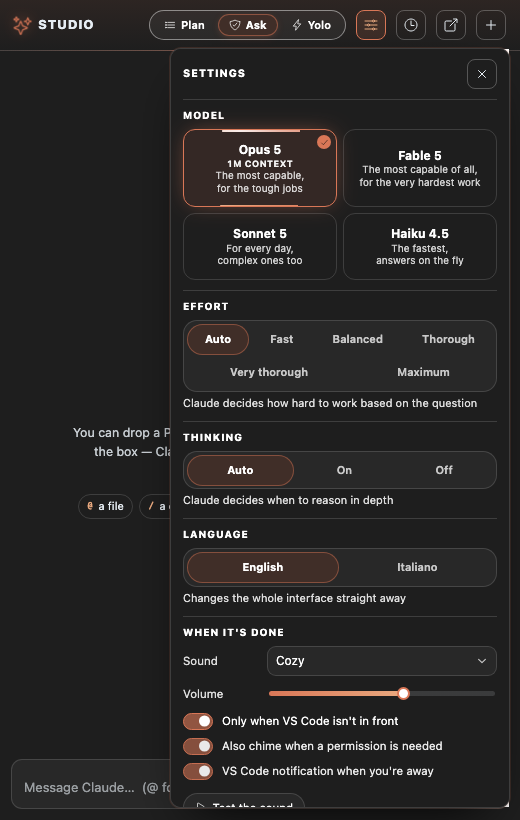
SettingsAll under Requires the Claude Code CLI, installed and signed in. It's your account and your usage: Claude Studio adds no service and no key of its own. MIT · Report an issue · Development notes |