Skip to content
| Marketplace
Sign in
Visual Studio Code>Themes>Copper ThemeNew to Visual Studio Code? Get it now.
Copper Theme

Copper Theme

MrPanda376

|
34 installs
| (0) | Free
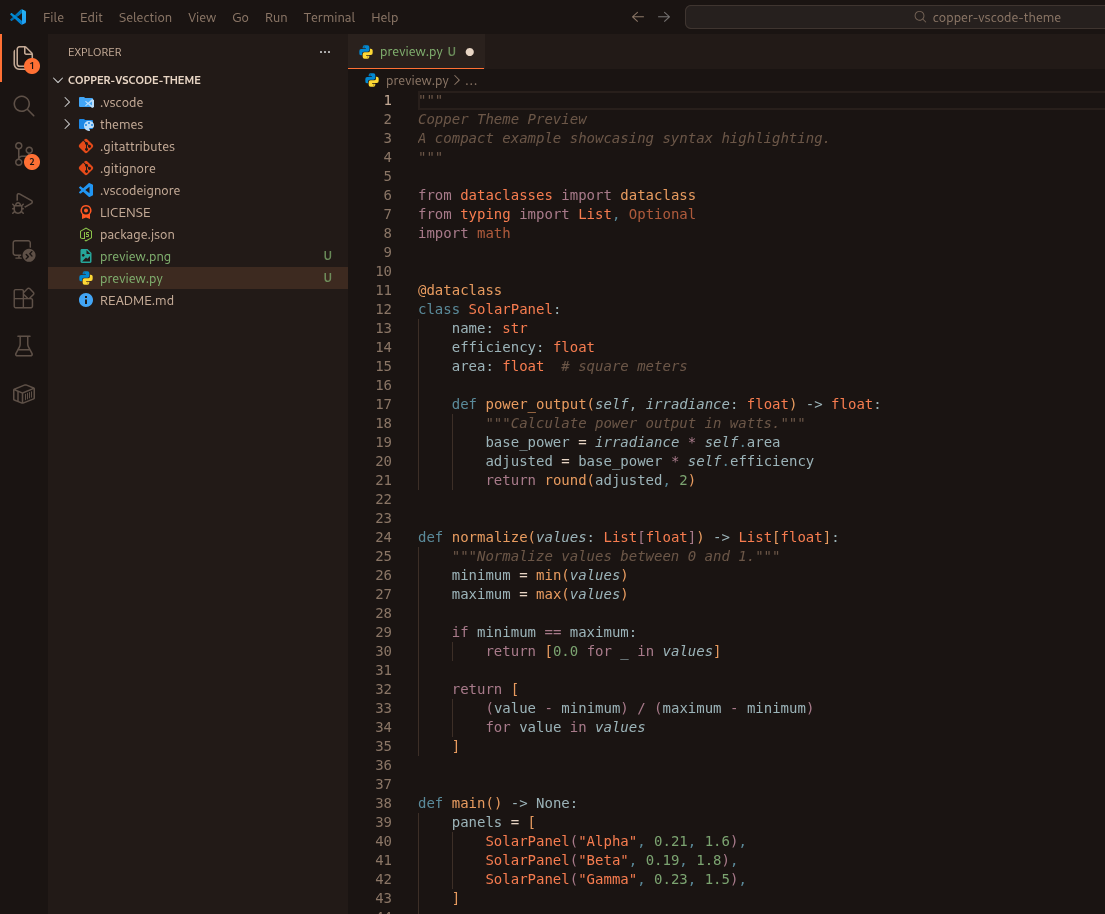
Copper is a dark, warm-toned theme forged for long coding sessions. It blends deep charcoal browns with glowing copper accents, soft amber highlights, and muted teal contrasts to create a UI that feels both cozy and precise.
Installation
Launch VS Code Quick Open (Ctrl+P), paste the following command, and press enter.
Copied to clipboard
More Info

Copper — VS Code Theme

Copper is a dark, warm-toned theme forged for long coding sessions. It blends deep charcoal browns with glowing copper accents, soft amber highlights, and muted teal contrasts to create a UI that feels both cozy and precise.

Copper Theme Preview

Features

  • Warm copper and amber accents on a dark background
  • Optimized for extended coding sessions
  • Balanced contrast and consistent syntax highlighting
  • Comprehensive UI, terminal, diff, and markdown styling

Installation

VS Code Marketplace

  1. Open Extensions in VS Code
  2. Search for "Copper Theme"
  3. Install and select Copper from the Color Theme menu

Manual

  1. Download or clone this repository
  2. Copy the theme folder into your VS Code extensions directory
  3. Restart VS Code and activate Copper
  • Contact us
  • Jobs
  • Privacy
  • Manage cookies
  • Terms of use
  • Trademarks
© 2026 Microsoft