MockServer for VS Code
Author, record, and debug HTTP/HTTPS mocks without leaving your editor.
- Zero-config schema authoring — write expectation files with validation, completion, and hover, no language server to install.
- Record real traffic into code — turn proxied requests into loadable JSON or a MockServerClient Java DSL.
- Live dashboard inside the editor — watch requests arrive in a VS Code tab.





MockServer is an HTTP(S) mock server and proxy for testing. This
extension brings the full authoring-to-debugging workflow into VS Code — and works against any
running MockServer instance, with optional one-click Docker start/stop for local development.
Why you'll love it
Schema-driven authoring — no language server required
Validation, completion, enum suggestions, and hover docs the moment you name a file *.mockserver.json.
Name a file *.mockserver.json or *.mockserver.jsonc and the editor validates it against the same
JSON schema MockServer uses internally. You get inline error squiggles, property autocompletion, enum
suggestions, and hover documentation without ever starting the server. A file may hold a single
expectation object or an array (initialization JSON); .jsonc files allow comments and trailing commas.
Record real traffic into code — the fast path to a mock
Proxy real traffic, then save what MockServer recorded as loadable JSON or a ready-to-paste Java DSL.
Point MockServer at a real upstream as a proxy, exercise your app, then run Save Recorded
Expectations (JSON or Java). Choose JSON to get a *.mockserver.json file you can load straight
back in, or Java to get a MockServerClient DSL you can paste into a test. If nothing has been
proxied yet, the command tells you instead of opening an empty file — no guessing.
MockServer side panel + docked dashboard
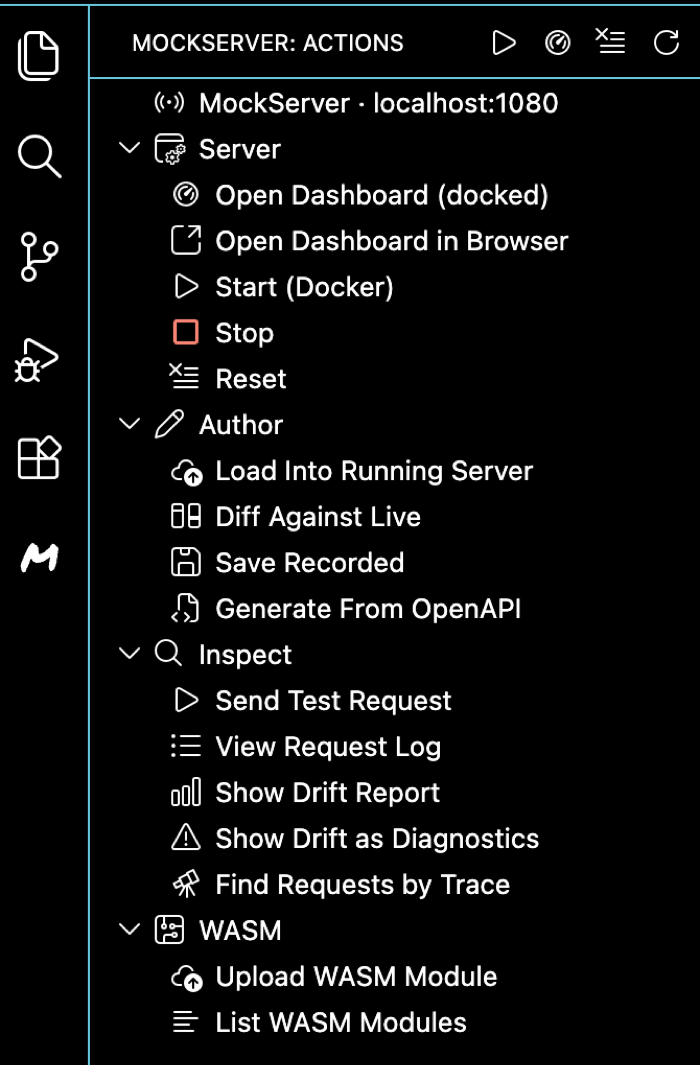
A MockServer view in the Activity Bar puts every action one click away, and the live dashboard docks in the bottom panel — all inside VS Code, none of it mixed in with your editor tabs.
Click the MockServer icon in the Activity Bar for a panel of grouped, one-click actions — Server
(start / dashboard / reset), Author (load / record / generate from OpenAPI), Inspect (send request /
request log / drift / trace), and WASM — with a status line showing the configured localhost:<port>.
Run Open Dashboard to reveal the real MockServer dashboard docked in the bottom panel (its own
"MockServer Dashboard" view — active expectations, the request log, and live traffic, full width and separate
from your code tabs). Prefer your browser? Open Dashboard in Browser opens the same URL there.
30-second quick start
- Create
login.mockserver.json — the editor validates the schema as you type.
- Start a server: run MockServer: Start (Docker) for a local container, MockServer: Start
(binary, no Docker) if you don't have Docker, or point the extension at an already-running server by
setting
mockserver.port (and mockserver.dockerImage / mockserver.containerName if relevant).
- Load it: click the Load into running MockServer CodeLens at the top of the file (also in the
editor title bar and right-click menu) to push your expectation(s) to the server.
- Watch it: run MockServer: Open Dashboard (or click the status item in the MockServer side panel)
and send a request to see it arrive in the docked dashboard.
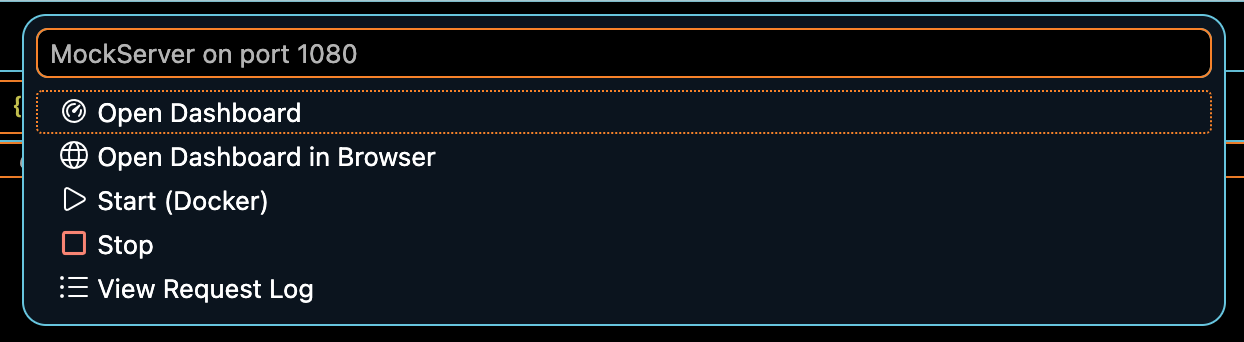
Open the MockServer view in the Activity Bar for one-click access to every action, and a
MockServer :<port> entry sits in the status bar — click it any time for a quick menu of the
most common actions (Open Dashboard, Start, Stop, View Request Log).
Prerequisites
- VS Code 1.80+
- Docker Desktop — only for Start (Docker) / Stop.
No Docker? Use Start (binary, no Docker) instead, which runs a self-contained bundle (no Docker or JDK
needed). Every other command works against any running MockServer instance.
Installation
Install from the VS Code Marketplace
or search for MockServer in the Extensions view. For Open VSX (Eclipse Theia, Gitpod, etc.), install
from open-vsx.org.
Everything the extension does
Expectation files — CodeLens, menus, and snippets
At the top of every expectation file two CodeLens actions appear:
| CodeLens |
What it does |
| Load into running MockServer |
Sends the file's expectation(s) to PUT /mockserver/expectation on the configured port |
| Diff against live |
Fetches the server's active expectations and opens a side-by-side diff against your file |
Both are also Command Palette commands. The same file-scoped actions appear in the editor title bar
and the right-click (editor context) menu whenever a *.mockserver.json, *.mockserver.jsonc, or
*.mockserver-request.json file is open, and are hidden from the Command Palette when no matching file
is active.
Snippets — in any .json or .jsonc file, type a prefix and press Tab:
| Prefix |
Inserts |
mockserver-expectation |
Request matcher + HTTP response stub |
mockserver-forward |
Request matcher + forward action |
mockserver-verify |
Verification request template |
Generate and record expectations
| Command |
What it does |
| Generate Expectations From OpenAPI Spec |
With an OpenAPI/Swagger spec (JSON or YAML) open, sends it to PUT /mockserver/openapi and opens the generated expectations in a new tab. Save as *.mockserver.json to keep them. |
| Save Recorded Expectations (JSON or Java) |
Retrieves expectations the server recorded while proxying real traffic (PUT /mockserver/retrieve?type=recorded_expectations). Choose JSON (loadable as *.mockserver.json) or Java (MockServerClient DSL). If nothing has been proxied yet, the command says so rather than opening an empty file. |
Inspect and control
| Command |
What it does |
| View Request Log |
Opens the requests the server has received as pretty JSON in a new tab (PUT /mockserver/retrieve?type=requests&format=json). |
| Find Requests by Trace |
Prompts for a W3C traceparent value or bare 32-hex trace id, then opens every request belonging to that distributed trace in a new JSON tab. |
| View Trace in Backend |
The inverse correlation: prompts for a W3C traceparent or bare trace id, then opens the correlated OpenTelemetry trace in your trace backend (Jaeger / Tempo / Grafana) by substituting the trace id into the configurable mockserver.traceUrlTemplate (e.g. http://localhost:16686/trace/{traceId}). With no template set it copies the trace id to the clipboard and offers to configure the template. |
| Send Test Request |
Fires the request described by a *.mockserver-request.json file at the running server and shows HTTP <status> + body (pretty-printed when JSON) in a new tab. A Send to MockServer CodeLens appears at the top of the file. |
| Show Drift Report |
Fetches drift records (GET /mockserver/drift) and shows a readable one-line-per-record report. Drift is captured when MockServer proxies traffic and a matching stub expectation differs structurally from the real upstream response. |
| Show Drift as Diagnostics |
Maps each drift record to the matching expectation line in the open *.mockserver.json file as an inline diagnostic (error / warning / info). Re-run to refresh; no drift clears them. Each diagnostic carries a lightbulb quick-fix — "update stub to match upstream" — that swaps the stub's declared value for the value the real upstream now returns (or falls back to "diff against live" when the value can't be located unambiguously). |
| Reset (Clear Expectations & Logs) |
Clears all expectations and the request log (PUT /mockserver/reset) after a confirmation prompt. |
Test/code-aware gutters
Open a Java, Kotlin, JS/TS, Groovy, or Scala file that uses MockServer and a run/inspect CodeLens appears
above each usage site it finds — new MockServerClient(...), a JUnit 5 @MockServerSettings annotation, or a
Testcontainers MockServerContainer. Clicking it reveals the docked dashboard for the configured instance.
Detection is a best-effort regex scan, not a full parse, so an occasional extra lens is harmless.
In-IDE HTTP debugger (breakpoints)
Pause real traffic flowing through MockServer and inspect/modify it without leaving the editor.
Prerequisite: breakpoints fire only on traffic flowing through MockServer — proxied/forwarded
exchanges, matched mock responses, and the unmatched-404 path. Point your app at MockServer as a proxy or mock
endpoint first; this is not a JVM-style attach to an arbitrary process.
| Command |
What it does |
| Open Debugger (Breakpoints) |
Opens the debugger panel and connects the breakpoint callback WebSocket (/_mockserver_callback_websocket). A status dot shows the connection state. |
| Add Breakpoint Matcher |
Prompts for a path regex, an optional method, and the phases to pause at, then registers a matcher (PUT /mockserver/breakpoint/matcher) owned by the debugger's callback-WS client. |
| Clear All Breakpoints |
Removes all registered breakpoint matchers (PUT /mockserver/breakpoint/matcher/clear). |
When a matching request flows through MockServer, the paused exchange appears in the panel:
- REQUEST phase — Continue (forward the original), Modify (edit the request JSON, then forward), or
Abort (write a response downstream without forwarding). Abort is REQUEST-phase only.
- RESPONSE phase — Continue (write the original response) or Modify (edit the response JSON).
- Stream frames (SSE/chunked/gRPC/WebSocket) — per frame: Continue / Modify / Inject / Drop / Close
(frame bodies are Base64).
The server's safety rails apply unchanged: paused exchanges auto-continue after breakpointTimeoutMillis
(30s default), at most breakpointMaxHeld (50) are held at once, and disconnecting the panel cleans up the
debugger's matchers.
LLM authoring, call graph, chaos, and contract tests
| Command |
What it does |
| Show Agent-Run Call Graph |
Fetches the agent-run call graph (via the explain_agent_run MCP tool) and renders it as a Mermaid flowchart in a Markdown tab — the same graph the dashboard draws. |
| Show Chaos Experiment Status |
Reads GET /mockserver/chaosExperiment and shows the current experiment's status and stage progress. |
| Stop Chaos Experiment |
Stops and clears the running experiment (DELETE /mockserver/chaosExperiment) after a confirmation. |
| Run OpenAPI Contract Test |
Runs the active OpenAPI spec against a service URL via PUT /mockserver/contractTest and opens a per-operation pass/fail report with validation errors. |
Inside an httpLlmResponse block of a *.mockserver.json file you also get authoring completion for
provider names, representative model names, and the block's fields — the nested completion fields
(text, usage, streaming, stopReason, …) when the cursor is inside completion, and the
top-level ones otherwise.
Dashboard
| Command |
What it does |
| Open Dashboard |
Reveals the dashboard docked in the bottom panel (the "MockServer Dashboard" view) — http://localhost:<port>/mockserver/dashboard in a webview, kept separate from your editor tabs. |
| Open Dashboard in Browser |
Opens the same URL in the system browser. |
WASM custom rules
MockServer supports WebAssembly custom-rule modules for body matching (requires wasmEnabled=true on
the server). Manage modules without leaving VS Code:
| Command |
What it does |
| Upload WASM Module |
Opens a file picker for a .wasm file, prompts for a module name (defaulting to the file's basename), and uploads it via PUT /mockserver/wasm/modules?name=<name>. |
| List WASM Modules |
Retrieves the names of all registered modules (GET /mockserver/wasm/modules) and opens them as JSON in a new tab. |
Once uploaded, reference a module in an expectation body matcher:
{
  "httpRequest": {
    "body": { "type": "WASM", "moduleName": "myRule" }
  },
  "httpResponse": { "statusCode": 200 }
}
If WASM support is disabled on the server, the server's own error message is surfaced verbatim.
Server lifecycle
| Command |
What it does |
| Start (Docker) |
Runs docker run -d --rm --name <containerName> -p <port>:1080 <image>. Checks that Docker is running and that the container is not already active. |
| Stop |
Stops the named container with docker stop <containerName>. |
| Start (binary, no Docker) |
Starts MockServer from a self-contained binary bundle (a bundled Java runtime + jar — no Docker or separate JDK required). Uses the bundle at mockserver.binaryPath if set, otherwise (after a confirmation prompt) downloads the bundle matching the extension version for your OS/architecture and caches it under the extension's global storage. Output streams to the MockServer output channel. The process is stopped automatically on window close. Ideal for corporate machines without Docker. |
| Stop (binary) |
Terminates the process started by Start (binary, no Docker). |
The download uses VS Code's built-in fetch, so it honours the editor's http.proxy / system-proxy settings and works behind a corporate proxy without extra configuration. Checksum verification against the published .sha256 sidecar is fail-closed: a mismatch always aborts, and if the sidecar can't be fetched (common behind a TLS-inspection proxy) you must explicitly confirm before the bundle installs unverified.
Command reference
All commands are available from the Command Palette (Cmd+Shift+P / Ctrl+Shift+P) by typing "MockServer".
| Command |
Title in palette |
mockserver.start |
MockServer: Start (Docker) |
mockserver.stop |
MockServer: Stop |
mockserver.startBinary |
MockServer: Start (binary, no Docker) |
mockserver.stopBinary |
MockServer: Stop (binary) |
mockserver.openDashboard |
MockServer: Open Dashboard in Browser |
mockserver.openDashboardInEditor |
MockServer: Open Dashboard |
mockserver.loadExpectations |
MockServer: Load Expectations Into Running Server |
mockserver.diffAgainstLive |
MockServer: Diff Expectations Against Live Server |
mockserver.saveRecorded |
MockServer: Save Recorded Expectations (JSON or Java) |
mockserver.generateFromOpenApi |
MockServer: Generate Expectations From OpenAPI Spec |
mockserver.sendRequest |
MockServer: Send Test Request |
mockserver.showDrift |
MockServer: Show Drift Report |
mockserver.showDriftDiagnostics |
MockServer: Show Drift as Diagnostics |
mockserver.viewRequestLog |
MockServer: View Request Log |
mockserver.findByTrace |
MockServer: Find Requests by Trace |
mockserver.viewTrace |
MockServer: View Trace in Backend (Jaeger/Tempo) |
mockserver.reset |
MockServer: Reset (Clear Expectations & Logs) |
mockserver.uploadWasm |
MockServer: Upload WASM Module |
mockserver.listWasm |
MockServer: List WASM Modules |
mockserver.openDebugger |
MockServer: Open Debugger (Breakpoints) |
mockserver.addBreakpoint |
MockServer: Add Breakpoint Matcher |
mockserver.clearBreakpoints |
MockServer: Clear All Breakpoints |
mockserver.chaosStatus |
MockServer: Show Chaos Experiment Status |
mockserver.stopChaos |
MockServer: Stop Chaos Experiment |
mockserver.contractTest |
MockServer: Run OpenAPI Contract Test |
mockserver.showCallGraph |
MockServer: Show Agent-Run Call Graph |
Settings
| Setting |
Default |
Description |
mockserver.dockerImage |
(empty) |
Docker image for Start (Docker). Empty defaults to mockserver/mockserver:<extension-version>, keeping the image tag in lockstep with the extension release. |
mockserver.containerName |
mockserver-vscode |
Name of the container started and stopped by the extension. |
mockserver.port |
1080 |
Host port mapped to the container's port 1080. Used for the dashboard URL and all API commands. |
mockserver.traceUrlTemplate |
(empty) |
URL template for View Trace in Backend. The {traceId} placeholder is replaced with the W3C trace id, e.g. http://localhost:16686/trace/{traceId} (Jaeger) or https://grafana.example.com/explore?...&traceId={traceId} (Tempo/Grafana). Empty just surfaces the trace id. |
mockserver.binaryPath |
(empty) |
Path to a locally-installed binary bundle for Start (binary, no Docker) — either the bin/mockserver launcher or the unpacked bundle directory. Empty downloads and caches the bundle on first use. |
mockserver.binaryVersion |
(empty) |
Version of the binary bundle to download for Start (binary, no Docker). Empty uses the extension's own version, keeping the bundle in lockstep with the release. |
File conventions
| File pattern |
Purpose |
*.mockserver.json |
Expectation file — JSON schema validation, CodeLens (Load + Diff), title-bar & right-click menus, snippet support |
*.mockserver.jsonc |
Same as above, but allows comments and trailing commas |
*.mockserver-request.json |
Scratch request file — CodeLens (Send to MockServer), title-bar & right-click menu, used by MockServer: Send Test Request |
Scratch request file format (*.mockserver-request.json):
{
  "method": "GET",
  "path": "/api/resource",
  "headers": { "Accept": "application/json" },
  "body": ""
}
method and path are required; headers and body are optional.
Try it locally
From the repo root, one command builds the extension, starts a local MockServer, loads sample files,
and opens a sandboxed VS Code Extension Development Host — nothing to install or uninstall:
scripts/try-editor-extensions.sh           # VS Code Extension Development Host
scripts/try-editor-extensions.sh --install # or install the packaged .vsix into your VS Code
Building from source
npm install
npm run compile
npm test
Packaging
npx vsce package
Produces a .vsix file installable via code --install-extension mockserver-*.vsix.
Links

