🧠 Ultra Skills Editor
A beautifully crafted, multi-language skills management extension for VS Code, Cursor, Trae (Global & CN), Windsurf, Antigravity, Qoder, and CodeBuddy.
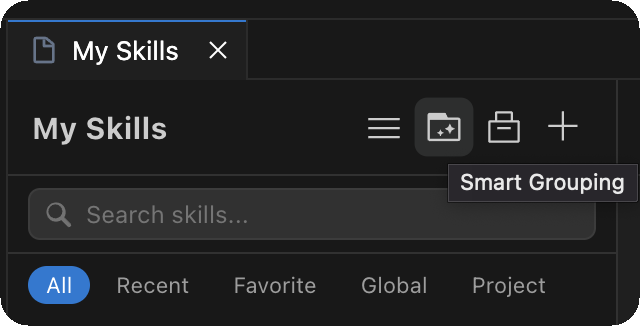
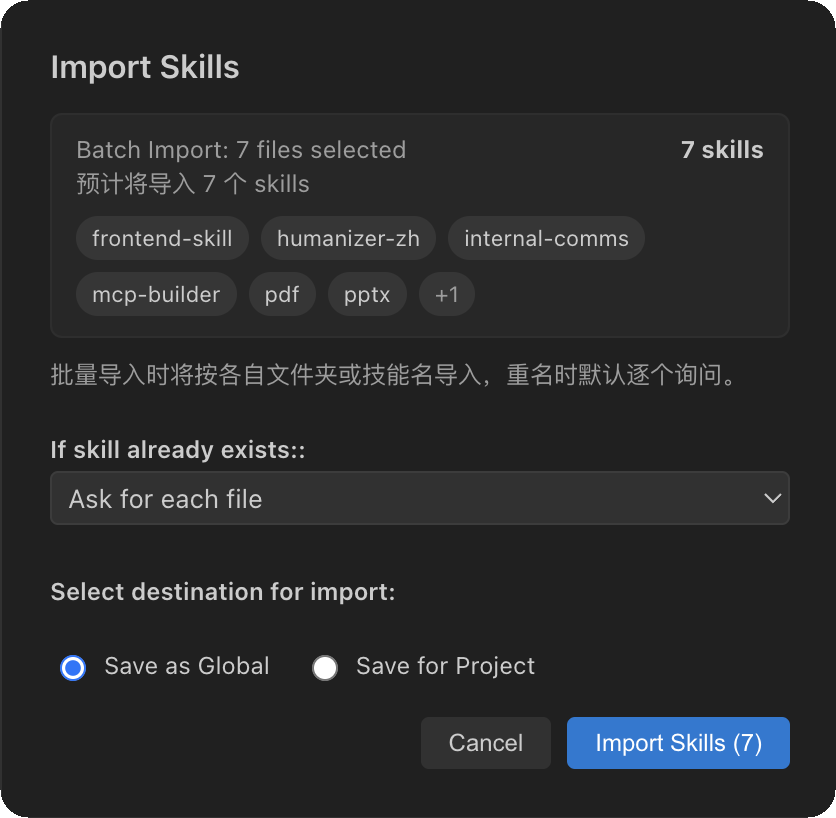
Create, edit, import (via Shift + Drag), and organize your AI skills — all from a single, elegant panel.
💡 How to Open the Editor
There are 3 easy ways to launch the Ultra Skills Editor:
- Status Bar (Recommended): Look at the bottom right of your IDE's status bar for a button with a wrench icon
🔧 and the text Ultra Skills Editor (or 我的技能 if in Chinese). Click it to instantly open the main panel!
- Right-Click Menu: Right-click on any
.md or .mdc file/folder in the VS Code/Cursor File Explorer and select "Import as Skill / 导入为技能". This will open the editor and automatically import your target file.
- Command Palette: Press
Ctrl+Shift+P (Windows/Linux) or Cmd+Shift+P (Mac) to open the Command Palette, type Open Skills Editor, and hit Enter.
💡 PRO TIP: Shift + Drag to Import
Once the editor is open, you can hold down the Shift key and drag multiple .md/.mdc files or folders directly from your computer into the panel to import them! (Holding Shift is required to prevent the IDE from intercepting the file).
✨ Highlights
| Feature |
Description |
| 🛒 @ Icon Cart |
Direct-to-clipboard selection. Clicking the @ icon instantly toggles skills. |
| ⚡ Multi-Select |
Use Shift + Click on icons/headers to select skills or multiple groups. |
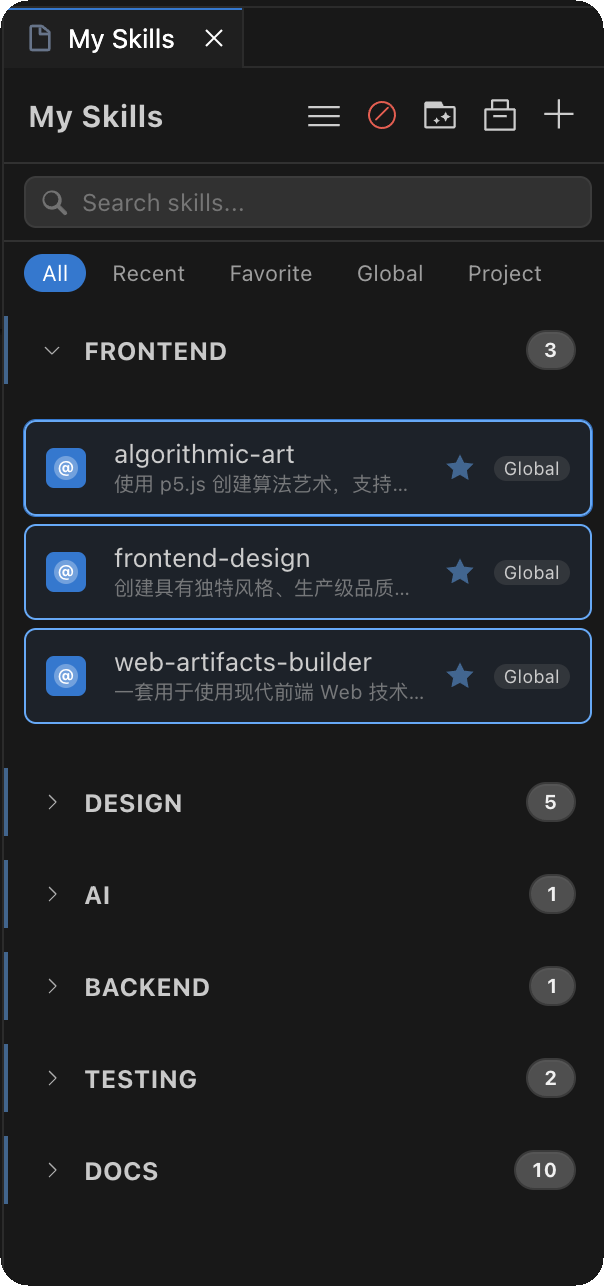
| 📁 Group Management |
Organize skills into groups with smooth GPU-accelerated drag-and-drop. |
| 🚢 Batch Export |
Export entire skill folders (not just .md) individually or in batch. |
| 👯 Duplicate |
Instantly clone existing skills to create templates or variations. |
| 📦 Import |
Shift + Drag files or folders directly for instant batch import. |
| ⌨️ Smart Shortcut |
Press Cmd + Shift + K (Mac) or Ctrl + Shift + K (Win) to toggle the editor. |
| 💾 Quick Save |
Press Ctrl/Cmd + S inside the editor to save instantly. |
| 🗂️ Universal Paths |
Native routing for 8+ IDEs (Cursor, Trae, Anti, etc.) with zero setup. |
📸 Screenshots
Skill Editor Panel
The main interface features a sidebar with your skill list and a full-width editor area. Now featuring a universal @ icon system for clean selection.
Adaptive Responsiveness
The UI intelligently adapts to window resizing. Button labels automatically collapse into icons when space is tight, and the path detail folds away to prioritize readability.
Language Switcher
A globe icon in the sidebar footer lets you switch between 16 supported languages instantly.
🌍 Supported Languages
|
|
|
|
| 🇺🇸 English |
🇨🇳 简体中文 |
🇹🇼 繁體中文 |
🇯🇵 日本語 |
| 🇩🇪 Deutsch |
🇪🇸 Español |
🇫🇷 Français |
🇮🇹 Italiano |
| 🇰🇷 한국어 |
🇧🇷 Português |
🇷🇺 Русский |
🇹🇷 Türkçe |
| 🇵🇱 Polski |
🇨🇿 Čeština |
🇸🇦 العربية |
🇻🇳 Tiếng Việt |
The extension automatically detects your editor's display language on first launch. You can manually override it at any time using the language selector at the bottom of the sidebar — your preference is remembered across sessions.
🚀 Getting Started
Installation
Manual Installation
- Download the latest
.vsix from the Releases page.
- In Antigravity/Cursor, open the Extensions panel.
- Click the "..." menu and select "Install from VSIX...".
- Select the downloaded file and reload the window.
📁 How Skills Are Stored (Dynamic Routing)
The extension features a Smart Native Routing Engine. It automatically detects which IDE you are currently using and seamlessly routes your global and project skills to the native storage directories of that specific IDE. Zero configuration required, and no directory pollution!
| Your IDE |
Global Storage Path |
Default Project Storage Path |
| Cursor |
~/.cursor/skills/ |
.cursor/rules/ |
| Windsurf |
~/.windsurf/skills/ |
.windsurf/rules/ |
| Trae (Global) |
~/.trae/skills/ |
.trae/skills/ |
| Trae CN (国内版) |
~/.trae-cn/skills/ |
.trae-cn/skills/ |
| VS Code |
~/.vscode/skills/ |
.github/skills/ |
| Antigravity |
~/.antigravity/skills/ |
.agent/skills/ |
| Qoder |
~/.qoder/skills/ |
.qoder/skills/ |
| CodeBuddy |
~/.codebuddy/skills/ |
.codebuddy/skills/ |
(Note: The extension also intelligently scans legacy and fallback directories like cursor_skills, .vscode/skills, etc., automatically deduplicating them in the UI.)
Each created skill becomes a folder containing a standardized SKILL.md file, maximizing compatibility with backend AI engines.
📖 Feature Details
Creating Skills
Click the + button in the sidebar header. A modal dialog will appear where you can:
- Enter a name for your skill
- Choose whether to save it as Global (available everywhere) or Project (local to the current workspace)
Editing Skills
Click any skill in the sidebar to open it in the editor. The content is displayed in a monospace editor optimized for markdown. Press Ctrl/Cmd + S to quick-save, or click the Save button in the toolbar.
Using the @ Icon Cart (Selection)
- Direct Selection: Click the
@ icon next to any skill in the sidebar to toggle its selection state. Selected skills turn blue.
- Range Selection: Hold the Shift key while clicking the
@ icons to select or deselect a range of skills instantly.
- Clipboard Sync: Your selection is automatically synced to the system clipboard as a list of Markdown links. Simply press
Cmd/Ctrl + V in your chat to use them!
Importing Skills
There are two ways to import skills:
- Toolbar Button: Click the Import (Archive) button in the sidebar header. You can select multiple files or entire folders.
- Shift + Drag-and-Drop: Hold Shift and drag files from your OS into the panel. Supports Multiple Folder identification (will automatically detect nested
SKILL.md files).
Exporting Skills (Single & Batch)
Click the Export (Upload) button in the editor toolbar.
- Folder Level: Exports the entire folder (including images/assets), not just the text.
- Batch Export: If you have multiple skills selected in the sidebar, clicking Export will batch-copy all selected folders to your destination.
Group Management & Multi-Select
- Shift + Click Labels: Select multiple groups to move them as a block.
- Dynamic Arrows: Precision-designed Chevron arrows with 90° rotation animations.
- Smart Toggle: Single click selects; Double-click or Arrow-click toggles group collapse.
[!TIP]
Holding Shift is required in Cursor/Antigravity to ensure the file is dropped into the plugin editor rather than opening as a regular tab!
Deleting Skills
Click the red trash icon in the editor toolbar. A confirmation dialog will appear to prevent accidental deletion. This action permanently removes the skill folder and its contents.
Switching Languages
At the bottom of the sidebar, you'll find a 🌐 globe icon next to a dropdown menu. Select any of the 16 supported languages to instantly change the entire interface. Your preference is saved and will persist across editor restarts.
🛠️ Development
Project Structure
ultra-skills-editor/
├── package.json # Extension manifest
├── README.md # This file
├── CHANGELOG.md # Version history
├── LICENSE # MIT License
└── src/
├── extension.js # Extension entry point & activation
├── SkillsPanel.js # Webview panel (UI + logic)
└── i18n.js # Translation strings for 16 languages
Running Locally
- Open this folder in Cursor or Antigravity.
- Press
F5 to launch the Extension Development Host.
- In the new window, click the Skills button in the status bar.
Building for Distribution
npm install -g @vscode/vsce # or: npm install -g ovsx
vsce package # Creates a .vsix file
🤝 Contributing
Contributions are welcome! Here are some ways you can help:
- 🌐 Translations: Improve existing translations or add new languages in
src/i18n.js
- 🐛 Bug Reports: Open an issue if you find any problems
- 💡 Feature Requests: Suggest new features via issues
- 🔧 Pull Requests: Submit code improvements
Adding a New Language
- Open
src/i18n.js
- Copy any existing language block (e.g., the
'en' block)
- Add a new key (e.g.,
'th' for Thai) and translate all strings
- The language will automatically appear in the dropdown selector
📜 Changelog
v1.0.0
- 🎉 Initial public release
- 📝 Full skill CRUD (Create, Read, Update, Delete)
- 📦 Import skills from files and folders
- 🌍 16 language support with auto-detection
- 🎨 Native Cursor / Antigravity theme integration
- 💾 Ctrl/Cmd+S quick save support
- 🔒 Confirmation dialogs for destructive actions
📄 License
This project is licensed under the MIT License.
🔒 Security & Privacy
- 100% Local: All processing, file management, and sorting happen locally on your machine.
- Zero External Calls: The extension does not send your skill content, file paths, or personal info to any external servers or telemetry services.
- Privacy First: Your workspace data remains in your workspace.
The Ultra Skills Editor is built using native VS Code APIs and Node.js, ensuring full functionality across:
- macOS (Intel & Apple Silicon)
- Windows (10/11)
- Linux (Ubuntu, Debian, etc.)
Made with ❤️ for the AI Developer Community