
Omni Notify MCP
Multi-channel notifications for AI agents.
Reach yourself on desktop, Telegram, SMS, or email when Claude,
Copilot, Cursor — or any MCP-aware agent — needs you.
What this gives you
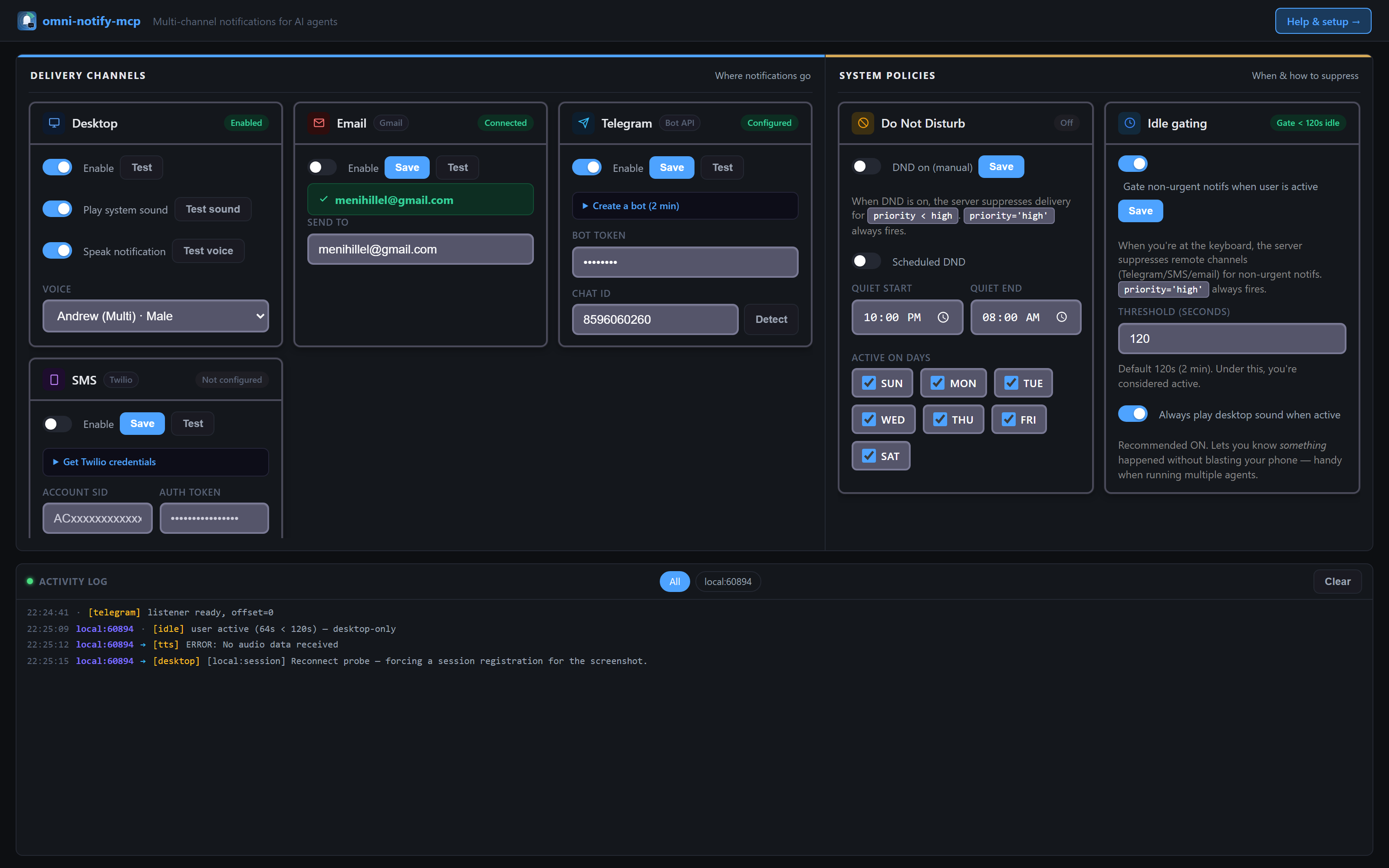
This extension wraps the omni-notify-mcp npm package and adds:
- Status bar bell showing whether the config UI server is up (click to open it)
- One-click commands:
Open Settings, Setup Help, Start Server
- Optional auto-start of the config UI when VS Code launches
- First-run welcome that points you to the right help page
The actual MCP server, channel routing, Do Not Disturb, idle gating, two-way ask, real-time inbox — all in the npm package, so VS Code's native MCP support (1.86+) talks to the same server every other client uses.
Quick start
- Install this extension.
- Open the Command Palette → Omni Notify: Open Settings (or click the bell in your status bar).
- The extension offers to start the config UI server. Accept.
- Configure your channels in the browser tab that opens.
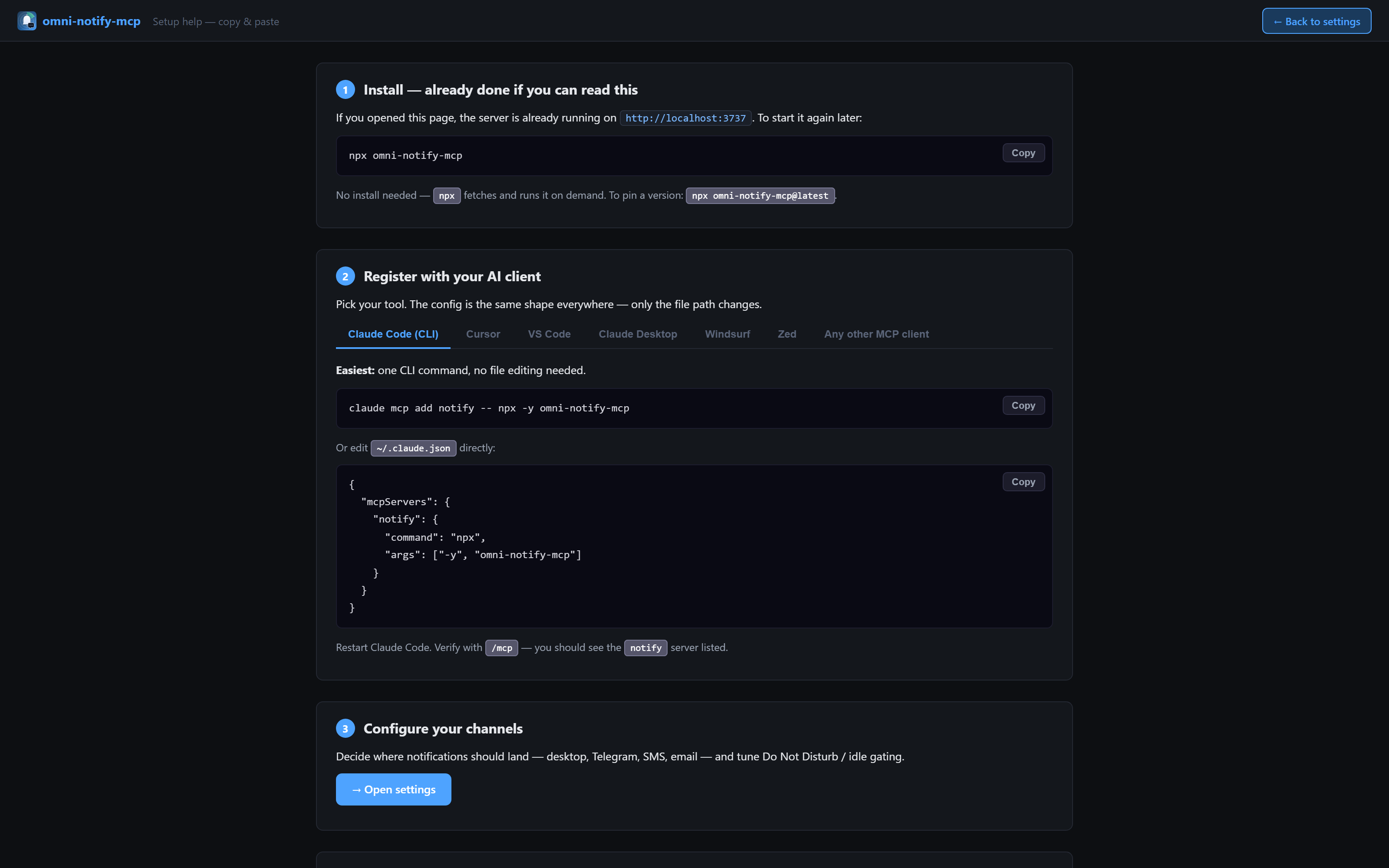
- Add the MCP server to your
.vscode/mcp.json:
{
  "servers": {
    "notify": {
      "type": "stdio",
      "command": "npx",
      "args": ["-y", "omni-notify-mcp"]
    }
  }
}
Done. Agents in this workspace can now call notify, ask, poll, and the rest.
Setup help — copy-paste for every client
The bundled help page has copy-paste snippets for Claude Code, Cursor, VS Code, Claude Desktop, Windsurf, Zed, and any generic MCP client. Open from the command palette: Omni Notify: Setup Help.
What the agent gets
Six tools, all server-configured (the agent never names a channel):
| Tool |
What it does |
notify |
Send a message. priority=low|normal|high controls fan-out and bypasses DND/idle when high. |
ask |
Send a question and wait for your reply. |
poll |
Drain unsolicited messages you sent the agent. |
get_idle_seconds |
Seconds since your last keyboard/mouse input. |
get_idle_config |
The server's idle-gating policy. |
get_dnd_status |
Whether DND is currently suppressing. |
Features (handled by the npm package)
- Multi-channel fan-out: desktop, Telegram, SMS, email — pick what you want
- Text-to-speech: desktop notifs can be spoken out loud in a natural neural voice — 30+ voices to pick from (US/UK/AU/CA/etc.) in the config UI, off by default
- Heartbeat-drain: busy agents stay responsive — a cheap
get_idle_seconds heartbeat every 15-30 seconds piggy-backs any user messages so a Telegram ping lands within 30 seconds even during long runs
- Multi-session broadcast: connect multiple Claude sessions to the same server, each with a
?tag=<project> — untagged user messages broadcast to all of them; tagged messages route to just the matching session; clients pill bar above the activity log lets you filter per-session
- Two-way
ask: agent waits for your reply via Telegram thread or email link
- Real-time inbox (SSE) for unsolicited user messages
- Multi-session tagging: route a Telegram message to a specific agent with
@<tag>
- Do Not Disturb: manual + scheduled quiet hours
- Idle gating with sound bypass: server suppresses non-urgent notifs when you're at the keyboard, but still plays a desktop sound so you know something happened (handy when running multiple agents)
- Activity log: every notify, ask, reply, inbox event — color-coded per session
Settings
| Setting |
Default |
What |
omniNotifyMcp.uiPort |
3737 |
Port the config UI listens on |
omniNotifyMcp.autoStartUi |
false |
Start the config UI when VS Code launches |
License
MIT — see the main repo.

