BullseyeSync
Syncs your editor and tool configuration across machines through a private GitHub repo you own — no third-party sync service, no encryption keys to carry, and every change is a real git commit you can diff, revert or roll back to.
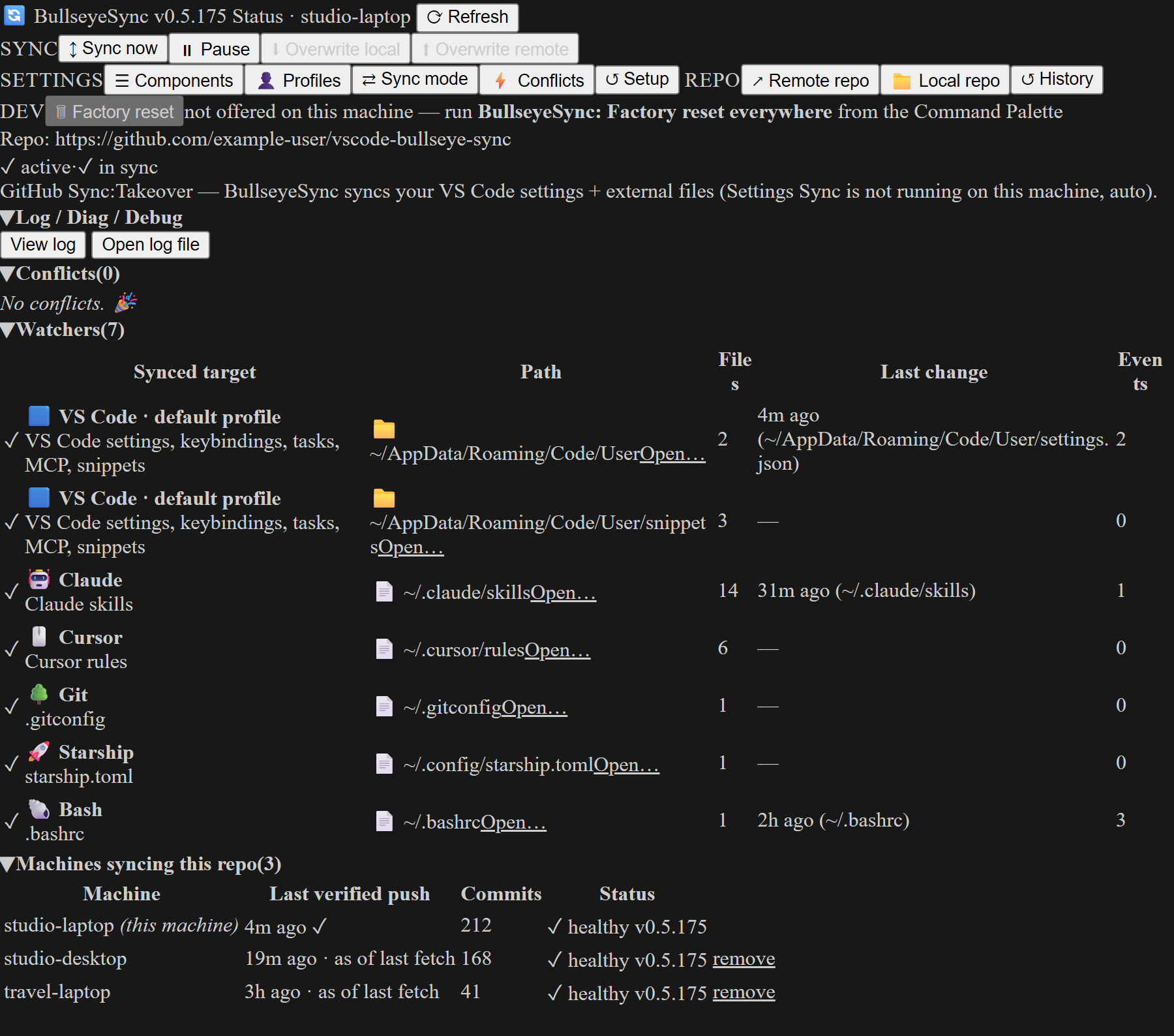
It covers what VS Code's built-in Settings Sync covers (settings, keybindings, extensions list, snippets, tasks, MCP servers, UI state, per profile) and the configuration that lives outside VS Code: Claude, Copilot Chat, Cursor, Windsurf, Zed, Continue, Aider, plus shell, git, prompt and package-manager dotfiles.
It does not fight VS Code Settings Sync
BullseyeSync runs in one of two relationships with Settings Sync, chosen by GitHub Sync mode (auto by default, forceable to coexist or takeover):
- Coexist — Settings Sync is on and keeps ownership of VS Code's own resources. BullseyeSync observes those files, commits each burst of writes to git for history and point-in-time restore, and actively syncs everything outside VS Code. It never writes editor resources back on pull, so the two never overwrite each other.
- Takeover — Settings Sync is off. BullseyeSync becomes the sole sync and delivers editor resources to the live config on every pull, on top of the external files.
In auto, the mode follows Settings Sync's own cache: no sync activity for 14 days is read as off. The window is deliberately generous — an idle-but-enabled machine must not be flipped into takeover and start overwriting.
A cache that cannot be read is never read as off. If BullseyeSync cannot read whether Settings Sync is running here, it stays in coexist, says so on the panel and in the log, and leaves your editor files alone. Only a proved "off" hands it the editor files — a lookup that failed says nothing about the machine, and guessing would put two syncers on one file.
What it syncs
VS Code, per profile — settings.json, keybindings.json, tasks.json, mcp.json, user snippets, the installed-extensions list, and UI state (globalState.json). You pick which profiles participate.
AI and editor tools — Claude CLI (~/.claude: CLAUDE.md, keybindings.json, skills/, agents/, rules/ — deliberately not settings.json, which registers hook and status-line commands and a permission list as absolute paths that mean nothing on another machine), Claude Desktop, GitHub Copilot Chat agent files, Continue, Aider, Cursor and Windsurf rules and settings, Zed settings.
Dotfiles — .gitconfig, global gitignore, lazygit, .bashrc, .bash_profile, .zshrc, .zprofile, fish, nushell, PowerShell profile, starship, WezTerm, Ghostty, Alacritty, .tmux.conf, .vimrc, Neovim init.lua, ~/.ssh/config (config only, never keys), .npmrc, pnpm, pip, Poetry.
Anything else — add your own files or folders from the wizard or BullseyeSync: Edit custom items.
Every built-in preset is an allowlist: it names the specific files to sync and nothing else. Pointing a preset at ~/.claude does not drag along caches, transcripts or credentials — only the listed files travel. The directory serializer additionally refuses credential-shaped files and *.backup* variants.
Setup
- Install the extension and click BullseyeSync in the Activity Bar.
- Sign in with GitHub — the same OS-native consent dialog Copilot uses. No token to paste. A private
vscode-bullseye-sync repo is created for you if it does not exist.
- Pick what to sync — VS Code resources plus every tool config the extension actually found on this machine. The step also offers to turn Settings Sync off; BullseyeSync delivers the editor files itself from the moment it can prove Settings Sync is off.
- Done — the first push runs immediately.
On a second machine, install and sign in with the same account; the wizard finds the existing repo and pulls. If you already ran setup in another VS Code variant or profile on the same box, this one adopts that setup silently rather than asking again.
Configuration lives in the repo, not in settings.json
The synced set is one fleet-global file, manifest.yml, at the root of your sync repo. Change what is synced on any machine and every other machine adopts it on its next pull. The VS Code Settings UI therefore shows a single read-only pointer rather than a wall of knobs.
manifest.yml carries the synced profiles, the synced resources, your custom directories, and two fleet settings: GitHub Sync mode and the default conflict action (prompt / local-wins / remote-wins). Edit it by hand with BullseyeSync: Edit manifest, or through the panel buttons.
How syncing works
Push — chokidar watches every synced path. A change debounces for 5 seconds, then the affected paths are re-serialized, diffed against HEAD, and pushed. A snapshot that produces no git-level change never becomes a commit. If more than 200 events arrive within 10 seconds, an anti-thrash brake trips instead of hammering the remote. When the native watcher cannot work — network drives, some containers — the path falls back to 5-second polling and the panel says so.
Pull — the remote is checked every 60 seconds, and on boot and on demand. A watchdog sweep every 2 minutes restarts a dead watcher or a stalled remote-check loop. Three consecutive failures trip a circuit breaker; a hard misconfiguration (no repo URL, 404) stops the daemon rather than retrying forever.
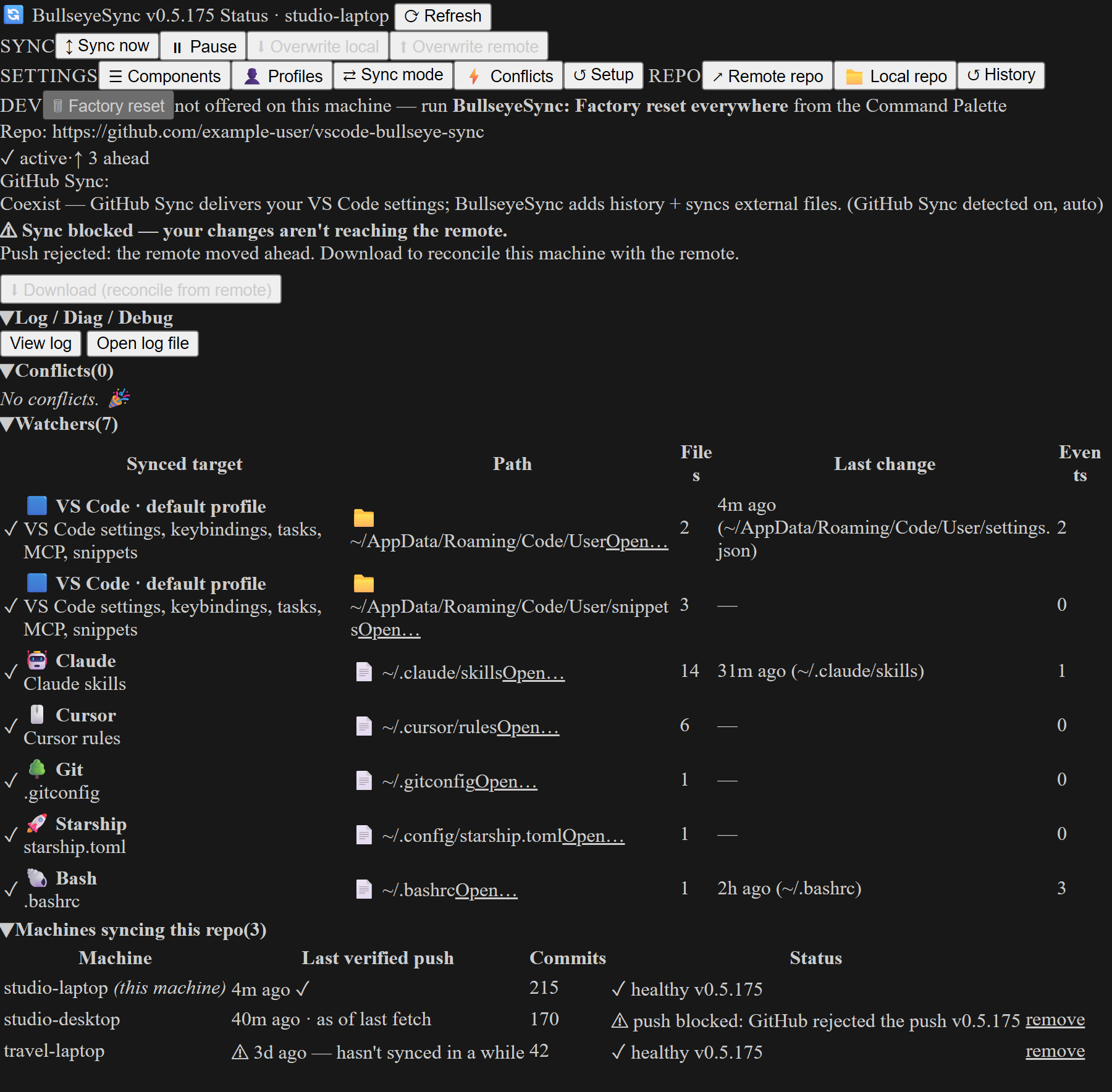
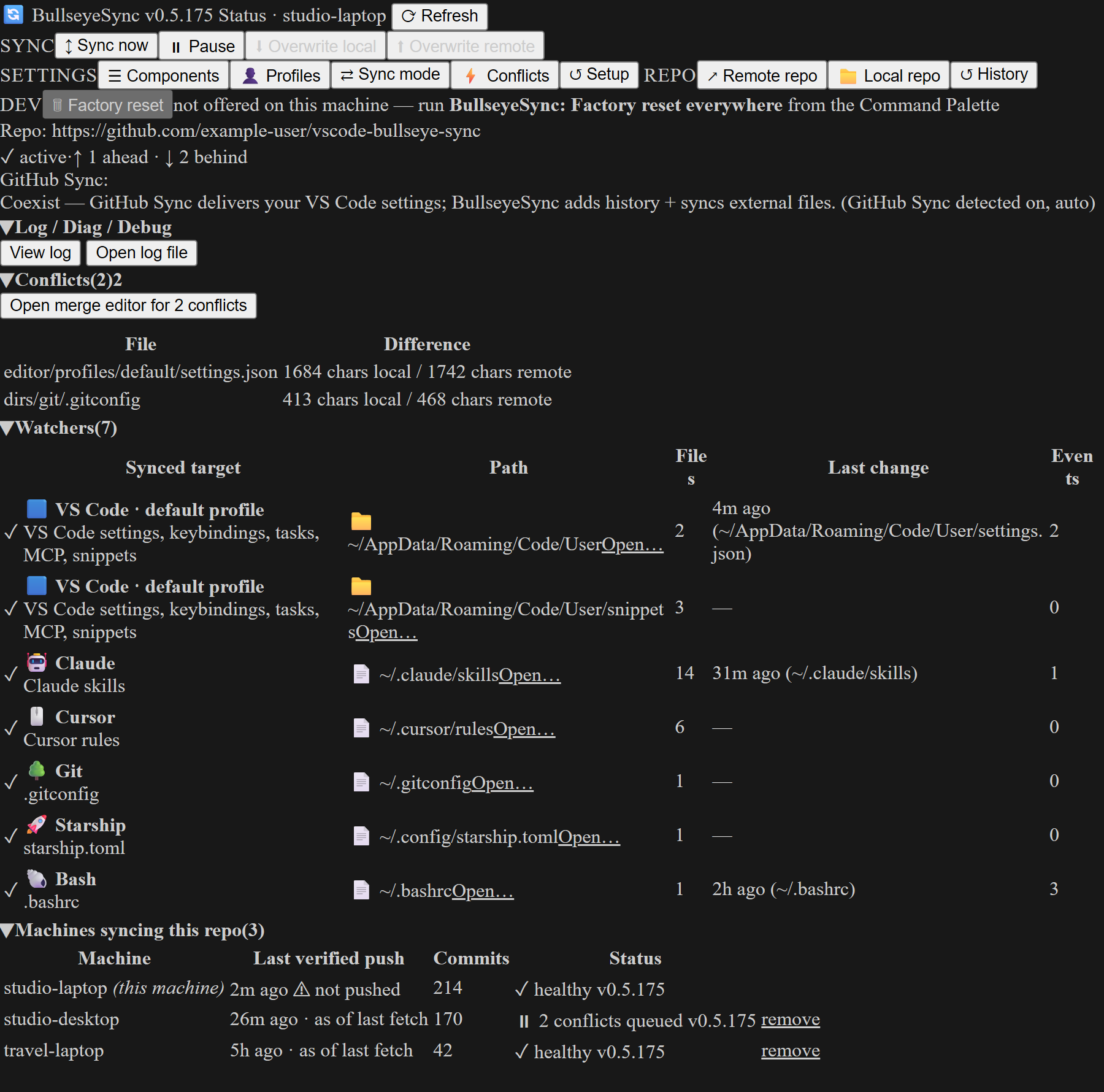
Merge — three-way, against the commit this machine last synced (tracked per machine at refs/bullseye-sync/machines/<id>/last-synced, so a merge base is never guessed). JSON and JSONC files merge per key with comments preserved; everything else merges by line with diff3. Same key with the same value is a no-op; different keys union. Only a genuine same-key divergence reaches you, and it opens in VS Code's native merge editor. extensions.yml resolves by capture time — the newest capture wins, so an uninstall on one machine is never resurrected by an older peer that still has it.
Extension sync asks first
A pulled extension list is turned into a plan — install these, uninstall those — and shown to you before anything is installed or removed, because applying it forces a window reload that kills whatever that window was running. Every entry is independently deniable. A refusal is remembered, and forgotten again the moment the repo stops asking, so a later flip re-asks. An empty captured list means "extensions were never captured", never "uninstall everything". BullseyeSync never proposes uninstalling itself.
Fleet operations
The panel keeps a roster of every machine that has pushed, with its last sync time. From there:
- Download (overwrite this machine from remote) — replace this machine's config with the remote's. Upload (overwrite remote) — overwrite every other machine with this one.
- Restore from history — point-in-time rollback: pick any of the last 60 commits and put your config back to that point. Before anything on disk is overwritten, the state you are leaving is pinned under a backup ref (
refs/heads/backup/<machine>/<timestamp>), so a wrong pick is still recoverable. BullseyeSync: Open backup branch names that ref for you.
- Reconfigure all machines — change the synced set once and propagate it.
- Leave on this machine — forget membership here, keep the editor files.
- Factory reset everywhere — wipe BullseyeSync state on every machine, optionally deleting the remote repo. Deleting the repo asks for the extra GitHub scope only at that moment. The panel's
Dev group draws this button on every machine: where a checkout of this extension was found it is live, and anywhere else it is greyed with the reason and names this command for the palette.
- Remove machine — tombstone a retired machine from its row in the roster so it stops appearing.
- Reload — reload the window with the live work saved first, so a reload does not throw away what this window was doing.
Fleet commands travel as a control file in the repo (.bullseye-control/control.json) and are honoured on the next pull, plus a marker on disk so every VS Code variant and profile on the same box reacts too, not just the window you clicked in.
Where things are
- Activity Bar — the BullseyeSync dashboard: status, sync state, watcher list, machine roster, and every action.
BullseyeSync: Open status as a tab is the fallback if the view ever fails to paint.
- Status bar — one chip on the right; clicking it opens the dashboard.
- Output panel —
BullseyeSync for the plain-English activity log, BullseyeSync (Debug) for raw library errors.
- On disk — a rotated log at
<globalStorage>/logs/bullseye-sync.log, 1 MB per file, 3 generations, opened by BullseyeSync: Open log file.
Repo layout
manifest.yml
editor/profiles/<profile>/settings.json
editor/profiles/<profile>/keybindings.json
editor/profiles/<profile>/tasks.json
editor/profiles/<profile>/mcp.json
editor/profiles/<profile>/globalState.json
editor/profiles/<profile>/snippets/
editor/profiles/<profile>/extensions.yml
dirs/<id>/...
.bullseye-control/control.json
.bullseye-machines/<machineId>.json
.machines/<machineId>.removed
.bullseye-machines/ is how the roster knows a peer is still alive: one small file per machine, rewritten on every push, so a machine that has stopped syncing shows as stale instead of silently staying on the list.
Commands
| Command |
What it does |
Set up |
Run the wizard. Re-runnable any time to change what syncs. |
Clone setup from repo |
Restore a machine from an existing sync repo. |
Sync now |
Pull, then push. |
🔄 Reload |
Save the live work first, then reload the window. |
Open remote repo / Open local repo folder |
Jump to either copy. |
Status / Open status as a tab |
Focus the dashboard, or open it as an editor tab if the sidebar view ever fails to paint. |
Add path to sync / Remove path from sync |
Single-path shortcuts. |
Resolve conflicts |
Open queued conflicts in the merge editor. |
Pause / Resume |
Halt auto-sync on this machine. |
Restore from history |
Point-in-time rollback — pick one of the last 60 commits. |
Restore from commit |
The same act as Restore from history under a second palette entry. |
Open backup branch |
Name the backup ref a restore pinned before it overwrote anything. |
Edit manifest |
Open manifest.yml directly. |
Show output log / Show debug log |
The plain-English activity log, and the raw library errors. |
Open log file |
The rotated log on disk. |
Reconfigure all machines |
Change the synced set fleet-wide. |
Factory reset everywhere |
Wipe every machine, optionally delete the remote. |
Leave on this machine |
Forget membership here, keep the files. |
Download / Upload |
One-way overwrite: this machine from the remote, or the remote from this machine. |
Remove machine from sync repo |
Tombstone a retired machine. |
Clear reset marker |
Debug: forget the marker that tells the other VS Code windows on this box a reset happened. |
Open settings |
Jump to BullseyeSync's settings page. |
Edit synced components |
Everything that syncs — the known catalog plus your own items. |
Edit known components |
Toggle the built-in catalog entries. |
Edit custom items |
Add or remove your own files and directories. |
Edit synced profiles |
Choose which VS Code profiles participate. |
BullseyeSync DEV |
The DEV pulldown below. |
BullseyeSync DEV opens a pulldown with four entries: ⬇️ Reinstall latest, 🔢 Bump version only, 🚀 Publish to Marketplace and 🔄 Reload (saves your work first). The first three need a BullseyeSync checkout to exist on this machine — it does not have to be open in this window. The pulldown is drawn only when one is found, and an entry refuses by name if it went away between the draw and the click. Clear reset marker is the other maintainer command.
Auth and privacy
Authentication goes through VS Code's built-in GitHub provider — the same one Copilot uses. The token is fetched fresh for each git operation and is never written to settings or to the repo. The repo is private and yours; there is no BullseyeSync server and nothing is sent anywhere else. That private repo is the whole security boundary: its contents are not encrypted, so do not add paths that hold secrets.
License
MIT.

