CSVis
CSVis lets you explore CSV files as tables in Cursor or VS Code without changing their contents. You can filter rows, sort data, and calculate totals with SQL queries. Your files remain on your computer.
Preview
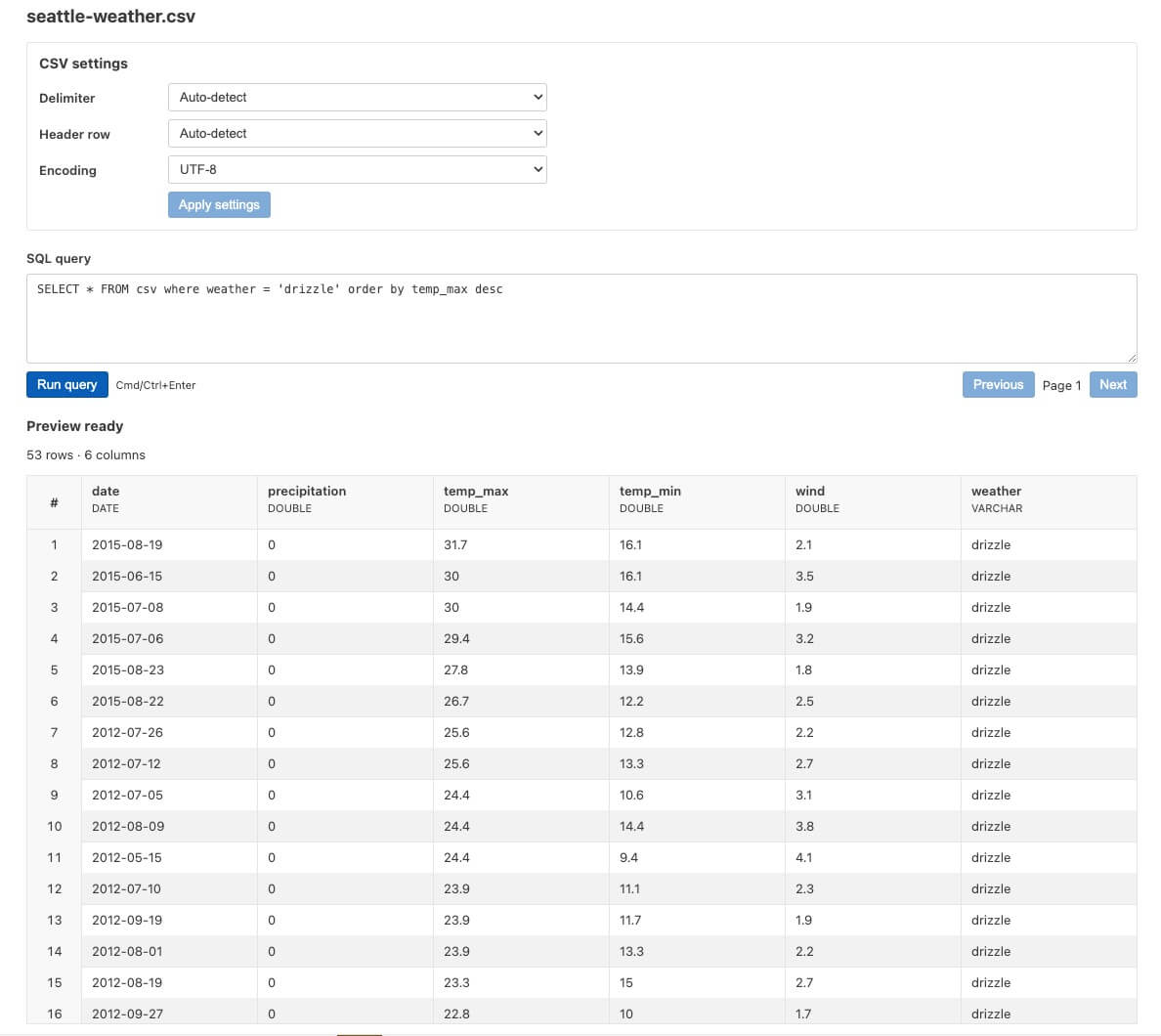
Features
- Open a CSV directly as a table, or switch between the table and text views.
- Browse rows and columns, sort by clicking a column header, resize columns, and move between result pages.
- Filter, sort, select columns, and calculate statistics with SQL.
- Adjust CSV parsing options, including the delimiter, header row, and encoding.
- Restore the settings selected for a file in the same workspace.
- Refresh the view automatically when the CSV changes on disk.
- Browse data in read-only mode without sending the file to a remote service.
Installation
Open the Extensions view in VS Code (Cmd+Shift+X on macOS or Ctrl+Shift+X on Windows and Linux), search for CSVis by MaximeK, then click Install.
Explore the features with an example
Consider a scores.csv file containing:
name,city,score
Alice,Paris,12
Bob,Lyon,8
Chloé,Paris,18
Open and browse the table
Open scores.csv. CSVis displays all three rows with the name, city, and score columns. Each column name and type appears in the header. Click a column header once to sort its values in ascending order and again for descending order. The sort applies to the complete result, including every page. If a column is too narrow, drag its right edge to reveal the full value.
If the CSV is already open as text, run CSVis: Open CSV as Table from the Command Palette. To view the original text again, run View: Reopen Editor With… and select Text Editor. Cells cannot be edited in the table view.
Filter, sort, and calculate with SQL
The table is named csv in queries. Enter a query in SQL query, then click Run query or press Cmd+Enter / Ctrl+Enter.
Show only people from Paris:
SELECT name, score FROM csv WHERE city = 'Paris'
The results are Alice (12) and Chloé (18). To sort all scores from highest to lowest:
SELECT name, score FROM csv ORDER BY score DESC
Chloé now appears first. To count the rows and add up the scores:
SELECT count(*) AS people, sum(score) AS total FROM csv
The result is 3 people and a total of 38. Queries must only read data: for example, DELETE FROM csv is rejected, as is any attempt to read another file. If a query is invalid, an error message appears below the console.
Move between pages
For a CSV containing 430 rows, CSVis displays results in pages of 200 rows. Click Next to view rows 201 through 400, then Previous to return to the first rows. Running a new query returns to page 1.
Adjust CSV parsing
In CSV settings, you can change three options and then click Apply settings:
- Delimiter: if
name;city;score appears in a single column, select Manual and enter ;.
- Header row: if the first row already contains data, select Absent so it is not treated as column names.
- Encoding: if accented characters are displayed incorrectly, try Latin-1 or UTF-16, depending on the file.
For example, set the delimiter for sales.csv to ;, close the file, then reopen it in the same workspace: CSVis restores that setting. If you add a row to the file and save it, the table reloads. If you delete the file, CSVis displays a message and waits for it to be created again.
CSVis remains read-only: none of these actions modifies the original CSV.

