Markdown to PDF and HTML
Demo
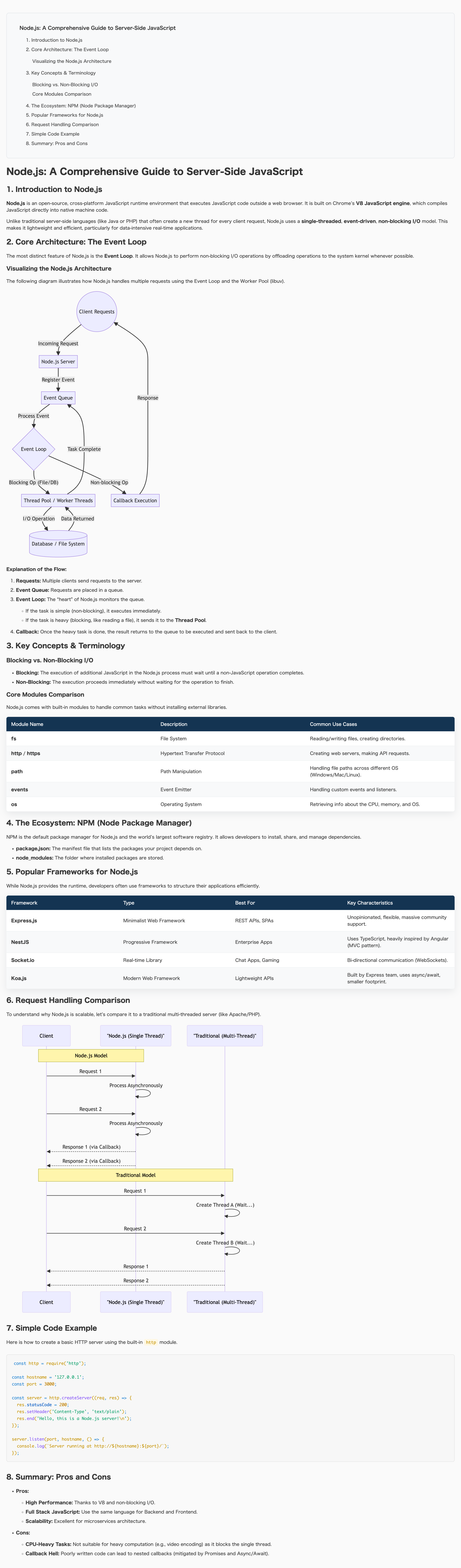
How to Use
Install the extension from the Marketplace.
Open a Markdown file.
Run one of the commands (Command Palette or right-click):
- Markdown: Export to HTML/PDF — create both files.
- Markdown: Export PDF only — create PDF only.
- Markdown: Export HTML only — create HTML only.
Output files are saved next to the Markdown file by default.
Pandoc is required; if it’s not installed, the extension will show a helpful installation hint.
Defaults
- PDF format: A3
- Uses the built-in stylesheet unless you specify a custom CSS path.
Configuration
Configure the extension in VS Code via either:
- User Settings: applies to all projects.
- Workspace Settings: only for this repo—create or update
.vscode/settings.json.
Example workspace config with inline hints:
{
  // Default A3. Accepts A4 | A3 | Letter | Legal | Tabloid.
  "markdownConverter.pdfFormat": "A4",

  // Custom CSS for HTML output. Relative paths resolve from the Markdown file’s folder.
  "markdownConverter.cssPath": "styles/markdown.css"
}
Relative paths (e.g., styles/markdown.css) are resolved from the folder containing the Markdown file you export.
Support
If this extension made your day easier, a coffee would mean a lot ☕️ Buy Me a Coffee
| |

