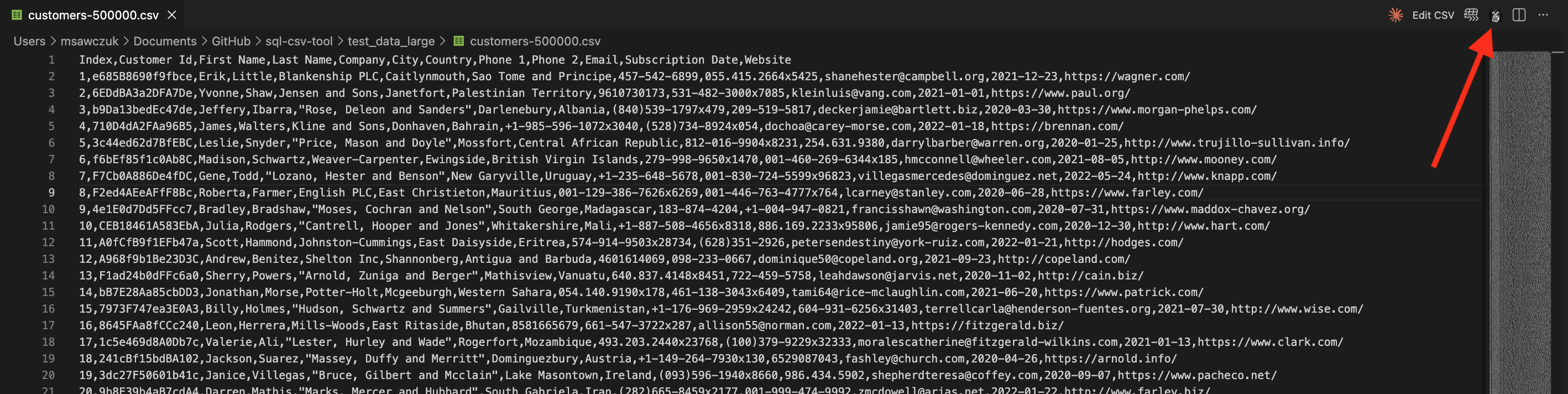
SQL CSV ChomperChomp through CSV files with SQL! Powered by DuckDB with column filtering, inline editing, virtual scrolling, Save As, and an MCP server for Claude/Copilot. Installation Launch VS Code Quick Open ( Ctrl+P), paste the following command, and press enter.Copied to clipboard |

SQL CSV ChomperSQL tools for you. SQL tools for your LLM. Stop staring at raw CSV text. Stop copy-pasting into Excel. Stop writing throwaway Python scripts just to peek at your data. SQL CSV Chomper turns VS Code into a fast, lightweight SQL workbench for your data files — powered by DuckDB WASM running entirely in your browser. No server, no database, no nonsense. Open any CSV. Write SQL. Get results. Chomp chomp.
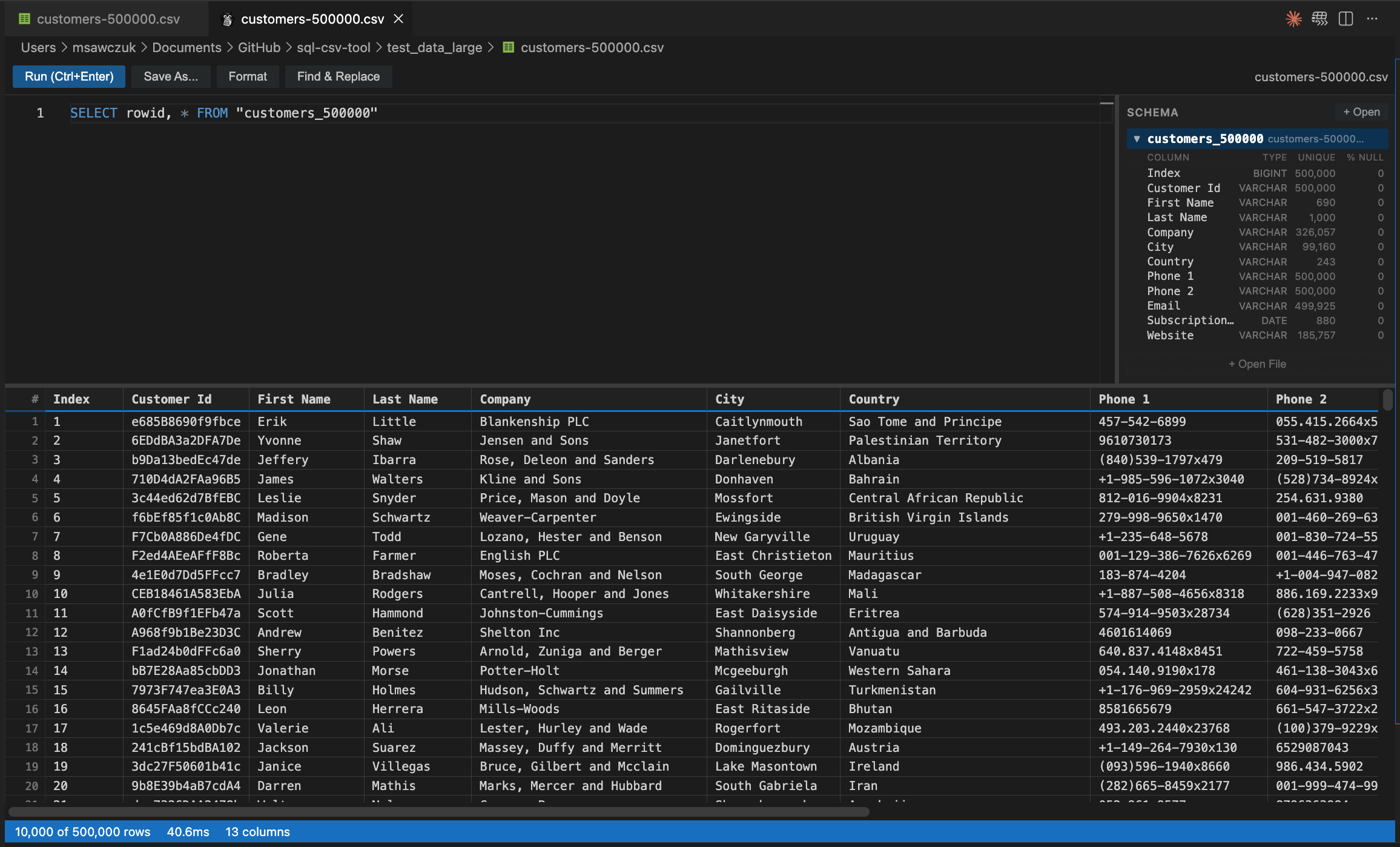
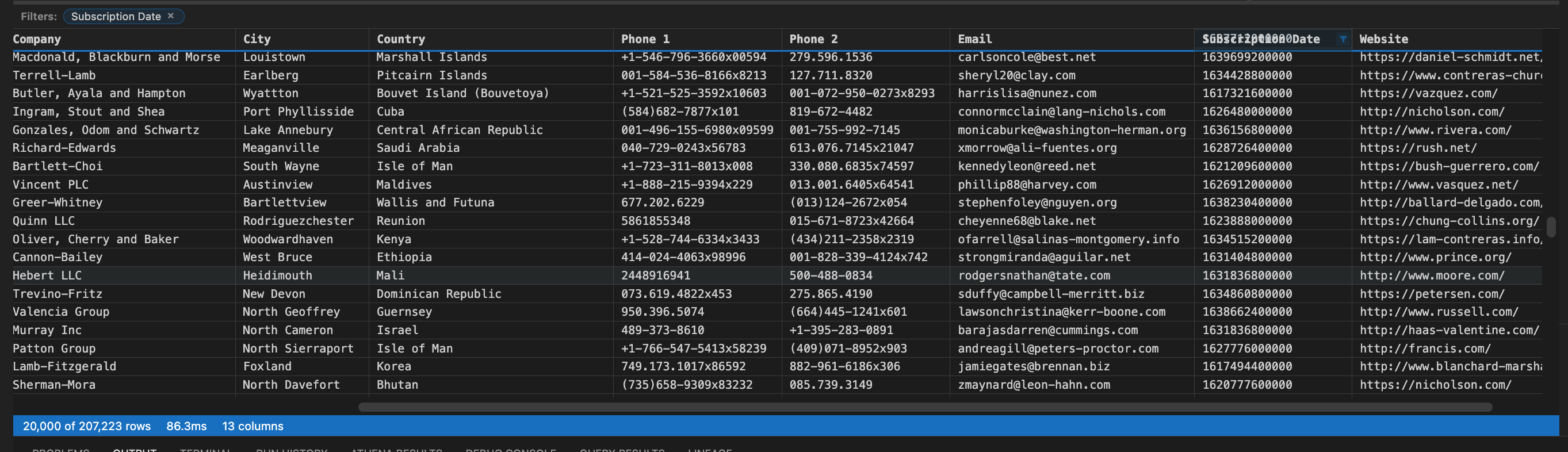
Why?Working with CSV files in VS Code has always been painful. Need to filter 500K rows? Join two CSVs? Edit a single value and save? Your options were Excel, a Python REPL, or a full database setup. None of those live inside your editor. And if you're working with an AI assistant? Every CSV operation means another round-trip — "write me a script to filter this", "now save it back", "actually change that column name first". It's slow. Chomper fixes both problems. You get a visual SQL IDE with filtering, editing, and sorting. Your AI gets an MCP server with direct SQL access to your files. Everyone chomps faster. FeaturesQuery 500K+ rows without breaking a sweatData loads in 10,000-row chunks with automatic pagination as you scroll. The status bar shows exactly where you are — no freezing, no waiting.
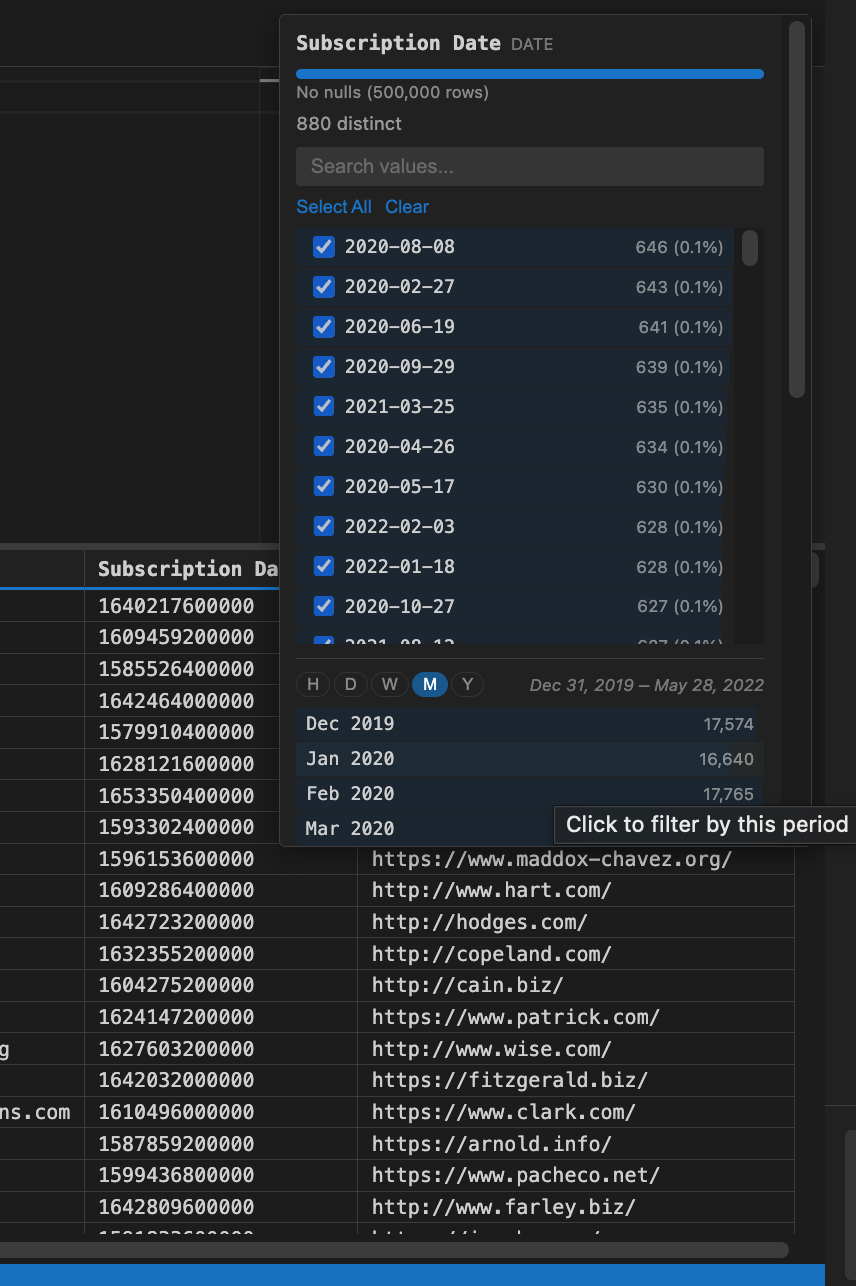
Excel-style column filteringClick the filter icon on any column header to get a rich filter panel:
Date & time intelligenceDate columns get special treatment — histogram buckets by hour, day, week, month, or year. Click any bucket to instantly filter to that time range.
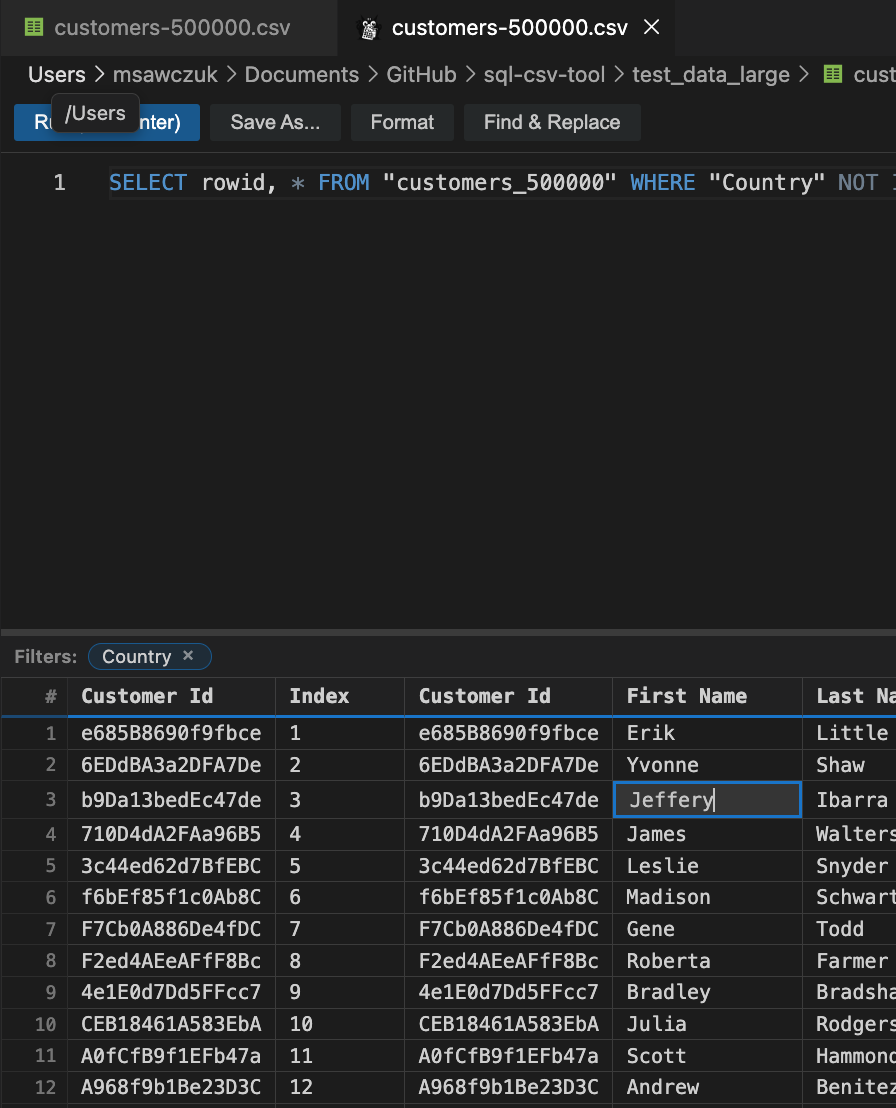
Edit cells inline and save backDouble-click any cell to edit in place. Changes update the in-memory database instantly. Hit Save to write back to disk, or Save As to export with custom delimiters, quoting, and formatting.
SQL intellisenseFull autocomplete for table names, column names (auto-quoted when they contain spaces), SQL keywords, and 60+ DuckDB built-in functions.
Scroll through massive filesVirtual scrolling keeps things smooth even with hundreds of thousands of rows. Load more data automatically as you scroll, or run a query to narrow things down.
Resizable columnsDrag any column edge to widen it — handy when one field holds a long description and the rest are short codes. Double-click a resize handle to snap that column back to a best fit. Column operationsRight-click any column header to rename, insert, or delete columns. Load multiple files and JOIN across them — the schema explorer shows every table with columns, types, unique counts, null percentages, and the longest value in each column. Hover a column for the full breakdown: distinct, null, whitespace-only and numeric-looking value counts. Find & ReplaceSearch and replace across any column with case-sensitive and regex support. Live match count shows how many values will change before you commit. Your file's format survives the round tripChomper detects the delimiter, quoting, escape character and header row when it opens a file, and reuses them when you save. A pipe-delimited or tab-delimited file goes back to disk the way it arrived — it is never quietly rewritten as comma-delimited. Fields that contain the delimiter are re-quoted on the way out, so they still read back correctly. Load Options — when detection gets it wrongSome files defeat auto-detection. Click Load Options... to re-read the file with exactly what you specify:
Save As with optionsExport your data exactly how you need it — defaults follow the source file's own format:
MCP Server — Let your AI chomp tooSQL CSV Chomper includes a bundled MCP (Model Context Protocol) server so AI assistants can work with your CSV files directly. No more "write me a Python script to filter column X" — just let them query.
GitHub CopilotThe MCP server registers automatically in VS Code 1.99+. Copilot can load files, run queries, edit data, and push results into the visual editor. Claude CodeThe MCP server is published as an npm package — no path wrangling needed. Works on macOS, Linux, and Windows. Option 1 — From VS Code (easiest):
Option 2 — Terminal (any OS): Upgrading? Remove the old MCP first: MCP tools available
Keyboard shortcuts
Supported files
The delimiter is detected from the file's contents, not its extension, so an oddly-named file still
opens correctly — and Load Options... is there for the ones that defeat detection. Other delimited
files ( How it works
Requirements
License |