Salesforce XML Helper
Salesforce XML Helper is a local-first VS Code extension for the Salesforce work that usually turns into careful hand editing and too much Setup clicking: SOQL queries, custom objects, custom fields, layouts, package.xml, Profiles, and Permission Sets.
It edits files in your workspace. It does not deploy metadata by itself and does not send telemetry. You stay in control of validation and deployment with Salesforce CLI or your normal release process.
How To Use
1. Open The Salesforce XML Helper View
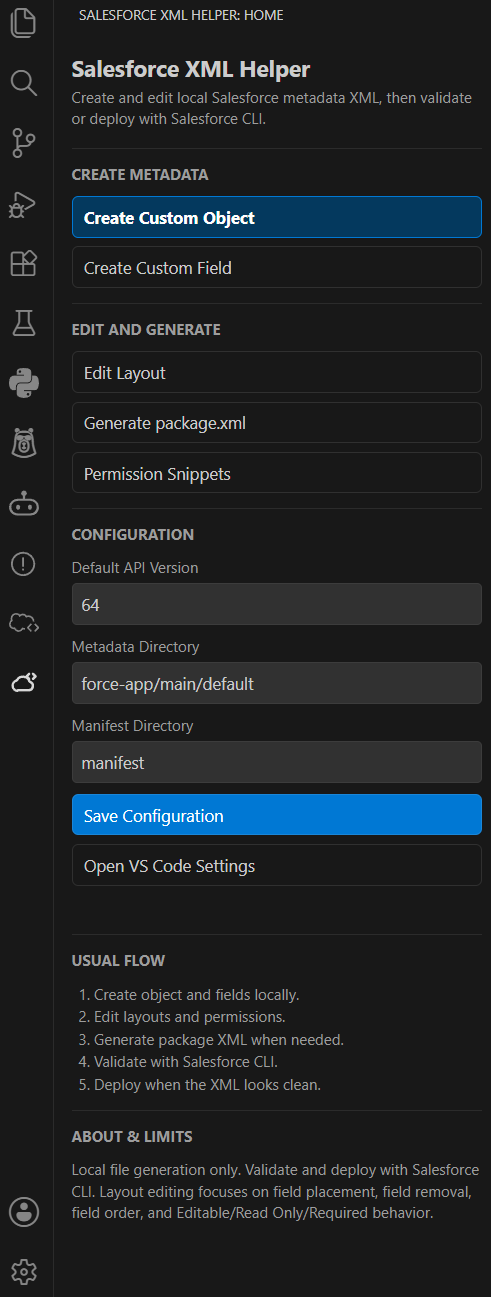
Open the Salesforce XML Helper icon in the Activity Bar. From the dashboard you can start each workflow and update the default API version, metadata directory, and manifest directory.
2. Run SOQL Queries
Use Run SOQL Query to open a Salesforce CLI-backed SOQL console. It runs against your default org or a selected alias, shows the exact sf data query command being executed, and renders results in a searchable table.
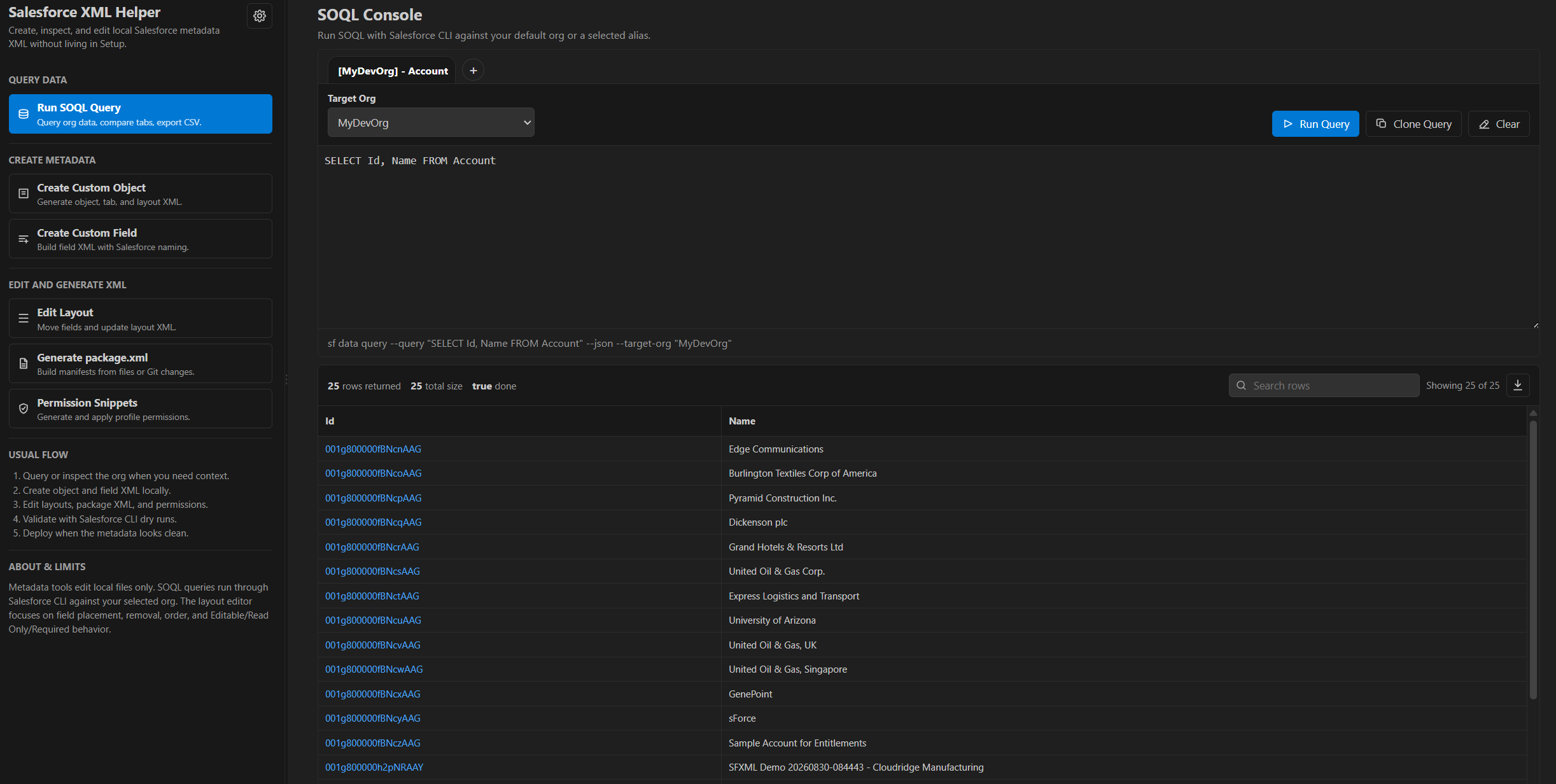
The editor suggests objects, fields, lookup relationship paths, and child relationship subqueries from local project metadata, with common Salesforce standard fields included even when they are not tracked as XML. Query tabs make it easier to compare results across orgs, large result sets lazy-load as you scroll, Salesforce Ids open as org links when the instance URL is available, and results can be searched, copied cell-by-cell, or exported to CSV.
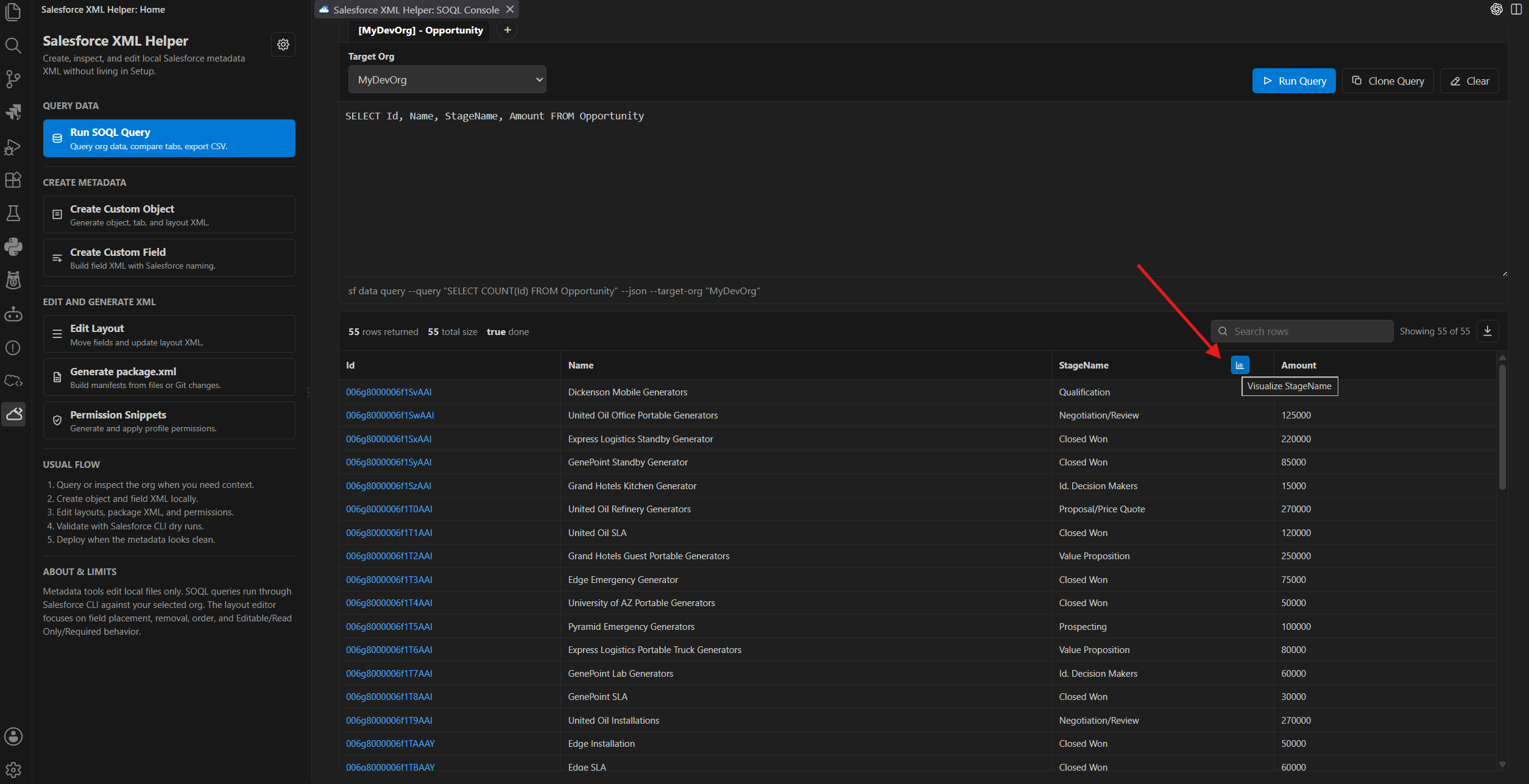
Hover over a result column header to reveal the visualization action.
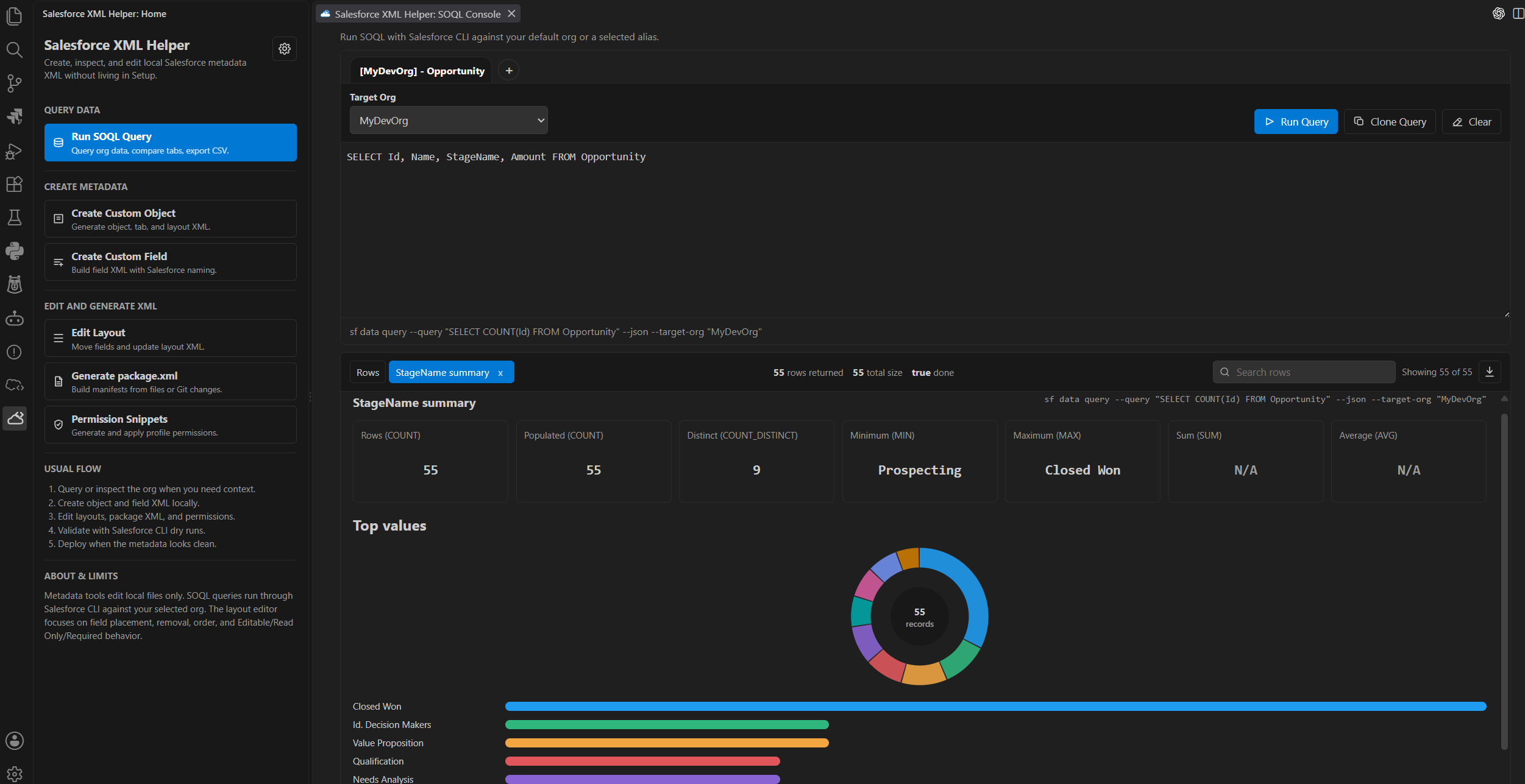
Visualizations open beside the row results as their own result tabs. They run aggregate SOQL summaries such as COUNT, COUNT_DISTINCT, MIN, MAX, SUM, and AVG, show unsupported aggregates as N/A, and include a compact distribution chart with top values.
3. Create Custom Objects And Fields
Use Create Custom Object to generate object metadata locally. The wizard fills Salesforce-style API names from labels, guides you through object basics, name field settings, options, and review, then writes the XML into your metadata folder.
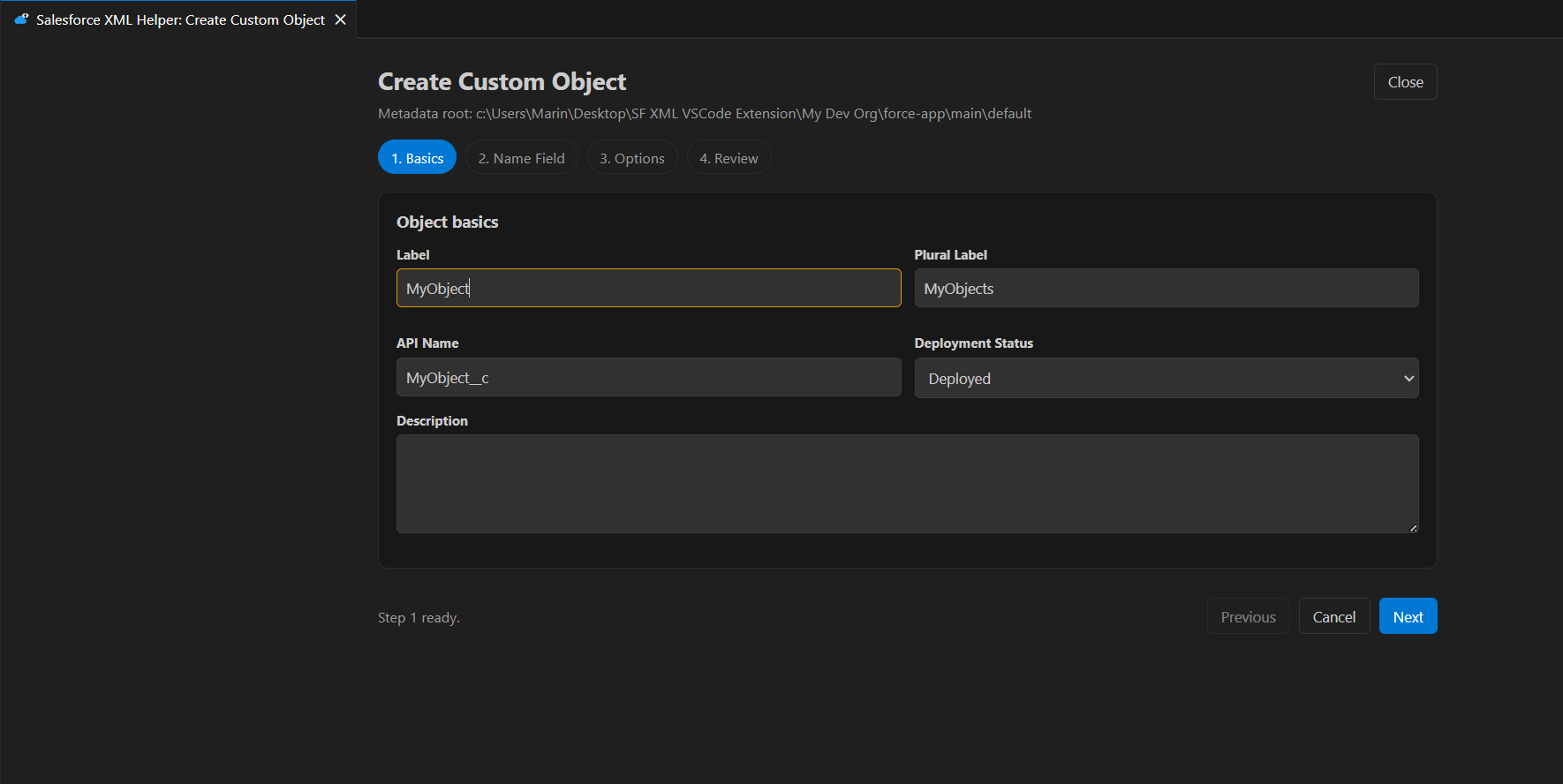
Use Create Custom Field when you only need a field on an existing object. Pick the target object, choose the field type, fill type-specific options, review, and create the field XML.
4. Edit Layouts Visually
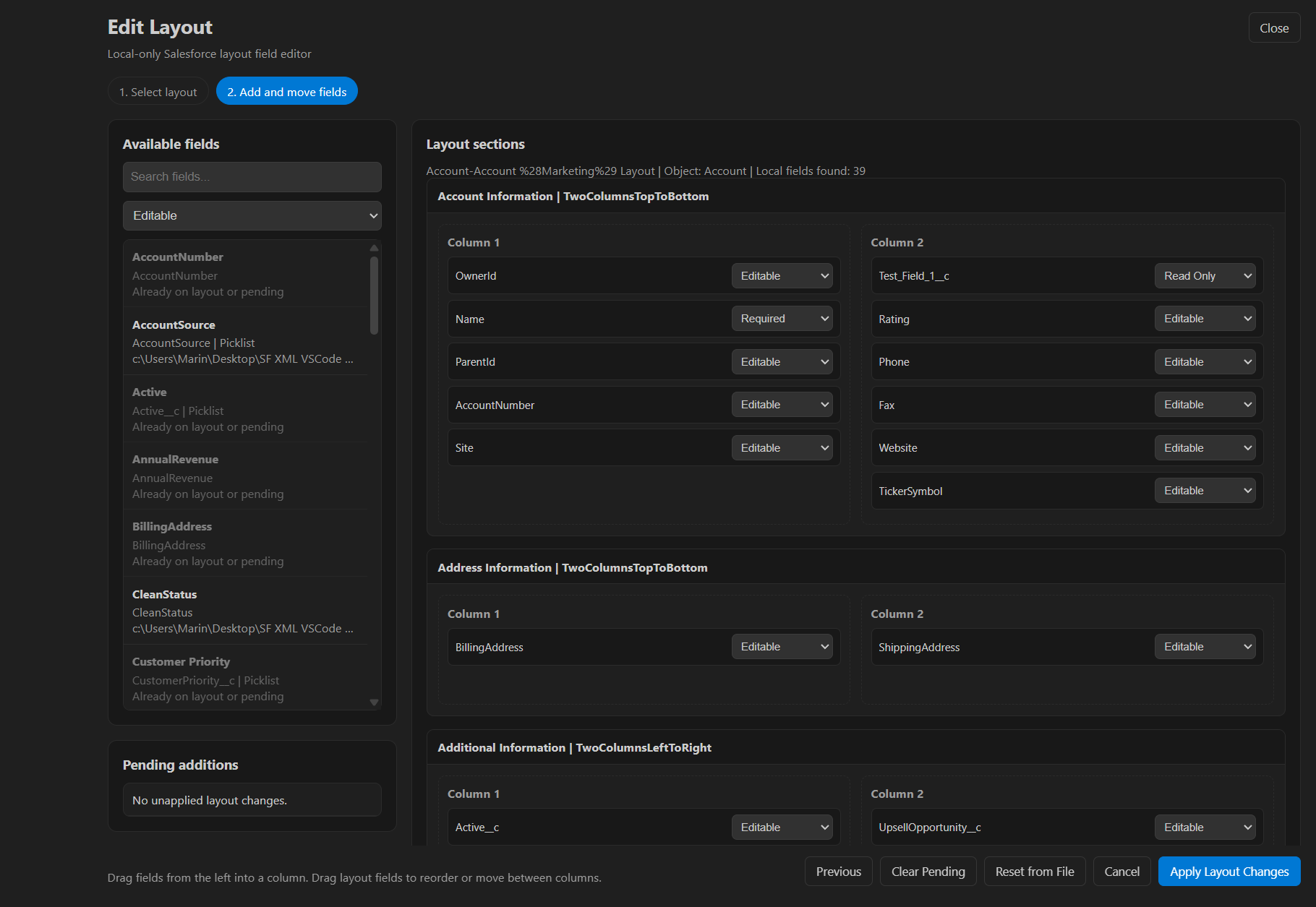
Use Edit Layout from the dashboard, from a .layout-meta.xml file, or from the editor context menu. Drag available fields into layout columns, move existing fields between columns, remove fields from the layout, and set field behavior to Editable, Read Only, or Required before applying the XML changes.
5. Generate package.xml
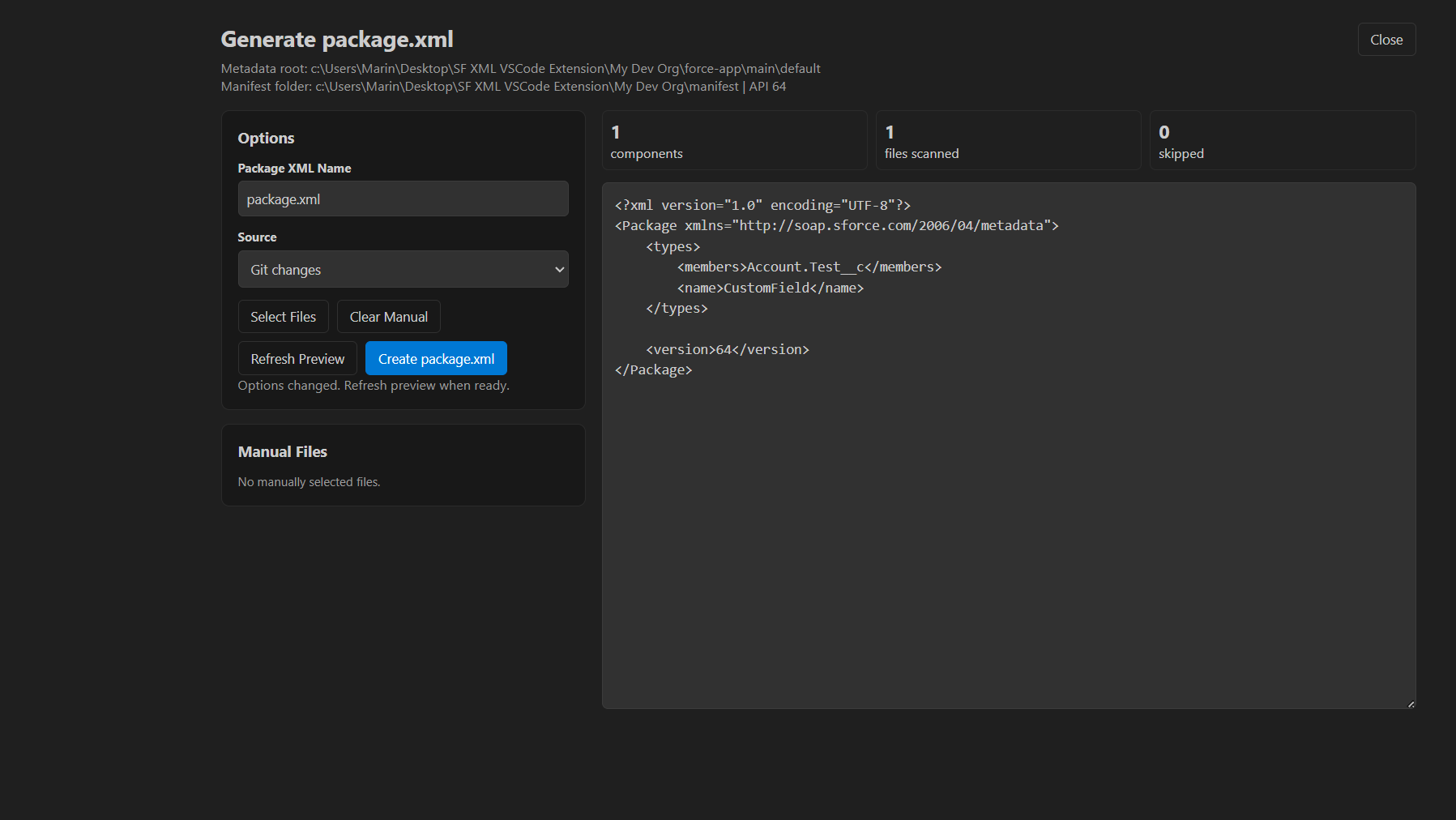
Use Generate package.xml to build a manifest from recently modified files, Git changes, manual file selection, or combined sources. Review and edit the generated XML before creating the file.
6. Generate And Apply Permission Snippets
Use Permission Snippets to select or manually open a package.xml. The first step previews the manifest and explains how supported package members are converted into Profile and Permission Set XML blocks.
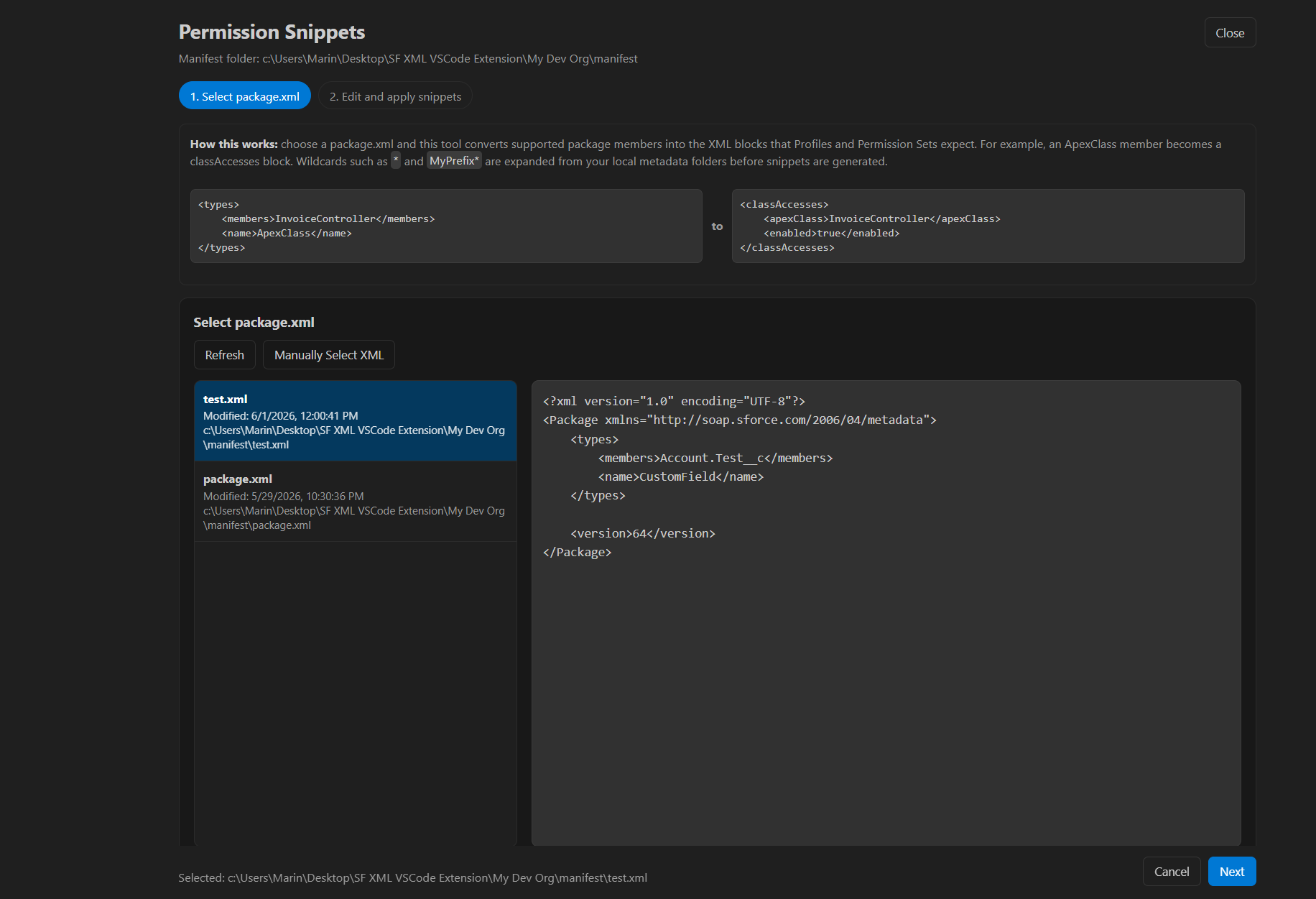
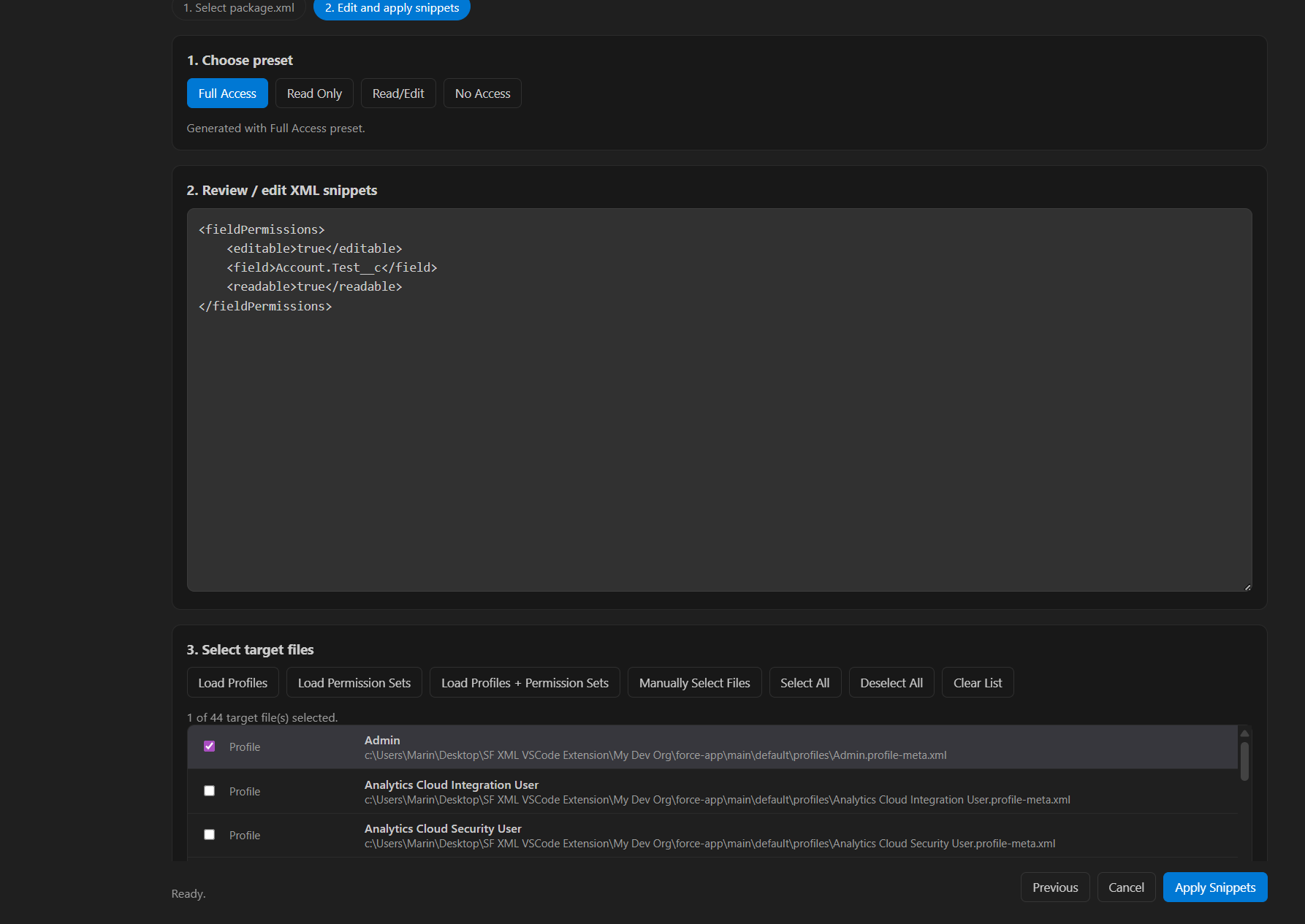
Choose a preset, review or edit the generated snippets, load target Profiles and Permission Sets, then apply the snippets to the selected XML files.
7. Validate And Deploy
The extension writes local XML only. Validate with Salesforce CLI before deployment:
sf project deploy start --dry-run --source-dir force-app/main/default --test-level NoTestRun
Features
- Run SOQL queries through Salesforce CLI, with local object and field suggestions, relationship navigation, searchable results, CSV export, and aggregate visualizations.
- Create custom object metadata with optional default layout and custom tab.
- Create custom fields with Salesforce-style API name generation and field-type validation.
- Edit Salesforce Layout XML in a visual layout editor.
- Move, add, remove, and reorder layout fields.
- Change layout field behavior between Editable, Read Only, and Required.
- Generate
package.xml from recently modified files, Git changes, manual file selection, or combined sources.
- Generate Profile and Permission Set XML snippets from
package.xml.
- Expand supported
package.xml wildcards such as * and MyPrefix* from local metadata folders.
- Apply supported permission snippets to local Profile and Permission Set XML files.
- Configure API version, metadata directory, and manifest directory from the Activity Bar view.
Common Workflows
Run SOQL Queries
Open SOQL Console from the Activity Bar view. The console starts on your default Salesforce CLI org, refreshes authenticated org aliases automatically, and uses project metadata for object and field suggestions. Run queries with Run Query or Ctrl+Enter; clear the active tab with Clear; open a new tab with Shift+T; focus result search with Ctrl+F. Suggestions open while typing or when requested with Ctrl+Space, so moving the cursor does not keep reopening the suggestion list. While a query runs, the console shows the equivalent sf data query command, and successful runs keep that command visible in the status bar. Small query typos like a dangling comma before FROM are cleaned before execution. Lookup fields suggest both the Id field and relationship fields, such as AccountId and Account.Name, then continue suggesting fields through parent navigation. Child relationship subqueries are suggested inside parentheses in the outer SELECT clause, and returned child rows can be expanded inline. Use row search to filter loaded results across all queried columns, hover cells to copy values, and use column visualization actions to open aggregate result tabs with COUNT, COUNT_DISTINCT, MIN, MAX, SUM, AVG, compact interactive donut distributions, and top-value queries scoped to the current SOQL filters. Unsupported aggregate functions are shown as N/A instead of noisy parser errors. Standard fields such as Id, Name, FirstName, Email, and owner/audit fields are suggested even when they are not present as field XML.
Use the Salesforce XML Helper Activity Bar view to create a custom object or custom field. The extension writes metadata XML into your configured Salesforce metadata directory.
Default metadata directory:
force-app/main/default
Edit Layouts
Open the Layout Editor from the Activity Bar, from a .layout-meta.xml file, or from the editor context menu. You can move fields between columns, remove fields from the layout, add available object fields, reorder fields, and update field behavior.
Generate package.xml
Use the package generator to build a manifest from recently modified metadata, Git changes, manually selected files, or a combination of sources. The generated XML can be edited before it is written.
Default manifest directory:
manifest
Generate Permission Snippets
Select a package.xml and generate permission XML blocks for supported metadata types. For example, an Apex class package member becomes a classAccesses block, and a custom field package member becomes a fieldPermissions block.
Supported wildcard members are expanded from local metadata folders before snippets are generated. If a wildcard cannot be resolved, the extension reports it instead of generating invalid * permission XML.
Requirements
- A trusted VS Code workspace.
- A Salesforce DX-style project folder.
- Salesforce CLI is optional for using the extension, but strongly recommended for validating generated XML.
Extension Settings
salesforceXmlHelper.defaultApiVersion: Metadata API version used when generating package.xml.salesforceXmlHelper.defaultPackageDirectory: Salesforce metadata directory.salesforceXmlHelper.defaultManifestDirectory: Folder for generated manifest files.
These settings can be updated from the Salesforce XML Helper Activity Bar view or from VS Code settings.
Typical Flow
- Open a trusted Salesforce project workspace.
- Create or update object and field XML locally.
- Edit layouts and permission snippets.
- Generate
package.xml when needed.
- Validate the generated or edited XML with Salesforce CLI.
- Deploy with your normal Salesforce release process.
Trust And Privacy
- No telemetry.
- Metadata XML features do not call external services.
- SOQL queries are run through Salesforce CLI against your selected Salesforce org.
- No Salesforce credentials are read or stored.
- Workspace Trust is required because the extension creates and edits local metadata files.
- Webviews use a Content Security Policy.
- File-writing flows re-check selected paths in the extension host before writing.
License
This extension is released under the MIT License.
Known Limitations
- The Layout Editor focuses on field placement, field removal, field order, and Editable/Read Only/Required behavior.
- It does not attempt to support every specialized Salesforce Layout XML element.
- Permission snippet generation intentionally supports a focused set of metadata types. Unsupported package members are skipped and reported.
- Generated XML should be validated with Salesforce CLI before deployment.
Release Quality Gates
The release gate covers linting, webview UI smoke checks, security smoke checks, package checks, VSIX packaging checks, metadata generation checks, and dependency audit.
Additional metadata validation can be run against a Salesforce org-backed project with:
npm run test:metadata:org:heavy
See docs/testing.md and docs/release-checklist.md in the repository.

