GitHub Node for Visual Studio


Download this extension from the Visual Studio Marketplace
or get the CI build.
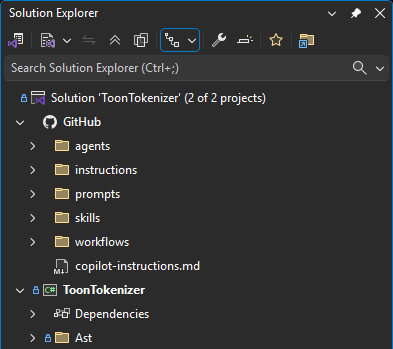
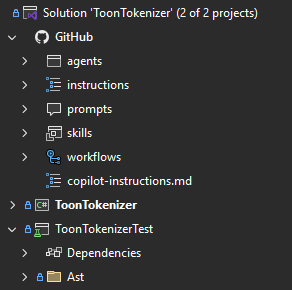
Adds GitHub, optional Claude and Agents, and MCP Servers nodes to Solution Explorer. Quickly access and manage AI customization files and GitHub-specific files, plus Model Context Protocol (MCP) server configurations - all without leaving Visual Studio.
Features
AI Nodes in Solution Explorer
The extension adds dedicated AI nodes directly under your solution:
- GitHub - always shown, backed by the
.github folder
- Claude - shown when a
.claude folder exists
- Agents - shown when a
.agents folder exists
These nodes provide easy access to their folder contents:
- Automatically detects supported AI root folders in your repository
- Displays files and subfolders with appropriate icons
- Live updates when files are added, removed, or modified
- Double-click any file to open it in the editor
Context Menu Commands
Right-click on the GitHub node or any subfolder to quickly create new files:
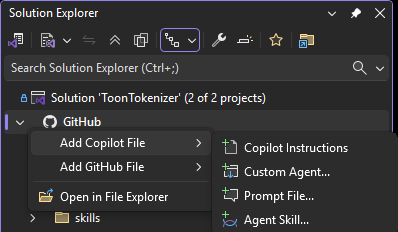
Copilot Customization
- Add Copilot Instructions - Create an instructions file (
.instructions.md) in the instructions folder
- Add Agent - Create a custom Copilot agent (
.agent.md) in the agents folder
- Add Prompt - Create a reusable prompt file (
.prompt.md) in the prompts folder
- Add Skill - Create an agent skill folder with
skill.md in the skills folder
GitHub Configuration
These commands are available only when you right-click in the GitHub (.github) node tree:
- Add Workflow - Create a new GitHub Actions workflow (
.yml) in the workflows folder
- Add Dependabot Config - Create a
dependabot.yml for automated dependency updates
- Add Issue Template - Create an issue template in the
ISSUE_TEMPLATE folder
- Add Pull Request Template - Create a
PULL_REQUEST_TEMPLATE.md file
- Add CODEOWNERS - Create a
CODEOWNERS file for automatic reviewer assignment
- Add FUNDING.yml - Create a
FUNDING.yml file for sponsor button configuration
- Add SECURITY.md - Create a
SECURITY.md file for security policy documentation
Folder-Specific Commands
When you right-click on a specific folder (e.g., agents, prompts, skills, instructions, or workflows), the relevant "Add" command appears directly in the context menu for quick access.
File and Folder Management
- Copy Path - Copy the full path to the clipboard
- Rename - Rename files or folders directly from the context menu
- Delete - Delete files or folders with confirmation
Utilities
- Open in File Explorer - Open the folder in Windows File Explorer
- Open Containing Folder - Open the parent folder and select the file in File Explorer
- Open on GitHub - Open the file or folder directly in your repository host in your browser
Git Status Icons
Files and folders display Git status icons, similar to Solution Explorer:
- Unchanged - Files committed to the repository with no changes
- Modified - Files with local changes
- Staged - Files staged for commit
- Added/Untracked - New files not yet tracked by Git
- Deleted - Files marked for deletion
- Conflict - Files with merge conflicts
- Renamed - Files that have been renamed
Folders show an aggregate status based on their contents - for example, if any file in a folder is modified, the folder shows a modified icon.
MCP Servers Node in Solution Explorer
The extension adds an MCP Servers node that provides centralized access to all Model Context Protocol (MCP) server configurations in your solution:
- Automatically discovers MCP configuration files from all standard locations:
%USERPROFILE%\.mcp.json - Global configuration for all solutions<SolutionDir>\.vs\mcp.json - Solution-specific, user-specific settings<SolutionDir>\.mcp.json - Repository-wide configuration (recommended)<SolutionDir>\.vscode\mcp.json - VS Code compatibility<SolutionDir>\.cursor\mcp.json - Cursor compatibility
- Displays each configuration file with its servers organized hierarchically
- Live updates when configuration files are added, modified, or removed
- Click on a server entry to view its configuration details
- Shows a helpful hint when no MCP configurations exist
The MCP Servers node appears directly below the GitHub node, making it easy to manage both GitHub-specific files and MCP server configurations from one place.
When creating Copilot agents, instructions, prompts, or skills, the dialog supports multiple template providers.
Currently included providers:
- GitHub Awesome Copilot - Community templates from awesome-copilot for agents, prompts, instructions, and skills
- GitHub Copilot Plugins - Templates from copilot-plugins for agents and skills
- dotnet/skills - Templates from dotnet/skills for agents and skills
- anthropics/skills - Templates from anthropics/skills for skills
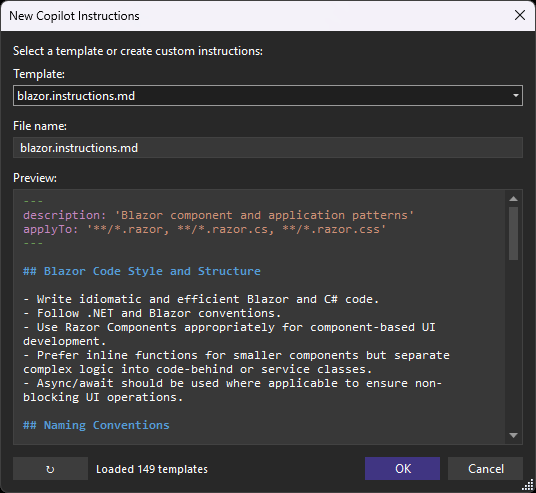
Features:
- Provider dropdown - Choose the template source repository
- Template dropdown - Browse and select from community-contributed templates
- Live preview - See the template content with syntax highlighting before creating the file
- Auto-fill filename - Template names are automatically used as the filename
- Refresh button - Fetch the latest templates from GitHub
- Provider-aware caching - Templates are cached locally for 7 days per provider for fast access
The provider model is extensible, making it straightforward to add more template sources in future releases.
Agent Marketplaces
In addition to built-in template providers, you can register custom Git repositories as "agent marketplaces" to provide your own templates for agents, skills, instructions, and prompts. You can also register Agent Skills Discovery sources that publish skills from /.well-known/agent-skills/index.json.
Managing Marketplaces:
Right-click on the GitHub node and select Manage Marketplaces to open the Agent Marketplace tool window. You can also open it from the Extensions menu. From there you can:
- View registered marketplaces - See all built-in and user-added marketplace sources with details, status, and available templates
- Add custom marketplaces - Register any repository that follows the marketplace structure or any trusted Agent Skills Discovery source
- Remove user-added marketplaces - Built-in marketplaces cannot be removed
- Refresh - Pull or sync the latest changes from a specific marketplace
- Refresh All - Pull or sync the latest changes from all marketplace sources
- Open in Browser - Navigate to a marketplace source in your browser
Accepted marketplace inputs include:
- owner/repo - shorthand for GitHub repositories
- HTTPS repository URLs - for example
https://github.com/owner/repo.git
- SSH repository URLs - for example
git@host:owner/repo.git or ssh://git@host/owner/repo.git
- Agent Skills Discovery domains - for example
example.com, resolved to https://example.com/.well-known/agent-skills/index.json with fallback to the legacy /.well-known/skills/index.json path
- Agent Skills Discovery index URLs - for example
https://example.com/.well-known/agent-skills/index.json or https://docs.stripe.com/.well-known/skills/index.json
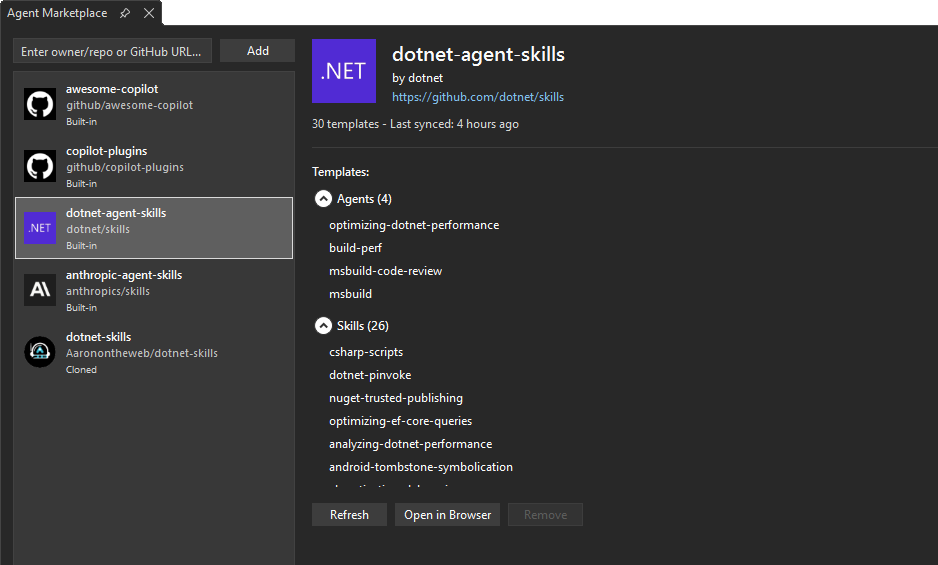
How it works:
- Repository marketplaces are Git repositories containing plugin definitions with agents, skills, instructions, and prompts
- Agent Skills Discovery sources are fetched over HTTPS from
/.well-known/agent-skills/index.json, with fallback support for legacy /.well-known/skills/index.json indexes
- Discovered
skill-md, .zip, and .tar.gz artifacts are verified with their SHA-256 digest before they are cached locally when the index publishes digests
- Archives are unpacked only after digest verification and are rejected if they contain unsafe paths or missing root
SKILL.md files
- Discovery sources use their site's
/favicon.ico as the marketplace icon when available
- Repositories and discovery sources are synced locally and updated automatically
- When creating new files, templates from all registered marketplaces appear in the provider dropdown
- Each marketplace can contain multiple plugins, each with various asset types
This allows teams to create and share their own curated collections of Copilot customization templates.
The preview pane includes syntax highlighting for:
- Markdown headers and formatting
- YAML front matter (keys and values)
- Code blocks and inline code
- Links and URLs
- HTML comments
File Explorer Integration
If you have the File Explorer extension installed, the Add Agent File flyout and Manage Marketplaces... commands are also available from the File Explorer root node context menu. This lets you create Copilot customization files and manage agent marketplaces directly from the File Explorer virtual nodes in Solution Explorer.
File Templates
All created files come with helpful starter templates that follow best practices:
- Copilot Instructions - Sections for project overview, coding standards, architecture, and testing
- Agents - YAML frontmatter with name/description, plus sections for role, capabilities, and instructions
- Prompts - YAML frontmatter with mode and description, plus context and task sections
- Skills - YAML frontmatter with structured sections for purpose, instructions, and examples
- Workflows - Basic GitHub Actions workflow with common triggers and job structure
- Issue Templates - YAML frontmatter with description fields and standard issue sections
- CODEOWNERS - Comments explaining syntax with example patterns for teams
- FUNDING.yml - Configuration for GitHub Sponsors and other funding platforms
- SECURITY.md - Sections for supported versions, reporting vulnerabilities, and security updates
Requirements
- Visual Studio 2022 (17.0 or later)
- A solution in a Git repository
How It Works
The extension uses Visual Studio's Solution Explorer extensibility to add an attached collection node. It monitors the .github folder using a FileSystemWatcher to keep the display in sync with the file system.
Contribute
If you find this extension useful, please:

