TOML Editor for Visual Studio


First-class TOML support in Visual Studio — edit your configuration files with confidence.
Install from Visual Studio Marketplace | CI build
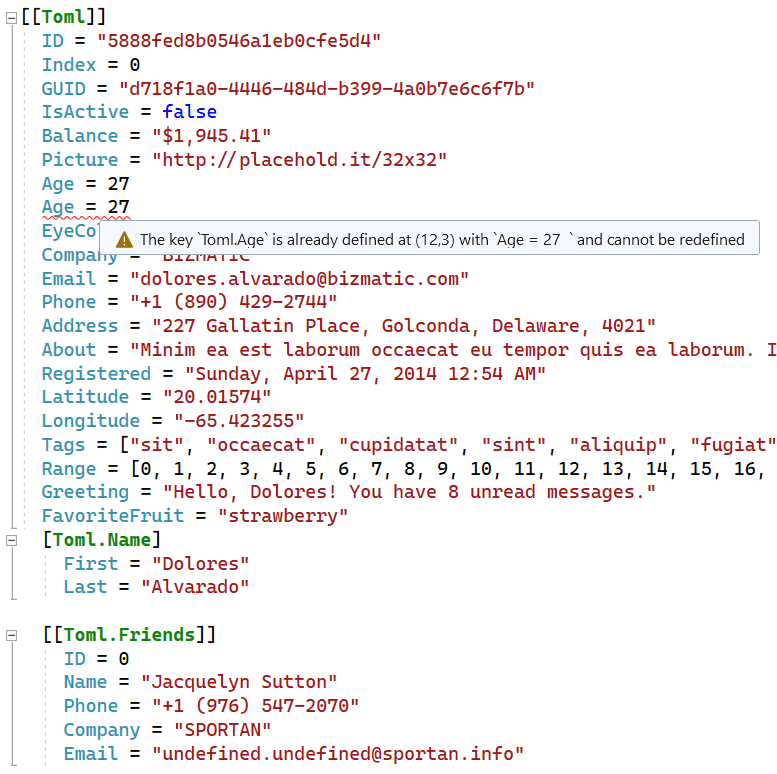
Features
✅ Syntax Highlighting — Beautiful colorization for keys, values, tables, and comments
✅ Real-time Validation — Catch errors as you type with instant feedback
✅ Navigation Bar — Jump to tables and sections using the editor dropdowns
✅ Document Outline — View and navigate your document structure in the Document Outline window
✅ Code Outlining — Collapse and expand sections for easier navigation
✅ Commenting — Toggle comments with Ctrl+/ or Ctrl+K, Ctrl+C
✅ Formatting — Format Document (Ctrl+K, Ctrl+D) and Format Selection
✅ Smart Indentation — Automatic indentation when pressing Enter
✅ Brace Matching — Highlights matching brackets and quotes
✅ JSON Schema Support — Validation and IntelliSense powered by JSON Schema
✅ Schema Quick Fixes — Add missing required keys, remove unknown keys, and insert schema directive template
✅ Go to Definition — Navigate to schema definitions with F12
✅ Find All References — Find all occurrences of a key with Shift+F12
✅ Rename Key — Rename a TOML key in its current document scope
✅ Lightweight & Fast — Designed for performance with zero impact on your workflow
Whether you're working with Cargo.toml, pyproject.toml, or any other TOML configuration, this extension makes editing a breeze.
Syntax Highlighting
Full colorization support for all TOML elements including keys, strings, numbers, booleans, dates, tables, array of tables, and comments. The highlighting adapts to your Visual Studio color theme.
Real-time Validation
Errors are detected and underlined as you type. Hover over any error to see a detailed message explaining the issue. Errors also appear in the Error List window for easy navigation.
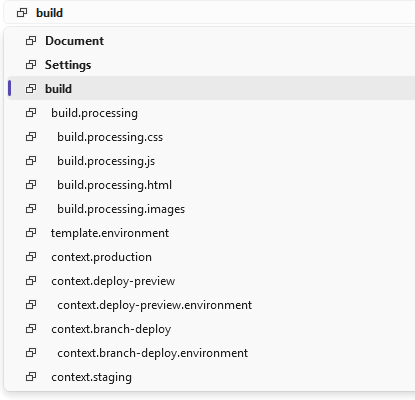
Navigation Bar
Use the dropdown menus at the top of the editor to quickly jump between tables and sections in your document. The left dropdown shows the document structure, and the right dropdown shows the current section's contents.
Document Outline
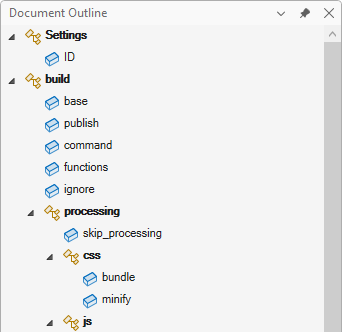
Open the Document Outline window (View > Other Windows > Document Outline) to see a hierarchical tree view of your TOML document. The outline displays:
- Tables — shown in bold with nested table hierarchy preserved
- Array of Tables — clearly distinguished from regular tables
- Key-Value Pairs — shown under their parent tables
Double-click any item to navigate directly to it in the editor. The outline automatically updates as you edit and syncs with your cursor position.
Code Outlining
Collapse and expand table sections to focus on what matters. Click the minus icon in the margin or use Ctrl+M, Ctrl+M to toggle outlining.
Toggle line comments with Ctrl+K, Ctrl+C (comment) and Ctrl+K, Ctrl+U (uncomment), or use Ctrl+/ to toggle. Works with single lines and selections.
Format your entire document with Ctrl+K, Ctrl+D or format a selection with Ctrl+K, Ctrl+F. The formatter normalizes whitespace and alignment for consistent, readable TOML, and now better preserves edge cases like = characters inside quoted values and trailing comments.
Smart Indentation
When you press Enter after a table header like [section], the cursor automatically indents on the next line. Pressing Enter on an empty line removes unnecessary whitespace.
Brace Matching
Matching brackets [], [[]], and quotes are highlighted when your cursor is adjacent to them, making it easy to see matching pairs.
Find All References
Place your cursor on any TOML key and press Shift+F12 (or right-click and select "Find All References") to see all occurrences of that key in the document. Results appear in the Output window in a navigable format, so you can double-click a result to jump directly to the location. This works for both root-level keys and keys within tables.
Rename Key
Place your cursor on a TOML key and trigger Rename. The extension will rename that key across its current document scope (root-level or the active table), helping keep related key usage consistent.
JSON Schema Support
The extension provides schema-based validation and IntelliSense for TOML files.
Automatic Schema Detection
Schemas are automatically detected for well-known TOML files using the SchemaStore.org catalog. Just open a file and it works!
Supported files include:
pyproject.toml — Python project configurationCargo.toml — Rust package manifest.rustfmt.toml / rustfmt.toml — Rust formatter configurationnetlify.toml — Netlify deployment configurationfly.toml — Fly.io application configurationsamconfig.toml — AWS SAM configuration- And many more from SchemaStore.org...
Manual Schema Directive
For files not in the catalog, or to override the automatic detection, add a #:schema directive at the top of your file:
#:schema https://dystroy.org/bacon/.bacon.schema.json

[jobs.check]
command = ["cargo", "check"]
You can use:
- HTTPS URLs —
<https://json.schemastore.org/pyproject.json>
- Local files —
file:///C:/schemas/my-schema.json
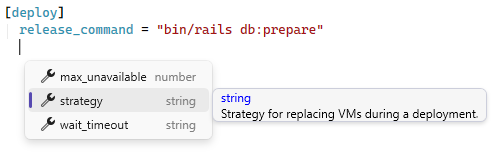
IntelliSense
Press Ctrl+Space to see available keys, tables, and values at the current position. The completion list shows:
- Keys with their types (string, number, boolean, etc.)
- Tables with
[brackets] indicating they are sections
- Array of tables with
[[double brackets]]
- Enum values when a property has a fixed set of allowed values
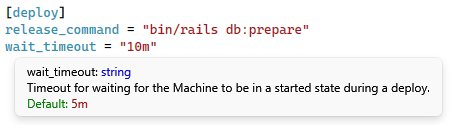
QuickInfo
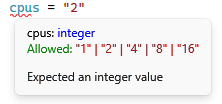
Hover over any key to see its description, type, and whether it's required. For enum properties, you'll also see the list of allowed values.
Schema Validation
When a schema is available, the extension validates your TOML in real-time:
- Missing required properties — warns when required keys are not present
- Unknown properties — flags keys that aren't defined in the schema
- Type mismatches — errors when values don't match expected types
- Invalid enum values — errors when a value isn't in the allowed list
Schema Quick Fixes
When schema validation is available, the extension can apply simple fixes directly in the editor:
- Insert a
#:schema <url> directive template when no schema is detected
- Remove unknown keys reported by schema validation
- Insert missing required key stubs
Use Tools > Apply TOML Schema Quick Fix to apply the first available schema fix.
Go to Definition
Press F12 on any key to open the JSON schema file and jump directly to that property's definition. This is useful for understanding the full schema specification or contributing improvements.
Getting Started
- Install the extension from the Visual Studio Marketplace
- Open any
.toml file
- Start editing with full language support!
How can I help?
If you enjoy using this extension, please give it a ⭐⭐⭐⭐⭐ rating on the Visual Studio Marketplace — it really helps others discover it!
Found a bug or have a feature request? Head over to the GitHub repo to open an issue.
Pull requests are welcome! This is a personal passion project, so contributions are greatly appreciated.
You can also sponsor me on GitHub to support continued development.

