Skip to content
| Marketplace
Sign in
Visual Studio>Tools>Whitespace Visualizer
Whitespace Visualizer

Whitespace Visualizer

Mads Kristensen

madsk.net
|
19 installs
| (1) | Free
Displays whitespace characters (spaces, tabs, line endings) only within selected text. Keep your editor clean while still being able to inspect whitespace when needed.
Download

Whitespace Visualizer

Download this extension from the Visual Studio Marketplace or get the CI build


See whitespace characters only when you need them. This extension displays whitespace characters (spaces, tabs, and line endings) only within selected text, keeping your editor clean and clutter-free.

Inspired by a community Visual Studio feature request. Go vote for it!

Features

Selection-Based Whitespace

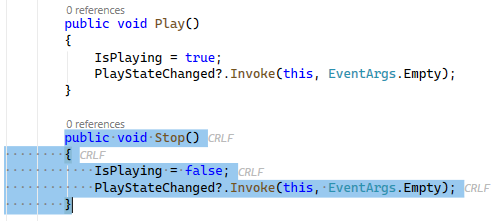
Select any text to instantly reveal its whitespace characters:

Selection Mode

Character Symbol Description
Space · Middle dot
Tab → Rightwards arrow
CRLF \r\n Windows line ending
LF \n Unix/macOS line ending
CR \r Classic Mac line ending

Line endings include tooltips explaining their type (e.g., "CRLF (Windows)").

Extended View White Space Mode

When Visual Studio's built-in View White Space setting is enabled (Edit → Advanced → View White Space, or Ctrl+R, Ctrl+W), this extension enhances it by also displaying line endings throughout the document. VS normally only shows spaces and tabs.

Whitespace Extended

Smart Behavior

  • No duplication - Selection whitespace is automatically disabled when View White Space is on
  • Outlining aware - Whitespace inside collapsed code regions is hidden
  • Non-intrusive - Uses subtle gray coloring that doesn't distract from your code

How It Works

  1. Select any text in the editor
  2. Whitespace characters appear automatically within the selection
  3. Clear the selection and they disappear

No commands, no configuration - it just works!

Requirements

  • Visual Studio 2022 (17.0 or later)

How can I help?

Give it a rating on the Visual Studio Marketplace or report issues on GitHub.

  • Contact us
  • Jobs
  • Privacy
  • Manage cookies
  • Terms of use
  • Trademarks
© 2026 Microsoft