Scratch FilesQuick-access scratch files for notes and code drafts — global or per-solution — with auto language detection. |

Scratch Files for Visual Studio
Download this extension from the Visual Studio Marketplace or get the CI build. Instantly create temporary scratch files for quick notes, code snippets, and throwaway experiments — without cluttering your project. Think of it as a notepad that lives inside Visual Studio with full language support. FeaturesInstant file creation with Ctrl+NPress Ctrl+N to instantly create a new scratch file — no template dialog, no prompts. Just a blank editor ready to go. Files are auto-numbered (
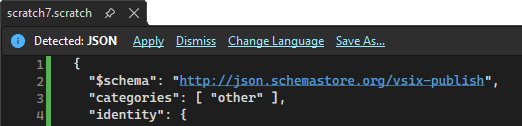
Automatic language detectionStart typing and save — Scratch Files detects the language from your content and offers to apply syntax highlighting automatically via the InfoBar.
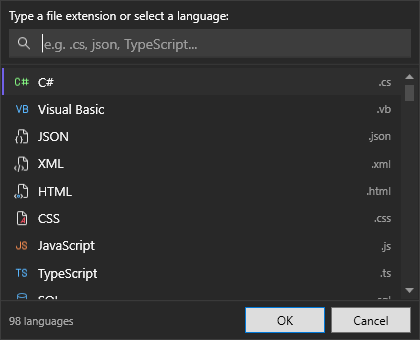
Language pickerClick Change Language in the InfoBar to choose from every file type registered in Visual Studio. The picker shows a curated list of popular languages at the top and includes all VS-registered content types. You can also type a custom file extension directly.
Global, solution, and custom folders
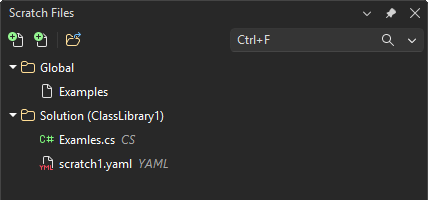
New files are created in the Global scope by default. Use Move to Solution or Move to Global in the InfoBar to change the scope of any file. Adding and removing custom foldersClick Add Custom Folder in the Scratch Files tool window toolbar to pick any folder on disk - it appears as a new root node alongside Global and Solution. Custom folders are persisted in your user options and shown across all sessions. To remove one, right-click the custom folder root and choose Remove Custom Folder. The folder and its contents are not deleted from disk.
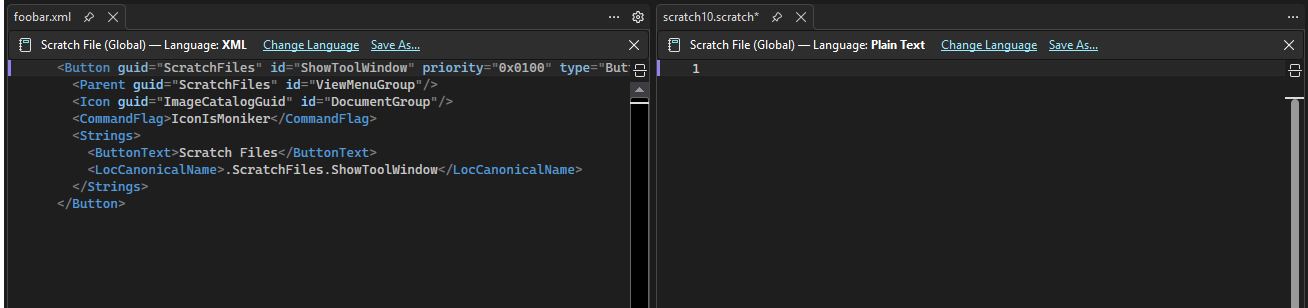
Scratch Files tool windowOpen via View > Other Windows > Scratch Files. The tool window shows all your scratch files organized by scope (Global vs. Solution) with file-type icons, a toolbar for creating new files, and a right-click context menu. Drag and drop files and folders to reorganize them — just like Windows Explorer. Create subfolders via the context menu to keep your scratch files organized. Save As...Promote any scratch file to a real file. Click Save As... in the InfoBar to save a copy to My Documents (or wherever you like). The original scratch file is automatically cleaned up. Create scratch file from selectionSelect any text in the editor and click the lightbulb (or press Solution Explorer integrationRight-click on the Solution node in Solution Explorer to create a new solution-scoped scratch file directly from the context menu. Open to the sideWork with scratch files side-by-side with your code using vertical tab groups:
If a tab group already exists, the file opens in the existing group. If no document is currently open, the file opens normally.
Keyboard shortcuts
OptionsGo to Tools > Options > Scratch Files to configure:
ContributingThis is a passion project, and contributions are welcome!
If this extension saves you time, consider: License |