Max Line Length for Visual Studio



Install Max Line Length from the Visual Studio Marketplace or get the latest CI build from Open VSIX Gallery.
See and apply your project's preferred line length directly in Visual Studio. Max Line Length reads the effective max_line_length value from .editorconfig, displays a subtle ruler, and safely reflows supported content during Format Document, Format Selection, and Code Cleanup.
This extension was inspired by the Visual Studio Developer Community feature request Support max_line_length in EditorConfig.
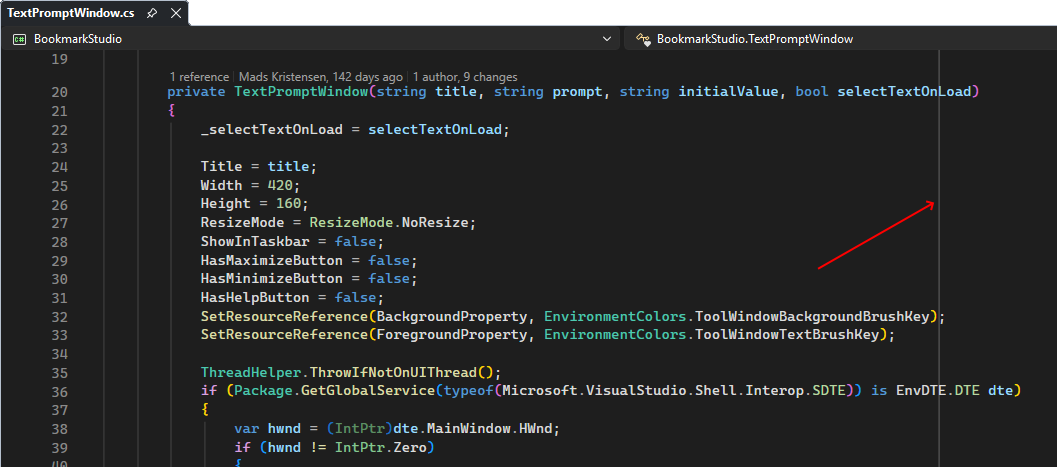
Why Max Line Length
| Need |
What the extension provides |
| Keep code readable |
A clear visual boundary at the team's preferred line length |
| Apply the convention |
Reflow supported content through Visual Studio's format and Code Cleanup commands |
| Share conventions |
Configuration through the repository's existing .editorconfig file |
| Support mixed codebases |
Per-file values resolved by Visual Studio from matching EditorConfig sections |
| Stay out of the way |
No custom commands, options pages, or background scans |
Getting started
Add max_line_length to a matching section in .editorconfig:
[*.{cs,vb}]
max_line_length = 120
Open a matching file in Visual Studio. The extension displays a vertical ruler immediately after column 120. Nested .editorconfig files and more specific sections work normally because Visual Studio resolves the effective setting for each document.
Customize the ruler color under Tools > Options > Environment > Fonts and Colors by selecting Text Editor and changing Max Line Length ruler. Open rulers update immediately and use the selected foreground color exactly.
Change the value and save .editorconfig to update the convention. All open document rulers independently resolve their effective setting and move to the applicable column. Remove the property, set it to unset, or use an invalid value to hide the ruler and disable reflow.
Run Format Document or Format Selection to apply the configured limit. Plain-text documents wrap at the last whitespace before the limit and preserve indentation.
Protect content that requires exact layout with @formatter:off and @formatter:on markers in the language's comment syntax. For example, use // @formatter:off in C#, ' @formatter:off in Visual Basic, or <!-- @formatter:off --> in Markdown. Marker lines and everything between them remain unchanged.
To use reflow with Code Cleanup, open Configure Code Cleanup, edit a profile, and enable Reflow lines to configured maximum length. The fixer is disabled by default so existing cleanup profiles do not change unexpectedly. Once enabled, it runs for document cleanup and cleanup on save. Project and solution cleanup are not supported.
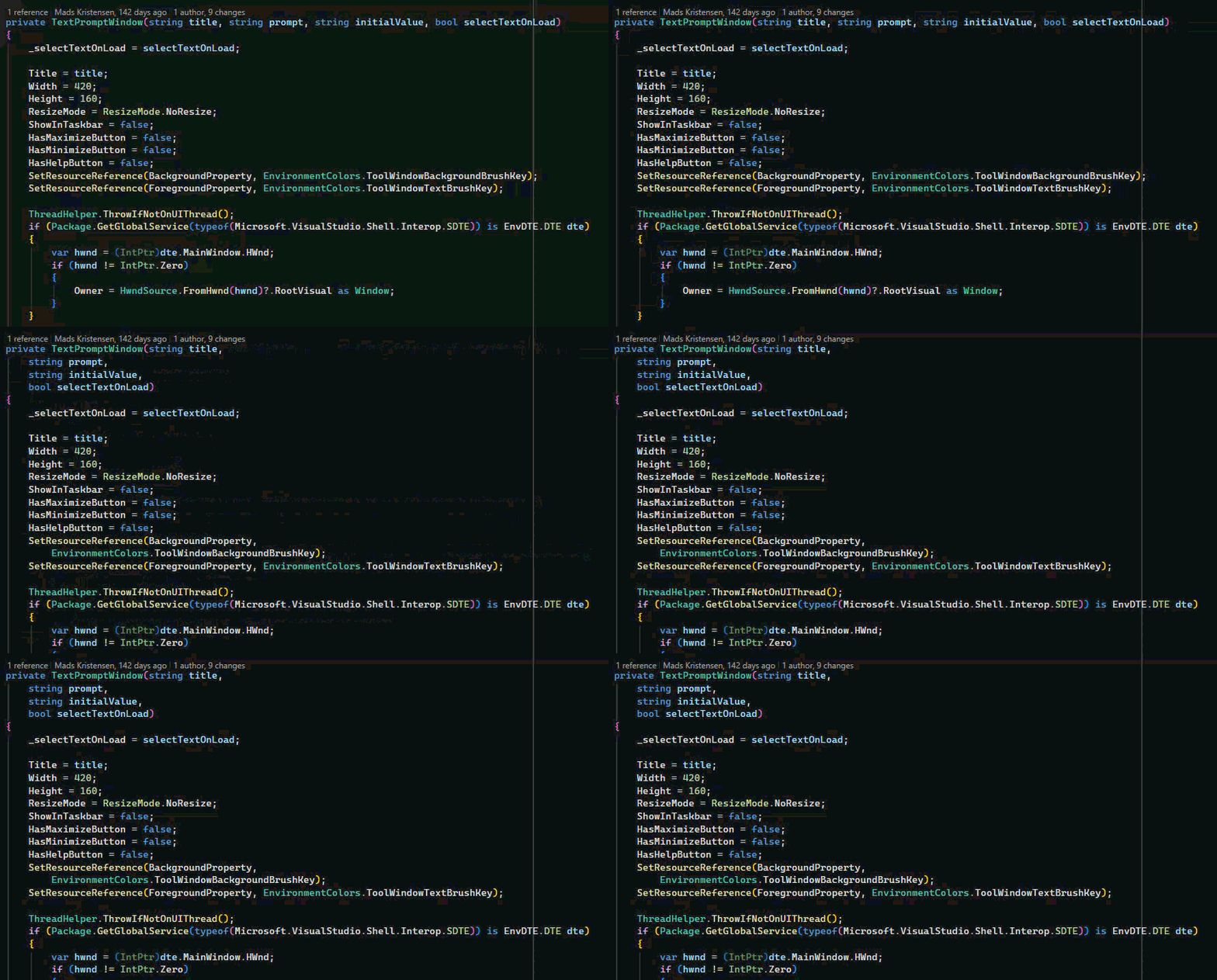
Executing the Format Document (Ctrl+K+D) command, the code is being reflowed.
Behavior
- Works with plain text, Markdown, C#, Visual Basic, F#, JavaScript, TypeScript, C++, CSS, LESS, SCSS, and SQL editors and uses the effective setting for each file.
- Honors
indent_size, indent_style, and tab_width when calculating visual columns.
- Follows editor scrolling, zoom, font, and viewport changes.
- Stays hidden in diff views.
- Exposes the ruler foreground as Max Line Length ruler in Visual Studio's Fonts and Colors settings, with a visible system-gray default.
- Groups built-in formatting and reflow into a single undo transaction.
- Provides an opt-in Code Cleanup profile item for document cleanup and cleanup on save.
- Restricts Format Selection reflow to complete selected lines or complete C# or Visual Basic syntax constructs.
- Reflows C# lists, fluent invocation chains, logical and null-coalescing expressions, conditional expressions, LINQ query clauses, and line comments.
- Reflows C# and Visual Basic XML documentation prose while preserving structured regions such as lists, examples, preformatted text, and code.
- Reflows Visual Basic argument, parameter, type, initializer, and tuple lists plus line comments.
- Honors
@formatter:off and @formatter:on regions in supported documents.
- Leaves C# and Visual Basic string and character literals unchanged because inserting raw newlines would produce invalid or semantically different code.
- Reflows classified comments only in F#, JavaScript, TypeScript, C++, CSS, LESS, SCSS, and SQL; executable expressions remain unchanged.
- Reflows ordinary Markdown paragraphs but leaves front matter, headings, lists, block quotes, tables, fenced or indented code, inline code, HTML, and hard line breaks unchanged.
- Does not intercept mouse or keyboard input.
Profiling
The ProcessesRepresentativeFormattingWorkload test exercises the plain-text, Markdown, classified-comment, and C# reflow engines with representative document sizes. Filter on Category=Profiling when targeting this workload with a CPU or allocation profiler. It isolates the formatting algorithms; profile an experimental Visual Studio instance to measure editor, command-routing, and adornment overhead.
Get involved
Found a bug or have an idea? Open an issue or pull request on the GitHub repository.

