Insta SearchThe fastest file search for Visual Studio. Searches the entire repo folder and not just the files in the solution and projects. Invoke by hitting Shift+Shift |

Insta Search - Quick File Search for Visual Studio
Download this extension from the Visual Studio Marketplace or get the CI build. A fast, lightweight file search dialog for Visual Studio. Instantly find and open files in your solution or folder with wildcard support and smart history.
Features
UsageDouble-tap Shift (press Shift twice quickly) to open the search dialog. You can also find it under Edit > File Search. Search Patterns
Search FiltersYou can append space-separated modifiers to any search query:
Filters can be combined freely: Go-to-LineAppend a line number (and optional column) to jump directly to a specific location after opening. This syntax makes it easy to paste in a location from an error message. For example:
Keyboard Shortcuts
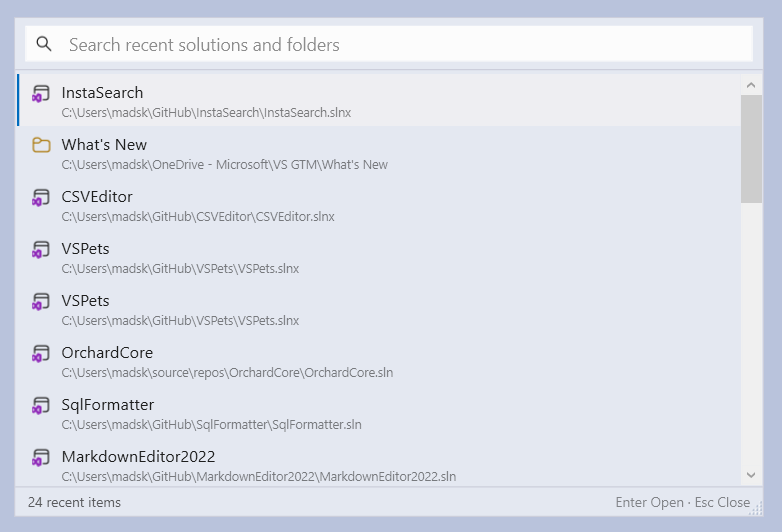
Multi-SelectHold Recent Solutions & FoldersWhen no solution or folder is open in Visual Studio, invoking Insta Search shows a list of your most recently opened solutions and folders instead. The list is pulled from Visual Studio's own MRU store, so it matches what you see on the Start Window. Type to filter the list by name or path, then press
How It WorksInsta Search maintains an in-memory index of all files in your workspace. The index is built once when you first open the search dialog, then kept up to date automatically. IndexingWhen you invoke Insta Search for the first time in a workspace, it performs a parallel scan of the file system. Multiple threads pull directories from a shared work queue, which keeps all CPU cores busy without waiting for each directory level to complete. The following directories are excluded by default:
You can customize this list in Tools > Options > Environment > InstaSearch > General. Wildcard patterns like The resulting file list is cached in memory. Subsequent searches reuse this cache, making them nearly instant. OptionsConfigure InstaSearch via Tools > Options > Environment > InstaSearch > General:
Changes to ignored folders take effect on the next search (the index is automatically refreshed). Go To All IntegrationBy default, Insta Search intercepts the built-in Go To All command ( The interception only occurs when:
Invoking Go To All from the menu (Edit > Go To > Go To All) will still open the standard Visual Studio dialog, allowing you to access symbol search and other Go To All features when needed. To disable this behavior, uncheck Take over Go To All in Tools > Options > Environment > InstaSearch > General. Live UpdatesAfter the initial index is built, a FileSystemWatcher monitors the workspace for file creates, deletes, and renames. When a change is detected (outside of ignored directories), the cache is marked as "dirty" rather than updated immediately. The next time you open the search dialog, the index is rebuilt. This lazy approach means that build operations (which may touch hundreds of files in If the FileSystemWatcher fails to start (for example, on a network drive), Insta Search falls back to the cached index. You can manually refresh by clicking the "Refresh" link in the status bar. SearchingWhen you type a query, Insta Search filters the cached file list using case-insensitive substring matching. If your query contains wildcards ( Space-separated modifiers ( Results are ranked by:
Only the top 100 results are returned. File icons are fetched only for these final results, avoiding unnecessary work for matches that will not be displayed. HistoryInsta Search tracks which files you open and how often. This history is stored per-workspace in the To reset the history and cache for a workspace, delete the PerformanceInsta Search is designed for speed. Benchmarks are included in the repository and run on every build to catch regressions. Search PerformanceTested with synthetic file lists of varying sizes:
Wildcard patterns are pre-parsed once per search, so matching is allocation-free regardless of file count. Indexing PerformanceCold indexing (no cache) on a synthetic directory tree:
Indexing scales linearly with file count. Real-world performance depends on disk speed and directory depth. How can I help?If you enjoy using the extension, please give it a rating on the Visual Studio Marketplace. Should you encounter bugs or have feature requests, head over to the GitHub repo to open an issue if one doesn't already exist. Pull requests are also very welcome, as I can't always get around to fixing all bugs myself. This is a personal passion project, so my time is limited. Another way to help out is to sponsor me on GitHub. |