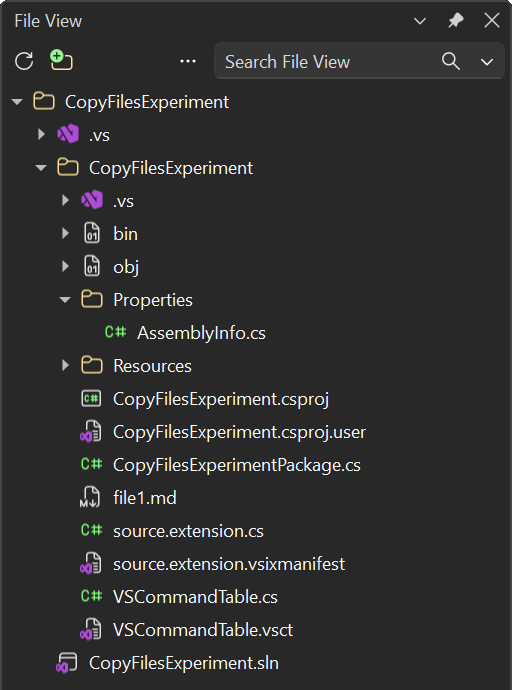
File ViewBrowse and manage the complete Git repository alongside Solution Explorer, with search, multi-root folders, Git status, and drag-and-drop. |

File View for Visual Studio
Download this extension from the Visual Studio Marketplace or get the latest CI build from Open VSIX Gallery. Browse and manage the complete repository without leaving your Visual Studio solution. Keep the logical project structure in Solution Explorer while File View gives you the physical Git repository beside it - including READMEs, docs, scripts, CI workflows, Dockerfiles, and configuration that are not part of a project.
Stop alt-tabbing to File ExplorerEvery file in your repository is right there in a familiar tree. Open a
It finds the right starting point automatically: your Git repository root when you have one, the solution folder when you don't. So you see the project the way it actually exists on disk - not a filtered view of it. See your docs next to your codeDocumentation usually lives outside the solution, which means it's out of
sight and quickly out of date. Add your Work across multiple repos at onceMicroservices, a shared library, a separate front end - real work often spans repositories. Add each one as its own root folder and browse them side by side in a single tree. No more juggling Visual Studio windows just to copy a config file from one repo to another, or to check how the other service handles the same problem. Your extra folders are remembered per repository in a small
Find any file fastType in the search box and the tree filters as you go, matching folders expand automatically. It's the quickest way to answer "where does that file live again?" for the files Solution Explorer never showed you. Plain text matches anywhere in a file or folder name. Add a wildcard and the query becomes a glob instead:
Search runs in the background and skips the folders you never want to dig
through anyway - Files excluded by Do the obvious things with a right-clickOpen a file in the editor, reveal it in File Explorer, open it in VS Code, copy its full or relative path, or delete it - safely, to the Recycle Bin, so nothing is lost to a misclick. Create, rename, and move filesFile View is not read-only. Right-click any folder to add a New File or New Folder and type the name straight in the tree, the way you would in File Explorer. Rename works the same way, and pressing F2 starts it without touching the mouse. Cut, Copy, and Paste use the normal Windows clipboard, so you can copy a file here and paste it into File Explorer - or the other way round. Renaming or deleting a file that is open in the editor closes the stale editor first, and reopens the file under its new name.
Work on more than one file at a timeHold Ctrl to add individual files to the selection, or Shift to pick a whole range. Everything then applies to all of them at once: open them, cut or copy them, drag them into another folder, or send them to the Recycle Bin behind a single confirmation. Copy Path gives you one path per line, ready to paste into a script. Move files without ceremonyDrag files between folders to reorganize your repo. Drag them out to File Explorer, or drop files in from File Explorer or Solution Explorer. Select several first and they all move together. Hold Ctrl to copy instead of move. See what changed at a glanceWhen the folder lives in a Git repository, the tree shows the same status glyphs as Solution Explorer - a padlock for tracked files that match HEAD, a plus for new ones, a checkmark for edited ones, and a conflict badge during a merge. Names are colour coded to match: green for new and untracked, amber for edited, red for conflicts. Folders inherit the strongest state of anything inside them, so you can spot the changed corner of the tree without expanding it. Ignored files are hidden unless Show All Files is enabled, when they appear dimmed without a glyph. Everything refreshes when files change on disk or you save a document, and folders outside a repository are left alone. Always current, always at homeThe tree keeps itself in sync when files change on disk, whether the change came from a build, a Git checkout, or another tool. And it matches your Visual Studio theme - Light, Dark, or Blue - so it looks like it shipped with the IDE. Getting started
That's it. Click Add Folder in the toolbar whenever you want another root in the tree, Show All Files to include ignored files, Refresh to reload from disk, and Collapse All to collapse every expanded folder. Get involvedFound a bug or have an idea? Open an issue or pull request on the GitHub repo. |