Download this extension from the Visual Studio Marketplace
or get the CI build.
Stop wrestling with XML documentation comments. Comment Studio transforms how you write, read, and maintain code documentation in Visual Studio.

✨ Key Features at a Glance
- Rendered Comments — View XML docs as clean, formatted text (no XML noise)
- Markdown Support — Use
**bold**, *italic*, `code`, and [links](url) in comments
- Auto-Reflow — Automatically wrap comments to your preferred line length
- Collapse/Expand — Hide comment blocks to focus on code, expand when needed
- Color-coded Anchor Tags — TODO, HACK, BUG, FIXME, NOTE highlighted in distinct colors, plus custom tags
- Better Comments Style — Prefix-based highlighting (
!, ?, *, //, -, >) for visual differentiation
- Solution-Wide Code Anchors — Browse all TODOs, HACKs, and notes across your entire solution
- Clickable Issues —
#123 links directly to GitHub/GitLab/Azure DevOps issues
- Link Anchors — Navigate to other files, lines, or named anchors with
LINK: syntax
- Theme-aware — Works with light and dark Visual Studio themes
Supports: C#, VB.NET, F#, C++, TypeScript, JavaScript, Razor, SQL, and PowerShell
XML documentation comments are essential for IntelliSense and API documentation, but they come with frustrations:
- Hard to read – XML tags clutter the actual documentation content
- Tedious to format – Manual line wrapping and alignment is time-consuming
- Visual noise – Long comment blocks obscure the code you're trying to read
- Easy to miss important notes – TODO and HACK comments blend into the code
Comment Studio solves all of these problems, letting you focus on writing great documentation instead of fighting with formatting.
Features
See your documentation, not the XML. Choose how you want to view comments:
| Mode |
Description |
| Off |
Raw XML syntax with standard Visual Studio coloring |
| Compact |
Collapse comments to a single line showing just the summary text |
| Full |
Rich formatted rendering—read documentation like a web page |
Select your preferred mode from the Edit > Comments menu or right-click context menu. The active mode is indicated with a checkmark.
Reduce visual clutter instantly. Collapse XML documentation comments to focus on your code. Expand them only when you need to read or edit.
Use Ctrl+M, Ctrl+C to toggle all XML doc comments in the current file between collapsed and expanded states.
You can also enable Collapse XML Doc Comments by Default from the Edit > Comments menu (or right-click context menu) to automatically collapse comments when opening files.
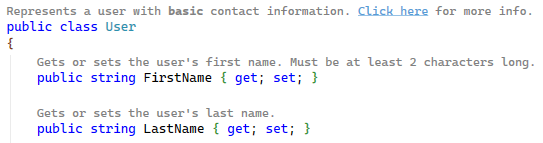
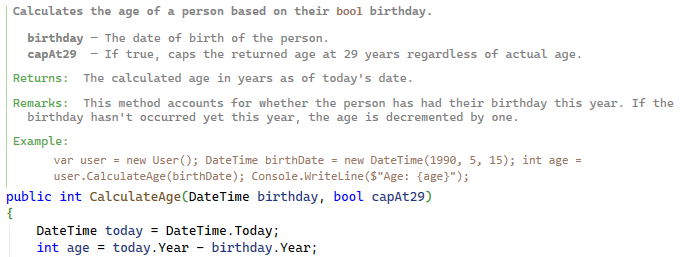
Read documentation like it was meant to be read. The Full rendering mode strips away XML noise and displays your documentation with proper formatting:
- Bold headings for sections like Remarks, Returns, Parameters
- Clickable links for
<see>, <seealso>, <paramref>, and <typeparamref> tags
- Inline code formatting for
<c> and <code> blocks
- Proper list rendering for
<list> elements
- Gray text color that matches Visual Studio's comment styling (works with light and dark themes)
Quick editing: Double-click a rendered comment or press ESC when the caret is on a rendered comment line to temporarily switch it to raw source view for editing. Move the caret away from the comment to restore the rendered view.

Write expressive documentation with familiar syntax. Comment Studio supports basic Markdown formatting within your XML documentation comments:
| Syntax |
Renders As |
**bold** or __bold__ |
bold |
*italic* or _italic_ |
italic |
`code` |
code |
~~strikethrough~~ |
~~strikethrough~~ |
[text](url) |
clickable link |
<https://...> |
auto-link |
Links are clickable and open in your default browser.
You can also use standard XML formatting tags (<b>, <i>, <c>, <see href="...">) which are rendered the same way.
Example:
/// <summary>
/// Represents a user with *basic* contact information.
/// See the [API docs](https://example.com/api) for more details.
/// Use the **FullUser** class for ~~deprecated~~ `extended` properties.
/// </summary>
Right-click in any C#, VB, or C++ code editor to access the Comment Studio submenu with quick access to:
- Expand/collapse XML Doc Comments - Toggle visibility of all XML doc comments (Ctrl+M, Ctrl+C)
- Collapse XML Doc Comments by Default - Toggle automatic collapsing
- Rendering: Off / Compact / Full - Switch between rendering modes
- Settings... - Open extension settings
The same menu is also available from the Edit menu.

Never manually wrap lines again. The extension automatically reformats XML documentation comments to fit within a configurable line length (default: 120 characters). It intelligently wraps text while preserving XML structure—no more tedious manual formatting.
Reflow happens automatically. When you use Format Document (Ctrl+K, Ctrl+D) or Format Selection (Ctrl+K, Ctrl+F), all XML documentation comments in scope are automatically reflowed to your configured line length.
Smart Paste
Paste without breaking formatting. Paste text into an XML documentation comment, and the extension automatically reflows the entire comment block to maintain proper formatting.
Auto-Reflow While Typing
Stay in flow while writing. As you type in an XML documentation comment, the extension automatically reflows the text when a line exceeds the maximum length. This happens seamlessly with a slight delay (300ms) after you stop typing, ensuring no characters are swallowed.
Light Bulb Action
Place your cursor inside any XML documentation comment and press Ctrl+. to see the "Reflow comment" action.

Multi-Language Support
Works with C# and VB.NET XML documentation comments:
/// single-line comments (C#)
''' single-line comments (VB.NET)
/** */ block comments (C#)
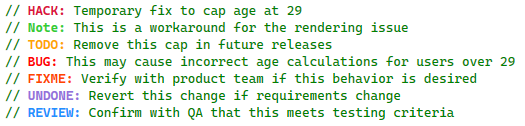
Never miss a TODO again. Comment tags like TODO, HACK, NOTE, BUG, FIXME, UNDONE, and REVIEW are automatically highlighted with distinct colors, making them impossible to overlook. Hover over any tag to see a tooltip explaining its semantic meaning.
| Tag |
Default Color |
Description |
| TODO |
Orange |
Tasks to be completed |
| HACK |
Crimson |
Temporary workarounds |
| NOTE |
Lime Green |
Important notes |
| BUG |
Red |
Known bugs |
| FIXME |
Orange Red |
Code that needs fixing |
| UNDONE |
Purple |
Incomplete work |
| REVIEW |
Dodger Blue |
Code needing review |
Define your own comment tags to match your team's workflow. Add custom tags in Tools > Options > CommentsVS > Comment Tags as a comma-separated list:
PERF, SECURITY, DEBT, REFACTOR, WIP, DEPRECATED
Custom tags are highlighted in Goldenrod and appear in the Code Anchors tool window alongside built-in tags. All custom tags share a single color, which can be customized via Tools > Options > Environment > Fonts and Colors under "Comment Tag - Custom".
Example usage:
// PERF: Consider caching this result
// SECURITY: Validate user input before processing
// DEBT: Extract this into a separate service
Colors can be customized via Tools > Options > Environment > Fonts and Colors under "Comment Tag - [TAG]" entries.

You can optionally include metadata right after the tag name to make the tooltip more informative.
Supported forms:
- Owner:
TODO(@mads): Refactor this
- Issue reference:
TODO[#1234]: Follow up
- Due date (ISO date):
TODO(2026-02-01): Remove workaround
You can combine multiple tokens inside the same (...) or [...] section:
TODO(@mads, #1234, 2026-02-01): Refactor this
TODO[@mads #1234 2026-02-01]: Refactor this
Notes:
- Due dates must be formatted as
yyyy-MM-dd.
- Tokens are separated by spaces, commas, or semicolons.
- Only
@owner, #issue, and yyyy-MM-dd tokens are currently recognized.
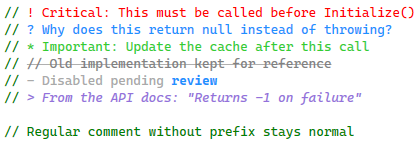
Make different comment types visually distinct. Inspired by the popular "Better Comments" extension, Comment Studio highlights comments differently based on their prefix character:
| Prefix |
Color |
Style |
Purpose |
// ! |
Red |
Normal |
Alerts and warnings |
// ? |
Blue |
Normal |
Questions and queries |
// * |
Green |
Normal |
Important highlights |
// // |
Gray |
Strikethrough |
Deprecated/old code |
// - |
Dark Gray |
Normal |
Disabled/removed |
// > |
Purple |
Italic |
Quotes and references |
Example:

The feature can be enabled/disabled in Tools > Options > CommentsVS > Comment Tags. Colors can be customized via Tools > Options > Environment > Fonts and Colors under "Comment - [Type]" entries.
Works with // (C#), # (Python, PowerShell), and ' (VB.NET) comment styles.
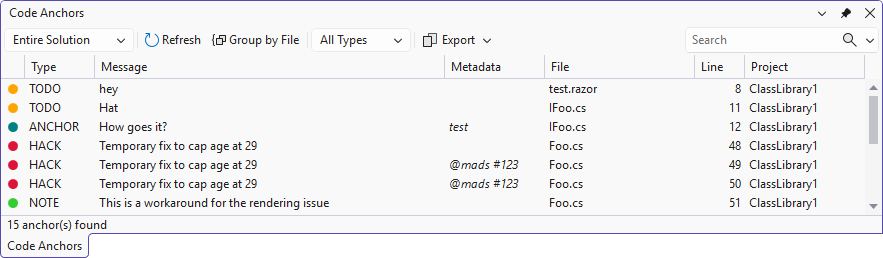
Track all your TODOs, HACKs, and notes across your entire solution. The Code Anchors tool window provides a centralized view of all comment tags—not just in open files, but across every file in your solution.
Open it via View > Other Windows > Code Anchors.

Features
- Solution-wide scanning — Finds anchors in all files across your entire solution, not just open documents
- Background indexing — Scans files on a background thread without blocking the UI
- Configurable file types — Choose which file extensions to scan (C#, TypeScript, HTML, and 30+ more by default)
- Smart folder exclusions — Automatically ignores
node_modules, bin, obj, .git, and other non-source folders
- Auto-refresh on save — Updates automatically when you save files in Visual Studio
- Color-coded indicators — Each anchor type has a colored circle matching its editor highlight color
- Quick navigation — Double-click or press Enter to jump directly to any anchor
- Keyboard shortcuts — Use Alt+Page Down / Alt+Page Up to navigate between anchors
- Scope filter — Filter anchors by Solution, Project, Document, or Open Documents
- Type filter — Filter by anchor type (TODO, HACK, NOTE, BUG, etc.) using the toolbar combo
- Built-in search — Filter anchors by text
- Group by file — Organize anchors by their source file for easier navigation
- Metadata display — Shows owner (@user), issue references (#123), and anchor IDs
- Export anchors — Copy or save anchors to TSV, CSV, Markdown, or JSON formats
Exporting Anchors
Use the Export split button in the toolbar to export the currently filtered anchors:
| Format |
Best For |
| TSV |
Paste directly into Excel or Google Sheets |
| CSV |
Import into spreadsheets or databases |
| Markdown |
Documentation, GitHub issues, wikis |
| JSON |
Programmatic consumption, CI/CD integration |
The export respects your current filters (scope, type, and search), so you can export exactly the anchors you need. Choose Export to File... to save to disk, or use the copy options for quick clipboard access.
Supported Anchor Types
| Type |
Color |
Description |
| TODO |
Orange |
Tasks to be completed |
| HACK |
Crimson |
Temporary workarounds |
| NOTE |
Lime Green |
Important notes |
| BUG |
Red |
Known bugs |
| FIXME |
Orange Red |
Code that needs fixing |
| UNDONE |
Purple |
Incomplete work |
| REVIEW |
Dodger Blue |
Code needing review |
| ANCHOR |
Cyan |
Named navigation points |
Use ANCHOR(name) to create named navigation points in your code:
// ANCHOR(database-init): Database initialization logic starts here
These are especially useful for marking important sections you frequently need to return to.
Clickable Issue Links
Jump to issues instantly. Issue references like #123 in comments automatically become clickable links to the issue on your hosting provider. No more copying issue numbers and searching manually. The extension detects the Git remote URL and supports:
| Provider |
Example Link |
| GitHub |
https://github.com/owner/repo/issues/123 |
| GitLab |
https://gitlab.com/owner/repo/-/issues/123 |
| Bitbucket |
https://bitbucket.org/owner/repo/issues/123 |
| Azure DevOps |
https://dev.azure.com/org/project/_workitems/edit/123 |
Ctrl+Click on any #123 reference in a comment to open the issue in your browser. Hover over the reference to see a tooltip with the full URL.

Link Anchors
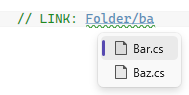
Navigate to related code instantly. Create clickable links in comments that navigate to other files, specific lines, or named anchors within your codebase.
Basic Syntax
// LINK: path/to/file.cs // Opens file
// LINK: ./relative/path/file.cs // Relative path from current file
// LINK: ../sibling/folder/file.cs // Parent-relative path
// LINK: /solution/root/file.cs // Solution-relative path (starts with /)
// LINK: @/project/root/file.cs // Project-relative path (starts with @/)
// LINK: images/Add group calendar.png // File paths can contain spaces
Line Number Links
// LINK: Services/UserService.cs:45 // Opens file at line 45
// LINK: Database/Schema.sql:100-150 // Opens file, navigates to line range
Anchor Links
// LINK: Services/UserService.cs#validate-input // Jump to named anchor in file
// LINK: #local-anchor // Jump to anchor in current file
// LINK: ./file.cs:50#section-name // Line number + anchor

Features
- Underlined links — Only the file path/anchor is underlined (not "LINK:")
- Hover tooltips — See the resolved file path and validation status
- Ctrl+Click navigation — Jump directly to the target file, line, or anchor
- Line range selection — Links with ranges (
:10-20) select the entire range
- Non-text files — Images, PDFs, etc. open with their default application
- IntelliSense — Get completions for file paths and anchor names
- Validation — Warning squiggles appear for broken links (missing files)
- Path resolution — Supports relative (
./, ../), solution-relative (/, ~/), and project-relative (@/) paths
- Spaces in paths — File names with spaces are fully supported
Link anchors work with the existing ANCHOR tags to create a navigation system within your codebase:
// In UserService.cs:
// ANCHOR(validate-input): Input validation logic
// In another file:
// See input validation: LINK: Services/UserService.cs#validate-input
Options
Configure the extension behavior via Tools > Options > CommentsVS.
| Setting |
Default |
Description |
| Maximum Line Length |
120 |
Maximum line length for reflowed comments |
| Enable Reflow on Format Document |
On |
Reflow comments when formatting document/selection |
| Enable Reflow on Paste |
On |
Reflow comments when pasting into comment blocks |
| Enable Reflow While Typing |
On |
Automatically reflow when line exceeds max length while typing |
| Use Compact Style for Short Summaries |
On |
Use single-line format for short summaries |
| Preserve Blank Lines |
On |
Keep intentional blank lines in comments |
| Setting |
Default |
Description |
| Collapsed by Default |
Off |
Automatically collapse XML doc comments when opening files (only applies when Rendering Mode is Off or Compact) |
| Setting |
Default |
Description |
| Rendering Mode |
Off |
Controls how XML doc comments are displayed: Off (raw XML), Compact (outlining with stripped tags), or Full (rich formatted rendering) |
| Setting |
Default |
Description |
| Enable Comment Tag Highlighting |
On |
Enable/disable tag highlighting |
| Enable Prefix Highlighting |
On |
Enable/disable prefix-based comment highlighting (Better Comments style) |
| Custom Tags |
(empty) |
Comma-separated list of custom tags to highlight (e.g., PERF, SECURITY, DEBT) |
Tag colors can be customized via Tools > Options > Environment > Fonts and Colors under "Comment Tag - [TAG]" entries. Custom tags share a single color under "Comment Tag - Custom". Prefix colors can be customized under "Comment - [Type]" entries.
Code Anchors
| Setting |
Default |
Description |
| Scan Solution on Load |
On |
Automatically scan the solution for anchors when opening the Code Anchors tool window |
| File Extensions to Scan |
.cs, .vb, .js, .ts, ... |
Comma-separated list of file extensions to include when scanning |
| Folders to Ignore |
node_modules, bin, obj, ... |
Comma-separated list of folder names to skip during scanning |

Issue Links
| Setting |
Default |
Description |
| Enable Issue Links |
On |
Make #123 references clickable links to issues |
Getting Started
- Install the extension from the Visual Studio Marketplace
- Open any C# or VB.NET file with XML documentation comments
- Try rendering modes – Use Edit > Comments to switch between Off, Compact, and Full rendering
- Try reflow – Edit a comment and use Format Document (Ctrl+K, Ctrl+D) to see automatic formatting
- Try collapsing – Press Ctrl+M, Ctrl+C to collapse all comments and focus on code
Requirements
- Visual Studio 2022 (17.0 or later)
- Supports both x64 and ARM64 architectures
How can I help?
If you enjoy using the extension, please give it a ★★★★★ rating on the Visual Studio Marketplace.
Should you encounter bugs or have feature requests, head over to the GitHub repo to open an issue if one doesn't already exist.
Pull requests are also very welcome, as I can't always get around to fixing all bugs myself. This is a personal passion project, so my time is limited.
Another way to help out is to sponsor me on GitHub.