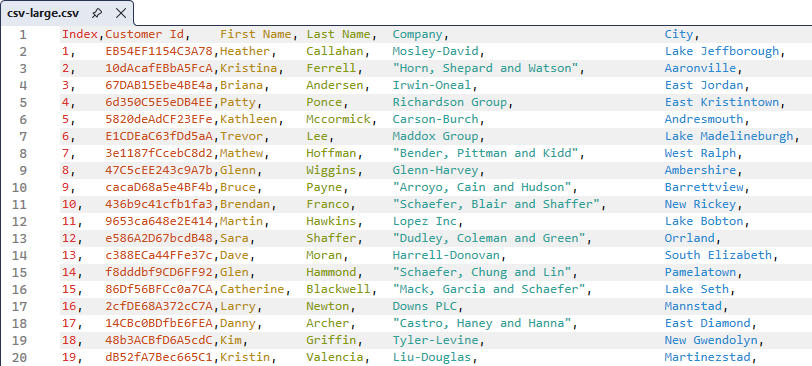
CSV EditorCSV Editor transforms flat, hard-to-read data files into colorful, navigable documents. Supports both CSV and TSV files |

CSV Editor for Visual Studio
Download this extension from the Visual Studio Marketplace or get the CI build. Finally, a proper CSV/TSV editing experience in Visual Studio. CSV Editor transforms flat, hard-to-read data files into colorful, navigable documents.
✨ Key Features at a Glance
Supports: CSV (comma), TSV (tab), semicolon, and pipe ( Why CSV Editor?Working with CSV files in a plain text editor is painful:
CSV Editor solves these problems while keeping you in Visual Studio where you belong. Features
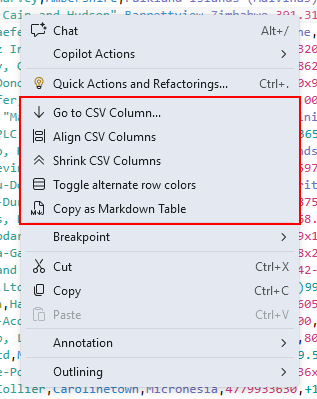
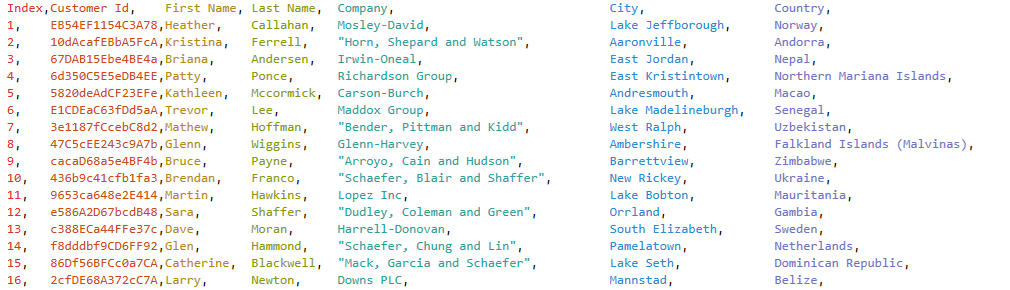
Syntax HighlightingEach column gets its own color, making it easy to visually track data across rows. Colors cycle through a palette designed to work with both light and dark themes. Column AlignmentRight-click and select Align CSV Columns to visually align columns for perfect readability. This uses virtual alignment (adornments) — your file content is not modified.
Sticky Header RowRight-click and select Toggle Sticky Header Row to lock the header row at the top of the editor while scrolling. This is invaluable for:
The sticky header:
Shrink ColumnsRight-click and select Shrink CSV Columns to remove leading and trailing whitespace from all cells. This is useful to:
Alternate Row ColorsRight-click and select Toggle Alternate Row Colors to highlight odd and even rows with alternating background colors. This significantly improves readability for:
Copy as Markdown TableRight-click and select Copy as Markdown Table to copy the selection (or entire file if nothing is selected) as a formatted Markdown table. Perfect for:
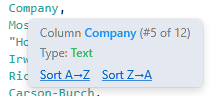
Example output: QuickInfo TooltipsHover over any cell to see:
Sort links appear when hovering over cells in the first row, whether or not the file has a header.
Error DetectionRows with too many or too few columns are flagged with squiggles, helping you catch data issues before they cause problems downstream.
Go To ColumnUse Edit > Go To > Go To Column (or the command palette) to jump directly to a specific column by number. Large File SupportCSV Editor is optimized for large files with thousands of rows:
Binary Character HandlingCSV files sometimes contain binary characters (null bytes, control characters) that can cause problems. CSV Editor automatically:
The sanitization happens transparently when you open a CSV/TSV file containing binary characters. The cleaning process is optimized for files of any size using a single-pass algorithm. How can I help?If you enjoy using the extension, please give it a ★★★★★ rating on the Visual Studio Marketplace. Should you encounter bugs or have feature requests, head over to the GitHub repo to open an issue if one doesn't already exist. Pull requests are also very welcome, as I can't always get around to fixing all bugs myself. This is a personal passion project, so my time is limited. Another way to help out is to sponsor me on GitHub. |