Bookmark StudioManage color-coded code bookmarks across your solution with slots, search, and fast navigation. |


Bookmark Studio for Visual Studio
Download this extension from the Visual Studio Marketplace or get the latest CI build from Open VSIX Gallery. Stop losing your place in large codebases. Bookmark Studio lets you mark, organize, and instantly jump to important locations in your code - across your entire solution.
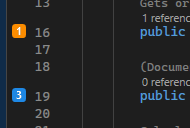
What You GetInstant navigation - Press Alt+Shift+1 through Alt+Shift+9 to jump directly to your most important bookmarks. No searching, no scrolling. Visual organization - Color-code bookmarks by purpose (red for bugs, green for features, blue for TODOs) and group them into folders. See exactly what each bookmark represents at a glance. Focused Solution Explorer - Filter Solution Explorer to show only files that contain bookmarks, making important files easy to find in large solutions. Zero learning curve - Uses the same keyboard shortcuts you already know (Ctrl+K, Ctrl+K to toggle, Ctrl+K, Ctrl+N for next). Your muscle memory works from day one. Team sharing - Commit your bookmarks file to source control so the whole team can navigate to key code locations - perfect for onboarding or code reviews. Getting StartedMark Important CodePress Ctrl+K, Ctrl+K or Alt+Shift+Space on any line to create a bookmark. A colored glyph appears in the margin, and the bookmark is automatically assigned the next available shortcut (1-9).
Migrating from Native BookmarksAlready using Visual Studio's built-in bookmarks? No migration needed. When you toggle a bookmark on a line that has a native VS bookmark, Bookmark Studio automatically converts it - the native bookmark is removed and a Bookmark Studio bookmark takes its place. Just keep working and your bookmarks will migrate naturally. Jump to Bookmarks Instantly
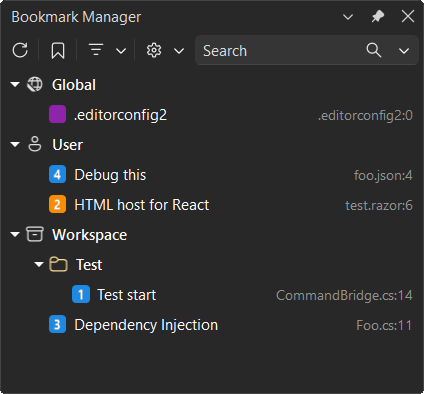
Organize Your BookmarksOpen View > Bookmark Manager to see all your bookmarks in one place:
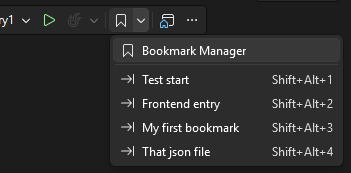
Filter Solution ExplorerOpen the filter dropdown in the Solution Explorer toolbar and select Files with Bookmarks. Solution Explorer will show only bookmarked files and the folders and projects that contain them. The filter updates automatically as bookmarks are added or removed. Use the Solution Explorer filter dropdown again to turn off the filter and restore the full solution tree. Quick Access from the ToolbarYour numbered bookmarks appear in a dropdown on the Standard toolbar - click to jump instantly.
Common WorkflowsDebugging a Bug
Working on a Feature
Code Reviews
Onboarding New Team Members
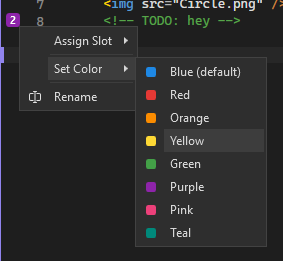
Customizing BookmarksColorsRight-click any bookmark glyph in the margin or use the Bookmark Manager context menu to change colors.
Moving BookmarksDrag the bookmark glyph in the margin to move it to a different line.
Reassigning ShortcutsFrom the Bookmark Manager, right-click a bookmark to assign it to a different shortcut slot (1-9), or clear its shortcut entirely. Adding NotesRight-click a bookmark in the margin or the Bookmark Manager and choose Edit Note... to attach a short, single-line note. The note appears in italics underneath the bookmark in the tool window and in the tooltip when you hover the glyph in the editor margin. Choose Delete Note to remove it. Keyboard ShortcutsBookmark Studio Shortcuts
Intercepted Visual Studio ShortcutsThese shortcuts work when you opt in to intercept built-in bookmark commands (you'll be prompted on first use).
SettingsAccess settings via Tools > Options > Bookmark Studio > General.
Smart Name SuggestionsWhen Prompt for bookmark name is enabled, Bookmark Studio suggests a name using this fallback order:
If the suggested name already exists, Bookmark Studio appends a numeric suffix ( Sharing BookmarksBookmark Studio stores bookmarks in To share bookmarks with your team:
Bookmark Studio looks for the file in this order:
Portable PathsNew Workspace bookmark files save document paths relative to the For example, if Bookmark Studio writes Personal bookmarks in Global bookmarks are different: they remain machine-specific and keep absolute document paths because they are stored in Global BookmarksGlobal bookmarks persist across all solutions and are stored in Bookmarking Files from AnywhereRight-click the Global node and select Add File... to bookmark any file on disk - even files outside your current solution. This is useful for:
The file name becomes the bookmark label, and the full path is shown in the tooltip. Global file bookmarks don't have shortcut numbers assigned by default. ContributeIssues, ideas, and pull requests are welcome. |