Skip to content
| Marketplace
Sign in
Visual Studio>Tools>Azure Explorer
Azure Explorer

Azure Explorer

Mads Kristensen

madsk.net
|
217 installs
| (4) | Free
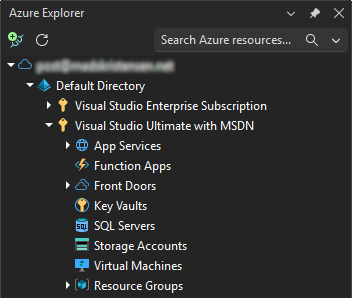
Azure Explorer provides a lightweight tool window for browsing subscriptions, resource groups, and App Services without leaving your IDE.
Download

Azure Explorer for Visual Studio

Build GitHub Sponsors

Your Azure resources, right inside Visual Studio. No Portal tab-switching. No context loss. Just code and cloud, together.

Download from the Visual Studio Marketplace or get the latest CI build.

Requires Visual Studio 2026 or later on Windows 10+

Azure Explorer tool window


Miss the old Cloud Explorer?

When Microsoft removed Cloud Explorer from Visual Studio, many developers lost a crucial workflow. Azure Explorer brings it back — rebuilt from the ground up with modern authentication, better performance, and features Cloud Explorer never had.

What Can You Do?

🚀 Deploy & Debug Faster - Stream live logs, browse deployed files, drag-and-drop upload — without leaving your code

🔍 Find Anything Instantly - Search across all subscriptions with tag:Environment=Production syntax

🔐 Manage Secrets Securely - View, edit, and copy Key Vault secrets without touching the Azure Portal

💻 Connect to VMs - One-click RDP/SSH connections to your Virtual Machines

📦 Browse Storage - Navigate blob containers, upload files, copy connection strings

Supported Resources

Resource Type Key Actions
Resource Groups Create, Delete (if empty), Open in Portal
App Services & Function Apps Browse, Start/Stop/Restart, Stream Logs, File Browser, Drag & Drop Upload
Virtual Machines Start/Stop/Restart, Connect via RDP/SSH, Copy IP Address
Storage Accounts Create, Delete, Copy Connection String, Browse Blobs/Queues/Tables, Upload/Download
Key Vaults Create, Delete, Manage Secrets/Keys/Certificates
SQL Servers & Databases Copy Connection String, Browse Databases
Front Door Browse Endpoints

More resource types coming soon!

📖 Full Documentation - Detailed guides, troubleshooting, and tips.

Get Started in 30 Seconds

  1. Install from the Visual Studio Marketplace
  2. Open via View → Azure Explorer
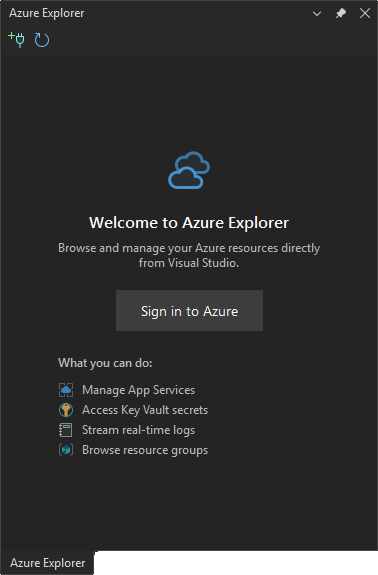
  3. Sign in with your Azure account (uses Windows native authentication)
  4. Explore — your subscriptions appear automatically

Welcome screen

Keyboard Shortcuts

Shortcut Action
Ctrl+Enter Open selected resource in Azure Portal
F5 Refresh current view
Enter Expand/collapse or execute default action
Delete Delete selected item (with confirmation)

FAQ

Q: Which Azure accounts are supported?
A: Personal Microsoft accounts, work/school (Entra ID), and accounts with multiple tenants. Uses Windows native authentication (WAM) for secure, seamless sign-in.

Q: Why don't I see all my subscriptions?
A: Check if you're signed into the correct account. You can also hide/show subscriptions via right-click. See Authentication docs for details.

Q: Is my data secure?
A: Azure Explorer never stores credentials. It uses your existing Visual Studio/Windows Azure credentials with Microsoft's authentication libraries. All API calls go directly to Azure.

Q: Can I use this with Azure Government or other sovereign clouds?
A: Not currently, but it's on the roadmap. Open an issue if this is important to you.

📖 See FAQ and Troubleshooting for more.

Works Great With

These extensions complement Azure Explorer for a complete Azure development experience:

  • SQL Server Data Tools — Database development and deployment
  • Cloud Sync — Sync VS settings across machines

Contributing

This is a passion project, and contributions are welcome!

  • 🐛 Found a bug? Open an issue
  • 💡 Have an idea? Start a discussion
  • 🔧 Want to contribute? Pull requests are always welcome

If Azure Explorer saves you time, consider:

  • ⭐ Rating it on the Marketplace
  • 💖 Sponsoring on GitHub

License

Apache 2.0

  • Contact us
  • Jobs
  • Privacy
  • Manage cookies
  • Terms of use
  • Trademarks
© 2026 Microsoft