VersionER
Central project version HUD for VS Code — detect, display, and sync versions across your project files.
One version lives in your head. It lives in five files. VersionER makes them agree.
What it does
VersionER detects your project type, finds every file that carries a version number, and shows the authoritative one in a sidebar HUD and the status bar. Bump it once and every file updates together — or get warned when they've drifted apart.
- Detects automatically. No configuration for the common cases.
- Edits surgically. Files are patched with targeted replacements, never parsed and re-serialized, so comments, key order, and formatting survive a bump.
- Flags drift, and fixes it. When a lockfile or a plist disagrees with the source of truth, the status bar turns amber, the offending file is marked, and Sync rewrites just the drifted files.
- Writes all or nothing. If one file can't be updated, every file already written is put back — a failed bump never leaves the project half changed. A good one can be undone.
- Confirms before multi-file writes. Touching two or more files asks first (turn off with
versioner.confirmMultiFileWrites), and version files with unsaved edits in the editor are saved before anything is written.
- Releases, not just numbers. Optionally rolls
CHANGELOG.md's Unreleased notes over, commits and tags, and suggests the bump your Conventional Commits call for.

Supported projects
| Type |
Primary file |
Also kept in sync |
| Node |
package.json |
package-lock.json / npm-shrinkwrap.json (both root entries), Tauri's src-tauri/tauri.conf.json and src-tauri/Cargo.toml, a browser-extension manifest.json |
| Rust |
Cargo.toml ([package]) |
— |
| Python |
pyproject.toml ([project] or [tool.poetry]) |
setup.cfg ([metadata]), an unambiguous __version__ |
| Maven |
pom.xml (project version, not <parent> or a dependency's) |
— |
| Android |
the app module's build.gradle(.kts) — versionName + versionCode |
— |
| Gradle |
build.gradle.kts / build.gradle, or gradle.properties when the build file leaves the version to it |
gradle.properties |
| .NET |
Directory.Build.props or *.csproj |
additional *.csproj |
| PHP |
composer.json |
— |
| Flutter / Dart |
pubspec.yaml |
Android build.gradle, iOS Info.plist — only when they hold literal numbers |
| Ruby |
lib/**/version.rb (VERSION = "…"), or the .gemspec |
a .gemspec that spells the version out |
| Elixir |
mix.exs (@version, or version: in project/0) |
— |
| Xcode |
*.xcodeproj/project.pbxproj — every MARKETING_VERSION and CURRENT_PROJECT_VERSION |
— |
| Go |
VERSION |
— (shows latest git tag as a hint) |
| Helm |
Chart.yaml version: (not appVersion:) |
— |
| Browser extension |
manifest.json with manifest_version |
— |
| Generic |
VERSION or version.txt |
— |
When several markers are present the most specific one wins, so a Flutter project with a package.json for tooling is still treated as Flutter. If the winner turns out to have nothing to version, detection falls through to the next one.
A few files can only hold part of a version, and are judged on that part rather than flagged as drift: a browser manifest takes digits only (1.3.0-rc.1 is written as 1.3.0), and Android/iOS build numbers follow the primary version's +build only when it has one. Flutter's own template points the platform files at flutter.versionName and $(FLUTTER_BUILD_NAME), which Flutter fills from pubspec.yaml at build time — those are left alone rather than overwritten with literals.
Several projects in one workspace
VersionER looks in each workspace folder and two levels of subfolders below it (versioner.projectScanDepth), so a monorepo's packages, a multi-root workspace, or an app that lives in app/ are all found. Dependency, build and hidden folders are skipped, as are the platform folders inside a project (a Flutter app's android/ is part of the app, not another project). When more than one is found, the HUD's title bar names the one shown — click it, or run VersionER: Select Project…, to switch.
Commands
| Command |
Description |
VersionER: Show HUD |
Reveal the HUD |
VersionER: Display Options… |
Change location, layout, theme and more from a quick pick |
VersionER: Set Version… |
Enter an exact version |
VersionER: Initiate Version… |
Give a project its first version — adds the version field to the primary file (package.json, Cargo.toml, pyproject.toml, pubspec.yaml, build.gradle, pom.xml, .csproj…), or writes VERSION when there is nothing to read |
VersionER: Bump Patch |
1.2.3 → 1.2.4 |
VersionER: Bump Minor |
1.2.3 → 1.3.0 |
VersionER: Bump Major |
1.2.3 → 2.0.0 |
VersionER: More Bumps… |
Pre-release, release and build-number steps, each shown with the version it produces — also the HUD's More… button |
VersionER: Bump Pre-release |
1.3.0-rc.1 → 1.3.0-rc.2, or 1.2.3 → 1.2.4-rc.1 |
VersionER: Release Pre-release |
1.3.0-rc.2 → 1.3.0 |
VersionER: Bump Build Number |
1.2.3+5 → 1.2.3+6 — a new store upload of the same version |
VersionER: Sync Drifted Files |
Rewrite only the drifted files to the primary version — also Sync on the HUD's drift alert |
VersionER: Undo Last Version Change |
Put back every file the last write changed (until it is committed) |
VersionER: Commit & Tag Version |
Commit the version files and tag the current version |
VersionER: Select Project… |
Pick which project in the workspace the HUD shows |
VersionER: Refresh |
Re-read all version files, and look for projects again |
VersionER: Add Synced File… |
Pick a file to keep at the project version — see below |
VersionER: Remove Synced File… |
Take an entry back out of .versioner.json |
Where the HUD lives
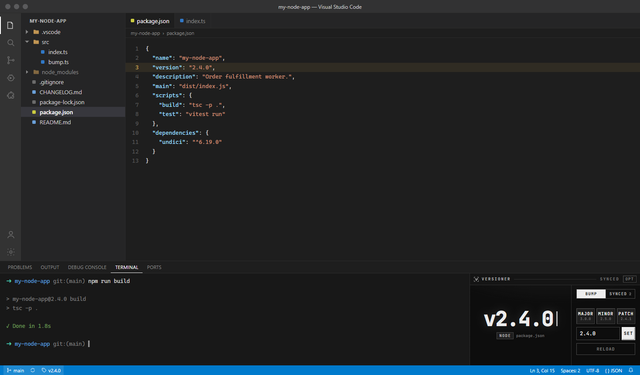
The HUD takes one of six positions in the window, and by default it opens automatically when the window does — without taking keyboard focus off your editor.
versioner.hud.location |
Where that is |
terminalRight (default) |
Beside the terminal inside the panel, on its right |
terminalLeft |
Beside the terminal inside the panel, on its left |
bottom |
Its own tab in the panel, spanning the whole bottom bar |
left |
A slice of the left side bar, under the file tree |
right |
Alone in the right-hand secondary side bar |
rightShared |
A slice of the right-hand secondary side bar, under the chat panel |
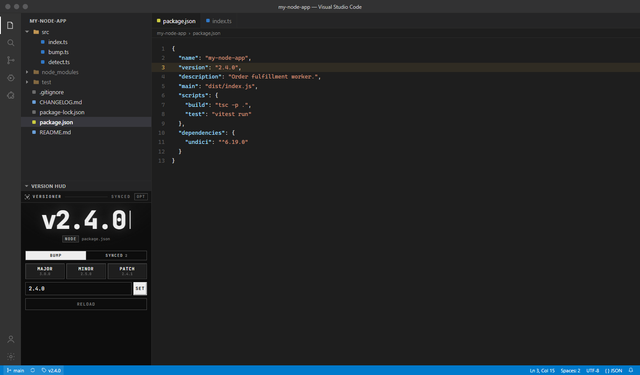
The two terminal* positions, left and rightShared work by moving the HUD into a container something else already occupies — the terminal's, the Explorer's, or whichever container is already sitting in the secondary side bar. A container lays its views out side by side, so the HUD takes a share of the space rather than a tab or a whole side bar of its own; that is exactly what dragging the view there by hand does, and vscode.moveViews is that drag in command form. bottom and right use containers this extension contributes.
Which side of the terminal the HUD lands on comes down to which of the two arrives last: a container shows its views in the order they were added, and moveViews only appends. Two views already sharing a container cannot be reordered — a move whose source and destination are the same container does nothing — so the two sides are two different meetings. For terminalRight the HUD goes to the terminal's container. For terminalLeft the terminal comes to VersionER's panel container instead, which means the panel tab reads VersionER rather than Terminal until you switch away; switching away sends the terminal home.
The same appending rule is what puts rightShared under the chat rather than over it. Nothing enumerates the containers in a part, so VersionER finds the one to join by reading installed extensions' manifests: a container reaches the secondary side bar only by being contributed to it. If nothing has, there is nothing to share with and the choice falls back to right; a container you dragged there yourself is not contributed to it either, so reach those with Move view….
The side bar slices open about 400px tall
left and rightShared ask for the share of the side bar that comes out near 400 pixels on a 1080p window — room for the version, the three bump buttons, the Set field and a short file list, and no more. VS Code applies a view's requested size the first time it appears in a container, which is exactly when the position is picked, so switching to either sets the height and any dragging you do afterwards is yours to keep.
Pixels are not on offer: initialSize in the manifest is a weight, and a view's opening height is weight / (sum of the weights of every visible view in the container) of the container's height, with views that name no weight counting as 20. Next to the Explorer's three — Folders, Outline, Timeline, 60 together — VersionER's 40 asks for 40 %, which is ~400px of a ~1000px-tall side bar and scales with the window from there. Raise or lower initialSize on versioner.hud and versioner.hudSecondary to move it.
right and rightShared need a VS Code build that accepts extension containers in the secondary side bar; confirmed on 1.130 and later. On older builds the choice has nothing to reveal, so use left or Whole panel below instead.
Options, in the HUD
The OPT button in the HUD's title bar turns the view into an options screen. Location is picked off a small picture of the VS Code window: each of the six positions is a hotspot drawn where it actually is, the chosen one inverted, and pointing at any of them names it underneath. The remaining settings are rows of segmented switches. DONE or Escape goes back. VersionER: Display Options… offers the same settings as a quick pick, and both routes write the same settings, so nothing can drift out of step.
Moving the panel
Two of those switches place the panel itself:
- Whole panel —
bottom, left, or right. Moves the panel to that edge of the window.
- Panel width —
full (the whole window width), editor (aligned with the editor area, VS Code's default), left, or right. Only applies while the panel is at the bottom, so the row dims when it isn't.
Both run VS Code's own panel commands, which means they move the whole panel — terminal, Problems, Output and all — not just the HUD. That is not a shortcoming of the switch: VS Code exposes panel placement only as a whole-panel command, and has none that sends a single view to an edge. If you want the HUD alone down an edge, use HUD location — left or right — instead. The window picture always draws the panel along the bottom, and says so in a note when the panel is docked elsewhere.
VS Code keeps view placement with the rest of its window layout rather than in a setting, so the two can part ways: drag the HUD somewhere else and location will no longer describe where it is. Move view… on the options screen is the way back, and reaches any container — it opens VS Code's own list of destinations for the HUD.
Layout
There are two regions, never three: the version readout, and a narrow side column holding one pane at a time — the bump controls or the synced list, whichever tab at its head is chosen. They ask for the same strip and only one of them is ever being read, so they take turns in it, and the readout keeps everything else. The column is sized to the three bump buttons rather than to a share of the view, and takes a little more width while the list is the pane showing, since file paths need more room than three buttons do.
The two regions arrange themselves to the space the view is given, so the same settings work in a tall side bar and a short panel:
| Arrangement |
Chosen when |
Shape |
| Row |
Short — a panel, wide or shared with the terminal |
Readout beside the side column |
| Stack |
Tall — a side bar |
Readout above it |
The version readout is always centred, and scales to the largest size that still fits on one line. When vertical room runs short the HUD drops its secondary chrome — bump previews, the git-tag hint, then Reload, which the palette carries as VersionER: Refresh — rather than overflowing.
Force one arrangement with versioner.hud.layout (auto, row, stack). Turning off versioner.hud.showFiles takes the tabs away with the list and leaves the controls in sole possession of the column.
Settings
| Setting |
Default |
Description |
versioner.hud.location |
terminalRight |
terminalRight, terminalLeft, bottom, left, right, or rightShared — see the table above |
versioner.hud.panelSide |
bottom |
bottom, left, or right — moves the whole panel, terminal included |
versioner.hud.panelAlign |
center |
justify, center, left, right — bottom panel only |
versioner.hud.openOnStartup |
true |
Reveal the HUD on window open, without stealing focus |
versioner.hud.layout |
auto |
auto, row, or stack |
versioner.hud.theme |
auto |
auto, dark, or light |
versioner.hud.showFiles |
true |
Offer the synced-files list as the side column's second tab |
versioner.hud.scanlines |
true |
Retro CRT scanline overlay |
versioner.hud.caretBlink |
true |
Blink the caret beside the version, or leave it steady |
versioner.confirmMultiFileWrites |
true |
Ask before a write that touches two or more files |
versioner.notifications |
all |
all, or errors to keep successful writes quiet |
versioner.prereleaseId |
rc |
What new pre-releases are called: 1.3.0-rc.1, 1.3.0-beta.1… |
versioner.changelog.rollover |
true |
Release CHANGELOG.md's Unreleased notes on each release |
versioner.git.afterBump |
off |
off, commit, or commitAndTag after a bump or Set Version |
versioner.git.tagFormat |
v${version} |
Tag name; ${version} is the version without a leading v |
versioner.git.commitMessage |
chore(release): ${version} |
Commit and tag message; ${version} and ${tag} are filled in |
versioner.suggestBump |
true |
Mark the bump the Conventional Commits since the last tag call for |
versioner.projectScanDepth |
2 |
How many folder levels below each workspace folder to look for projects |
The release settings are also on the options screen, under Release.
Version handling
Versions are parsed as SemVer, with a few conveniences:
- A leading
v is preserved. v1.2.3 bumps to v1.2.4.
- Pre-release identifiers are cleared by a major, minor or patch bump.
1.2.3-rc.1 → 1.2.4.
- Flutter-style build metadata is treated as a counter.
1.0.0+5 patch-bumps to 1.0.1+6; a minor or major bump resets it to +1.
- Anything typed into Set or Init must be SemVer —
1.2, banana and friends are refused before a file is touched.
The More… button (or VersionER: More Bumps…) holds the steps that aren't one of the three numbers:
| Step |
Example |
| Next pre-release |
1.3.0-rc.1 → 1.3.0-rc.2; on a release, 1.2.3 → 1.2.4-rc.1 |
| Release |
1.3.0-rc.2 → 1.3.0 |
| Build number |
1.2.3+5 → 1.2.3+6 |
| Pre-release patch / minor / major |
1.2.3 → 1.2.4-rc.1 / 1.3.0-rc.1 / 2.0.0-rc.1 |
Pre-release, release and build steps all move a numeric +build forward too, since each is a new upload to a store that demands one. The pre-release name comes from versioner.prereleaseId, which the same pick can change.
For Android and iOS targets the marketing version and build number are split automatically — versionName / CFBundleShortVersionString / MARKETING_VERSION get the core version, versionCode / CFBundleVersion / CURRENT_PROJECT_VERSION get the build number. A primary version without a +build leaves the build number where it is.
Releasing
Every write — bump, Set, Sync, Init — is all or nothing: the moment one file can't be updated, the files already written are put back and the error names the file that failed. A successful write offers Undo in its notification (and as VersionER: Undo Last Version Change), which puts every changed file back — asking first if you have edited one since.
Drift. The drift alert in the HUD has a Sync button that rewrites only the drifted files to the primary version, leaving everything else, the changelog included, alone.
Changelog. With versioner.changelog.rollover on, a release (not a pre-release) moves the notes under ## [Unreleased] in the project's CHANGELOG.md to a new ## [1.3.0] - 2026-10-16 heading and leaves an empty Unreleased section above it. Compare links at the foot move on too: [Unreleased]: …/compare/v1.2.3...HEAD becomes …/compare/v1.3.0...HEAD, and the release gets [1.3.0]: …/compare/v1.2.3...v1.3.0. An empty or missing Unreleased section is left alone.
Git. versioner.git.afterBump commits the files a release changed — only those, so anything else you have staged stays staged and out of the release commit — and with commitAndTag adds an annotated tag. If the tag already exists, nothing is written at all. Nothing is ever pushed. A committed write can't be undone from VersionER; revert it with git. VersionER: Commit & Tag Version does the same by hand for a bump made with the setting off.
Suggested bump. In a git repository with at least one tag, VersionER reads the commits since the last tag the Conventional Commits way — a breaking change (feat!: or a BREAKING CHANGE: footer) calls for a major, feat for a minor, fix or perf for a patch — and marks that button with a dashed edge, with the reason underneath the version (suggests minor · 2 feat · 3 fix since v1.2.3). Before 1.0.0, breaking changes suggest a minor. Commits of other types, or none that follow the convention, suggest nothing.
Any file that carries the version — a docs config, a badge, a constants file — can be kept in step with the rest. The list lives in .versioner.json at your workspace root, and there are three ways onto it that all end in the same file:
- The options screen. The Synced extras section at the bottom lists every entry with a remove button, and Add file… opens a file picker.
- The palette.
VersionER: Add Synced File… and VersionER: Remove Synced File….
- By hand. Edit
.versioner.json directly — a JSON schema ships with the extension, so you get completion and validation while editing it.
Picking a file is usually all it takes: VersionER reads it looking for the current version. A file that contains nothing but the version is added as-is; a file that carries it somewhere inside gets its sync pattern generated from the line it sits on, and if the version appears on several lines you choose which one. Only when the current version is nowhere in the file do you have to write the pattern yourself.
{
  "files": [
    { "path": "VERSION_BADGE.txt" },
    {
      "path": "docs/conf.py",
      "pattern": "(release\\s*=\\s*\")([^\"]+)(\")"
    }
  ]
}
Without a pattern, the file is treated as containing nothing but the version. With one, the regex needs exactly three capture groups — prefix, version, suffix — and only the middle group is rewritten.
Prompt for AI
If an AI assistant works in this project — Copilot, Cursor, Claude, or otherwise — point it here so it sets the version up the way VersionER expects and raises it through VersionER instead of drifting out of sync. Paste this into its instructions file (.github/copilot-instructions.md, .cursorrules, CLAUDE.md, AGENTS.md, or however your tool takes project rules).
The prompt is written to stand on its own, so it still works for an assistant that never opens this README.
VERSIONING — VersionER is this project's source of truth
========================================================

This project's version number is owned by the VersionER VS Code
extension. VersionER detects the project type, knows every file that
carries the version, and rewrites them together. Treat it as the only
authority: read the version from the files it owns, and change it only
in the ways below.

The rule behind all of it: the version lives in several files at once,
and they must always agree. Editing one of them by itself is the exact
failure VersionER exists to prevent.

Which files carry the version
-----------------------------
Work out the project type from what is in the workspace root, most
specific first, and the primary file follows from it:

  Flutter/Dart  pubspec.yaml    also android/app/build.gradle and
                                ios/Runner/Info.plist, but ONLY when they
                                hold literal numbers — never overwrite
                                flutter.versionName or $(FLUTTER_BUILD_NAME)
  Node          package.json    also package-lock.json (top-level AND
                                packages[""]), npm-shrinkwrap.json,
                                src-tauri/tauri.conf.json,
                                src-tauri/Cargo.toml, and a browser
                                extension manifest.json (digits only)
  Rust          Cargo.toml      [package] version
  Python        pyproject.toml  [project] or [tool.poetry]; also
                                setup.cfg [metadata] and an unambiguous
                                __version__
  Maven         pom.xml         the project version, NOT <parent>
  Android       app/build.gradle(.kts)  versionName + versionCode
  Gradle        build.gradle.kts / build.gradle; also gradle.properties
  .NET          Directory.Build.props or *.csproj; also other *.csproj
  PHP           composer.json
  Ruby          lib/**/version.rb VERSION; also a literal .gemspec
  Elixir        mix.exs         @version, else version: in project/0
  Xcode         *.xcodeproj/project.pbxproj  every MARKETING_VERSION
                                and CURRENT_PROJECT_VERSION
  Go            VERSION         (git tags are only a hint, not truth)
  Helm          Chart.yaml      version: (NOT appVersion:)
  Browser ext.  manifest.json   with manifest_version
  Generic       VERSION or version.txt

In a monorepo or multi-root workspace each package is its own project;
VersionER: Select Project… picks the one being worked on.

A project with several markers is the most specific one — a Flutter app
with a package.json for tooling is Flutter, not Node.

`.versioner.json` at the workspace root, if present, lists extra files
kept at the same version. Always read it; anything in it counts as a
version file.

1. Setting up a project that has no version yet
-----------------------------------------------
If nothing above holds a version — a fresh repo, or a Go/generic project
with no VERSION file — the HUD reads "No signal" and offers an Init
field. Set the first version once, then stop:

  * Preferred: run `VersionER: Initiate Version…` and enter the starting
    version (1.0.0 unless the user asks otherwise; 0.1.0 for something
    pre-release). It adds the missing version field to the primary file
    itself. It declines where adding one would be wrong — a Cargo.toml
    with `version.workspace = true`, a pyproject.toml whose version is
    `dynamic` — and says "No version field found" instead.
  * If you cannot drive the command palette: write the version into the
    project's primary file from the table above. When the project type
    has no primary file of its own (Go, or nothing recognisable), create
    a `VERSION` file at the workspace root containing the version and a
    trailing newline, and nothing else — that is exactly what
    `VersionER: Initiate Version…` does.

Then, and only then, register the other places the version appears —
a README badge, a docs config, a constants file — by adding them to
`.versioner.json` (section 4) so future bumps carry them along. Do not
invent a version to put in them; use the one just set.

2. Reading the current version
------------------------------
Read it from the primary file, or from VersionER's HUD / status bar if
you have editor access. Never guess it, never carry one over from a
changelog, a git tag, or an earlier message in the conversation, and
never assume a bump you asked for has already landed — re-read.

3. Raising the version
----------------------
Prefer VersionER's own commands, which update every file together in one
confirmed edit:

  VersionER: Bump Patch    1.2.3 -> 1.2.4   fixes, no API change
  VersionER: Bump Minor    1.2.3 -> 1.3.0   new behaviour, compatible
  VersionER: Bump Major    1.2.3 -> 2.0.0   breaking change
  VersionER: Set Version…  an exact version you type
  VersionER: More Bumps…   pre-release, release, build number
  VersionER: Sync Drifted Files   when the HUD reports drift

If the HUD marks a button as suggested, that is what the Conventional
Commits since the last tag call for — a good default, not an order.

Pick the level from what actually changed, and say which you picked and
why. When in doubt between two levels, ask rather than assume; a bump is
cheap to redo but confusing to a reader who already saw it.

If you can only edit files directly, update the primary file AND every
file listed beside it above AND every entry in `.versioner.json` to the
same version in one change, following VersionER's own rules:

  * SemVer.
  * A leading `v` is preserved: v1.2.3 -> v1.2.4.
  * Pre-release identifiers are cleared on bump: 1.2.3-rc.1 -> 1.2.4.
  * Flutter-style build metadata is a counter: 1.0.0+5 patch-bumps to
    1.0.1+6; a minor or major bump resets it to +1.
  * Android and iOS split the two apart — versionName and
    CFBundleShortVersionString take the core version, versionCode and
    CFBundleVersion take the build number.
  * Patch the version string in place. Do not reformat, re-serialise, or
    re-key the file around it; comments and key order must survive.

4. Keeping extra files in sync
------------------------------
Extra files go in `.versioner.json` at the workspace root:

  {
    "files": [
      { "path": "VERSION_BADGE.txt" },
      { "path": "docs/conf.py",
        "pattern": "(release\\s*=\\s*\")([^\"]+)(\")" }
    ]
  }

Paths are relative to the workspace root and use forward slashes. A file
that contains nothing but the version needs no pattern. A file that
carries it somewhere inside needs a regex with exactly three capture
groups — prefix, version, suffix — and only the middle group is
rewritten. Test the regex against the file's real content before writing
it, and prefer `VersionER: Add Synced File…`, which derives the pattern
from the file itself.

5. After any version change
---------------------------
State the old version, the new version, and every file you touched. If
you edited files by hand, run `VersionER: Refresh` — the HUD and status
bar turn amber and flag DRIFT when a file was missed, which is your
check that the change was complete.

Never do
--------
  * Invent or guess a version number.
  * Edit one version file and leave the others behind.
  * Bump the version as a side effect of an unrelated task, or without
    being asked.
  * Reformat a version file while changing the version in it.
  * Treat a git tag, a changelog heading, or a release note as the
    source of truth. The files above are.
Development
| Script |
Description |
npm run build |
Bundle the extension to dist/ with esbuild |
npm run watch |
Rebuild on change |
npm test |
Unit tests (vitest) |
npm run check |
Typecheck without emitting |
npm run smoke |
Run detection and bumping against fixtures/ |
npm run preview |
Render the HUD to .preview/ for checking in a browser |
npm run package |
Build a .vsix |
npm run preview renders the real HUD markup against sample snapshots — synced, drifting, and no-project — at the sizes VS Code actually gives a view, then writes .preview/index.html as a contact sheet. It stubs the vscode module rather than launching an extension host, so layout and theme changes can be checked in a second. Press F5 to run the extension for real.
Notes
The HUD is styled in monochrome — black, white and gray, blocky borders, monospace type, and an optional CRT scanline overlay. It follows your VS Code light/dark theme unless you pin it with versioner.hud.theme.
Fonts are bundled with the extension, so the HUD renders identically offline and the webview contacts no external hosts.

