CompareCraft for VS Code
Compare files, selected text, and Git revisions side by side without leaving
VS Code. Edit text comparisons, explore CSV differences, and resolve three-way
merge conflicts in a CompareCraft tab that follows your VS Code theme.
Prefer a separate window? Open comparisons in the CompareCraft desktop app.
Folder comparisons always use the desktop app.
Requires the CompareCraft desktop app,
installed separately.
Screenshots
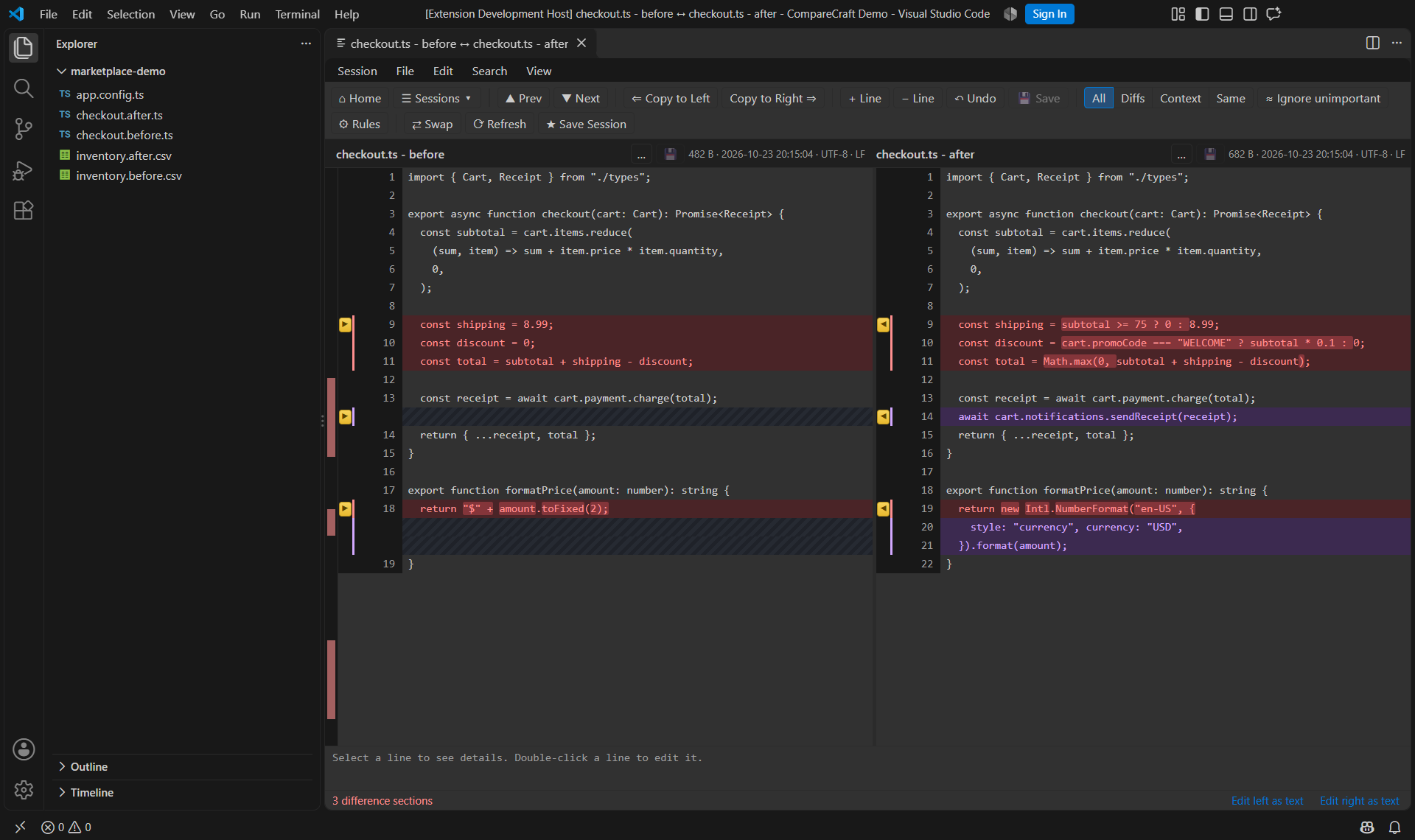
Compare and edit files without leaving VS Code
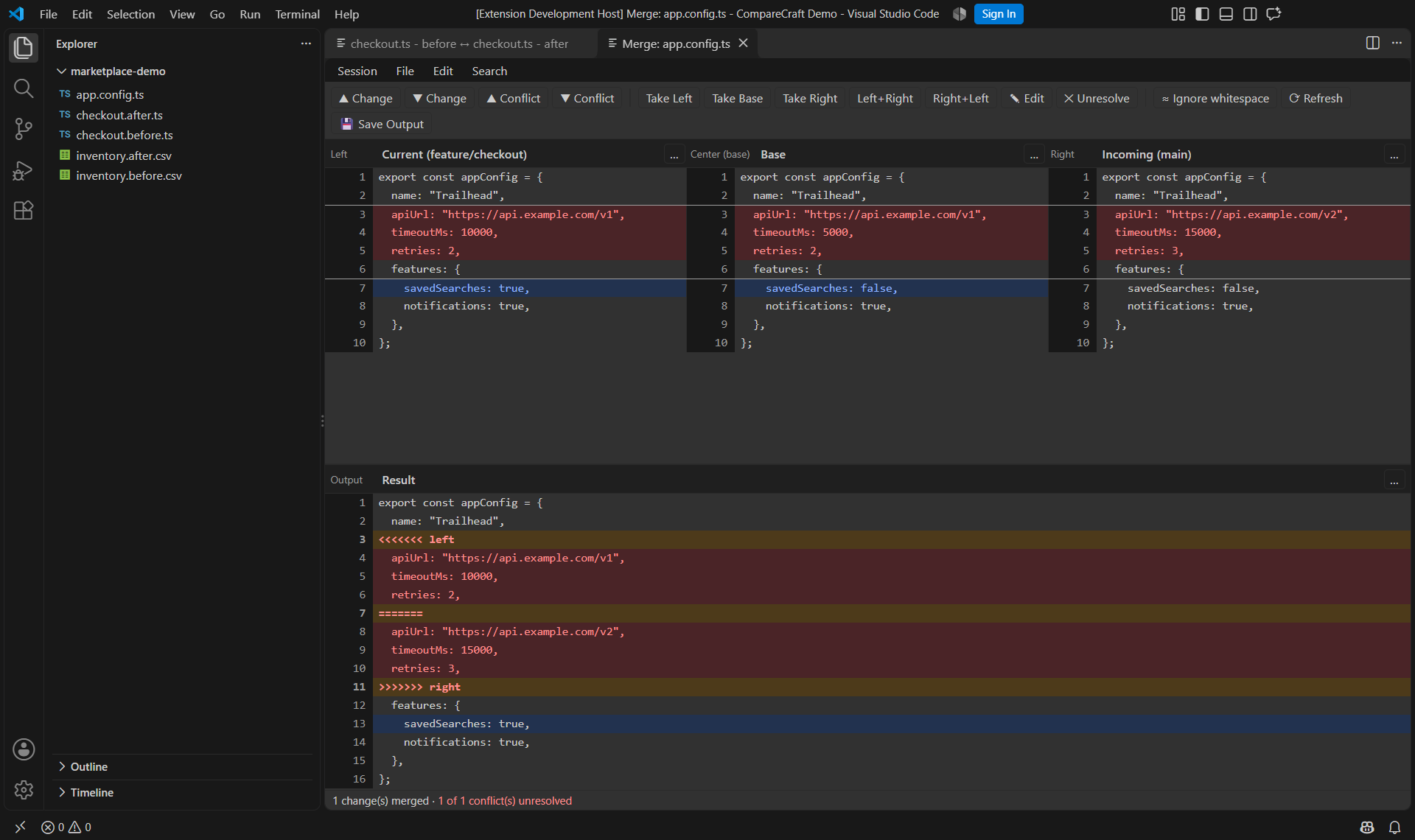
Resolve three-way conflicts in an embedded merge tab
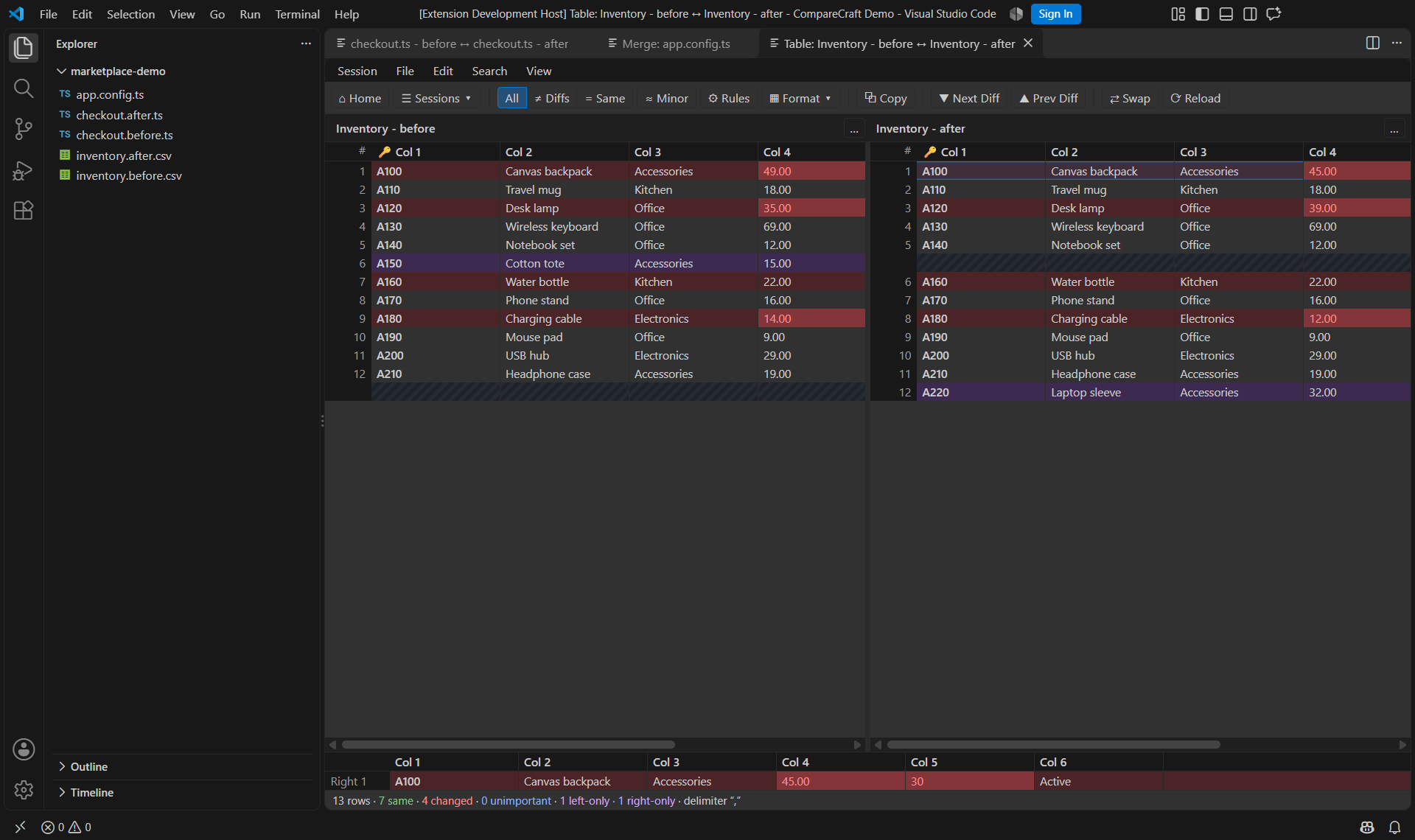
Compare CSV data side by side
Requirements
- VS Code 1.95 or newer on local Windows, macOS, or Linux desktop.
- An installed CompareCraft desktop app
from the same release line as the extension.
- A trusted local workspace. Remote SSH, WSL, Dev Containers, browser-only hosts,
and virtual workspaces are not supported.
- Git installed and available to VS Code for Git comparisons and conflict resolution.
Get started
- Install the CompareCraft desktop app. Standard installations are detected
automatically. For a portable or custom installation, run CompareCraft:
Locate Desktop Executable... from the Command Palette.
- Select two files in Explorer, right-click, and choose CompareCraft >
Compare Selected....
- Review the differences in a CompareCraft tab. Text files can be edited and
saved directly; images, binary files, and tables open read-only.
To compare folders, use CompareCraft: Compare Folder With.... You will be
asked before the desktop app opens.
Compare files and folders
Right-click resources in Explorer, a text editor, or an editor tab and open the
CompareCraft submenu. All commands are also available in the Command Palette.
| Command |
Behavior |
| Compare Selected... |
Compares two selected files or folders. With one selected item, asks for the other. |
| Compare Selected in VS Code |
Opens a file comparison in a VS Code tab. |
| Compare Selected in Desktop App |
Opens a comparison in the desktop app. |
| Select Left File or Folder |
Remembers an item to compare later. |
| Compare with Selected Left... |
Compares the current item with your remembered selection of the same type. |
| Clear Left Selections |
Clears both remembered selections. |
| Compare File With... |
Picks another file to compare with the selected or active file. |
| Compare Folder With... |
Picks another folder to compare with the selected folder. |
| Compare Parent Folder With... |
Compares the selected file's parent directory against a chosen folder. |
| Open Desktop App |
Opens CompareCraft's home view directly. |
Compare two different files or two different folders, not a file against a
folder. Remembered selections last until cleared or VS Code restarts.
Compare editor text
Right-click inside an editor (including untitled ones) and open CompareCraft:
| Command |
Behavior |
| Compare with Saved |
Compares your unsaved edits with the saved file. The saved side is read-only. |
| Select Text as Left |
Remembers selected text, or the whole document when nothing is selected. |
| Compare Text with Left |
Compares selected text or the whole document with the remembered text. |
| Compare Selection with Clipboard |
Compares selected text or the whole document with your clipboard. |
| Open Active Diff in Desktop App |
In a VS Code diff editor (including Git diffs), opens the same two sides in CompareCraft. Available from the diff editor's ... menu. |
Your unsaved edits are included and never saved automatically. In desktop
mode, unsaved text opens as a read-only copy labeled (unsaved buffer); edits
to that copy cannot be saved back to VS Code. Save or revert unsaved files
before comparing their folders.
Git comparisons and conflicts
Git commands are in the CompareCraft > Git submenu for files (Explorer and
editor) and in the CompareCraft submenu of the Source Control view's context
menu for changed files:
| Command |
Behavior |
| Compare with HEAD |
Last commit vs working file (or its unsaved buffer). |
| Compare Index with Working Tree |
Staged version vs working file. |
| Compare HEAD with Index |
Last commit vs staged version. |
| Compare with Revision... |
Pick a recent commit and compare it with the working file. |
| Resolve Conflict in VS Code |
Opens Current, Base, Incoming, and an editable Result in a three-way merge tab. |
| Resolve Conflict in Desktop App |
The same three-way merge in the desktop app. |
| Stage Resolved Conflict... |
Stages the resolved file after confirmation. |
| Configure as Git Merge/Diff Tool... |
Opt-in setup so git mergetool / git difftool in a terminal use CompareCraft. |
| Remove Git Tool Configuration... |
Restores the Git settings changed by the command above. |
Only the Result is saved in a merge tab; Current, Base, and Incoming are
read-only. Save or revert unsaved edits in the file's normal editor before
resolving its conflict.
Conflict labels describe the actual operation instead of "ours/theirs". During a
merge, Current is your branch and Incoming is the branch being merged. During
a rebase, Current is the new base plus commits already replayed, and Incoming
is the commit being replayed. Cherry-pick, revert, and stash-apply conflicts are
also supported.
Safety rules:
- The extension never commits, continues, skips, or aborts a merge, rebase,
or cherry-pick. After staging, continue from Source Control or the terminal.
- Staging always asks for confirmation, warns about leftover conflict markers,
and is refused if the Git conflict state changed while you were resolving it.
- Binary, symbolic link, submodule, and modify/delete (or rename) conflicts are
refused with an explanation. Resolve those with Git directly (
git add/git rm).
Git settings change only when you run Configure as Git Merge/Diff Tool...
and confirm. To undo that setup, run Remove Git Tool Configuration... before
uninstalling the extension.
Editing and saving
- Text comparisons include your current VS Code edits. Save in the CompareCraft
tab to save the corresponding file through VS Code. Saved versions, Git
revisions, and clipboard text are read-only.
- If a file changes elsewhere, saving is refused to prevent overwriting newer
work. Reload the side first. For merge tabs, save or revert edits in the normal
editor, then click Refresh before saving the result.
- Switching tabs keeps your comparison and merge work intact.
- Closing an unsaved tab offers Restore Comparison or Open as Untitled
so you can recover your edits. Reloading the window also restores open tabs.
Settings
| Setting |
Default |
Meaning |
comparecraft.defaultMode |
embedded |
Open comparisons in a VS Code tab (embedded) or the desktop app (desktop). Commands named "in Desktop App" always use the desktop app. |
comparecraft.desktopPath |
empty |
Path to the desktop executable for a custom installation. Usually set with Locate Desktop Executable.... |
comparecraft.backendPath |
empty |
Advanced: override the path to the helper used for VS Code tabs. Normally detected automatically. |
Executable paths must be set in your User settings, not workspace settings.
Comparison preferences inside VS Code are separate from the desktop app's settings.
Troubleshooting
Open View > Output and pick CompareCraft for launch commands, helper
start-up, and errors.
| Symptom |
What to do |
| "CompareCraft is not installed" |
Install the desktop app, or run Locate Desktop Executable... for portable/AppImage/custom installs. |
| A comparison tab fails to open |
Run CompareCraft: Check Embedded Backend from the Command Palette. Update the desktop app to match your extension version, then reopen the comparison. |
| A view offers to open in the desktop app |
Your installed app does not support that view inside VS Code yet. Update CompareCraft. |
| Commands are missing or disabled |
Trust the workspace; remote and virtual workspaces are not supported. |
| Save in a CompareCraft tab is refused |
The file changed in an editor or on disk after the tab loaded it, or (merge tabs) the result file has unsaved edits elsewhere. Save or revert, click Refresh, then save. |
| Resolve Conflict is refused |
Binary, symbolic link, submodule, and modify/delete conflicts must be resolved with Git directly. |
| Git's terminal tools do not use CompareCraft |
Run Configure as Git Merge/Diff Tool... for the repository, and rerun it if you move the desktop app. |
Known limitations
- Local desktop workspaces only; remote and virtual workspaces are not supported.
- Folder comparison, sync, and merge open in the desktop app, after confirmation.
- Binary (Hex), CSV/TSV (Table), Picture, and Patch views are read-only inside
VS Code. Table and Picture views support files up to 64 MB.
- Unsaved files, Git revisions, and clipboard content are always compared as text.
- Sessions, reports, backups, and Open With are not available inside VS Code.
Support
Report problems or request features in the
CompareCraft issue tracker.
Include your operating system, VS Code version, CompareCraft version, and the
relevant error from the CompareCraft Output channel. Review logs for private
file paths or content before sharing them.

