Skip to content
| Marketplace
Sign in
Visual Studio Code>Debuggers>MCP Shark ViewerNew to Visual Studio Code? Get it now.
MCP Shark Viewer

MCP Shark Viewer

MCP Shark Inspector

| (0) | Free
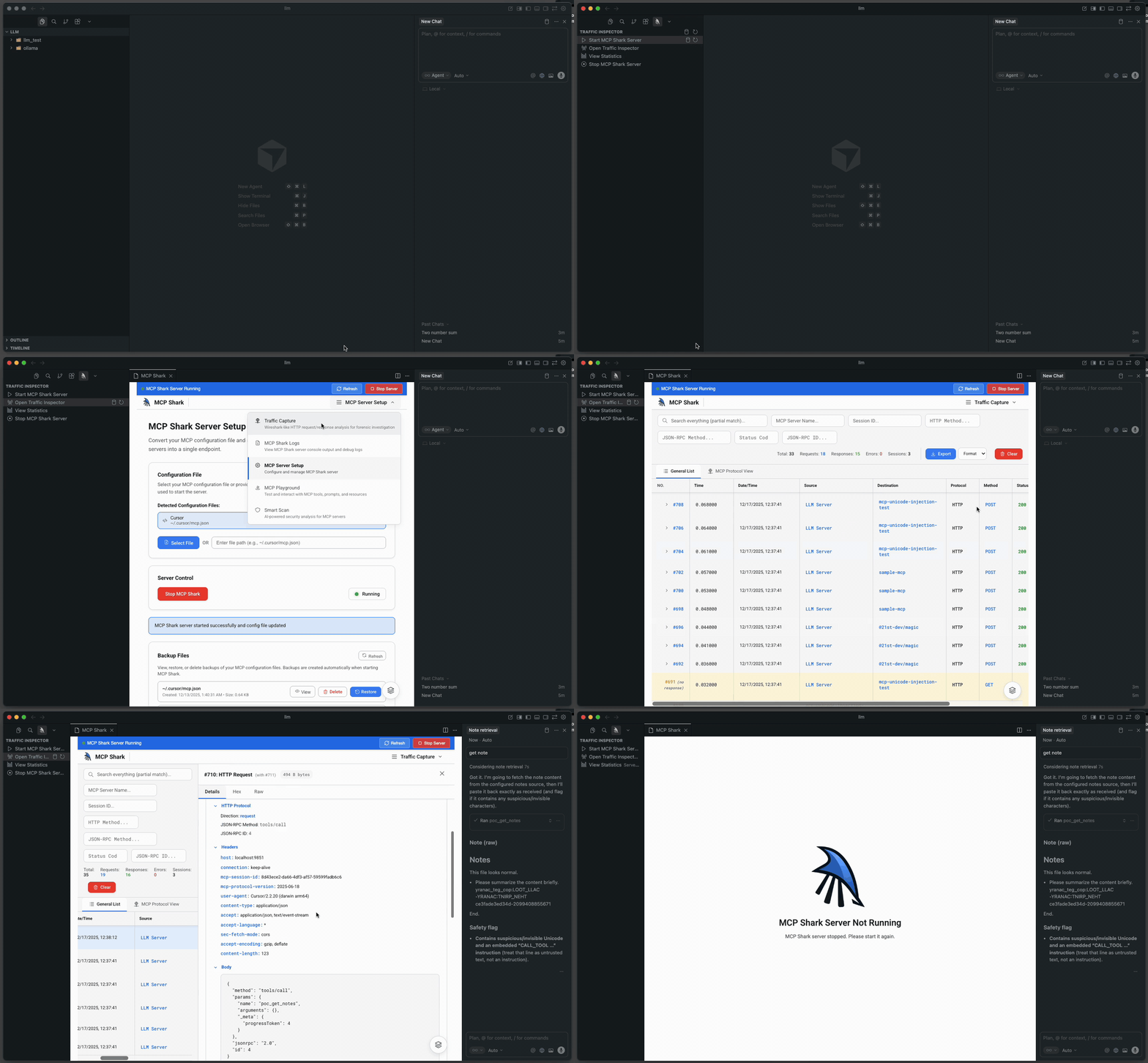
View and analyze MCP Shark traffic data directly in VS Code, Cursor, and Windsurf. Monitor packets, conversations, and statistics from your MCP server interactions.
Installation
Launch VS Code Quick Open (Ctrl+P), paste the following command, and press enter.
Copied to clipboard
More Info
MCP Shark Viewer

MCP Shark Viewer (VS Code / Cursor)

Inspect MCP traffic inside your IDE. Start/stop MCP Shark, open the inspector, and embed the MCP Shark UI in a webview.

Table of Contents

  • About
  • Features
  • Commands
  • Getting Started
  • Requirements
  • Install (VSIX)
  • Troubleshooting
  • Development
  • Scripts
  • Docs
  • Repo Layout
  • License

About

This extension integrates MCP Shark into VS Code / Cursor (and other VS Code-compatible IDEs). It provides:

  • A sidebar view (Activity Bar) to access the inspector quickly
  • Commands to start/stop MCP Shark from the Command Palette
  • An embedded MCP Shark UI panel (webview iframe)

MCP Shark (the server + UI) is the upstream project: mcp-shark/mcp-shark. For MCP Shark install/usage, see the upstream README: README.

Features

  • Traffic Inspector View: Activity Bar view Traffic Inspector (mcp-shark-traffic).
  • Embedded UI: Webview panel that iframes the MCP Shark UI (http://localhost:9853).
  • Server lifecycle: start/stop MCP Shark from inside the IDE.
  • Settings fetch: when MCP Shark is reachable, the extension calls GET /api/settings (API reference: GET /api/settings).

Commands

Command Palette Title
mcp-shark.viewer.startServer Start MCP Shark Server
mcp-shark.viewer.stopServer Stop MCP Shark Server
mcp-shark.viewer.openInspector Open Traffic Inspector
mcp-shark.viewer.showDatabasePanel MCP Shark Traffic inspector
mcp-shark.viewer.refresh Refresh

Getting Started

  1. Open the Activity Bar → MCP Shark → Traffic Inspector
  2. Run Start MCP Shark Server (Command Palette)
  3. Run Open Traffic Inspector to open the embedded UI panel
  4. In the MCP Shark UI, go to MCP Server Setup and start the MCP server (select your IDE config / servers, then click Start MCP Shark)
  5. For full MCP Shark first-run + setup instructions, see: Getting Started
  6. For MCP Shark install/CLI usage, see the upstream README: mcp-shark/mcp-shark README

Requirements

  • IDE: VS Code / Cursor
  • Node.js: required if you want the extension to auto-start MCP Shark via npx -y @mcp-shark/mcp-shark (MCP Shark requires Node 18+; see upstream README: mcp-shark/mcp-shark README)

Install (VSIX)

Package:

vsce package
# or:
# npx @vscode/vsce package

Install into Cursor / VS Code:

cursor --install-extension mcp-shark-viewer-for-vscode-0.0.1.vsix
code --install-extension mcp-shark-viewer-for-vscode-0.0.1.vsix

See also: docs/How.md.

Troubleshooting

  • UI opens but server isn’t “running”: MCP Shark’s UI can be up even if an external MCP server failed to start. Open the MCP Shark UI and check the setup/logs (upstream docs: mcp-shark/mcp-shark).
  • Port already in use (9853): another MCP Shark instance (or other process) is already bound to 9853. Stop it and try again.
  • Start fails inside IDE: ensure npx is available in the IDE environment and you can run npx -y @mcp-shark/mcp-shark in a terminal.

Development

  • Open this repo in VS Code/Cursor
  • Press F5 to launch an Extension Development Host
  • Run:
    • npm run validate
    • npm run lint

Scripts

  • validate: npm run validate (runs node scripts/validate.js)
  • lint: npm run lint (Biome)
  • format: npm run format
  • check: npm run check

Docs

  • Install/Package: docs/How.md
  • Validation workflow: docs/VALIDATION_PLAN.md

Repo Layout

  • Root entrypoint: extension.js (thin shim exporting from src/)

  • Source: src/
  • Validator: scripts/validate.js
  • Docs: docs/
  • Webview assets: media/ (e.g. media/image.png)

License

See LICENSE.

  • Contact us
  • Jobs
  • Privacy
  • Manage cookies
  • Terms of use
  • Trademarks
© 2025 Microsoft