Lutrin — Markdown Presentations
Write your deck in Markdown, watch it compose itself beside the text, and
export a PowerPoint anyone can retouch.
No coordinates, no CSS, no theme to wire up: the engine — not you — decides
the layout. You write intent and content; Lutrin places the blocks,
guarantees legibility, and paginates whatever doesn't fit. Change the numbers,
save, and the deck relays itself.
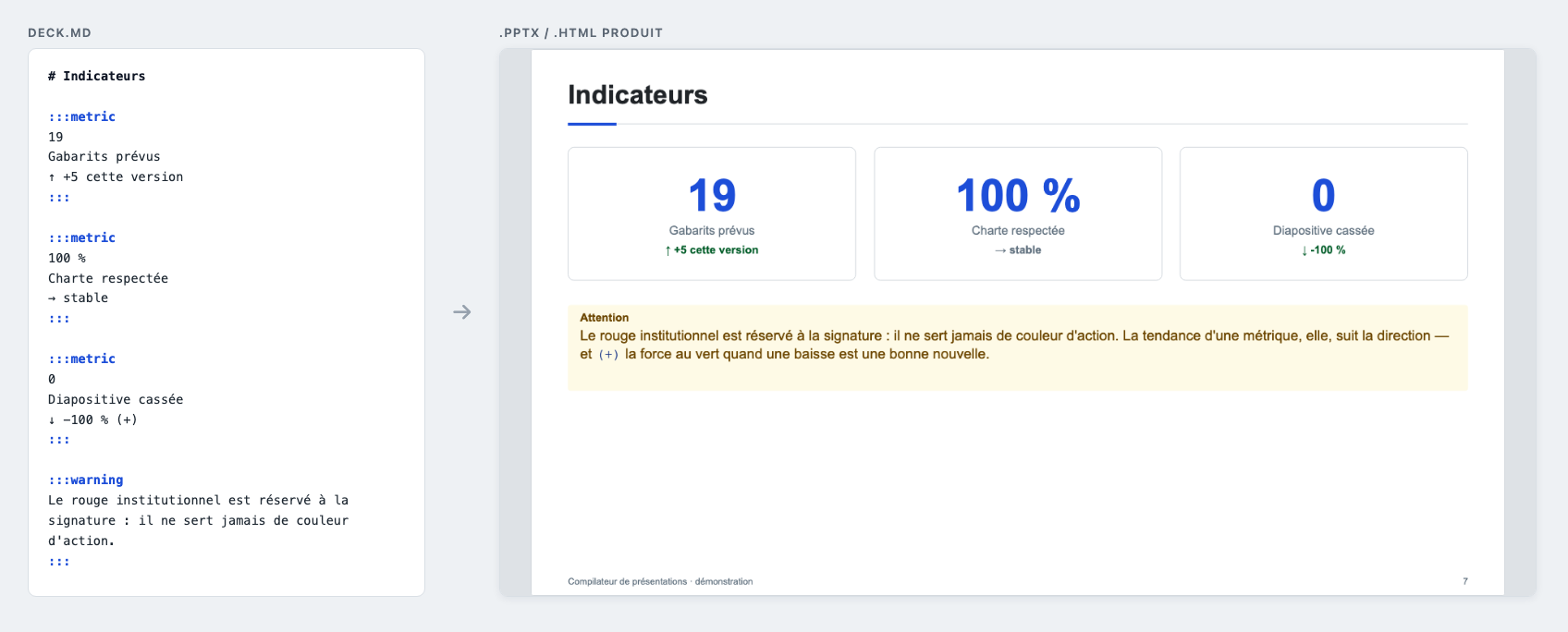
See a live deck → compiled from
one Markdown file,
recompiled on every push. Or
try the compiler in your browser
before installing anything.
Why you'll like it
- ⚡ Live preview that follows you. The panel recompiles as you type and
tracks your cursor from slide to slide; only the slides whose rendering
changed are replaced, so scrolling and animation state survive. Click a
slide to step through its reveals, exactly as PowerPoint will play them.
- 🩺 A deck doctor, not a spell-checker. Measured overflows, unknown
layout or effect names, under-resolved images, structure suggestions —
underlined on the exact line, without opening the preview. The compiler's
"did you mean…?" suggestions become one-click quick fixes.
- 📤 A genuinely editable
.pptx. Text stays text, tables stay tables,
reveal animations become native PowerPoint animations, LaTeX becomes real
OMML equations you can click into, diagrams become shapes a presenter can
select, Mermaid arrives as crisp high-resolution images. Nothing is
flattened into one picture per slide.
- 🧱 The blocks a corporate deck kept redrawing by hand. Charts, metrics,
progress tracks, status badges, task lists, a matrix, a heat map, a
scorecard, a generated agenda, a provenance line — twenty-four official
layouts, all from plain text. And because the rules that pick a layout are
versioned, a deck can pin the set it was written against (
inference:)
while the problems panel names the slides a newer set would place
differently.
- 🎨 Brand kits. Colors, fonts, logos and layouts come as installable
kits; the same kit styles the CLI, the preview and the export. One deck,
any brand, zero edits to the Markdown.
- 🌍 The deck speaks your language.
lang: fr in the frontmatter puts the
words the engine writes into French — the callout labels, the "(suite)" of
a paginated slide, the title of a generated agenda — in the preview and in
the export alike, and the exported .pptx opens spell-checked in French
rather than underlined in red from end to end.
- 🔁 Marp compatible. A deck written for Marp
compiles as it is —
marp: true in the frontmatter switches the parser to
the Marp dialect, and every directive without a Lutrin equivalent is
reported, never silently lost.
Getting started
- Run "Lutrin: New Presentation" (command palette) — it opens a small
deck that already compiles, preview beside the text.
- Or open any Markdown file and run "Lutrin: Show Presentation Preview"
(editor title icon, or
Ctrl+K L / Cmd+K L).
- Export with "Lutrin: Export to PowerPoint (.pptx)" — also in the
Explorer right-click on any
*.deck.md.
A file is treated as a deck (automatic diagnostics) if it matches the
lutrin.files glob (**/*.deck.md by default), if it carries deck: true
in its frontmatter, or if the preview has been opened on it during the
session. The full DSL — layouts, columns, callouts, metrics, charts,
animation — is documented in the
DSL reference.
Settings
| Setting |
Default |
Effect |
lutrin.files |
**/*.deck.md |
glob of the files validated automatically |
lutrin.debounceMs |
300 |
delay between typing and recompiling the preview |
lutrin.defaultKit |
(empty) |
default kit for this editor, for decks that designate none |
lutrin.updateUrl |
(empty) |
VSIX-only: https URL of an update manifest; empty = feature disabled |
lutrin.defaultKit accepts the name of a kit installed in
~/.config/lutrin/kits/, the path of a kit directory, that of a .json
file, or none. It is the weakest level of precedence: the frontmatter
kit:, the project default (package.json) and the user default
(lutrin config) all take priority — the document always wins.
In untrusted workspaces
the preview, diagnostics and export all work; lutrin.defaultKit and
lutrin.updateUrl are read from your user settings only, never from the
workspace.
The same compiler, everywhere
The extension hosts the compiler, it does not reimplement it. The same engine
runs as a CLI on npm
(npx lutrin build deck.md -o deck.pptx, -o handout.pdf for a PDF,
lutrin validate --json for CI and agents), as an
Agent Plugin with an
MCP server, and in the browser —
what is green here is green everywhere.
Installing outside the Marketplace
Each release also ships as a VSIX. From a clone of the repo:
npm install                    # at the root of the monorepo
npm run vsix -w lutrin-vscode  # → lutrin-vscode-<version>.vsix (+ latest.json)
Then, in VS Code: command palette → "Extensions: Install from VSIX…".
VS Code ≥ 1.90 is required.
VS Code does not update an extension installed from a VSIX by itself. For a
team distributing the VSIX by its own means, the extension ships a checker:
publish the .vsix and the latest.json generated with it in the same
place, over https, then point lutrin.updateUrl at the manifest URL. The
extension checks on activation and then once a day, verifies the sha256
digest before installing, and offers "Update". Manual command: "Lutrin: Check
for Updates". Its limits are described in
SECURITY.md.
A brand kit can be embedded in the VSIX at build time — see
CONTRIBUTING.
Contributing
The extension host never compiles: everything goes through a dedicated Node
worker shipped by the core (packages/core), and the preview is a webview
updated by postMessage. To develop: open
the repository in VS Code and press
F5 — the build task assembles dist/ with the core symlinked, and a
"Reload Window" is enough to see changes made to the compiler.

