Skip to content
| Marketplace
Sign in
Visual Studio Code>SCM Providers>AtriaNew to Visual Studio Code? Get it now.
Atria

Atria

Lovervoid

|
2 installs
| (1) | Free
Your workspace at a glance. No more endless tree: one folder at a time in columns, and every project's git on its own card
Installation
Launch VS Code Quick Open (Ctrl+P), paste the following command, and press enter.
Copied to clipboard
More Info

Atria

Your workspace at a glance. No more endless tree.

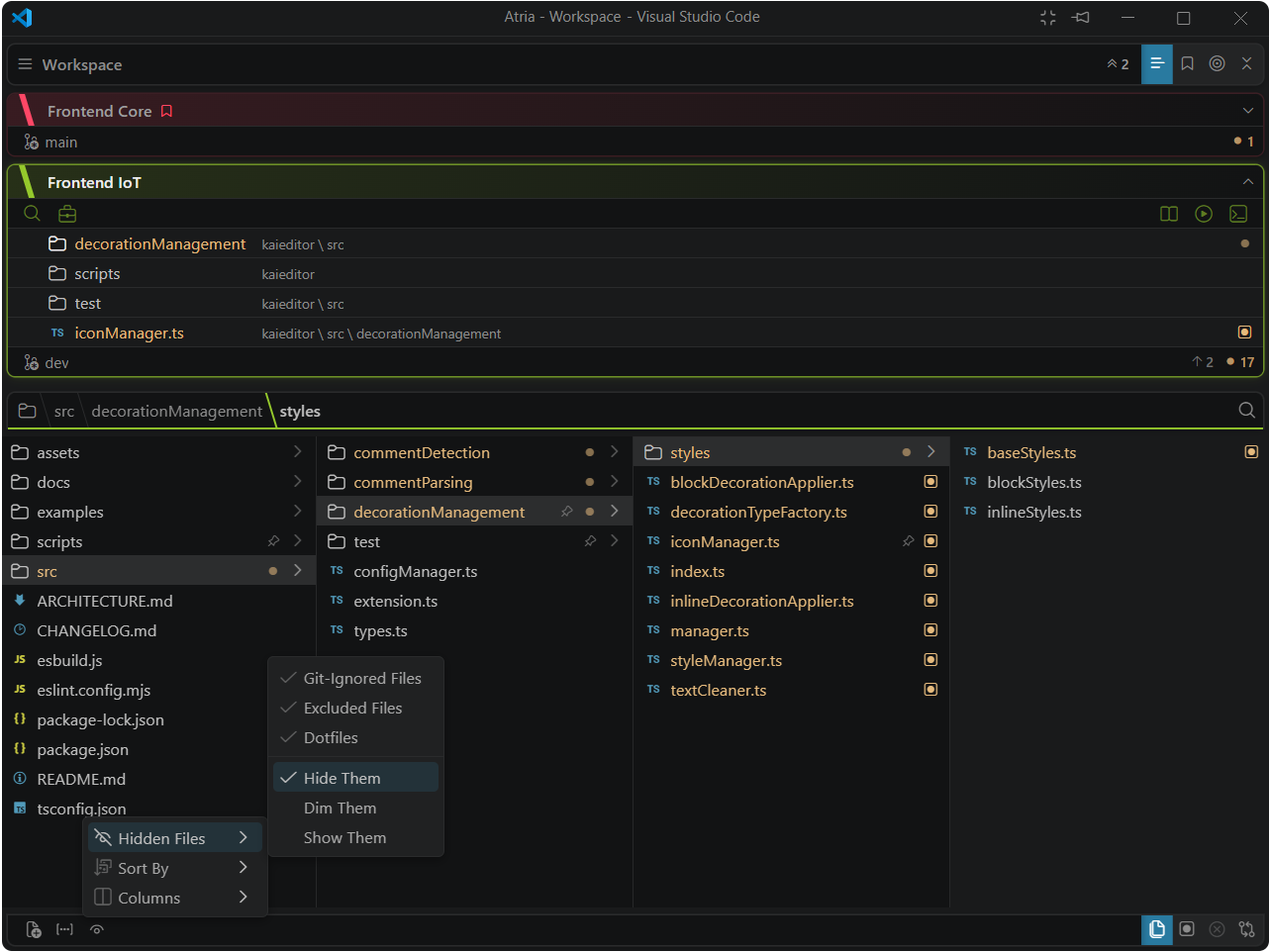
Atria swaps VS Code's tree for columns. You get one folder, filling the panel, instead of your current directory buried six indents deep. Click in. Click back.

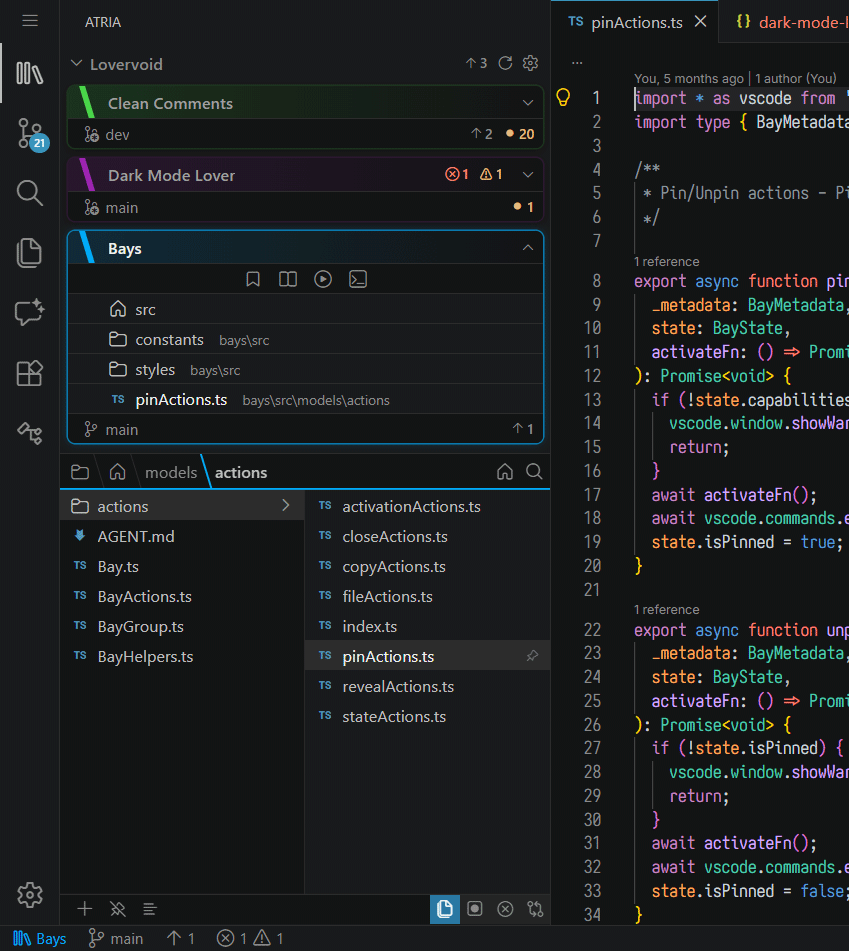
A card per project (branch, counts, pinned files) above two columns of the listing

Above the listing sits a card for every project in your window: its branch, what git has to pull and push, and what's broken inside it. VS Code's status bar tells you about one repository. Atria tells you about all of them.

It's a complete file manager too (create, rename, move, copy, delete, drag and drop, cut and paste, undo), so you can close the explorer and not miss it.

Every project, at once

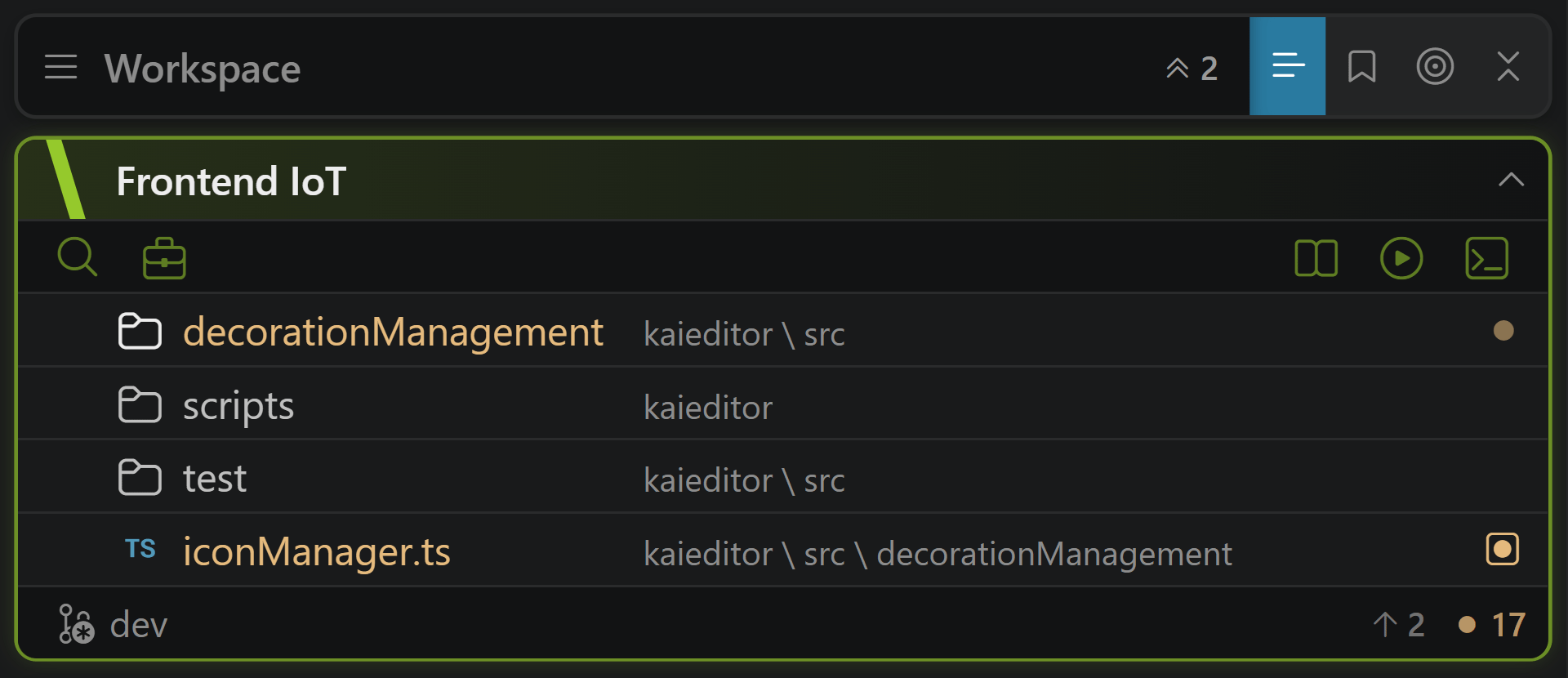
This is the part you can't get anywhere else. One card per workspace folder, and each one reports for itself:

  • The branch, with a glyph for the state of the tree: clean, dirty, staged, or in conflict.
  • A chip counting what there is to pull, push and commit. Each section is a button: pull and push run right there, and a branch with no upstream offers to publish it.
  • Errors and warnings beside the name, opening the Problems panel.
  • Your pins, each on the card of the repository that holds it.
  • A row of buttons opening that project's documentation, its tasks, or a terminal at its root.

Hover the branch bar and you get the whole thing in words, plus the last three commits, the remote, and where the folder lives on disk.

Right-click the branch for the rest of git: create, merge, rebase, stash, fetch, push to… And the branch name is the checkout button.

Telling three projects apart

Open three repositories and half your files are called index.ts. So:

  • Give each project a colour. It paints the card and the accent line under the path bar, so you always know which one you are in.
  • Give it an alias when two clones share a name.
  • Set a home folder and the card starts there, with the path bar folding away everything above it.

Click a heading to jump to that project. Atria takes you back to where you left it, and switches VS Code's active repository with you.

With a lot of repositories open, fold them: one card, or the whole band at once. The section never scrolls, so folding is how the columns get their space back, and it survives a reload.

Columns that fit the panel

A sidebar of ordinary width shows one column, which is the view you already know. Widen it and the folders above appear beside it, so ← and → walk a strip that is already on screen.

Nothing to configure: the width decides.

Turn on navigator.animations and the strip slides as you walk in and out. It is off by default, and it honours workbench.reduceMotion.

The path bar across the top is all places you can go: every step, never truncated, and every one of them takes a drop.

Search that knows about folders

Ctrl+F, and the path bar turns into a search box.

It finds folders as well as files, which Quick Open will not do and which a view showing one level at a time needs most. Type a few letters and press Enter: the first hit comes selected.

No fuzzy matching. What you type appears in the name, whole, with the match highlighted. You never get a list you have to read to dismiss.

Cutting the listing down

One switch, four steps, and you can always see which one you are on:

  • Everything: the way back.
  • Changed: what you have touched, plus the folders on the way to it.
  • Problems: what is broken. The same source as the Problems panel.
  • This branch: everything the branch has changed since it left its base. That is a pull request's file list, in your columns, and the mark on each row opens that file's diff against the base rather than against HEAD.

A step greys itself out when it has nothing to show, and if a filter empties the folder you are standing in, Atria moves you somewhere that still has content.

All of it is remembered per project, and none of it is written into your repository.

The rest of it

  • Every file is coloured by its state (errors, warnings, git, unsaved), and a folder takes the colour of the worst thing inside it. In a view that shows one level at a time, that is the only way to see an error three folders down.
  • Icons come from your icon theme, whichever one you use.
  • The keyboard works properly: arrows, type-ahead, Enter, F2, Delete and the clipboard keys, and a screen reader reads it.
  • Rest the cursor on a row and it shows you what is there without going.
  • Take the view out to its own window, the way VS Code's chat window opens. It keeps driving the editors you already had.
  • Put the active project on the status bar, or tint VS Code's own chrome with its colour.

Before you switch

Replacing your explorer is a real commitment, so here is what Atria does not do:

  • On macOS a delete cannot be undone. On Windows and Linux Ctrl+Z brings it back from the system trash, a whole folder in one piece. The macOS trash keeps its metadata private, so there the step tells you it cannot.
  • Nothing crosses the application boundary. Files copied in Finder or File Explorer cannot be pasted in, and nothing drags in from outside or out into the editor area. A webview reaches neither clipboard.
  • Search is by name, not by content, and it does not list empty folders. Find in Folder… hands that to VS Code's Search view with the scope set.
  • The editing keys are not rebindable (F2, Delete, Ctrl+C/X/V/A/D). They are handled inside the view.
  • No Open With, file nesting, or compact folders. On a virtual workspace and in Restricted Mode everything still browses and edits, but the parts that need a real filesystem stand down.

Getting started

Install it, click the stack of books in the activity bar, and that is all. Atria opens on the folder of the file you have open and follows you from there.

Settings live under the navigator. prefix, because the extension was called Navigator before it was published and the keys kept the name, so nothing you had stored or bound would move. Filter the settings UI to @ext:Lovervoid.atria, or open View Options… from the gear at the head of the view.

The UI follows VS Code's display language and ships in English, Spanish, Japanese and Simplified Chinese.

Questions and bug reports: the Q&A tab on this listing.

License

MIT.

  • Contact us
  • Jobs
  • Privacy
  • Manage cookies
  • Terms of use
  • Trademarks
© 2026 Microsoft