Quick Search (IntelliJ & Eclipse Style)
A high-performance, developer-friendly search tool that brings the style and functionality of both IntelliJ's "Find in Files" and Eclipse's "Search dialog" directly into VS Code. Toggle between IntelliJ and Eclipse styles with a single click, customize search scopes dynamically, and enjoy real-time previews.
VS Code 내에서 IntelliJ의 'Find in Files'와 Eclipse의 'Search 대화상자' 스타일을 모두 사용할 수 있도록 지원하는 고성능 텍스트 검색 확장 프로그램입니다. 클릭 한 번으로 스타일을 전환하고, 검색 범위를 동적으로 필터링하며, 실시간 소스 코드 미리보기를 지원합니다.
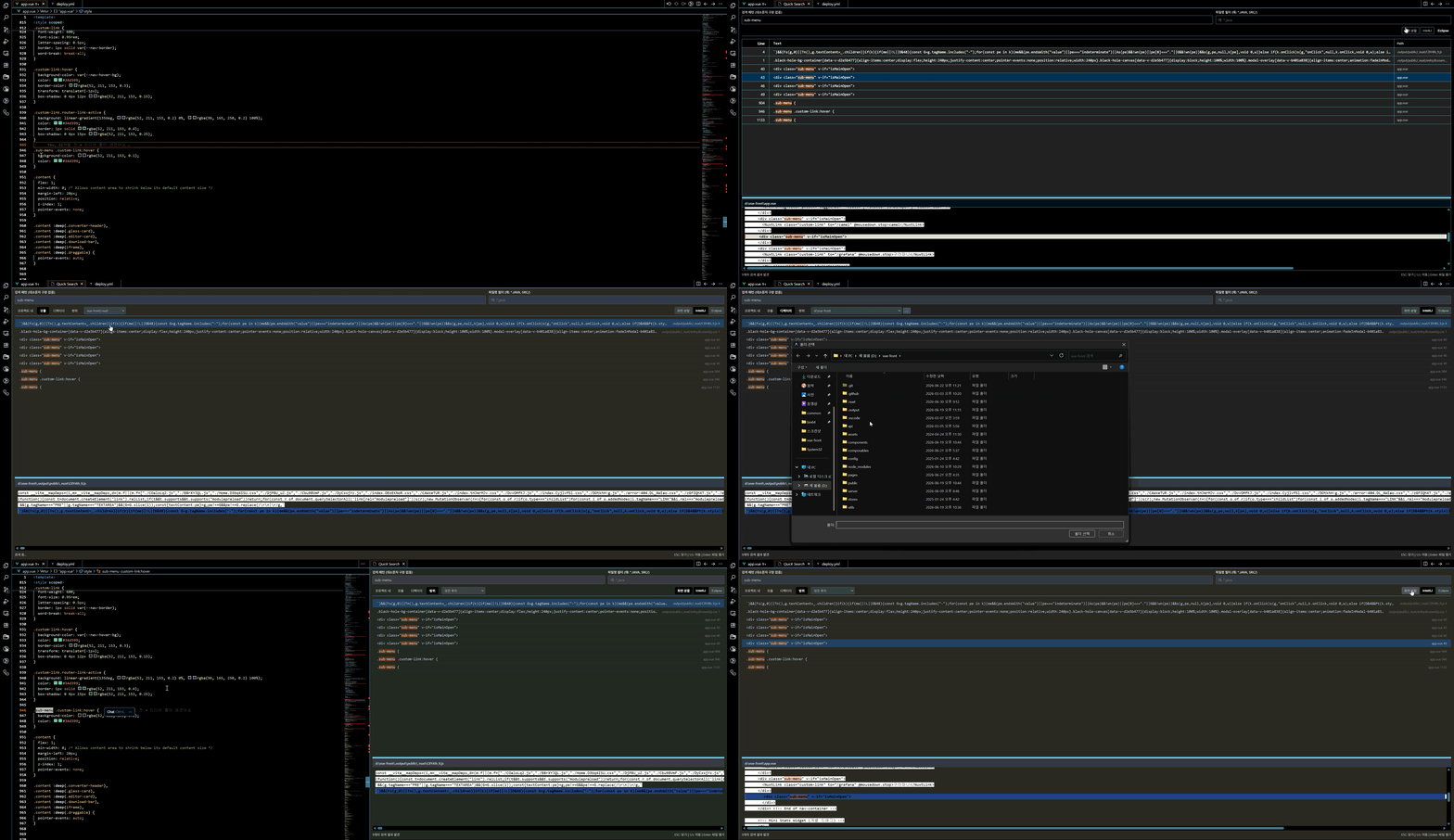
1. English Description
Key Concept
VS Code's default search can sometimes feel cluttered or hard to navigate. Quick Search offers a dedicated, floating-like Webview Editor search interface. Whether you prefer the double-column row-list representation of IntelliJ IDEA or the classic, tabular grid structure of Eclipse, this extension gives you the best of both worlds.
Features
- Style Toggle: Seamlessly switch between IntelliJ style (clean, double-column layout showing code on the left and paths on the right) and Eclipse style (classic tabular list structure).
- Smart Drag Highlight: When opening a search result, the target keyword is automatically selected/highlighted as if you dragged it with your mouse, allowing you to locate code immediately.
- Dynamic Screen Split (Keep Open): Turning on the "Screen Split" toggle instantly opens/docks the search tab on the right side (
ViewColumn.Beside). This allows you to explore files in the left editor continuously without closing the search interface. Turning it off merges it back to the main editor group.
- Smart Scope Filters:
- In Project: Scan the entire workspace.
- Module: Search within targeted workspace subdirectories (modules) selected from a dynamic dropdown.
- Directory: Limit search scopes to specific parent folders. Click the browse
[...] button to choose any directory via the system dialog.
- Scope: Perform fine-grained searches within custom scopes: "All Places", "Project Files", "Production Files" (excluding tests), "Test Files" (containing tests/specs), or "Recently Viewed Files" (open editor tabs).
- Real-time Live Preview: View highlighted search hits inside an inline code preview panel instantly as you navigate.
- State Persistence: Your chosen search options (style mode, preview heights, dock mode, scopes, and dropdown values) are permanently saved and restored when reopening the panel.
- Keyboard Friendly: Navigate search results easily using standard hotkeys (
Arrow Up/Down for moving, Enter to open files, ESC to close).
- Improved UI Contrast: Inactive and active button states are clearly distinguished with bold highlights and high-contrast styling for both IntelliJ and Eclipse modes.
- English & Korean Support: Supports English and Korean localization, automatically aligning with your VS Code language settings.
2. 한국어 설명 (Korean Description)
주요 개념
기존 VS Code의 검색 창이 다소 번잡하거나 불편하게 느껴지셨다면, Quick Search가 최적의 대안입니다. 독립된 웹뷰 에디터 창을 통해 검색 결과를 다룰 수 있으며, IntelliJ 특유의 2열 리스트(좌측 코드, 우측 파일 정보) 및 Eclipse 특유의 깔끔한 테이블 그리드 구조 중 원하는 레이아웃을 마음대로 고를 수 있습니다.
제공 기능
- 디자인 스타일 토글: 클릭 한 번으로 IntelliJ 스타일(좌측 코드 매칭 라인, 우측 경로 및 줄 번호 정렬)과 Eclipse 스타일(친숙한 테이블 격자 구조)을 자유롭게 전환할 수 있습니다.
- 스마트 드래그 하이라이트: 검색 결과를 엔터 또는 더블클릭으로 열었을 때, 매칭되는 검색 키워드가 에디터 상에서 마우스로 드래그 선택된 것처럼 자동으로 강조 처리되어 단어의 위치를 즉시 확인할 수 있습니다.
- 실시간 동적 화면 분할: "화면 분할" 버튼을 활성화하는 즉시 검색 탭이 우측 분할 영역(
Beside)으로 알아서 이동해 자리를 잡습니다. 검색 패널을 닫지 않고도 왼쪽 영역에서 클릭한 소스 코드를 빠르게 넘나들며 볼 수 있으며, 버튼을 끄면 다시 기존 단일 탭 그룹으로 즉시 자동 병합됩니다.
- 스마트 검색 범위 필터:
- 프로젝트 내: 워크스페이스 전체 영역을 스캔합니다.
- 모듈: 드롭다운에서 선택한 1레벨 서브디렉터리(모듈) 범위 내에서만 검색합니다.
- 디렉터리: 특정 디렉터리를 설정하여 한정 검색합니다.
[...] 찾아보기 버튼을 통해 로컬 폴더를 직접 지정할 수도 있습니다.
- 범위: 세분화된 스코프 필터를 지원합니다. ('모든 위치', '프로젝트 파일', '프로덕션 파일' (테스트 파일 제외), '테스트 파일' (Spec/Test 포함), '최근에 본 파일' (열린 에디터 탭))
- 실시간 소스 코드 미리보기: 결과를 선택하거나 방향키로 이동할 때마다, 소스 코드가 가로지르는 매칭 구문을 노란색 하이라이팅 표시와 함께 실시간 중앙 스크롤(
scrollIntoView)로 프리뷰합니다.
- 설정 영구 보존: 마지막으로 선택한 디자인 스타일, 화면 분할 활성화 여부, 프리뷰 창의 높이, 검색 탭, 상세 드롭다운 데이터가 에디터나 브라우저를 껐다 켜도 완벽히 기억 및 복원됩니다.
- 시인성 개선 토글 버튼: 토글 버튼들의 활성/비활성 테두리 대비와 색상을 명확하게 개선하여 현재 켜진 옵션이 무엇인지 한눈에 쉽게 구별할 수 있습니다.
- 키보드 중심 단축키 조작: 마우스를 쓰지 않고도 단축키(
Ctrl+Shift+L 또는 Cmd+Shift+L)로 검색창을 열고, 방향키(↑/↓) 이동 및 Enter(해당 파일의 타겟 라인으로 이동 후 열기)를 통해 매우 빠른 조작이 가능합니다.
- 한국어 및 영어 지원: 한국어와 영어 두 가지 언어만 공식 지원하며, VS Code의 언어 설정에 맞춰 자동으로 연동됩니다.
| |

