Lecnar Memory Sync
Don't remember where you left off. Let your editor do it for you.
🇪🇸 Leer en español
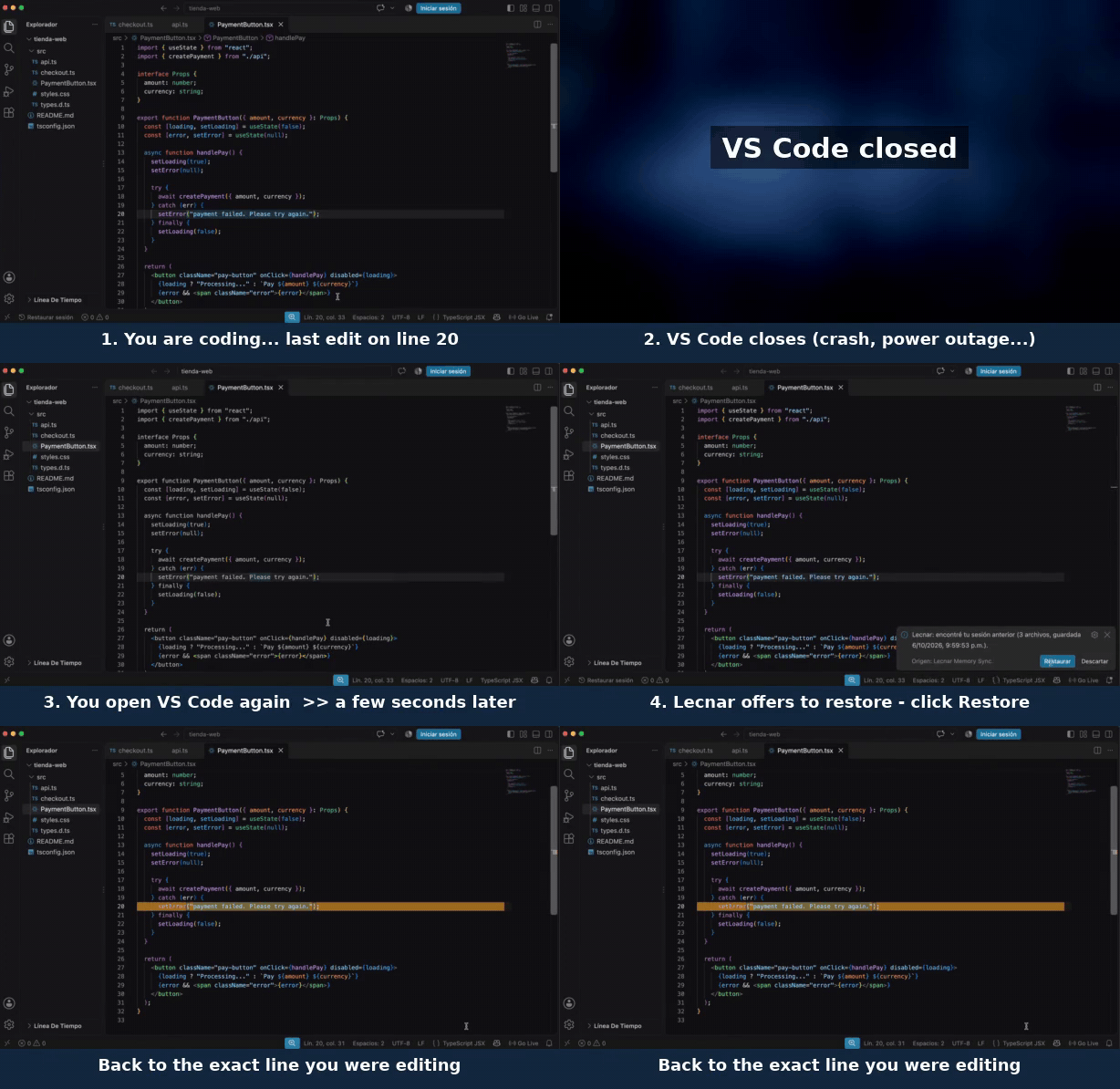
VS Code restores your files. Lecnar Memory Sync restores where you were: the exact line you were editing, a heatmap of where you worked, and the reference pages you had open.
It saves your session automatically in the background. After a crash, a power outage or just a long break, you get a Restore button — like "Restore pages" in your browser.
Why I built it
I live in the Dominican Republic, where the power goes out more often than I'd like. VS Code always brought my files back, but I kept losing my train of thought: which line I was on, which docs I was reading, what I was in the middle of. Lecnar Memory Sync fixes that.
✨ Features
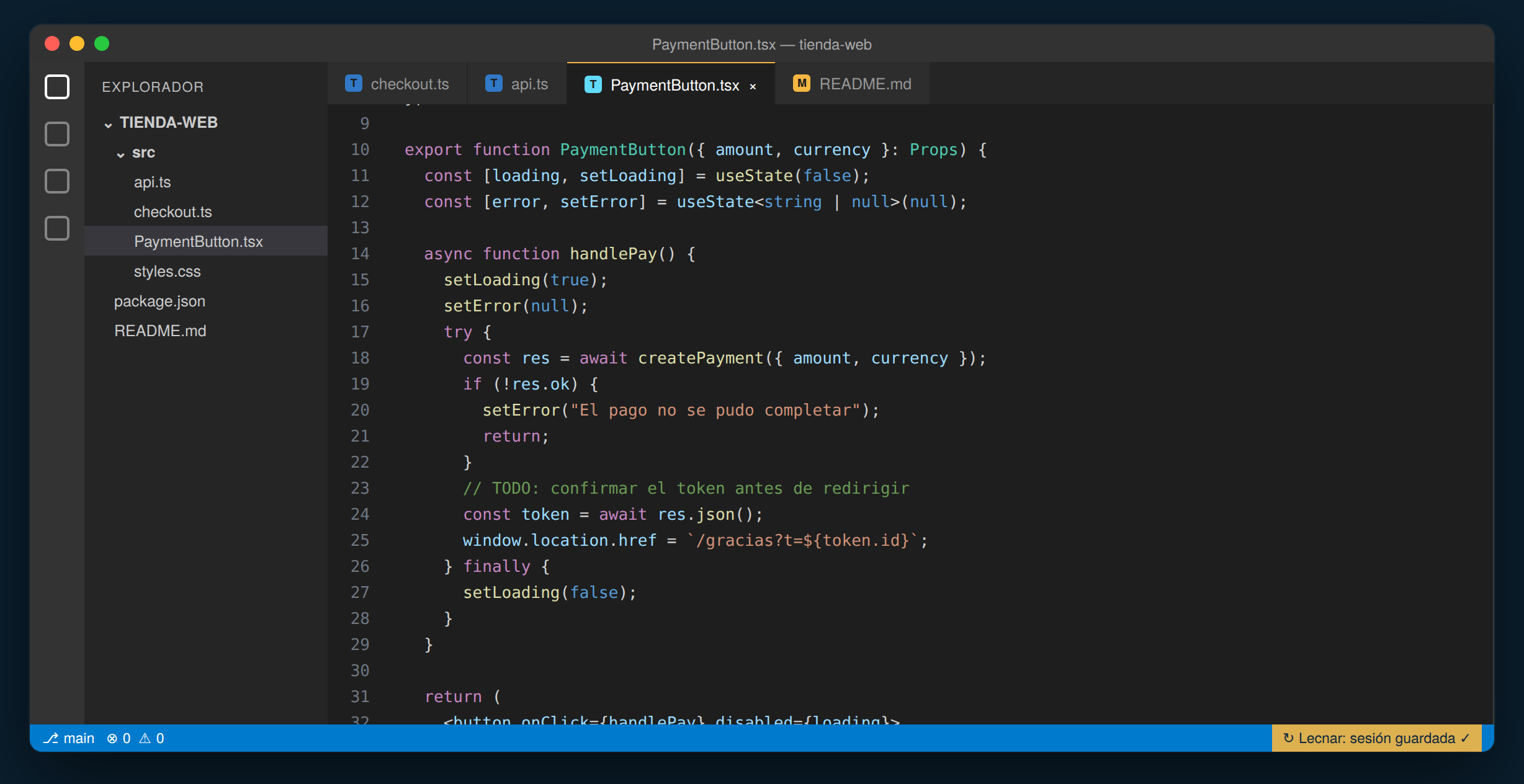
- 🔄 Automatic saving — every time you switch tabs, edit or move the cursor, your session is saved quietly in the background. Nothing to remember.
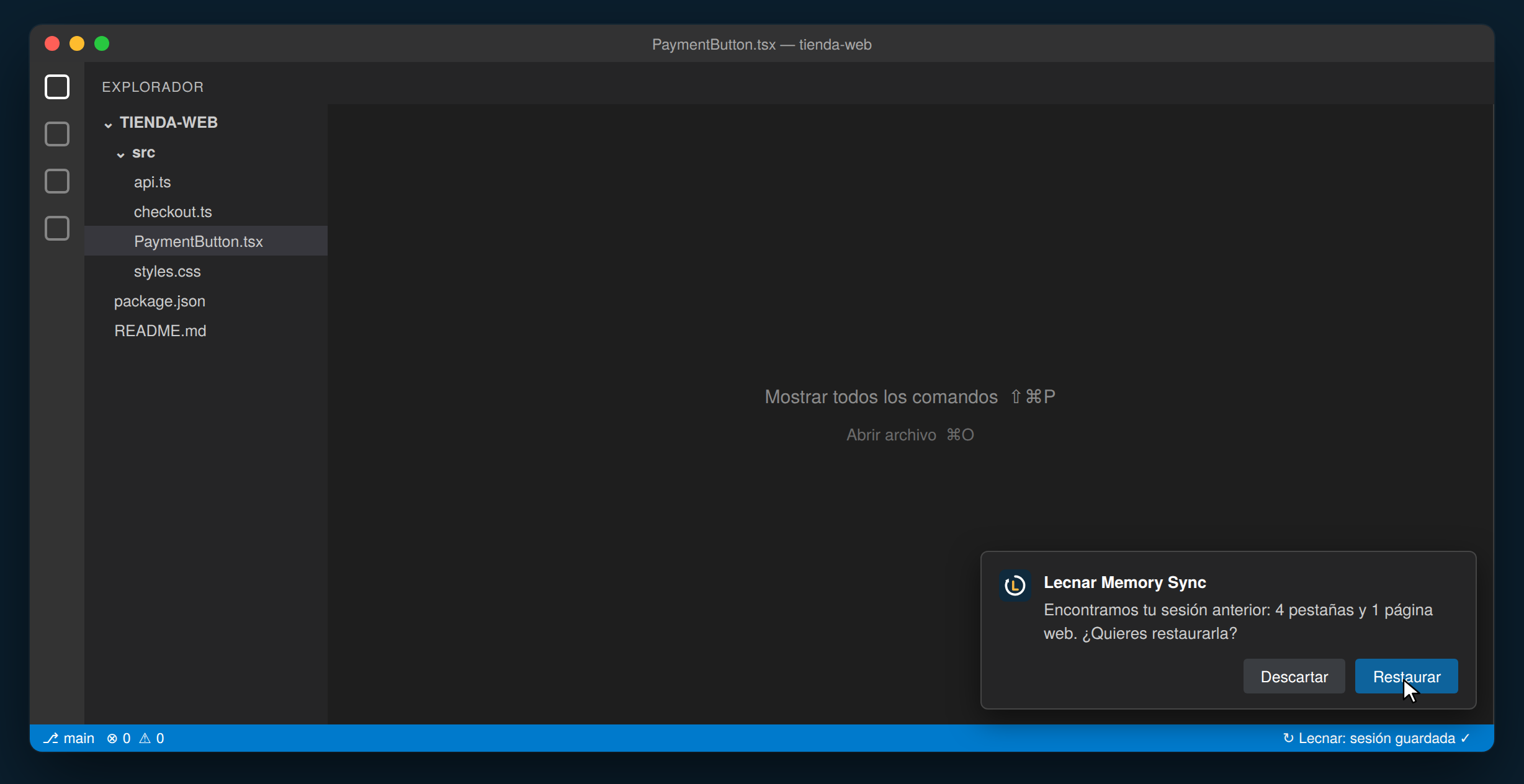
- ⏪ Restore button — if VS Code closes unexpectedly, you'll see a prompt next time you open the project. One click and everything is back.
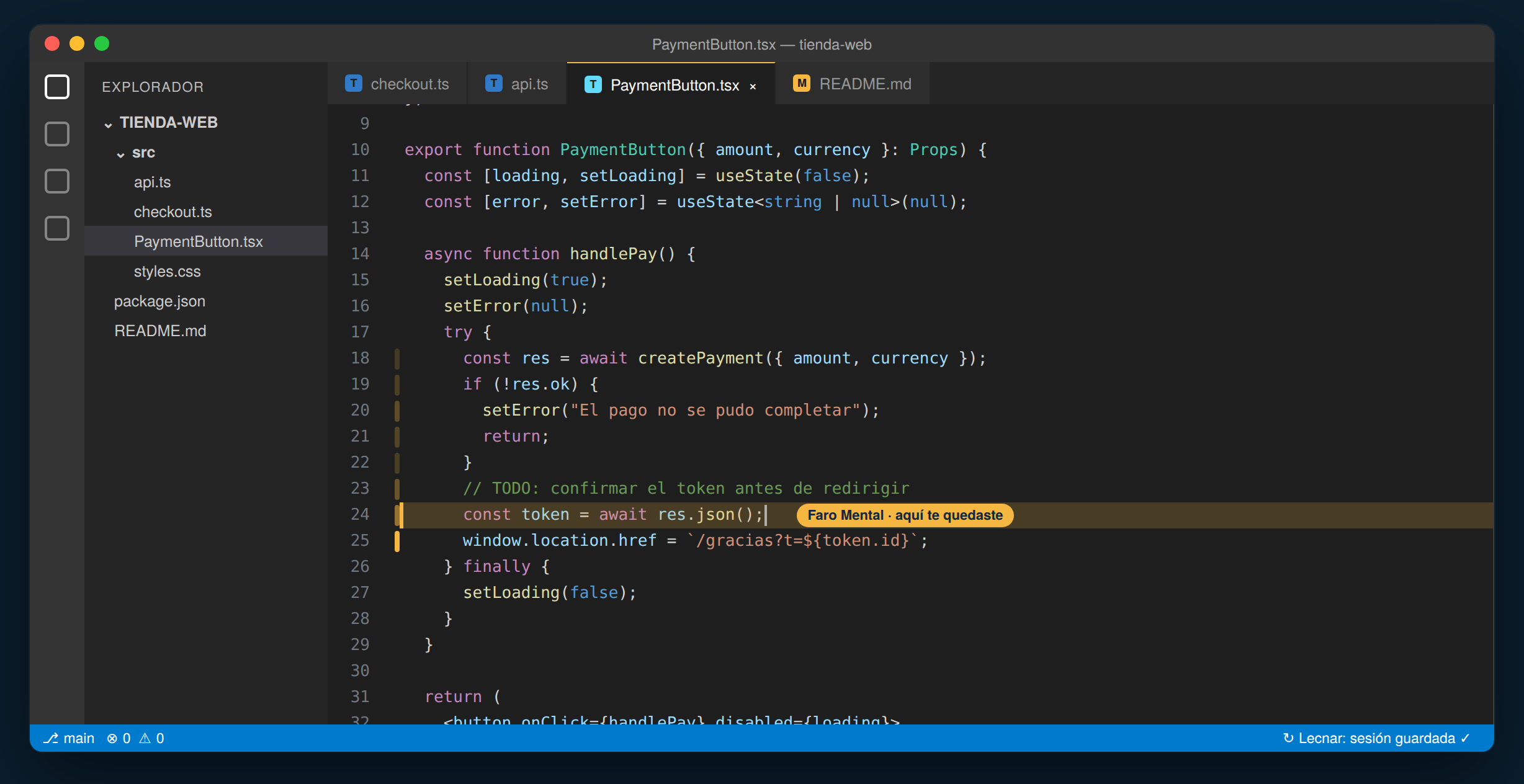
- 🟠 Mental Beacon — on restore, your editor jumps straight to the last line you edited and paints a soft heatmap over the lines where you worked the most.
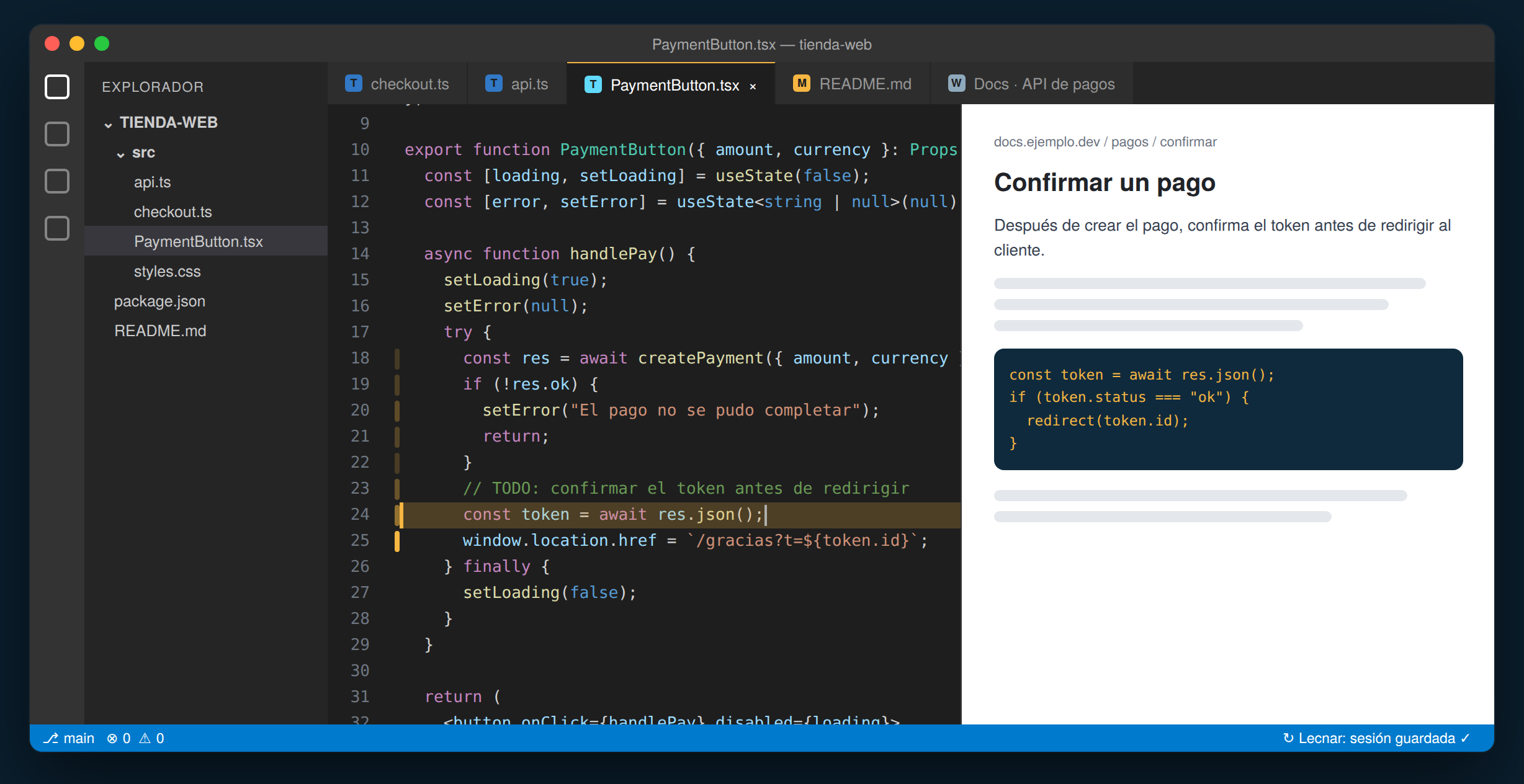
- 🌐 Reference pages — remembers the web pages you opened inside VS Code with the built-in Simple Browser, and reopens them.
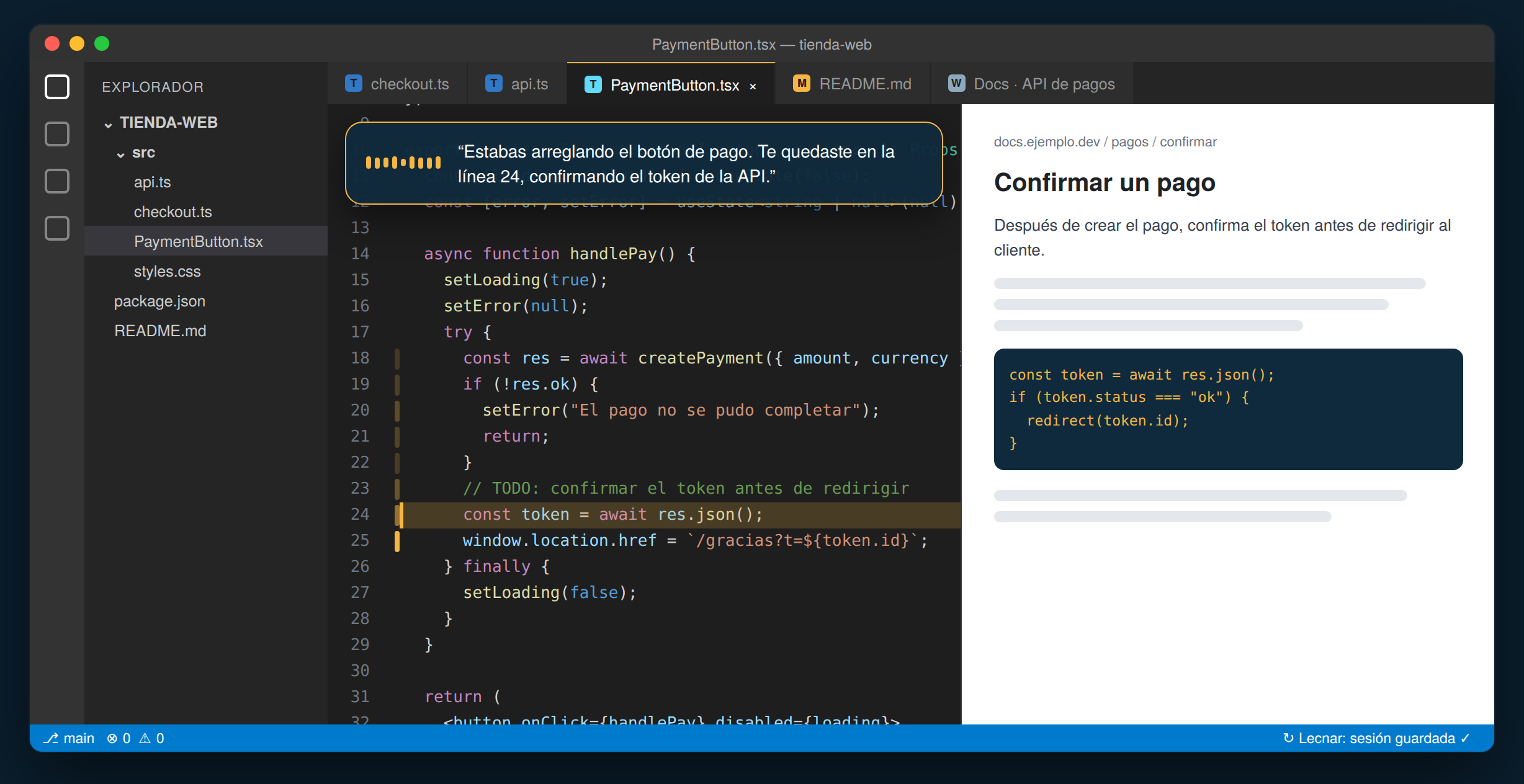
- 🗣️ Audio briefing — a short spoken summary of where you left off, read aloud with your Mac's voice (macOS only for now).
- 🌍 English and Spanish — follows the language you use in VS Code.
🚀 How to use it
- Just work as usual — there's nothing to set up.
- If VS Code closes suddenly (or you close it), the next time you open the project you'll see: "Found your previous session".
- Click Restore: tabs, cursor, exact line and heatmap come back.
🔒 Privacy
- No servers, no accounts, no telemetry. The extension never sends your data anywhere.
- Your session is stored in VS Code's own extension storage on your computer.
- If you use VS Code Settings Sync, your saved session can also sync between your own devices through your Settings Sync account.
⚙️ Settings
| Setting |
What it does |
Default |
lecnar.autosaveDelaySeconds |
Seconds to wait after a change before saving |
2 |
lecnar.beaconDurationSeconds |
Seconds the Mental Beacon stays on |
8 |
lecnar.enableVoiceBriefing |
Turns the spoken summary on or off (macOS) |
true |
📋 Commands
- Lecnar: Save session now
- Lecnar: Restore session (Mental Beacon)
- Lecnar: Discard saved session
- Lecnar: Add web page to context
⭐ Like it?
If Lecnar Memory Sync saved you time, a rating on the Marketplace helps other developers find it — and it means a lot to me as a first-time extension author.
Found a bug or have an idea? Open an issue on GitHub.
☕ Support
Lecnar Memory Sync is free. If you'd like to support it, you can buy me a coffee at ko-fi.com/lecnar.
Made by Lecnar · Source on GitHub · Video on YouTube

