VMDE for VS Code
Write like it is a document. Keep it as Markdown.
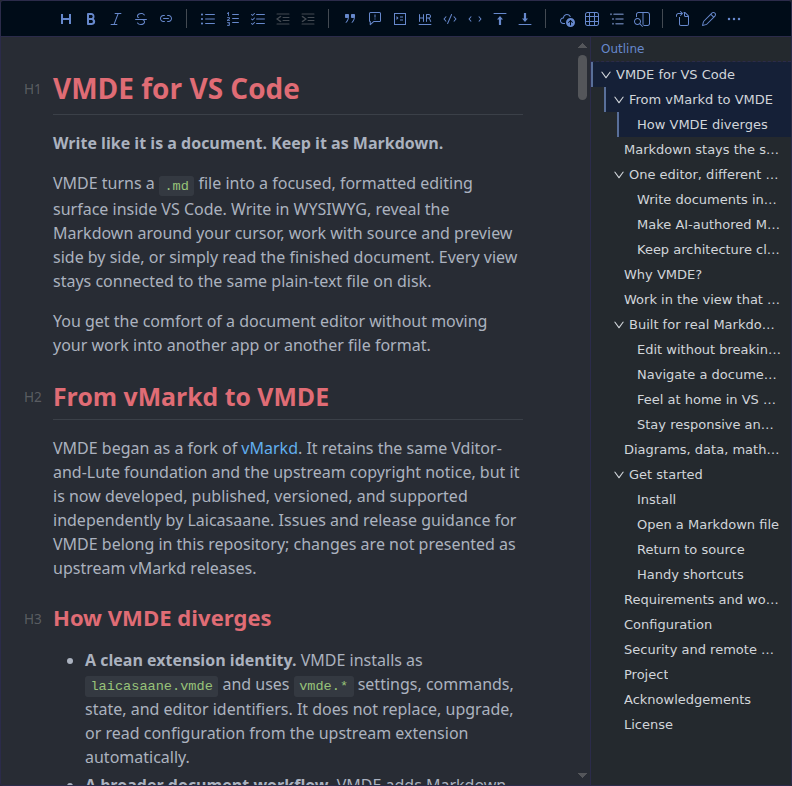
VMDE turns a .md file into a focused, formatted editing surface inside VS
Code. Write in WYSIWYG, reveal the Markdown around your cursor, work with source
and preview side by side, or simply read the finished document. Every view stays
connected to the same plain-text file on disk.
You get the comfort of a document editor without moving your work into another
app or another file format.
From vMarkd to VMDE
VMDE began as a fork of
vMarkd. It retains the same
Vditor-and-Lute foundation and the upstream copyright notice, but it is now developed,
published, versioned, and supported independently by Laicasaane. Issues and release guidance for
VMDE belong in this repository; changes are not presented as upstream vMarkd releases.
How VMDE diverges
- A clean extension identity. VMDE installs as
Laicasaane.vmde and uses vmde.* settings,
commands, state, and editor identifiers. It does not replace, upgrade, or read configuration from
the upstream extension automatically.
- A broader document workflow. VMDE adds Markdown-aware rewrapping and opt-in auto-wrap,
section hoisting, viewport-aware outline sections, Git change bars, wiki navigation, and
accessibility-focused keyboard flows across IR, WYSIWYG, Split, and Preview.
- Offline-first technical rendering. VMDE maintains its own pinned Mermaid, D2, PlantUML,
ECharts, Vega, map, music, chemistry, math, and 3D renderer stack, including coordinated themes
and a persistent render cache.
- Large-document and repository focus. Incremental serialization, progressive Split-mode
streaming, content visibility, source reveal, workspace-aware links, and exact host writeback are
maintained as first-class behaviors.
- Independent security and compatibility policy. VMDE audits the npm and vendored dependency
trees, ships explicit provenance and license records, hardens the VS Code webview boundary, and
tests releases in Chromium and the real VS Code custom-editor pipeline.
The projects may continue to share ideas through their common ancestry, but compatibility and
feature parity are not assumed in either direction.
Markdown stays the source of truth
Visual editing is most useful when it does not take ownership of your content.
With VMDE, the document remains ordinary Markdown: portable, searchable,
version-controlled, and readable by the rest of your toolchain.
Open the visual editor only when you want it. Jump to the corresponding source
line when exact syntax matters, open source beside the formatted document, and
return to VS Code's text editor with one command. VMDE does not replace the
Markdown workflow you already have; it gives that workflow a better writing
surface.
One editor, different kinds of work
Write documents instead of punctuation
For notes, guides, project plans, READMEs, and long-form documentation, raw
markers can interrupt the thought you are trying to capture. VMDE keeps
headings, lists, tables, links, images, callouts, and code visually legible while
you edit them. An outline, document search, word count, and reading-time estimate
help you stay oriented as the file grows.
The result is still a .md file that works on GitHub, in a static-site pipeline,
or anywhere else Markdown is expected.
Make AI-authored Markdown easier to review
Prompts, agent instructions, context files, generated reports, and AI-assisted
documentation are often Markdown too. VMDE makes those files easier for a
person to read and refine without changing the format that assistants and
automation consume.
Review generated structure as a document, inspect exact syntax in source or
split view, and use Git change bars to see what changed. There is no proprietary
document model between you and the assistant: the shared contract remains plain
text. VMDE is not an AI generator; it is a practical editing layer for the
Markdown that AI workflows already produce and depend on.
Keep architecture close to the explanation
Technical documents rarely contain prose alone. VMDE renders code, math,
charts, maps, and diagram languages directly in the editor, so an ADR, system
design, runbook, or API guide can explain both the decision and the model behind
it. Mermaid, D2, PlantUML, Graphviz, ECharts, Vega, and other engines are
available without sending the document to an external editor.
Because diagrams remain fenced text, they are reviewable in Git, editable by
people or assistants, and versioned with the architecture they describe.
Wiki-style links and two outline views help a folder of Markdown grow into
connected project knowledge rather than a pile of isolated files.
Why VMDE?
A source editor gives you precision. A preview gives you readability. A
standalone Markdown app can give you a polished writing surface, but takes you
away from the files, terminals, source control, and project context already open
in VS Code.
VMDE brings those strengths together:
- Visual when you want it, source when you need it. Choose WYSIWYG,
instant-render, split, or preview mode per document or path.
- No migration and no lock-in. Your file remains Markdown on disk and stays
in two-way sync with the editor.
- Built for repository work. Git change bars, source reveal, workspace-aware
links, rename tracking, and tab-group behavior fit the VS Code workflow.
- More than prose. A broad, offline-first renderer set keeps diagrams, data,
formulas, and specialist notation beside the text that explains them.
- Opt-in by design. VMDE never takes over all
.md files; use it for the
documents that benefit from a visual surface.
Work in the view that fits the moment
- WYSIWYG keeps document structure visually formatted while you type.
- Instant Rendering shows formatted Markdown while revealing markers around
the cursor.
- Split places Markdown source and live preview side by side. The source panel uses a
monospace font; set
vmde.editor.sourceFontFamily to change it (it falls back to a
monospace stack when empty or invalid).
Its font size (vmde.editor.sourceFontSize), background (vmde.editor.sourceBackground), line
numbers with a ↳ mark on wrapped rows (vmde.editor.sourceLineNumbers), current-row highlight
(vmde.editor.sourceHighlightCurrentLine, vmde.editor.sourceCurrentLineBackground) and the gap to the
preview (vmde.editor.splitGap) have their own settings; invalid values fall back to the defaults.
- Preview provides a read-only rendered document and reuses a current render
when you return to it.
Set a default mode globally, remember the last mode, or choose modes by glob —
for example, open docs/** in Preview and notes/** in IR. Very large files
load progressively; a saved Split preference opens directly into streamed source
and preview, while a saved WYSIWYG preference may use IR for that large-file session.
Turning Preview on or off is remembered for the files you open next, unless a path
rule or an explicit default mode decides; turning it off returns the caret and
selection to where they were.
Built for real Markdown work
Edit without breaking your flow
- Responsive tables with visual editing controls: move rows and columns, select
cell ranges, and resize columns. Columns size to their content, so short values
stay on one line and tables stay compact. Pasted spreadsheet cells become
Markdown tables.
- A floating toolbar on selected text for quick formatting and Turn Into, and
a searchable emoji picker in the main toolbar.
- Tick task-list checkboxes directly in Preview; one Undo reverses the change.
- Paste a URL over selected text to create a link; run VMDE: Paste as Plain
Text when formatting should be discarded.
- Paste, drop, or upload files using VS Code's
markdown.copyFiles.destination
when the VMDE save folder is left at its default. Images can be converted to
WebP and downscaled, WAV files keep audio markup, and other files become normal
escaped-label Markdown links.
- Rewrap one paragraph, a selection, or every eligible paragraph in the document
without touching structural Markdown; optional auto-wrap applies the same rules
after a quiet typing interval.
- Fold or hoist heading sections, promote or demote a heading or complete section,
stage structural selections, and wrap selected blocks in interactive
<details>/<summary> without losing the rest of the source document.
- Add, change, title, or remove GitHub/Obsidian-style callouts from shared editing
controls in IR, WYSIWYG, and Split.
- Configurable click behavior for links and a one-command jump to the matching
location in the text editor. Every link is underlined, and raw HTML
<a href>
links and bare URLs show as links too, without changing the saved Markdown.
Turn bare URL links off with vmde.markdown.autolinkBareUrls.
- Long paths and identifiers wrap at readable positions (after punctuation, then at letter and
digit boundaries, then between lowercase and uppercase) instead of in the middle of a word.
vmde.editor.wrapHints.minLastPiece keeps the last piece from being very short.
Navigate a document or a knowledge base
- A built-in outline panel and a Markdown Outline tree in the Explorer sidebar.
The panel remembers whether it is open and its width across files and restarts.
- Optional section indentation (
vmde.editor.sectionIndent) indents each block
by its heading level in IR, WYSIWYG, and Preview; it never changes the file.
- Hoist one heading section into a focused IR/WYSIWYG view, then return through
its
Doc › … breadcrumb without changing the complete file on disk.
- Wiki-style
[[links]] with completion, navigation, ambiguity handling, and
one-click creation of missing pages. The page list is remembered between
sessions, so completion is ready as soon as a file opens.
- Links to source files with a line number, such as
src/app.ts:42 or
src/app.ts#L42, open that file at the line.
- Document search with
Ctrl/Cmd+F, heading highlights, and optional heading-level
markers.
- Live word count, estimated reading time, current mode, and large-file status.
Feel at home in VS Code
- The default theme follows VS Code and updates live. Fixed GitHub Light/Dark,
Material Dark, and VS Code Light/Dark 2026 content themes are also available.
- VS Code high-contrast themes and browser forced-colors mode use explicit
contrast borders, stronger focus indicators, and a shared high-contrast diagram
palette. Reduced-motion disables scripted and CSS motion while preserving state.
- Code highlighting follows the content theme or uses any of 73 highlight.js
styles. Line numbers are optional.
- Mermaid, D2, and ECharts have their own coordinated palettes; diagrams update
when the active theme changes.
- Custom inline CSS and external stylesheets with live reload let a workspace
define its own reading experience.
- The toolbar flows to the editor width, and you can collapse it to a single
row of small buttons when the document needs the room. The choice applies to
every file and is remembered after VS Code restarts.
- Settings apply live and can be scoped per folder in a multi-root workspace.
Stay responsive and private
- An instant read-only paint makes content visible while the live editor starts.
- Files open without waiting for the workspace wiki scan, and large files become
editable sooner.
- Large documents use incremental updates, off-screen rendering optimizations,
and progressive loading to remain responsive.
- The editor runs in a hardened, sandboxed webview. Remote images are disabled by
default so opening a document does not silently disclose your IP to image
hosts.
Accessibility
- Press Escape, then Tab to leave the document for the roving toolbar; arrow keys
move among toolbar controls, and Escape returns to the saved caret.
- Editor surfaces expose named multiline textbox semantics. Link-like chips,
callout controls, outline items, tables, diagrams, and viewport controls carry
accessible roles and names, while one polite status region announces saves,
copies, mode changes, and renderer errors.
- Move the caret into a link, wiki link, code reference, or callout and run
VMDE: Activate Link or Callout at Caret to activate it without inserting a
tab stop into prose. The command has no default key; assign one in Keyboard
Shortcuts.
- The in-editor outline and its resize separator are keyboard-operable once
focused. An end-to-end keyboard-only route from the toolbar into that outline,
and ECharts mindmap keyboard reset, remain known limitations.
Diagrams, data, math, and more
VMDE recognizes 18 rendered fenced-code formats. The rendering engines and
their core assets are bundled for an offline-first workflow; optional remote
images and map tiles remain behind the remote-content setting.
| What you are documenting |
Fenced-code language |
Useful for |
| Architecture and software models |
mermaid, d2, plantuml, graphviz, flowchart, nomnoml |
Flow, sequence, class, state, ER, C4, deployment, and component diagrams |
| Data and geography |
echarts, vega, vega-lite, geojson, topojson |
Charts, dashboards, declarative visualizations, and maps |
| Knowledge and specialist notation |
mindmap, markmap, wavedrom, abc, smiles, stl, math |
Mind maps, timing diagrams, music, chemistry, 3D models, and KaTeX formulas |
Mermaid also covers planning-friendly formats such as Gantt charts, timelines,
static kanban boards, user journeys, quadrant charts, pie charts, and Sankey
diagrams. D2 supports multiple layout engines, coordinated themes, and an
optional hand-drawn style, including Markdown inside diagram labels. PlantUML
runs locally through its bundled TeaVM engine. Rendering errors appear beside
the source instead of silently producing a blank block.
For example, this remains ordinary, diff-friendly Markdown:
## Request flow

```mermaid
sequenceDiagram
    User->>Assistant: Ask a question
    Assistant->>Knowledge Base: Retrieve context
    Knowledge Base-->>Assistant: Return Markdown
    Assistant-->>User: Produce an answer
```
See the changelog for the full history of features and fixes.
Get started
Install
- Open the Extensions view in VS Code (
Ctrl/Cmd+Shift+X).
- Search for VMDE.
- Select Install.
From a terminal with the VS Code CLI available, you can also run:
code --install-extension Laicasaane.vmde
Open a Markdown file
- In the Explorer, right-click a
.md or .markdown file and choose
Open with VMDE.
- From an open Markdown tab, choose Open With… → VMDE.
- Use Open with VMDE to the side when you want the visual document beside
another editor group.
VMDE is an optional custom editor, so installing it does not change the default
editor for every Markdown file.
Return to source
- Choose Edit in Text Editor or Open source to the side from the editor
toolbar.
- Run VMDE: Edit in Text Editor from the Command Palette.
- Switch to Source from the mode control in the bottom status bar.
Keyboard shortcuts
VMDE follows one rule: when VS Code has the same action, VMDE uses VS Code's
default key for it. A VMDE command with no VS Code equivalent ships without a
key. Bold and Italic are the only exceptions: they keep the common
Markdown-editor keys. You can run every command from the Command Palette, run
many from the toolbar, and give any of them a key.
Default keys work when a VMDE editor is the active editor and focus is not in
the Side Bar, the Panel, the Secondary Side Bar, or a VS Code input box. The Find
keys also need the Find widget to be open. Copy, Cut, and Save keep VS Code's own
commands and keys; VMDE adds no binding for them.
Default keys
| Action |
Command |
Windows / Linux |
macOS |
Default |
| Bold |
vmde.format.bold |
Ctrl+B |
Cmd+B |
Convention |
| Italic |
vmde.format.italic |
Ctrl+I |
Cmd+I |
Convention |
| Indent |
vmde.format.indent |
Ctrl+] |
Cmd+] |
VS Code editor.action.indentLines |
| Outdent |
vmde.format.outdent |
Ctrl+[ |
Cmd+[ |
VS Code editor.action.outdentLines |
| Undo |
vmde.format.undo |
Ctrl+Z |
Cmd+Z |
VS Code undo |
| Redo |
vmde.format.redo |
Ctrl+Y, Ctrl+Shift+Z |
Cmd+Shift+Z |
VS Code redo |
| Select All |
vmde.selectAll |
Ctrl+A |
Cmd+A |
VS Code editor.action.selectAll |
| Expand Selection |
vmde.expandSelection |
Shift+Alt+Right |
Ctrl+Shift+Cmd+Right, Ctrl+Shift+Right |
VS Code editor.action.smartSelect.expand |
| Move Block Up |
vmde.moveBlockUp |
Alt+Up |
Alt+Up |
VS Code editor.action.moveLinesUpAction |
| Move Block Down |
vmde.moveBlockDown |
Alt+Down |
Alt+Down |
VS Code editor.action.moveLinesDownAction |
| Fold |
vmde.fold |
Ctrl+Shift+[ |
Cmd+Alt+[ |
VS Code editor.fold |
| Unfold |
vmde.unfold |
Ctrl+Shift+] |
Cmd+Alt+] |
VS Code editor.unfold |
| Toggle Fold |
vmde.toggleSectionFold |
Ctrl+K Ctrl+L |
Cmd+K Cmd+L |
VS Code editor.toggleFold |
| Find |
vmde.find |
Ctrl+F |
Cmd+F |
VS Code actions.find |
| Replace |
vmde.findReplace |
Ctrl+H |
Cmd+Alt+F |
VS Code editor.action.startFindReplaceAction |
Find and Replace. Find opens a Find-only row; Replace opens the Replace row.
With the widget open, Ctrl/Cmd+F focuses Find without hiding an open Replace
row. Ctrl/Cmd+Shift+F stays VS Code's Find in Files. These keys work while
the Find widget is open:
| Action |
Command |
Windows / Linux |
macOS |
Default |
| Next match |
vmde.findNext |
F3 |
F3, Cmd+G |
VS Code editor.action.nextMatchFindAction |
| Previous match |
vmde.findPrevious |
Shift+F3 |
Shift+F3, Cmd+Shift+G |
VS Code editor.action.previousMatchFindAction |
| Toggle Match Case |
vmde.toggleFindCaseSensitive |
Alt+C |
Cmd+Alt+C |
VS Code toggleFindCaseSensitive |
| Toggle Match Whole Word |
vmde.toggleFindWholeWord |
Alt+W |
Cmd+Alt+W |
VS Code toggleFindWholeWord |
| Replace one |
vmde.replaceOne |
Ctrl+Shift+1 |
Cmd+Shift+1 |
VS Code editor.action.replaceOne |
| Replace all |
vmde.replaceAll |
Ctrl+Alt+Enter |
Cmd+Alt+Enter |
VS Code editor.action.replaceAll |
| Close Find |
vmde.closeFindWidget |
Escape, Shift+Escape |
Escape, Shift+Escape |
VS Code closeFindWidget |
Commands without a default key
These commands have no VS Code equivalent, so they ship without a key. Run them
from the toolbar or the Command Palette (type VMDE), or assign a key.
Formatting
- Strikethrough:
vmde.format.strike
- Headings menu:
vmde.format.headings
- Bulleted List:
vmde.format.list
- Numbered List:
vmde.format.orderedList
- Checklist:
vmde.format.check
- Blockquote:
vmde.format.quote
- Code Block:
vmde.format.code
- Inline Code:
vmde.format.inlineCode
Headings
- Heading 1 to 6:
vmde.format.heading1, vmde.format.heading2,
vmde.format.heading3, vmde.format.heading4, vmde.format.heading5,
vmde.format.heading6
- Promote or Demote Heading Level:
vmde.promoteHeading, vmde.demoteHeading
- Promote or Demote Heading Section:
vmde.promoteHeadingSection,
vmde.demoteHeadingSection
Tables
- Align Left, Center, or Right:
vmde.table.alignLeft, vmde.table.alignCenter,
vmde.table.alignRight
- Insert Row Above or Below:
vmde.table.insertRowAbove,
vmde.table.insertRowBelow
- Insert Column Left or Right:
vmde.table.insertColumnLeft,
vmde.table.insertColumnRight
- Delete Row or Column:
vmde.table.deleteRow, vmde.table.deleteColumn
- Move Column Left or Right:
vmde.table.moveColumnLeft,
vmde.table.moveColumnRight
- Move Row Up or Down:
vmde.table.moveRowUp, vmde.table.moveRowDown
- Format Table (Split source):
vmde.formatTable
Lists and tasks
- Toggle Task Checkbox:
vmde.toggleTaskCheckbox
- Fix List Numbering:
vmde.fixListNumbering
- Renormalize All Lists:
vmde.renormalizeAllLists
Editing
- Rewrap Paragraph or Selection:
vmde.rewrap
- Rewrap Document:
vmde.rewrapDocument
- Paste as Plain Text:
vmde.pastePlain
- Turn Into:
vmde.turnInto
Links and navigation
- Activate Link or Callout at Caret:
vmde.activateLinkAtCaret
- Edit in Text Editor (reveals the caret's source line):
vmde.openTextEditor
Edit mode
- Switch to WYSIWYG, Instant Rendering, or Split View:
vmde.switchToWysiwyg,
vmde.switchToInstantRendering, vmde.switchToSplitView
Change a key
- Open Keyboard Shortcuts with
Ctrl+K Ctrl+S (Windows/Linux) or
Cmd+K Cmd+S (macOS).
- Search for VMDE. Every VMDE command is in the VMDE category.
- Double-click a command and press the new key. To remove a key, right-click
the row and choose Remove Keybinding.
You can also edit keybindings.json (Preferences: Open Keyboard Shortcuts
(JSON)). This example gives Strikethrough a key and gives Ctrl+I back to VS
Code. On macOS, write cmd where the example says ctrl.
[
  // Give Strikethrough a key, only in VMDE editors.
  {
    "key": "ctrl+shift+alt+d",
    "command": "vmde.format.strike",
    "when": "activeCustomEditorId == vmde.editor"
  },
  // Remove VMDE's default Italic key.
  { "key": "ctrl+i", "command": "-vmde.format.italic" }
]
Remapped VS Code keys
VS Code does not let an extension read your keybindings. So VMDE cannot follow
a key that you assign to one of VS Code's own commands. For example, if you
move editor.action.selectAll to another key, VMDE's Select All keeps
Ctrl+A / Cmd+A. To match, rebind vmde.selectAll as well.
For the same reason, toolbar tooltips describe what each control does but show
no key. A key in a tooltip could be wrong after you rebind it. The Find widget's buttons
are the exception: their labels still name the default keys.
Some keys belong to a VMDE widget, like the input keys of VS Code's own widgets.
They are not commands, and you cannot rebind them.
- Escape in Instant Rendering steps out one level. It first leaves an
expanded inline element (the markers around the caret), then selects the
current block.
- Escape, then Tab leaves the document for the toolbar. Arrow keys move
between toolbar controls, and Escape returns to the saved caret.
- Find widget inputs: in the Find input,
Enter and Shift+Enter go to the
next and previous match. In the Replace input, Enter replaces one match; on
macOS, Cmd+Enter replaces all.
- Inputs, popovers, and dialogs:
Enter confirms and Escape closes the link
popover. Escape closes the selection bubble, the callout popover, the picture
and anchor dialogs, diagram full screen, and the section-hoist menu. Arrow
keys, Home, End, Enter, Space, Escape, and Tab move through the
toolbar, its menus, the outline tree, the emoji picker, and suggestion lists.
- Alt+Enter in WYSIWYG moves focus from a code block, link, footnote
reference, or heading into the input of its popover.
- Table cell ranges:
Shift+Arrow extends a cell range, Delete or
Backspace empties the selected cells, and Escape cancels the range.
- Focused diagrams:
+, =, and - zoom, and 0 resets the zoom.
- Snippets: type
;; to open the snippet list, then press Enter to insert
the selected snippet.
Requirements and workspace support
- Desktop VS Code 1.110 or newer.
- Local, untitled, and virtual
.md / .markdown documents can be edited.
- In untrusted workspaces, editing remains available, but VMDE waits for trust
before writing uploaded images or creating wiki pages.
- In virtual workspaces, features that require a local filesystem — including
image upload, wiki-page creation, and local asset resolution — are unavailable.
Configuration
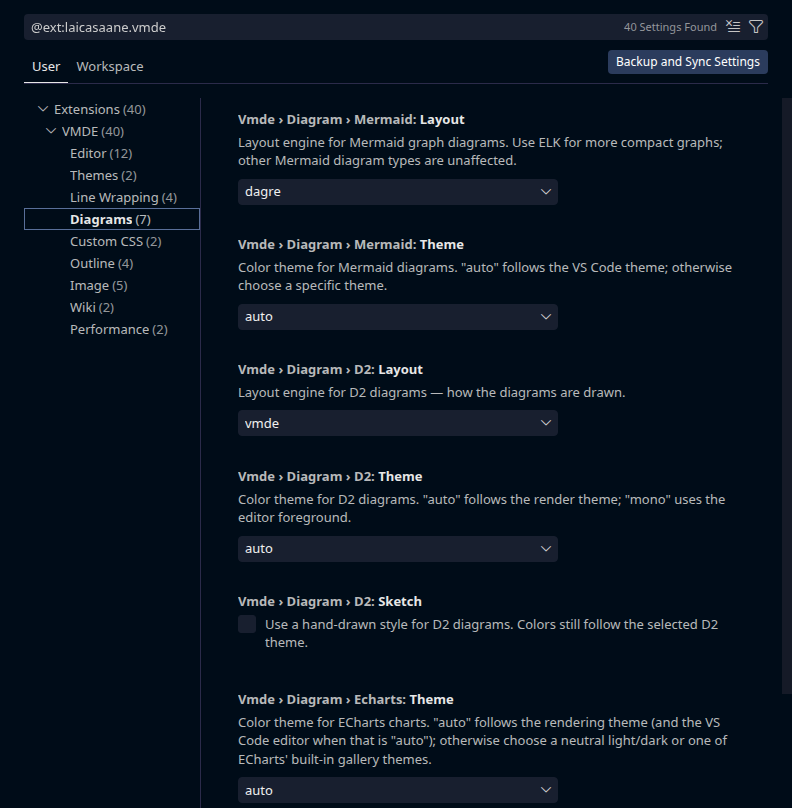
Open VS Code Settings and search for VMDE. Settings cover editing modes,
themes, diagram layouts and palettes, outlines, image handling, wiki roots,
custom CSS, and large-document performance. Most document-facing settings are
resource-scoped, so different folders can use different workflows. VMDE › Wiki:
Exclude leaves folders, files, or glob patterns (relative or absolute paths
inside the workspace folder) out of the wiki page list; the most specific
settings level wins, and lists from different levels are not merged.
Security and remote content
Markdown can reference content on the network. VMDE blocks remote images by
default because fetching them can reveal your IP address and the fact that you
opened a file. Enable VMDE › Image: Allow Remote only for documents and
workspaces you trust. GeoJSON and TopoJSON can render without a basemap; remote
basemap tiles use the same permission.
Core editor and renderer assets are loaded locally inside VS Code's sandboxed
webview.
Project
- Read the changelog for release details.
- Report a bug or suggest an improvement in
GitHub Issues.
- VMDE is open source under the MIT license.
Acknowledgements
Every library whose bytes ship inside the extension carries its license text next to its code, under
media/vditor/dist/ or media/ — one file per library, beside the bundle it covers.
Foundation
- Vditor (MIT) — the Markdown editor component
- Lute (Mulan PSL v2) — the Markdown engine (vendored and pinned)
Shipped with the Vditor package
Renderers vendored and pinned by VMDE — each one is loaded from disk, so every diagram renders offline
- Mermaid (MIT) and @mermaid-js/layout-elk (MIT) — flowcharts, sequence, class, state, ER, and the optional ELK layout
- PlantUML — the offline engine is PlantUML's own JavaScript (TeaVM) build, MIT-licensed (plantuml/plantuml-mit), with the icon libraries below
- D2 by Terrastruct (MPL-2.0) — compiled to WebAssembly, with the Go runtime shim (BSD-3-Clause)
- elkjs / Eclipse Layout Kernel (EPL-2.0) — the layout engine shared by D2 and Mermaid's ELK mode
- Graphviz / Viz.js (MIT) — DOT diagrams, and PlantUML's layout backend
- ECharts (Apache-2.0) — charts and mindmaps
- Vega and Vega-Lite (BSD-3-Clause, UW Interactive Data Lab) — grammar-of-graphics charts
- markmap (MIT) — mindmaps from Markdown outlines
- nomnoml (MIT) — UML sketches
- WaveDrom (MIT) — digital timing diagrams
- Leaflet (BSD-2-Clause) and topojson-client (ISC) — GeoJSON / TopoJSON maps
- three.js (MIT) — STL 3D models
- abc.js (MIT) — music notation
- smiles-drawer (MIT) — chemical structures
- Rough.js (MIT) and dagre (MIT) — the D2 sketch look and graph layout, bundled into the webview build
PlantUML icon libraries (loaded on demand, only for a diagram that includes them)
- C4-PlantUML (MIT) and Azure-PlantUML (MIT) by Ricardo Niepel and contributors
- aws-icons-for-plantuml by AWS — macros MIT, icon assets CC BY-ND 2.0
- From plantuml/plantuml-stdlib:
k8s (MIT, Diego Casati), kubernetes (Apache-2.0), eip (MIT, Andreas Heil), edgy (MIT), DomainStory (MIT, Johannes Thorn), cloudogu (MIT, Cloudogu GmbH), cloudinsight (MIT), and the Pictogrammers Material icons (Pictogrammers Free License)
Icons
- Codicons by Microsoft — icon artwork under CC BY 4.0, source code under MIT. VMDE uses Codicons for toolbar and menu icons, including Undo, Redo, Strikethrough, Code, Quote, lists, Table, Horizontal Rule, Link, Upload, Emoji, Edit In VS Code, Go Back, Preview, Settings, Insert Picture, and the Split View and About items in the More menu. The collapse/expand chevrons are modified from the Codicons chevrons. The license text ships as
media/codicons.LICENSE.
- Tabler Icons by Paweł Kuna (MIT) — Headings, Wiki Pages (the file icon with Tabler's letter W), Insert Before, Insert After and Insert ID. The license text ships as
media/tabler-icons.LICENSE.
- Lucide (ISC) — Edit Mode and the inline math and math block items in the Math menu. The license text ships as
media/lucide.LICENSE.
- Vditor's built-in icon set (MIT, part of Vditor) — table cell controls and the other editor icons that VMDE does not replace.
- The remaining toolbar and Find widget icons have no matching upstream icon and are VMDE's own drawings in the Codicons style.
Fonts, themes and map tiles
- Source Sans 3 by Adobe (SIL Open Font License 1.1) — bundled so D2 labels are measured and drawn in the same font the
d2 binary uses; the license ships as media/fonts/OFL.txt
- Map tiles from OpenStreetMap contributors and CARTO, used only when remote images are enabled, with their attribution shown on the map
- github-markdown-css by Sindre Sorhus (MIT) — the GitHub light/dark markdown-rendering themes (
vmde.theme.content), vendored under media/markdown-themes/ (upstream verbatim, plus a small marked override block re-asserting the inline-code background on the editor surface)
- vscode-markdown-style by raycon (MIT) — the Material Dark (One Dark) rendering theme (
vmde.theme.content), adapted under media/markdown-themes/
- Beautiful Mermaid by Craft Docs (MIT) — the 15 Mermaid diagram palettes (
vmde.diagram.mermaid.theme); only the colour values are vendored (in src/mermaid-palettes.ts, translated to mermaid themeVariables), not the renderer
- microsoft/vscode (MIT) — the
vscode-light-2026 / vscode-dark-2026 rendering themes use the built-in Light 2026 / Dark 2026 palettes (the VS Code 1.123+ defaults — extensions/theme-defaults/themes) + the markdown preview layout (extensions/markdown-language-features/media/markdown.css)
License
MIT
| |

