VS-MCP: Roslyn-Powered MCP Server for Visual Studio
Other tools read your files. VS-MCP understands your code.


The first and only Visual Studio extension that gives AI assistants access to the C# compiler (Roslyn) and the Visual Studio Debugger through the Model Context Protocol. 41 tools. 13 powered by Roslyn. 19 debugging tools (Preview). Semantic understanding, not text matching.
See VS-MCP in Action
Click to watch on YouTube
Why VS-MCP?
AI coding tools (Claude Code, Codex CLI, Gemini CLI, OpenCode, Cursor, Copilot, Windsurf...) operate at the filesystem level — they read text, run grep, execute builds. They don't understand your code the way Visual Studio does.
VS-MCP bridges this gap by exposing IntelliSense-level intelligence and the Visual Studio Debugger as MCP tools. Your AI assistant gets the same semantic understanding that powers F12 (Go to Definition), Shift+F12 (Find All References), safe refactoring — and now runtime debugging.
What becomes possible:
| You ask |
Without VS-MCP |
With VS-MCP |
| "Find WhisperFactory" |
grep returns 47 matches |
Class, Whisper.net, line 16 — one exact answer |
| "Rename ProcessDocument" |
sed breaks ProcessDocumentAsync |
Roslyn renames 23 call sites safely |
| "What implements IDocumentService?" |
Impossible via grep |
Full inheritance tree with interfaces |
| "What calls AuthenticateUser?" |
Text matches, can't tell direction |
Precise call graph: callers + callees |
| "Why is ProcessOrder returning null?" |
Reads code, guesses |
Sets breakpoint, inspects actual runtime values |
Semantic Navigation (Roslyn-powered)
| Tool |
Description |
FindSymbols |
Find classes, methods, properties by name — semantic, not text |
FindSymbolDefinition |
Go to definition (F12 equivalent) |
FindSymbolUsages |
Find all references, compiler-verified (Shift+F12 equivalent) |
GetSymbolAtLocation |
Identify the symbol at a specific line and column |
GetDocumentOutline |
Semantic structure: classes, methods, properties, fields |
Code Understanding (Roslyn-powered)
| Tool |
Description |
GetInheritance |
Full type hierarchy: base types, derived types, interfaces |
GetMethodCallers |
Which methods call this method (call graph UP) |
GetMethodCalls |
Which methods this method calls (call graph DOWN) |
Code Analysis (Roslyn-powered)
| Tool |
Description |
GetDiagnostics |
Compiler errors & warnings without building — Roslyn background analysis |
Refactoring (Roslyn-powered)
| Tool |
Description |
RenameSymbol |
Safe rename across the entire solution — compiler-verified |
FormatDocument |
Visual Studio's native code formatter |
Project & Build
| Tool |
Description |
ExecuteCommand |
Build or clean solution/project with structured diagnostics |
ExecuteAsyncTest |
Run tests asynchronously with real-time status |
GetSolutionTree |
Solution and project structure |
GetProjectReferences |
Project dependency graph |
LoadSolution |
Open a .sln/.slnx file — server stays on the same port |
TranslatePath |
Convert paths between Windows and WSL formats |
Editor Integration
| Tool |
Description |
GetActiveFile |
Current file and cursor position |
GetSelection / CheckSelection |
Read active text selection |
GetLoggingStatus / SetLogLevel |
Extension diagnostics |
Your AI assistant can now debug your .NET code at runtime through the Visual Studio Debugger. Set breakpoints, step through code, inspect variables, attach to Docker containers and WSL processes.
| Tool |
Description |
DebugStart |
Start debugging (F5). Fire-and-forget |
DebugStop |
Stop debugging session |
DebugGetMode |
Current mode: Design, Running, or Break |
DebugBreak |
Pause the running application |
DebugContinue |
Resume execution |
DebugStep |
Step over/into/out |
ImmediateExecute |
Execute expression with side effects |
DebugListTransports |
List transports (Default, Docker, WSL, SSH...) |
DebugListProcesses |
List processes on a transport |
DebugAttach |
Attach to a running process |
| Tool |
Description |
DebugGetCallstack |
Call stack of current thread |
DebugGetLocals |
Local variables (tree-navigable) |
DebugEvaluate |
Evaluate expression / drill into variable tree |
OutputRead |
Read VS Output window (Build, Debug, Tests) |
ErrorListGet |
Errors and warnings from VS Error List |
| Tool |
Description |
BreakpointSet |
Set breakpoint by file+line or function name |
BreakpointRemove |
Remove breakpoint |
BreakpointList |
List all breakpoints |
ExceptionSettingsSet |
Configure break-on-exception |
AI Debugging Guide
Complete reference for AI agents — all 19 tools, 10 workflows, Docker & WSL setup, polling patterns, and best practices.
Download AI Debugging Guide (.md) — add it to your AI's context for full debugging capabilities.
Compatible Clients
Works with any MCP-compatible AI tool:
CLI Agents:
- Claude Code — Anthropic's terminal AI coding agent
- Codex CLI — OpenAI's terminal coding agent
- Gemini CLI — Google's open-source terminal agent
- OpenCode — Open-source AI coding agent (45k+ GitHub stars)
- Goose — Block's open-source AI agent
- Aider — AI pair programming in terminal
Desktop & IDE:
- Claude Desktop — Anthropic's desktop app
- Cursor — AI-first code editor
- Windsurf — Codeium's AI IDE
- VS Code + Copilot — GitHub Copilot with MCP
- Cline — VS Code extension
- Continue — Open-source AI assistant
Any MCP client — open protocol, universal compatibility
Quick Start
- Install this extension from Visual Studio Marketplace
- Open your C# / VB.NET solution in Visual Studio
- Start the server: Tools → MCP Server → Start Server (default port: 3001)
- To start it automatically whenever a solution opens, enable Auto-start in the settings (see Settings)
- Add to your MCP client:
"vs-mcp": {
  "type": "http",
  "url": "http://localhost:3001/sdk/"
}
- Start asking your AI semantic questions about your code
Works With Any MCP Client
Any tool supporting Model Context Protocol will work.
Add these instructions to your project's AI config file (see table above) to ensure your AI automatically prefers MCP tools:
## MCP Tools - ALWAYS PREFER

When `mcp__vs-mcp__*` tools are available, ALWAYS use them instead of Grep/Glob/LS:

| Instead of | Use |
|------------|-----|
| `Grep` for symbols | `FindSymbols`, `FindSymbolUsages` |
| `LS` to explore projects | `GetSolutionTree` |
| Reading files to find code | `FindSymbolDefinition` then `Read` |
| Searching for method calls | `GetMethodCallers`, `GetMethodCalls` |

**Why?** MCP tools use Roslyn semantic analysis - 10x faster, 90% fewer tokens.
This ensures your AI uses the semantic tools without needing to say "use vs-mcp" in every prompt.
Multi-Solution: Understand Your Dependencies
Need the AI to understand a library you depend on? Clone the source from GitHub, open it in a second Visual Studio — each instance runs its own MCP server on a configurable port.
Your project                          → port 3001
Library source (cloned from GitHub)   → port 3002
Framework source                      → port 3003
Your AI connects to all of them. It can trace calls, find usage patterns, and understand inheritance across your code and library code. No more guessing how a dependency works — the AI reads its source with compiler-level understanding.
MCP client configuration — three options depending on your client:
Clients with native HTTP support (Claude Desktop, Claude Code):
{
  "mcpServers": {
    "vs-mcp": {
      "type": "http",
      "url": "http://localhost:3001/sdk/"
    },
    "vs-mcp-whisper": {
      "type": "http",
      "url": "http://localhost:3002/sdk/"
    }
  }
}
Clients without HTTP support (via mcp-remote proxy):
{
  "mcpServers": {
    "vs-mcp": {
      "command": "npx",
      "args": ["-y", "mcp-remote", "http://localhost:3001/sdk/"]
    },
    "vs-mcp-whisper": {
      "command": "npx",
      "args": ["-y", "mcp-remote", "http://localhost:3002/sdk/"]
    }
  }
}
Codex CLI (TOML):
[mcp_servers.vs-mcp]
type = "stdio"
command = "npx"
args = ["mcp-remote", "http://localhost:3001/sdk/"]

[mcp_servers.vs-mcp-whisper]
type = "stdio"
command = "npx"
args = ["mcp-remote", "http://localhost:3002/sdk/"]
Each name tells the AI what codebase it's connecting to. Simple, explicit, powerful.
Settings
Tools → MCP Server → Global Settings... (all solutions) or Solution Settings... (current solution, stored in <solution folder>\.mcp\mcpserver.settings.json)
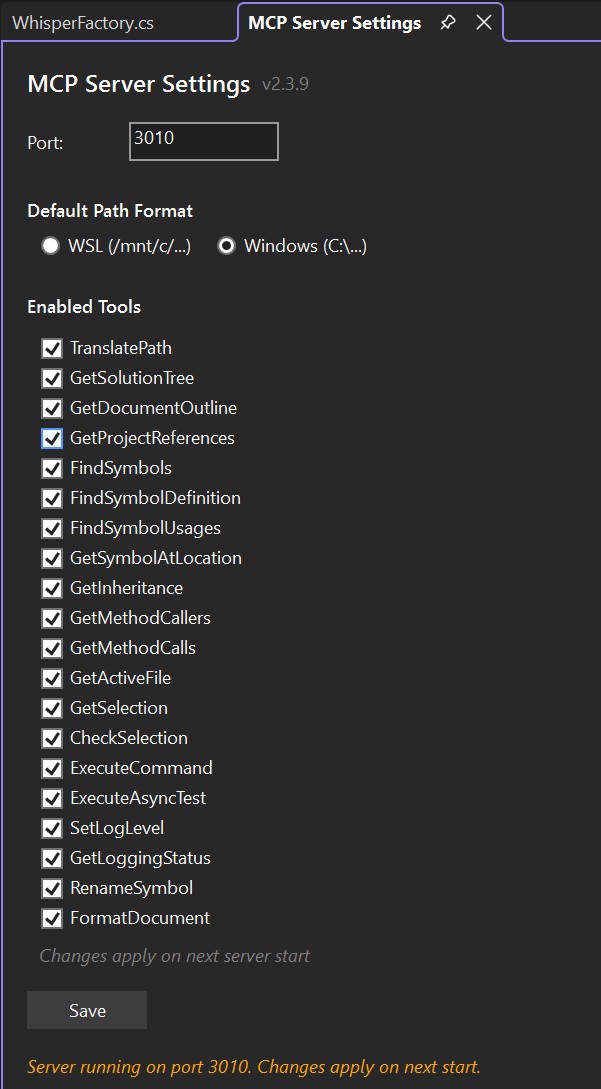
| Setting |
Default |
Description |
| Port |
3001 |
Server port (configurable per VS instance) |
| Auto-start |
Off |
Start the server automatically when a solution is opened |
| Path Format |
WSL |
Output as /mnt/c/... or C:\... |
| Tools |
All enabled |
Enable/disable individual tool groups |
Changes apply on next server start. Start and stop the server manually with Tools → MCP Server → Start Server / Stop Server.
Example Prompts
Once connected, just ask naturally. Add (vs-mcp) to hint which server to use — after the first time, AI gets it:
Find all usages of UserService (vs-mcp)
Rename ProcessOrder to HandleOrderAsync across the solution
Show me the inheritance hierarchy of BaseController
What methods call ValidateUser?
Run the tests in PaymentTests and tell me what's failing
Set a breakpoint on OrderService.ProcessOrder and start debugging
If you have multiple MCP servers connected (e.g., vs-mcp + vs-mcp-whisper), specify which one when needed.
Who Is This For?
Enterprise .NET developers working on solutions with:
- Multiple projects and complex architectures
- Inheritance hierarchies and interface implementations
- Dependency injection (where grep can't find implementations)
- Large codebases where text search produces too much noise
- Runtime bugs that require actual debugging, not guessing
If your AI assistant keeps saying "I found 47 matches for that method name" — you need VS-MCP.
vs. Other Approaches
| Approach |
Symbol Search |
Inheritance |
Call Graph |
Safe Rename |
Debugging |
| VS-MCP (Roslyn + Debugger) |
Semantic |
Full tree |
Callers + Callees |
Compiler-verified |
Breakpoints + Step + Inspect |
| AI Agent (grep/fs) |
Text match |
No |
No |
Text replace |
No |
| Other MCP servers |
No |
No |
No |
No |
No |
Requirements
- Visual Studio 2022 (17.13+) or Visual Studio 2026
- Windows (amd64 or arm64)
- C# or VB.NET projects — the semantic tools are powered by Roslyn; C/C++ projects are not analyzed
- Any MCP-compatible AI tool
Support
About
0ics srl — Italian software company specializing in AI-powered development tools. Part of the example4.ai ecosystem.
Built by Ladislav Sopko — 30 years of software development, from assembler to enterprise .NET.
VS-MCP: Because your AI deserves the same intelligence as your IDE.

