TermSnap
Capture beautiful, Carbon-style screenshots of your terminal output — directly from VS Code.
Why TermSnap?
Copy-pasting breaks formatting — Paste a table into WhatsApp, Slack, Google Docs, or Word and the alignment is gone. Box-drawing characters break, columns misalign, structured output becomes an unreadable wall of text.
Screenshots can't capture long output — Your platform's screenshot tool only captures what's visible on screen. If your table or log output extends beyond the viewport, you're stuck stitching multiple screenshots together.
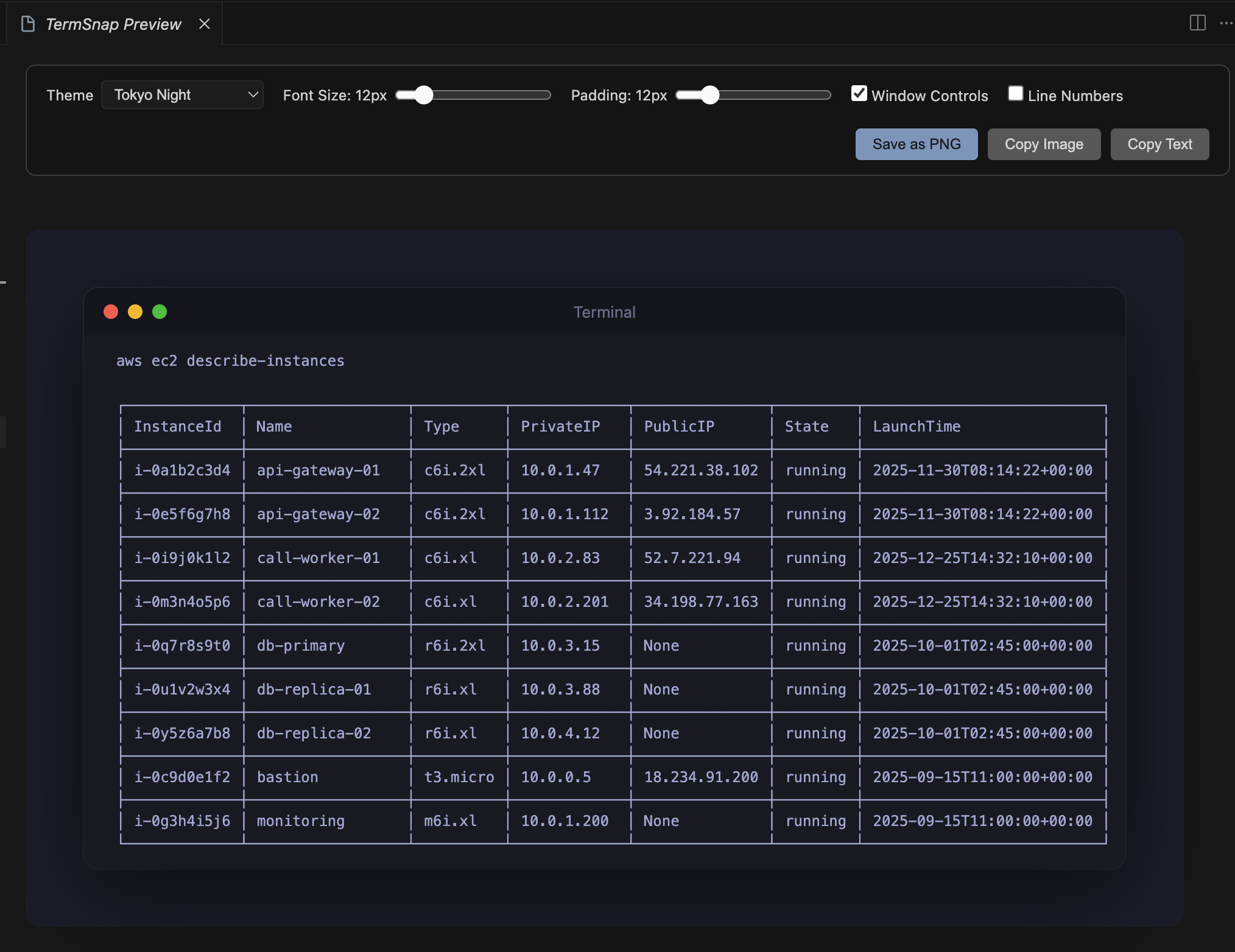
TermSnap solves both — select text in your terminal (no matter how long), press Cmd+Shift+S, and get a single styled screenshot of the entire output.
Features
- One-shortcut capture — Select terminal text, press
Cmd+Shift+S (Mac) / Ctrl+Shift+S (Windows/Linux), and get a styled preview instantly
- Captures full selection — Even hundreds of lines that don't fit on screen
- Carbon-style rendering — Rounded window frame, macOS traffic light dots, subtle shadow, themed background
- 11 built-in themes — Dracula, One Dark, Monokai, Solarized Dark, Night Owl, GitHub Dark, Catppuccin Mocha, Tokyo Night, Gruvbox Dark, Nord, Solarized Light
- Custom themes — Define your own background, text, and title bar colors
- Live preview controls — Adjust theme, font size, padding, window chrome, and line numbers in real time
- Export options — Save as PNG, copy image to clipboard, or copy raw text
- Preserves layout — Tables, ASCII art, box-drawing characters, and alignment are fully preserved
Works great for
- Tables, ASCII art, mermaid diagrams, flowcharts
- Deployment logs and CLI output
- Documentation, presentations, slides, blog posts
- Anywhere plain text loses formatting when pasted
Usage
- Open the integrated terminal in VS Code
- Run your commands
- Select the terminal text you want to capture
- Press
Cmd+Shift+S (Mac) / Ctrl+Shift+S (Windows/Linux)
- The TermSnap preview panel opens — adjust theme and settings as needed
- Click Save as PNG, Copy Image, or Copy Text
You can also open the command palette (Cmd+Shift+P) and search for "TermSnap: Capture Terminal Screenshot".
Themes
| Theme |
Style |
| Dracula |
Purple-tinted dark |
| One Dark |
Atom-inspired dark |
| Monokai |
Warm dark |
| Solarized Dark |
Blue-green dark |
| Night Owl |
Deep blue dark |
| GitHub Dark |
GitHub's dark theme |
| Catppuccin Mocha |
Pastel dark |
| Tokyo Night |
Cool blue dark |
| Gruvbox Dark |
Retro warm dark |
| Nord |
Arctic cool dark |
| Solarized Light |
Warm light |
| Custom |
Your own colors |
Settings
| Setting |
Default |
Description |
termsnap.theme |
dracula |
Screenshot theme |
termsnap.fontSize |
14 |
Font size (10–24px) |
termsnap.padding |
16 |
Inner padding (0–64px) |
termsnap.showWindowControls |
true |
Show macOS-style dots |
termsnap.showLineNumbers |
false |
Show line numbers |
termsnap.backgroundColor |
#1e1e2e |
Outer background color |
termsnap.customBackground |
#1e1e2e |
Custom theme: background |
termsnap.customTextColor |
#f8f8f2 |
Custom theme: text color |
termsnap.customTitleBarColor |
#161616 |
Custom theme: title bar |
Custom Theme
Set the theme to custom and configure your colors in VS Code settings:
{
  "termsnap.theme": "custom",
  "termsnap.customBackground": "#1a1a2e",
  "termsnap.customTextColor": "#e0e0e0",
  "termsnap.customTitleBarColor": "#16213e"
}
How It Works
VS Code's extension API does not expose terminal buffer access. TermSnap uses a clipboard-based approach: when you trigger a capture, it copies your terminal selection and renders it as a styled image in a webview panel. ANSI colors are not preserved on clipboard copy, so TermSnap applies clean monochrome terminal themes instead. Text layout (tables, ASCII art, alignment) is fully preserved.
License
MIT
| |

