Projects Landing Page
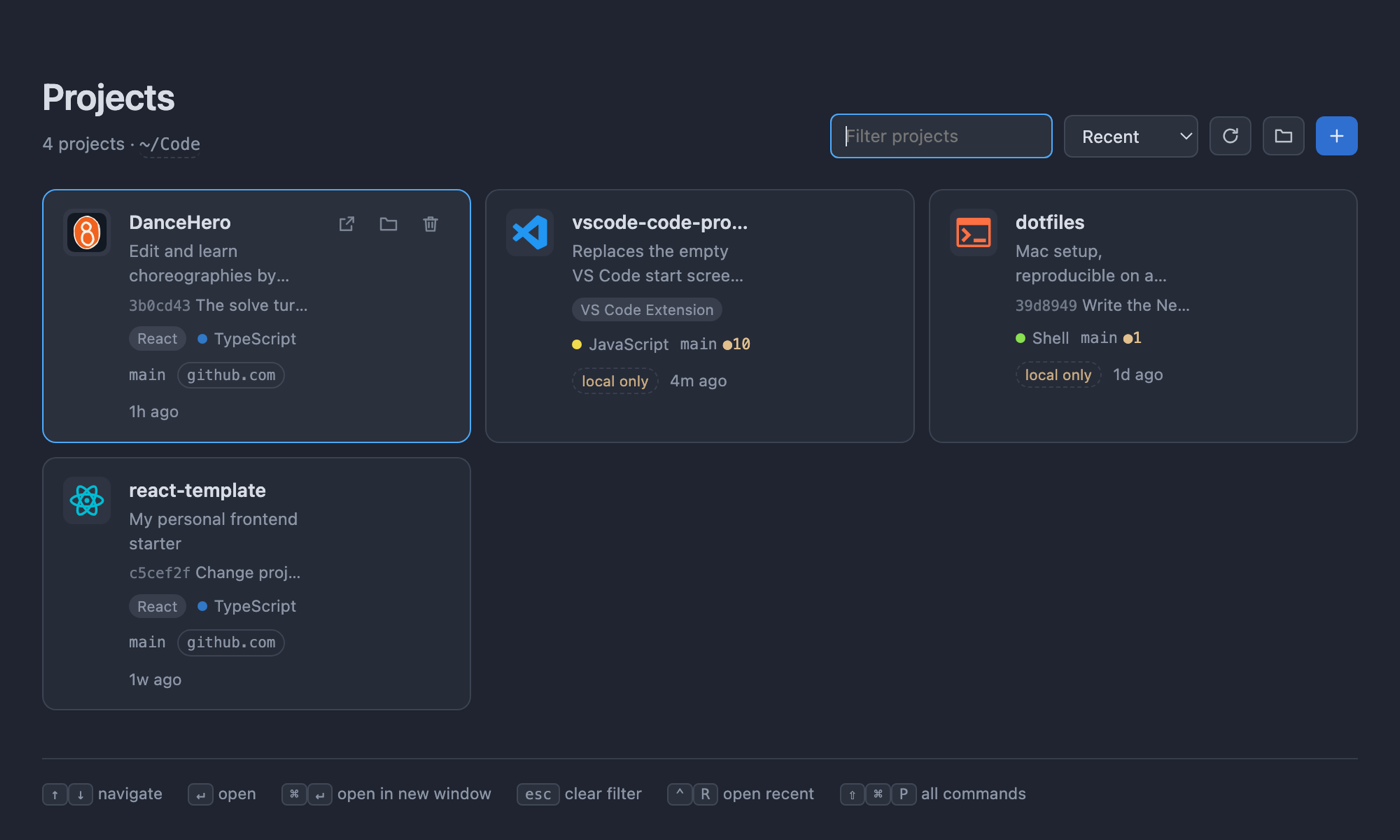
A landing page for VS Code. Instead of the empty-editor watermark, the window opens on
every project you have - with its icon, what it is written in, its last commit and the
state of its repository. Click one to open it.
Getting started
Install it and open a window with no folder. The first time it runs it looks for the
folder your projects are already in - ~/Code, ~/Projects, ~/Developer, ~/dev,
~/repos, ~/Documents/GitHub and the other usual places - and uses it. If more than one
of them holds projects, the page asks which one; if none do, it asks you to pick a folder.
VS Code's own welcome page would otherwise be sitting in that window already, and a window
with a tab in it is not an empty one, so the first run turns the welcome page off
(workbench.startupEditor) and takes the window it was in. It says so when it does, with an
Undo if you would rather keep it, and it only ever asks for that window once - turn the
welcome page back on afterwards and it stays on.
That is the whole setup. The folder name next to the project count is a button, so you can
change or add folders later without going near a settings file.
Use
|
|
cmd+alt+p / ctrl+alt+p |
Show the landing page |
Projects: Open Landing Page |
Same, from the command palette |
Projects: New Project |
Scaffold a project, same as the toolbar's + |
Projects: Rescan Projects |
Rescan the folders |
Projects: Change Projects Folder |
Pick which folders are scanned |
On the page: type to filter, arrows to move, enter to open, cmd/ctrl+enter to open
in a new window, esc to clear the filter. Hovering a card reveals three buttons - open in
a new window, reveal in the file manager, and delete - and each names itself in a tooltip,
so the page carries no legend. The toolbar works the same way.
The layout is fluid down to about 300px, so it stays usable in a window snapped to a
quarter of the screen. The toolbar drops to its own line as soon as it stops fitting beside
the title rather than shedding one button at a time, the grid falls back to a single column,
and cards keep their full text instead of being clipped.
What the cards say about git
|
|
main |
The current branch, or the short commit when HEAD is detached |
↑2 |
Two commits committed here but not pushed |
↓1 |
One commit waiting on the remote |
●3 |
Three uncommitted changes - hover for the staged/unstaged/untracked split |
· |
The branch has no upstream, so nothing tracks it |
github.com |
The host of origin, or owner/repo when the repository was renamed |
local only |
No remote at all: this folder is the only copy |
The line above the badges is the last commit - its short hash and subject. Hovering the
card spells all of it out, including the author and the full remote URL.
New project
The + button asks what to start from:
- An empty project - a folder with a README and a fresh repository.
- Any template repository - cloned with
--depth 1, its history thrown away,
package.json renamed to the project name, and a new repository with a single initial
commit, so nothing is shared with the template.
Repositories you use often go in codeProjects.templates and appear in that list:
"codeProjects.templates": [
  { "name": "React", "url": "https://github.com/owner/react-template", "description": "Vite + Tailwind" }
]
A failed clone cleans up after itself; a failed first commit leaves the files in place and
warns. The new project is created in your projects folder, and you are offered to open it.
Deleting a project
The delete button asks first, and the confirmation says what is at stake: uncommitted
changes, commits that were never pushed, a missing remote, or whether the folder is open in
the current window. Confirming moves the project to the trash - not rm -rf - so it can be
dragged back out. Only folders inside a scanned folder can be deleted this way; the scanned
folders themselves are refused.
Settings
| Setting |
Default |
|
codeProjects.roots |
detected |
Folders to scan. Paths inside your home folder are stored as ~/..., so the setting survives settings sync |
codeProjects.templates |
[] |
Repositories offered by the + button |
codeProjects.openOnStartup |
true |
Show it when a window starts with no editors |
codeProjects.replaceEmptyEditor |
true |
Show it whenever the last editor is closed |
codeProjects.onlyWhenNoFolderOpen |
true |
Only auto-open in windows with no folder open |
Folders are scanned one level deep, and two levels deep for folders that only group other
projects, so ~/Code/work/dashboard is found and labelled work.
How a project is identified
- Icon -
<link rel="icon"> in an entry HTML file, then common favicon paths
(public/, static/, app/, wwwroot/, ...), then a web manifest. Failing that, the
framework or language mark from the Material Icon Theme
if it is installed, and a generated lettermark if it is not.
- Language - manifest first (
Cargo.toml, go.mod, pyproject.toml, *.csproj, ...),
with file counts breaking ties, which is what separates TypeScript from JavaScript.
- Description -
package.json, Cargo.toml, pyproject.toml, or the first real line
of the README.
Nothing leaves the machine: the page is a local webview with no network access, it only
reads the folders you point it at, and it shells out to git to read repository state.
Development
Plain JavaScript, no build step and no dependencies. Clone it and symlink it into your
extensions folder:
ln -sfn "$PWD" ~/.vscode/extensions/KristianKramas.projects-landing-page
Then run Developer: Reload Window. To iterate on the page itself without reloading:
bun dev/preview.js ~/Code > preview.html
That renders the same document to a standalone file and prints what was detected for each
project. bun dev/preview.js --setup renders the first-run page instead.
bun test
Runs the suite against a throwaway folder of projects and a stubbed VS Code API, so it says
nothing about the machine it runs on.
License
MIT

