MicroForge — MicroPython for VS Code
English · 简体中文
A modern, high-performance VS Code extension for MicroPython and ESP32/ESP8266 development.
Direct on-device file editing · Zero-flicker interactive Shell · Device-side Tab completion · Dynamic Run/Stop · Resilient auto-reconnect.
✨ Key Features
📁 Direct Device File Management & 2-Way Real-Time Sync
- Browse, create, open, edit, rename, and delete files/folders directly on the MicroPython device flash filesystem.
- Shadow Cache Architecture: File edits save instantly to a local shadow cache and synchronize seamlessly with the device, eliminating editor lockups and latency.
💻 High-Performance Interactive Shell (REPL)
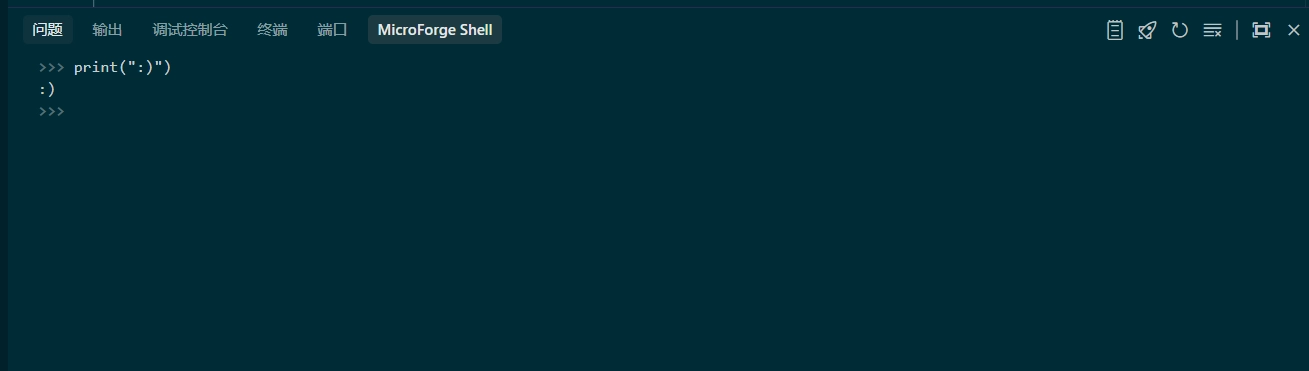
- Differential, zero-flicker line editor powered by xterm.js.
- Dynamic Theme Synchronization: Automatically adapts terminal colors to match VS Code light, dark, and high-contrast themes.
- Multi-Line Editing & Smart Paste: Paste multi-line snippets, functions, classes, or loops (
while True:) — automatically formatted, echoed, and executed cleanly on the device.
- History Persistence: Command history is preserved across editor tab switches and window reloads (
↑ / ↓ navigation).
- Standard Keyboard Shortcuts:
Ctrl+C: Copies selected text when a selection exists; sends KeyboardInterrupt to halt running code when no selection exists.Ctrl+Shift+C / Ctrl+Insert: Always copies selection.Ctrl+V / Ctrl+Shift+V / Shift+Insert: Pastes text from the system clipboard.
🔍 Hardware-Level Real-Time Autocompletion
- Press
Tab in the interactive Shell to query live completion candidates (modules, built-in functions, methods, and attributes) directly from the running MicroPython hardware environment.
🚀 One-Click Execution & Dynamic Run/Stop Toggle
- Run any focused device
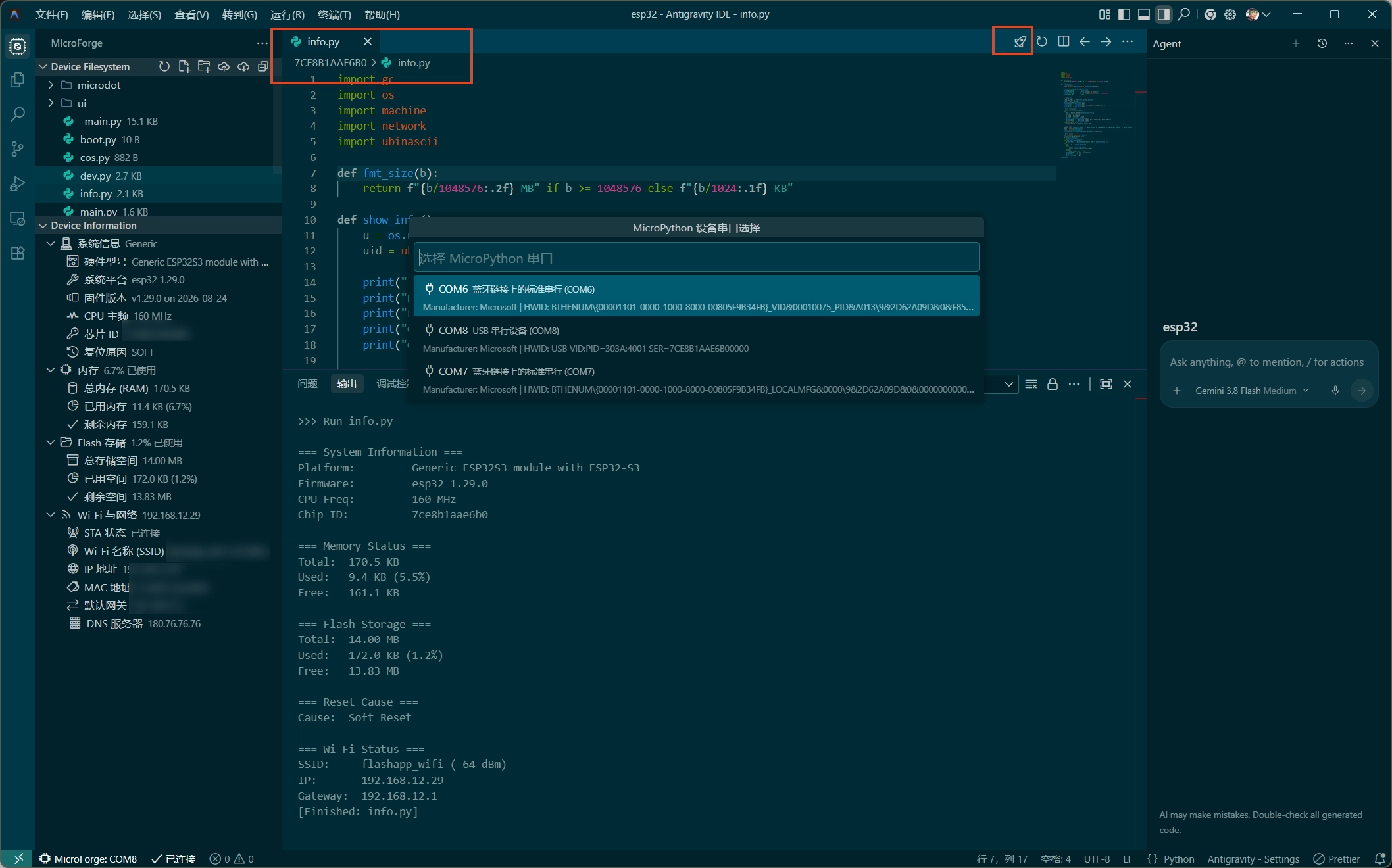
.py file with a single click from the editor title bar.
- Dynamic State Toggle: The editor title bar button automatically morphs from 🚀 Run on Device into 🛑 Stop Execution whenever a blocking script or infinite loop is executing.
- Real-Time Streaming Output: Output is streamed to the dedicated output channel at sub-millisecond latency.
🔌 Intelligent Serial Connection & Auto-Reconnect
- Automatic serial port scanning with hardware identity memory (VID, PID, and manufacturer tracking).
- Resilient background reconnection automatically restores the connection when the board is replugged or reset.
📦 Built-In MicroPython Type Stubs
- Bundled with 150+ MicroPython API stubs (ESP32, ESP8266, machine, network, uasyncio, bluetooth, and more) for accurate IntelliSense and syntax diagnostics in your workspace.
🚀 Getting Started
1. Prerequisites
Ensure Python 3 is installed on your system, along with pyserial and esptool:
pip install pyserial esptool
Tip: If python is not available in your system PATH, configure microforge.pythonPath in VS Code Settings.
2. Usage Workflow

- Initialize Project: Open your project folder in VS Code, open the MicroForge sidebar, and click "Init Project".
- Connect Device: Click the Port status bar item at the bottom or execute
MicroForge: Select Serial Port from the Command Palette (Ctrl+Shift+P).
- Manage Files & Device Info: Expand the Device Filesystem and Device Information tree views in the sidebar to browse device files, RAM/Flash usage, and network status.
- Run Code: Open any device
.py file and click the 🚀 Run on Device button at the top-right corner of the editor.
- Interactive Shell: Switch to the MicroForge Shell panel in the bottom dock for live REPL interaction, testing, and
Tab completion.
⚙️ Extension Settings
| Setting |
Type |
Default |
Description |
microforge.port |
string |
"" |
Serial port to connect (e.g., COM3, /dev/ttyUSB0) |
microforge.baudRate |
number |
115200 |
Serial communication baud rate |
microforge.pythonPath |
string |
"python" |
Path to the Python executable for the serial bridge backend |
microforge.autoConnect |
boolean |
true |
Automatically reconnect on startup when the port is detected |
microforge.autoFetchDeviceInfo |
boolean |
true |
Automatically query device information upon connection |
microforge.language |
string |
"auto" |
UI language for notifications and status (auto, en, zh-cn) |
⌨️ Commands & Shortcuts
| Command ID |
Title |
Description |
micropython.runCurrentFile |
MicroForge: Run on Device |
Execute the currently focused device Python file |
micropython.interrupt |
MicroForge: Stop Execution (Ctrl+C) |
Send KeyboardInterrupt to halt running code |
micropython.softReset |
MicroForge: Soft Reset (Ctrl+D) |
Soft-reboot the connected board |
micropython.selectPort |
MicroForge: Select Serial Port |
Scan available serial ports and connect |
micropython.initProject |
MicroForge: Init Project |
Initialize workspace configuration and API stubs |
micropython.clearRepl |
MicroForge: Clear Shell |
Clear the interactive Shell terminal buffer |
micropython.refreshFiles |
MicroForge: Refresh Device Files |
Refresh the on-device file tree |
micropython.refreshDeviceInfo |
MicroForge: Refresh Device Info |
Refresh hardware, RAM, Flash and Wi-Fi status |
🛠️ Development & Building
# 1. Install dependencies
pnpm install

# 2. Build production bundle and run test suite
pnpm run build
pnpm test

# 3. Package extension into VSIX
pnpm run package
📄 License
This extension is licensed under the MIT License.
| |

