CanMV for Visual Studio Code
Language: English | 中文
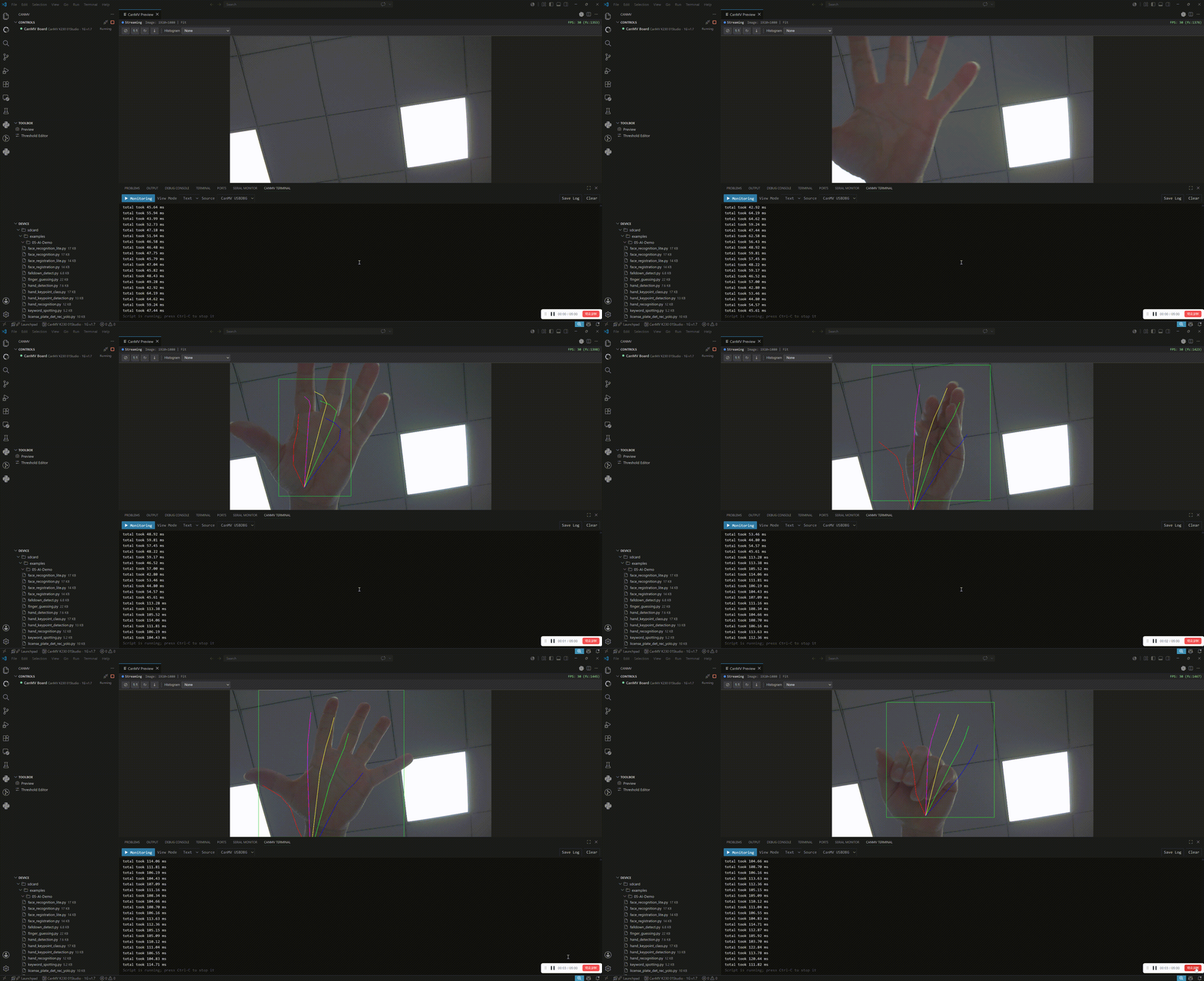
The CanMV for Visual Studio Code extension brings CanMV K230 board development into Visual Studio Code. It connects to the board through the bundled native backend, runs MicroPython scripts, streams camera frames, manages files on the device, and provides an integrated board terminal.


Features
- Connect and disconnect CanMV K230 boards from the CanMV activity bar or Command Palette.
- Auto-detect supported boards by USB VID/PID
1209:abd1.
- Use legacy and v2 board protocol support through backend capability negotiation.
- Run the active Python file on the board, stop a running script, or run a Python file directly from the device tree.
- Preview live IDE framebuffer images with fit/original-size modes, rotation, PNG capture, pixel RGB picking, ROI histogram sampling, video recording, FPS display, and RGB/grayscale/LAB/YUV histograms with hover readouts.
- Tune grayscale and LAB thresholds with the Threshold Editor, including image file loading, Frame Buffer capture, tuple copy, and selected tuple apply.
- Send virtual touch clicks from the preview when the connected firmware reports virtual touch support.
- Browse mounted device storage, including
/sdcard, /data, and /udisk.
- Create, rename, delete, upload, download, open, edit, and auto-sync remote files.
- Save the active editor directly as
/sdcard/main.py or /sdcard/boot.py, with optional minification before upload.
- Use the CanMV Terminal panel for board output, REPL input, Ctrl-C script interrupt, log clearing, and log export.
- Browse downloaded official CanMV examples, open examples as editable unsaved buffers, reveal them on disk, and run Python examples on the board.
- Expose a CanMV MCP server for compatible VS Code AI clients, with board detection, connection, script, terminal, remote filesystem, examples, and stubs tools.
- Resolve firmware resources through full commit-hash manifests, then configure matching K230 MicroPython stubs for Pylance and download matching examples.
- Inspect extension, backend, stubs, preview, and transfer logs in the
CanMV Output channel.
Requirements
- Visual Studio Code
1.90.0 or newer.
- A CanMV K230 board connected over USB.
- Pylance is installed automatically as an extension dependency for Python analysis.
- For source development, install Node.js/npm and Go.
Quick Start
- Connect a CanMV K230 board over USB.
- Open the Command Palette and run
CanMV: Connect Board.
- Open a Python file.
- Run
CanMV: Run Active Python Script from the Command Palette, the editor run button, or the editor context menu.
- Use the CanMV activity bar views for board status, tools, and device files.
- Open the Examples view to browse downloaded examples, or open the
CanMV Terminal panel to view output and enter REPL commands when no script is running.
Main Views
| View |
Location |
Purpose |
| Controls |
CanMV activity bar |
Shows connection state, board status, and script state. |
| Toolbox |
CanMV activity bar |
Opens extension tools such as Preview and Threshold Editor. |
| Device |
CanMV activity bar |
Browses and manages files on the connected board. |
| Examples |
CanMV activity bar |
Browses locally cached official examples and models downloaded for the current firmware resources. |
| CanMV Terminal |
Panel |
Shows board output and accepts REPL input when available. |
Common Workflows
Connect to a Board
Run CanMV: Connect Board. The extension starts the backend, detects the board, performs the board handshake, updates the status bar, refreshes the Device tree, and configures firmware-matched resources when possible.
On activation, the extension resolves firmware/latest and uses that firmware manifest to select default stubs and examples. After a board connects, it resolves firmware/<full-commit-hash>/manifest.json and switches to resources matching the connected firmware. If the exact manifest is unavailable, the extension falls back to the latest manifest and then to usable local caches.
The extension always auto-detects supported USB boards. When more than one board is found, select one from the device picker.
Run a Script
Open a Python file and run CanMV: Run Active Python Script. While a script is running, the terminal mirrors script output and the run button changes to stop. Use CanMV: Stop Script or press Ctrl-C in the CanMV Terminal to interrupt the script.
The editor context menu also includes CanMV: Run Active File on K230. For remote or mirrored files, this saves/syncs the file and runs the remote path. For ordinary local files, it sends the current editor contents directly to the board.
Preview Camera Frames
Open Preview from the Toolbox or run CanMV: Enable Preview. When the running script publishes IDE framebuffer data, the preview streams JPEG frames into a tool tab.
The Preview tool supports:
- Fit-to-window and original-size viewing.
- 90-degree rotation.
- Saving the current frame as PNG.
- Picking RGB pixel values from the current frame.
- FPS and frame count display.
- RGB, grayscale, LAB, and YUV histograms.
- Selecting an ROI rectangle so histograms are calculated from only that image region.
- Histogram hover readouts for inspecting bin values.
- Recording preview frames to video. The recorder saves MP4 when the VS Code webview runtime supports MP4 encoding and falls back to WebM otherwise.
- Virtual touch click forwarding when supported by the board firmware.
Preview starts automatically after a script begins when the Preview tool is open and preview is not manually disabled.
Tune Thresholds
Open Threshold Editor from the Toolbox or run CanMV: Threshold Editor. The editor can load a local image file or grab the current Frame Buffer/preview canvas image, then preview grayscale or LAB threshold results.
You can copy the generated tuple, or select an existing grayscale/LAB tuple in the active editor and apply the new value directly.
Manage Device Files
Open the Device view after connecting. Directories can be expanded, and files can be opened from the tree. Right-click a directory or mounted root to create files/folders, upload files, or upload a folder. Right-click files or folders to download, rename, or delete them.
Python files opened from the Device tree are mirrored into an extension-managed temp folder outside the current workspace. Saving a mirrored file syncs it back to the board automatically. The extension also updates python.analysis.extraPaths so Pylance can resolve imports from the mirror.
Browse Examples
Open the Examples view in the CanMV activity bar. The extension downloads examples from the same firmware manifest used for stubs and stores them locally. The view shows the active cached examples package, including examples/ and models/ content when present.
Opening an example creates an editable unsaved editor. This lets you experiment freely while keeping the downloaded cache unchanged; use Save As to write a copy into your workspace. Python example files can also be run directly on the connected board from the Examples tree.
Examples are cached under:
~/.kendryte/k230_canmv_examples/<examples-id>
Use CanMV: Refresh Examples to resolve the latest firmware resources and download examples when needed. Use CanMV: Reveal Examples to open the active examples cache in the OS file manager.
Save Startup Files
Use the editor context menu while connected:
CanMV: Save as main.py writes the active editor to /sdcard/main.py.CanMV: Save as boot.py writes the active editor to /sdcard/boot.py.
When canmv.autoMinifyStartupScripts is enabled (the default), startup-file saves minify the uploaded source: # comments, standalone triple-quoted comment blocks, blank lines, and trailing whitespace are removed. Strings used as values remain unchanged, and the active editor remains unchanged. Disable the setting to upload the source unchanged.
Use the Terminal
The CanMV Terminal panel keeps recent scrollback, mirrors board/script output, and accepts REPL input when the board is connected and no script is running. Terminal input is disabled while a script runs, except Ctrl-C, which requests a script stop. The terminal webview also supports clearing output and saving the log.
The extension starts one authenticated Streamable HTTP MCP service and contributes it to VS Code for GitHub Copilot. It also registers the same endpoint with detected Codex and Claude Code clients. On Windows, registration supports both native clients and clients installed in the default WSL distribution. When the Codex chatgpt.runCodexInWindowsSubsystemForLinux setting is enabled, the extension configures only that WSL Codex host instead of falling back to an unused native config. The extension verifies every managed registration and applies automatic updates silently without requesting a VS Code window reload. If the user disables the CanMV server in Codex, later endpoint refreshes preserve that disabled state. Disable canmv.mcp.autoConfigureClients to opt out, or run CanMV: Configure MCP for Codex and Claude to refresh the registrations manually and receive a completion notification. For another MCP-compatible agent on the same host, run CanMV: Show MCP Configuration for Other Agents to open live JSON and TOML connection examples. The examples contain the private bearer token and should not be shared.
The service uses a private bearer token stored in the extension's global storage and listens only on the host loopback interface; browser-origin requests are rejected. For a WSL client, the extension starts a loopback-only HTTP relay inside the selected distribution using the bundled native backend. The relay reuses a saved port for each WSL distribution and selects a new dynamic port only when that port is unavailable, avoiding routine Codex configuration rewrites. It accepts only /health and /mcp, carries requests to the Windows loopback service over private framed extension IPC, and performs an authenticated end-to-end health check through that same forwarding path before registration. The check runs inside the relay and does not depend on curl, wget, or another WSL shell. This avoids Windows inbound firewall, VPN, NAT, and mirrored-network dependencies while keeping the client-facing transport as Streamable HTTP rather than MCP stdio. WSL Codex configuration is read and written through wsl.exe, avoiding Windows Electron restrictions on \\wsl.localhost paths. Registration failures are reported directly in the CanMV output and never generate manual setup files or fall back to a different client host.
While the extension is active, the HTTP service uses an authenticated local bridge to route board operations through the extension's existing backend and session. Connections, disconnections, script state, terminal output, preview state, and device browsing therefore stay synchronized across the CanMV UI and MCP tools. If the bridge is unavailable when the service starts, it uses the bundled standalone backend. The server receives canmv.baudRate from the extension; MCP clients may also pass an explicit serial port to canmv_connect_board.
Board-facing MCP tools auto-connect when hardware access is needed and keep the board session alive for related follow-up calls, such as running a script, starting preview, and reading a frame. Shared extension sessions disconnect on canmv_disconnect_board or the normal CanMV UI command, not merely because an agent process exits. Standalone sessions also disconnect when the MCP client exits or after an idle timeout. Set CANMV_MCP_IDLE_DISCONNECT_MS to adjust the standalone timeout; the default is 120000 milliseconds.
When an AI workflow needs to save an image or downloaded artifact on the host, prefer the host-save tools instead of asking the MCP client to decode base64 text. canmv_save_latest_frame_to_host saves the current preview JPEG directly, canmv_download_file_to_host copies a remote board file to the host, and canmv_save_base64_to_host decodes base64 data returned by another tool. Relative output paths are written under CANMV_MCP_OUTPUT_DIR when set, or a temporary canmv-mcp output directory by default.
MCP capabilities include:
| Capability |
Tools |
Purpose |
| Extension and board analysis |
canmv_analyze_capabilities, canmv_resource_summary, canmv_resource_route_info, canmv_board_info, canmv_board_capabilities, canmv_firmware_info |
Let an AI client inspect available CanMV features, firmware/resource cache state, local script resources, and the connected board state. |
| Board connection |
canmv_detect_boards, canmv_connect_board, canmv_disconnect_board |
Detect and manage a board session from an AI workflow. |
| Script execution |
canmv_run_script, canmv_write_and_run_script, canmv_stop_script, canmv_script_running |
Generate, write, run, stop, and check MicroPython scripts while collecting terminal output. |
| Preview and visual feedback |
canmv_start_preview, canmv_get_latest_frame, canmv_save_latest_frame_to_host, canmv_stop_preview |
Start framebuffer streaming, return the latest JPEG frame as base64, or save it directly to the MCP host. |
| Virtual touch |
canmv_virtual_touch_status, canmv_virtual_touch_tap |
Query and send virtual touch taps to supported running scripts. |
| Terminal access |
canmv_terminal_input, canmv_terminal_output |
Send REPL input and read buffered board/script output. |
| Remote filesystem |
canmv_list_dir, canmv_stat_file, canmv_read_file, canmv_download_file_to_host, canmv_write_file, canmv_execute_file, canmv_save_main_py, canmv_save_boot_py, canmv_mkdir, canmv_rename, canmv_delete_file, canmv_rmdir |
Inspect, edit, create, download, execute, install startup files, and remove files on the board. |
| Host artifact saving |
canmv_save_base64_to_host, canmv_save_latest_frame_to_host, canmv_download_file_to_host |
Save preview images, remote board files, or base64 tool results to the filesystem where the MCP server is running. |
| Examples context |
canmv_examples_list, canmv_examples_search, canmv_examples_read |
Find and read cached official examples so generated scripts follow working CanMV patterns. |
| API stubs context |
canmv_stubs_list, canmv_stubs_search, canmv_stubs_read |
Find and read MicroPython .pyi definitions so generated scripts use accurate APIs and signatures. |
| MCP resources |
resources/list, resources/read |
Expose cached example and stub files as MCP resources for clients that prefer resource browsing over tool calls. |
| MCP prompts |
prompts/list, prompts/get |
Provide canned workflows for generating scripts, debugging errors, and iterating with preview frames. |
For best script generation, the MCP server instructs AI clients to call canmv_resource_summary, search/read relevant examples, and search/read relevant stubs before writing, saving, or running generated MicroPython code. This grounding step helps avoid scripts that use incorrect imports, outdated APIs, or signatures that do not match the connected CanMV firmware.
Commands
| Command |
Description |
CanMV: Connect Board |
Connect to a CanMV K230 board. |
CanMV: Disconnect Board |
Disconnect from the current board. |
CanMV: Configure MCP for Codex and Claude |
Register or refresh the CanMV MCP server in installed Codex and Claude Code clients. |
CanMV: Show MCP Configuration for Other Agents |
Open JSON and TOML connection settings for another MCP-compatible agent on the same host. |
CanMV: Run Active Python Script |
Run the active Python editor on the board. |
CanMV: Stop Script |
Stop the running script. |
CanMV: Enable Preview |
Enable/open live frame preview. |
CanMV: Disable Preview |
Stop live frame preview and keep it manually disabled. |
CanMV: Run Remote File |
Run a Python file selected in the Device tree. |
CanMV: Run Example File |
Run a Python file selected in the Examples tree. |
CanMV: Open Tool |
Pick and open a CanMV tool. |
CanMV: Threshold Editor |
Open the Threshold Editor tool. |
CanMV: Refresh Explorer |
Refresh the Device tree. |
CanMV: Refresh Examples |
Resolve and refresh cached examples. |
CanMV: Reveal Examples |
Reveal the examples cache in the OS file manager. |
CanMV: Open Example File |
Open a cached example as an editable unsaved buffer. |
CanMV: Run Active File on K230 |
Run the active editor through the K230 workflow. |
CanMV: Save as main.py |
Save the active editor to /sdcard/main.py. |
CanMV: Save as boot.py |
Save the active editor to /sdcard/boot.py. |
CanMV: New File |
Create a file in the selected remote directory. |
CanMV: New Folder |
Create a folder in the selected remote directory. |
CanMV: Upload Files... |
Upload one or more local files to the selected remote directory. |
CanMV: Upload Folder... |
Upload a local folder to the selected remote directory. |
CanMV: Download... |
Download the selected remote file or folder. |
CanMV: Rename |
Rename the selected remote item. |
CanMV: Delete |
Delete the selected remote item. |
Settings
| Setting |
Default |
Description |
canmv.baudRate |
12000000 |
Serial baud rate used to connect detected boards. |
canmv.autoReconnect |
true |
Automatically reconnect after an unexpected disconnect. |
canmv.autoMinifyStartupScripts |
true |
Minify /sdcard/main.py and /sdcard/boot.py before upload. |
canmv.stubsAutoDownload |
true |
Automatically download K230 MicroPython stubs and examples when needed. |
canmv.mcp.autoConfigureClients |
true |
Automatically register the CanMV MCP server with installed Codex and Claude Code clients. |
Firmware Resources, Examples, and Python Stubs
The extension resolves stubs and examples through firmware manifests published under:
https://download.kendryte.com/developer/tools/canmv_vscode_extension/
Resource routing starts from a firmware manifest:
firmware/latest
firmware/<full-40-character-commit-hash>/manifest.json
The manifest points to the matching stubs zip and examples zip. Stubs use the full firmware commit hash so Pylance can match the connected firmware exactly. Examples use a content hash ID because examples do not change on every firmware build.
Firmware route metadata is cached under:
~/.kendryte/k230_canmv_resources/firmware/latest
~/.kendryte/k230_canmv_resources/firmware/<revision>/manifest.json
Stubs are cached under:
~/.kendryte/k230_canmv_stubs/<revision>
Examples are cached under:
~/.kendryte/k230_canmv_examples/<examples-id>
On activation, the extension resolves the latest firmware resources, reuses local caches when available, and downloads missing stubs/examples when canmv.stubsAutoDownload is enabled. After a board connects, it switches to the exact firmware route when the board reports a full firmware commit hash.
The extension configures Pylance with an extension-managed python.analysis.stubPath overlay so CanMV MicroPython stubs take precedence over host Python modules with the same names. Existing user stub roots are folded into that overlay when possible, and python.analysis.extraPaths is still updated for the active stubs cache and mirrored board files.
Backend
The extension talks to the board through a bundled native Go backend:
extension/bin/<platform>/canmv-backend
extension/bin/<platform>/canmv-backend.exe
Supported package targets are:
linux-x64linux-arm64win32-x64win32-arm64darwin-x64darwin-arm64
For local troubleshooting, rebuild and stage the current-platform backend with ./scripts/stage-current-backend.sh.
Development
Install dependencies and compile the extension:
cd extension
npm install
npm run compile
Build and stage the backend for the current platform:
./scripts/stage-current-backend.sh
Package a VSIX with all supported backend binaries:
./scripts/package.sh
You can also package from the extension directory after compiling and staging a backend:
cd extension
npm run package:vsix
Troubleshooting
- Board is not detected: check board power, USB data cable, and serial permissions.
- Backend executable is missing: install a platform-specific extension package or build and stage the backend.
- Script output is missing: open the
CanMV Terminal panel and the CanMV Output channel.
- Preview is empty: make sure the running script publishes IDE framebuffer data.
- Preview stops updating: disable and re-enable Preview, or stop and restart the script.
- Remote file edits are not syncing: save the mirrored local file and check the
CanMV Output channel for transfer errors.
- Examples are missing: run
CanMV: Refresh Examples, connect once with auto-download enabled, and check the CanMV Output channel for resource download errors.
- Python completions are missing: confirm Pylance is installed, reload Visual Studio Code after stubs are configured, and check
python.analysis.stubPath plus python.analysis.extraPaths.
- File operations fail: refresh the Device tree and inspect the
CanMV Output channel.
Repository

