Git Scope Explorer
A file explorer scoped to what you're actually working on — only the directories and files touched by git status.






The default file explorer shows your whole project. Git Scope Explorer shows only the
paths with changes, so you can browse, open, and edit inside your active work without
scrolling past hundreds of untouched files. It works in VS Code and Cursor, and ships
with a standalone Neovim module.
Features
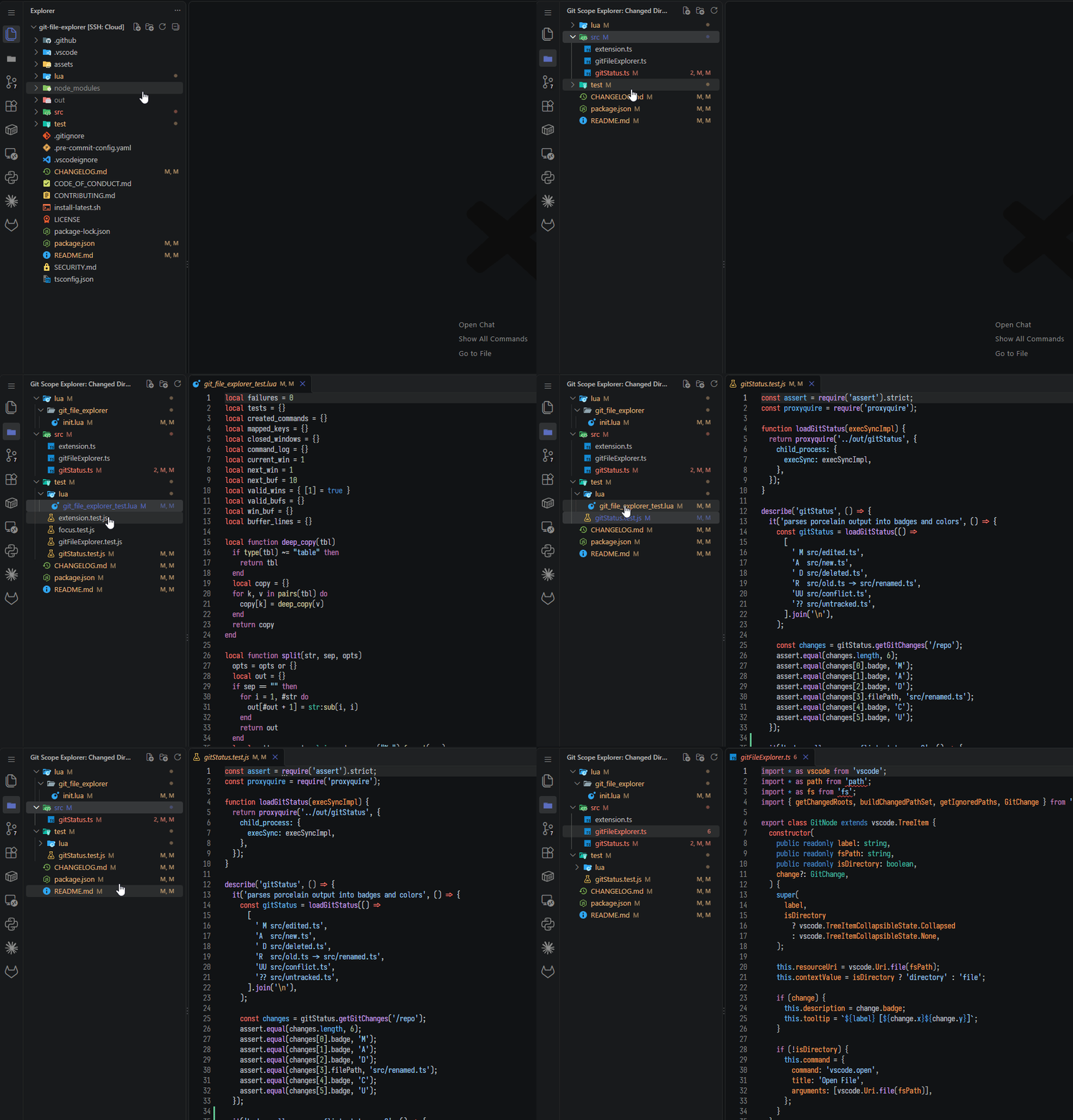
- Changed-only tree — a dedicated Git Scope Explorer activity bar view listing
just the top-level directories and files with git changes.
- Git status badges — every entry shows its state with native theme colors.
- Hide unchanged files — focus a changed directory to collapse it to only the files
with changes; restore the full tree at any time.
- Inline file actions — New File, New Folder, Rename, and Delete (with confirmation)
from the tree context menu.
- Drag and drop — move files and folders within the tree.
- Automatic refresh — the view updates when the git index changes (stage, unstage,
commit) or when files are created or deleted.
- Neovim module — the same changed-scoped explorer for Neovim at
lua/git_file_explorer/init.lua.
Status badges
| Badge |
Meaning |
M |
Modified |
A |
Added |
D |
Deleted |
U |
Untracked |
R |
Renamed |
C |
Conflict |
Hovering an item shows the staged and unstaged status detail.
Installation
VS Code / Cursor
Install from the marketplace:
Or from inside the editor: open the Extensions view, search for Git Scope Explorer,
and click Install.
From a VSIX
# Download the latest .vsix from the releases page, then:
code --install-extension git-scope-explorer-*.vsix
A helper script install-latest.sh is included to fetch and install the latest release.
Usage (VS Code)
- Open a git repository.
- Click the Git Scope Explorer icon in the activity bar.
- Browse the Changed Directories tree.
Activation is automatic when a .git directory exists in the workspace.
- Click a file to open it.
- Right-click an entry for New File, New Folder, Rename, and Delete.
- Right-click a changed directory and choose Hide Unchanged Files to focus it;
choose Show All Files to restore the full tree.
- Drag entries within the tree to move them.
Keybindings (VS Code)
Active when the Git Scope Explorer tree has focus:
| Key |
Action |
a |
New file |
Shift+A |
New folder |
r |
Rename |
d |
Delete |
Shift+R |
Refresh |
File opening and folder expand/collapse use the editor's native tree controls
(Enter, arrow keys, click).
Neovim
The Neovim module provides the same changed-scoped explorer, independent of VS Code.
Install (lazy.nvim)
Create ~/.config/nvim/lua/plugins/git-scope-explorer.lua:
return {
  {
    "Kandeel4411/git-file-explorer",
    lazy = true,
    cmd = { "GitScope" },
    keys = {
      {
        "gs",
        function()
          vim.cmd("GitScope")
        end,
        desc = "Git Scope Explorer",
        mode = "n",
      },
    },
    config = function()
      require("git_file_explorer").setup()
    end,
  },
}
Then run :Lazy sync and restart Neovim.
Usage
- Run
:GitScope in any git repo. The panel opens in a left split; run it again to close.
- Press
s on a file or directory to stage it, and s again to unstage.
Keymaps (Neovim)
| Key |
Action |
<CR> |
Open file / toggle folder |
l |
Expand folder |
h |
Collapse folder |
/ |
Filter by name |
a |
New file |
A |
New folder |
r |
Rename |
s |
Stage / unstage |
d |
Delete |
R |
Refresh |
H |
Toggle unchanged files |
D |
Toggle diff view |
q |
Close the window |
By default the Neovim explorer hides unchanged files, showing only git-changed files
and the directories that contain them (the title shows [changed]). When the window
opens, directories that contain changes start expanded so changed files are visible
immediately; collapse or expand them afterwards with h, l, or Enter. Press H
to toggle the full tree on and off.
Diff view (experimental)
Experimental: behavior and defaults may change in future releases.
Press D to toggle diff view (the title shows [diff]). While it is on, selecting a
file opens a side-by-side diff instead of the plain file — the committed HEAD version
on the left, your working copy on the right, both in Neovim's native diff mode — so you
can review changes the way you would in VS Code. Files with no committed version
(untracked or newly added) show an empty left pane. Opening another file replaces the
current diff rather than stacking more split windows. Press D again to return to
opening files normally.
Keymaps and behavior are configurable — pass options to setup():
require("git_file_explorer").setup({
  show_unchanged = false, -- default; set true to show the whole tree
  keymaps = {
    toggle_unchanged = "H",
    toggle_diff = "D",
    -- ...override any other key
  },
})
Requirements
- VS Code
1.85.0 or later (also works in Cursor)
- Git available on your
PATH
- Neovim module: Neovim
0.9 or later
Development
npm install
npm run compile      # one-off build
npm run watch        # rebuild on change
npm test             # run Lua + JS tests
npm run package      # build the .vsix
Press F5 in VS Code to launch an Extension Development Host.
Contributing
Contributions are welcome. See CONTRIBUTING.md for the workflow and
hook setup, and the Code of Conduct.
Quick start:
pip install pre-commit
pre-commit install
npm test
pre-commit run -a
Security
To report a vulnerability, see SECURITY.md.
License
MIT

